Installing WordPress shouldn’t be intimidating, but it often feels that way.
If you just logged into your GoDaddy account and thought, “This looks more complicated than I expected,” you’re in the right place.
We’ll show you exactly how to install WordPress on GoDaddy, step by step, so you can start building your site today.
To install WordPress on GoDaddy, use the simple setup wizard for Managed plans or the one-click application installer in cPanel for Web Hosting. Once your site is live, install a backup plugin immediately so you always have a reliable restore point.
Identify your GoDaddy hosting type
How you install WordPress on GoDaddy depends entirely on the type of hosting you bought.
Log in to your GoDaddy account and head to the My Products page. The plan you purchased determines your next step:
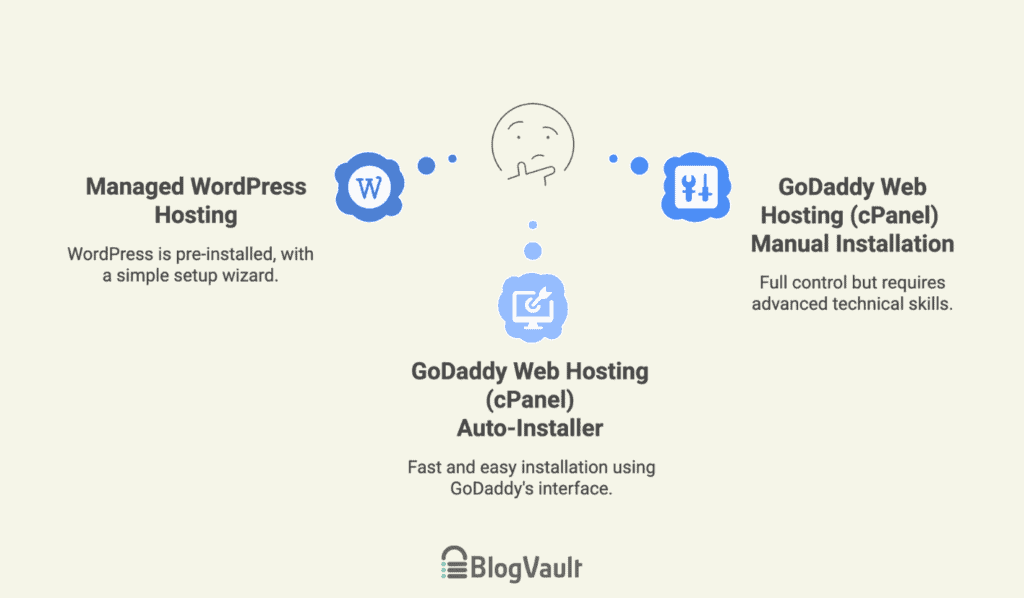
- If you bought Managed WordPress, follow the automated setup wizard.
- If you bought Web Hosting, use the cPanel application installer.
How to install WordPress on GoDaddy
With your hosting type identified, the installation process can begin. The initial steps are the same for everyone.
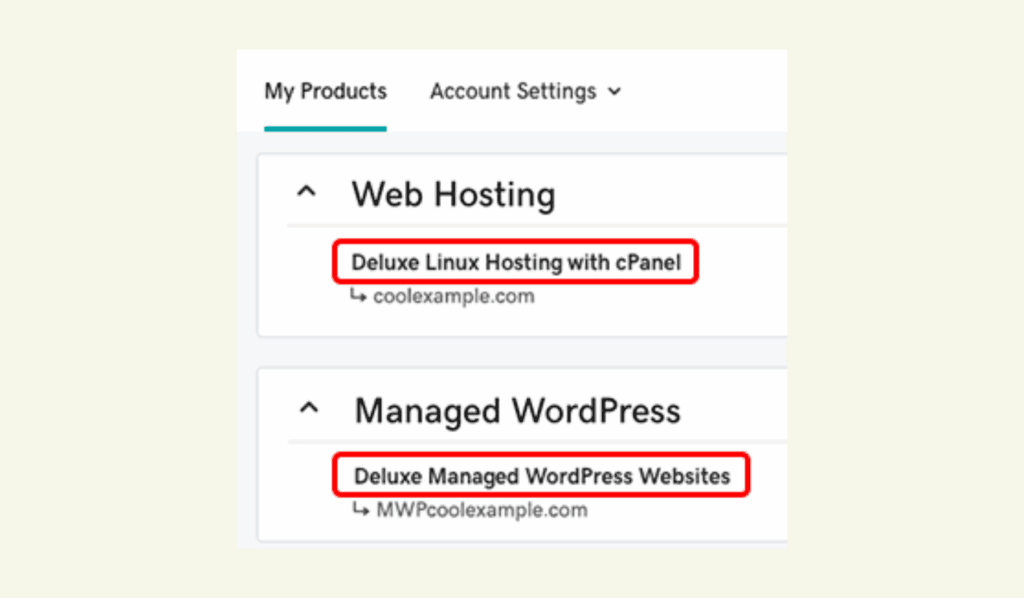
- Sign in & navigate to products: Log in to your GoDaddy account and make your way to the My Products page.
- Manage your plan: Find your specific hosting plan and click the Manage button next to it.
From here, your path splits.
Option A: Managed WordPress Hosting
With this plan, WordPress is already installed for you. To begin, launch the simple setup wizard, which usually starts automatically after your purchase. If it doesn’t, just click the Create WP Site button in your product dashboard to get started.
The wizard will guide you through a few final steps to configure your site:
- Choose how to start: You’ll first be asked if you want to build a brand new website or move an existing WordPress site. Select the option that applies to you.
- Connect your domain: Choose your domain name from the list when prompted.
- Select a data center: Pick the geographic location closest to your primary audience for better site speed.
- Create your admin login: Set a secure WordPress username and password. Remember to avoid using “admin” for security purposes. Confirm your choices to finalize the setup. Once that’s done, you’re good to go.
After a few moments, you’ll be directed straight to your new WordPress dashboard.
Option B: GoDaddy Web Hosting (cPanel)
For cPanel plans, you will use GoDaddy’s application installer to set up WordPress. This is a guided process that handles the technical details for you. The alternative is a manual installation, which is only recommended for advanced users who require specific configurations.
Method 1: Using the auto-installer (recommended)
This method is the fastest and uses GoDaddy’s specific interface, requiring no technical expertise.
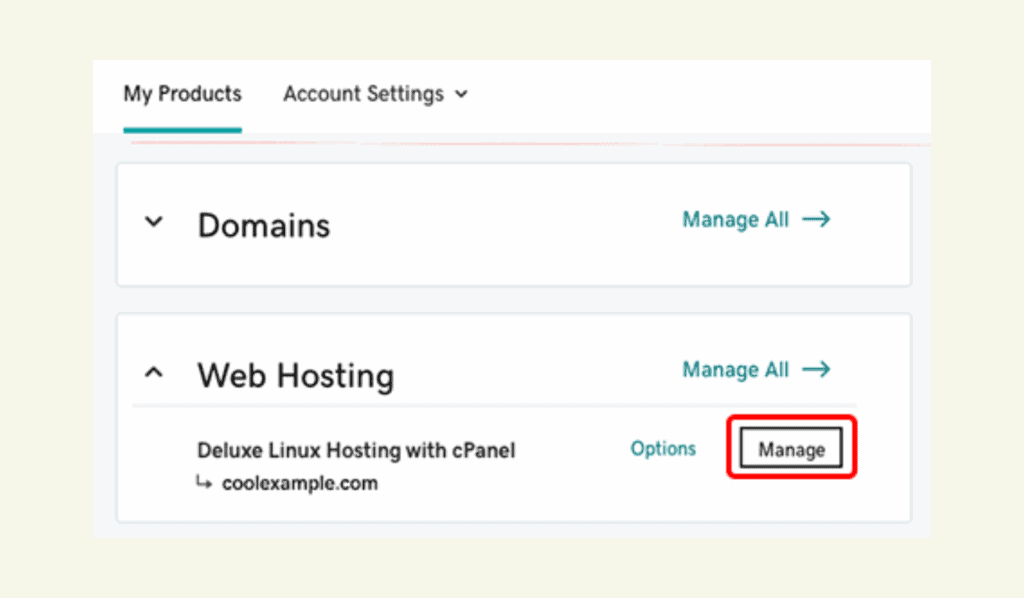
- Launch the installer: From your GoDaddy Product Page, navigate to Web Hosting > Manage, and click Install Application under your domain. In the Apps for Content Management area, select WordPress blog and then click + install this application.
- Configure key details: Select your domain name and leave the Directory field blank. Then, enter your own admin Username, Password, and Email.
- Finish the installation: Keep the other settings on their recommended defaults and click the Install button to complete the setup. Once live, your first task should be to set up a robust backup strategy before you make any changes.
Method 2: Manual installation (advanced)
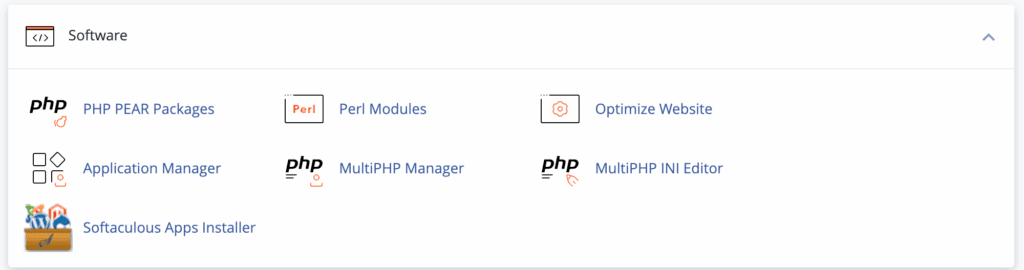
This approach provides full control and is intended for advanced users who need specific configurations.
To install WordPress manually via cPanel, you will perform each step yourself: downloading the core files, creating a MySQL database, uploading the files to your server, and manually editing the wp-config.php file to connect everything. It offers maximum control but has a much higher margin for error.
Essential post-installation steps
Once WordPress is installed, take a few minutes to configure these essential settings immediately.
- Configure your domain (if needed): If you use a domain from an external registrar, update its nameserver settings at that registrar to point to GoDaddy’s hosting DNS records.

- Enable SSL/HTTPS: Ensure your site runs securely. Managed plans often auto-enable this, but for cPanel, you may need to activate the SSL certificate in your hosting dashboard.
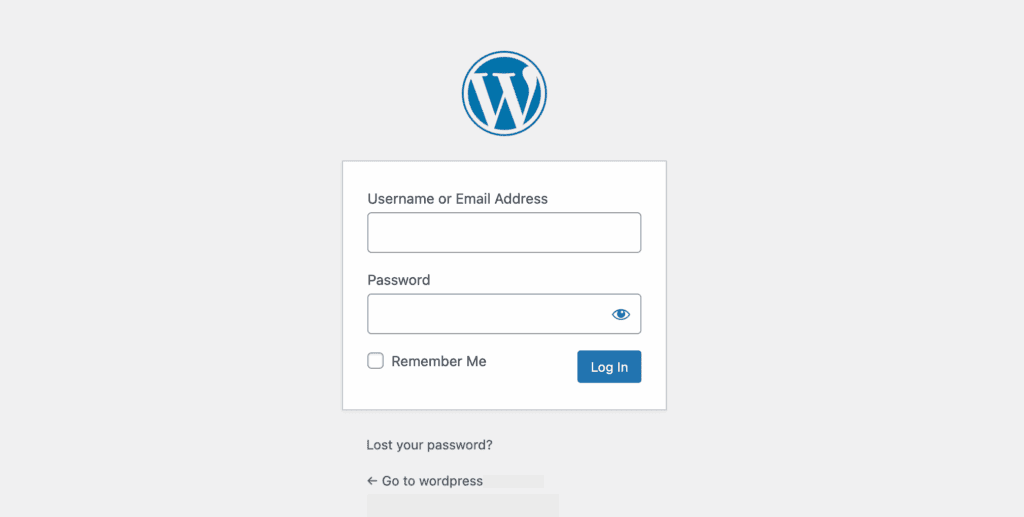
- Check your new site: Make sure everything is working as expected by logging into your dashboard. You can access it by going to
yourdomain.com/wp-adminand using the credentials you created during setup.

- Update site title and tagline: Go to Settings > General in your WordPress dashboard and set your official site title and a brief tagline.

- Set your permalink structure: Navigate to Settings > Permalinks and select the Post name option for clean, SEO-friendly URLs. This is also the fix for broken links; simply clicking Save Changes on this page rebuilds your site’s URL rules.
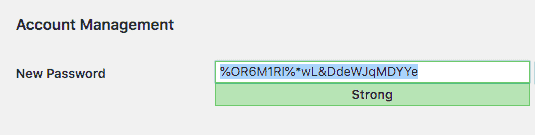
- Strengthen your passwords: As a critical security measure, ensure your password is long and complex. You can update it by navigating to the Users section within your WordPress dashboard settings.
Troubleshooting common issues
Ran into an error? Here are the quick solutions to the most common installation problems:
Error Establishing Database Connection
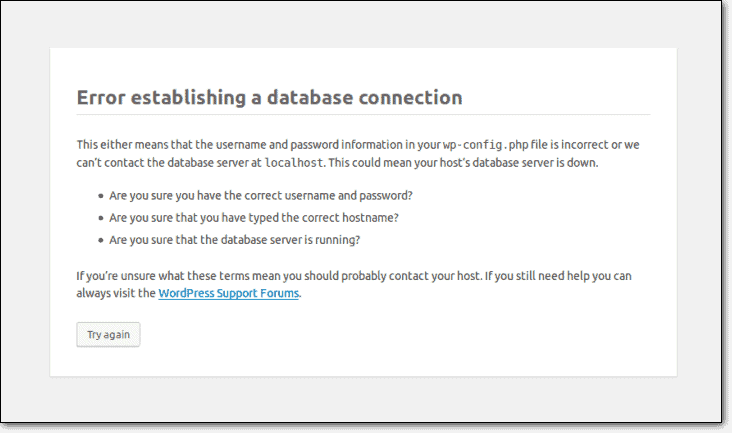
This error almost always means the credentials in your wp-config.php file are incorrect. Use cPanel’s File Manager to open the file and carefully check that the database name (DB_NAME), username (DB_USER), and password (DB_PASSWORD) exactly match the ones you set up in the MySQL Databases tool.
Can’t log in to the WordPress admin dashboard

First, try using the Lost your password? link on the WordPress login screen (yourdomain.com/wp-admin). If that doesn’t work, you can force a password reset by logging into your GoDaddy cPanel and using the WordPress Toolkit to set a new password for your admin account.
My domain shows a GoDaddy “Coming Soon” page
This happens when your domain’s nameservers are not pointed correctly to your hosting account. You must find GoDaddy’s nameservers in your hosting details and enter them at your domain registrar’s website. Note that this change can take 24 to 48 hours to propagate across the internet.
Critical site maintenance practices
Installing your site is just the beginning. Proper maintenance is essential for security, speed, and reliability.
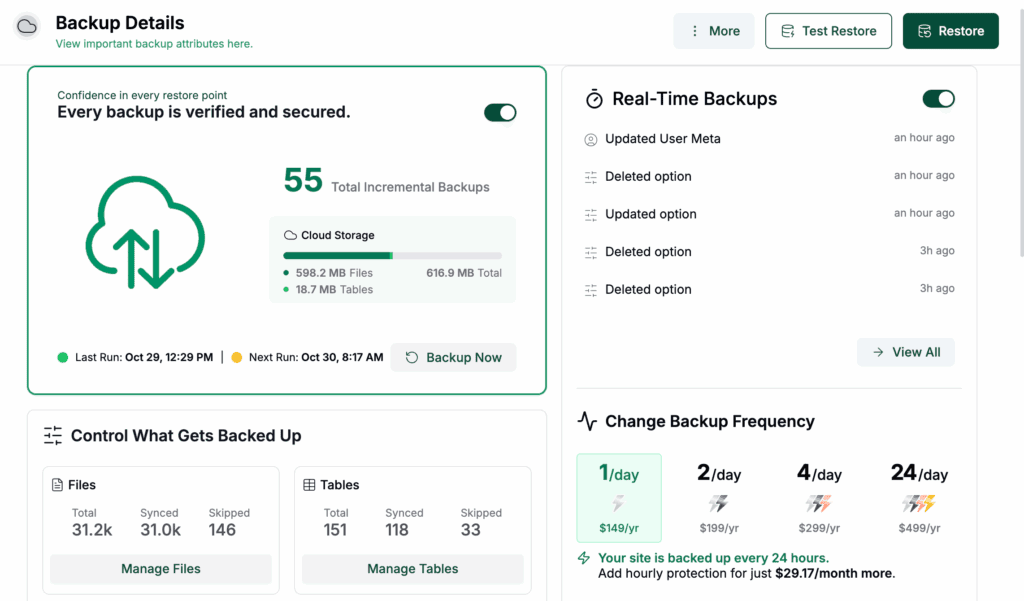
Perform regular backups: Your website data and database are invaluable. Use a reliable backup plugin to schedule automatic daily or weekly backups. A complete backup is your safety net against server failures, hacking, or update errors.
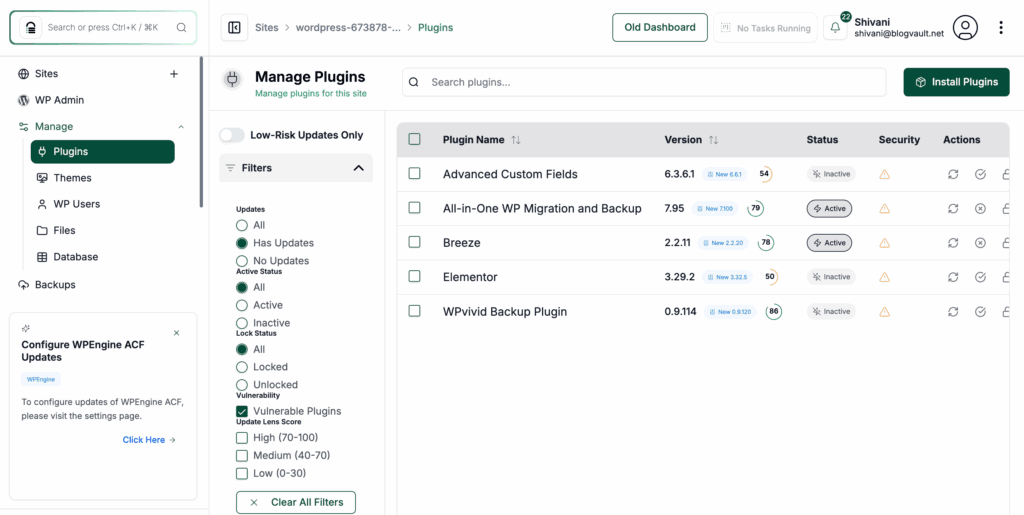
Keep WordPress updated: Regularly update the WordPress core software, as well as all of your themes and plugins. These updates often contain critical security patches that protect your site from known vulnerabilities.
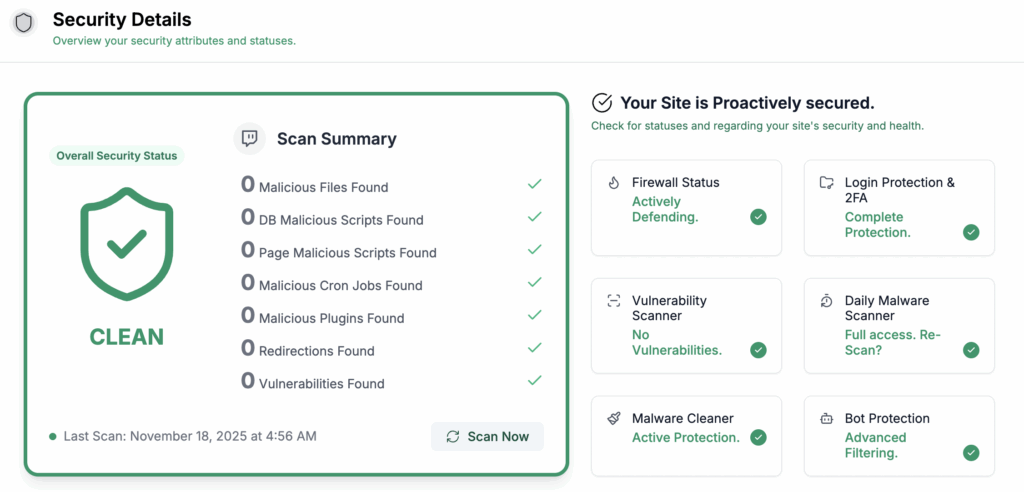
Install a security plugin: Use a reputable plugin to perform regular security scans and monitor for suspicious activity. This, combined with strong, unique passwords and multi-factor authentication (MFA) for all user accounts, forms the foundation of your site’s security.
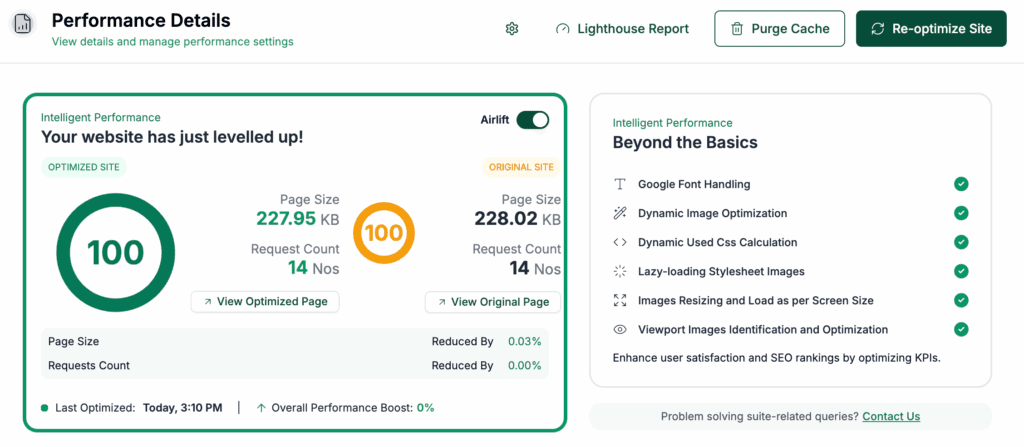
Install a speed optimization plugin: Use a reputable caching plugin to dramatically improve your site’s loading times. Beyond plugins, a foundational performance practice is to periodically review and delete any themes and plugins you are not using, as unused code can slow down your site and create security loopholes.
Parting thoughts
With WordPress installed, that GoDaddy dashboard probably doesn’t seem so complicated anymore. You’ve built a solid foundation, and now the focus shifts from setup to ownership.
Making those maintenance practices a regular habit is the best way to protect all your hard work, so you can keep building your site with confidence.
FAQs
Can I use WordPress in GoDaddy?
Yes, you can absolutely use WordPress on GoDaddy. They offer both standard web hosting and specialized Managed WordPress plans designed for it.
How to connect GoDaddy to WordPress?
You can connect GoDaddy to WordPress by installing the WordPress software onto your hosting account. This is either done for you on Managed plans or via a simple installer on cPanel hosting.
How to access WordPress in GoDaddy?
You can access your WordPress site’s dashboard by navigating to yourdomain.com/wp-admin in your browser. For hosting settings, you log into your main GoDaddy account dashboard.
Is GoDaddy good for WordPress?
GoDaddy is a solid choice for beginners because its setup process is very straightforward. Advanced users, however, might find better performance and features with other hosting providers.
What are the disadvantages of GoDaddy?
The primary disadvantages of GoDaddy are its high renewal rates after the initial discount period and frequent upselling. Some users also report slower performance on their basic shared hosting plans.
Can I use WordPress with my own domain?
Yes, you can use WordPress with any domain name you own, no matter where it was purchased. You just need to point that domain’s nameservers to your GoDaddy hosting account.
Which hosting is best for a website?
The best hosting for a website depends entirely on your needs, budget, and technical comfort level. Managed hosting is great for simplicity, while VPS hosting offers more power for growing sites.

Shivani enjoys crafting guides that make every aspect of using WordPress simple and easy to follow. When she's not glued to her laptop, you can find her buried in a good book or occasionally, painting.