

You’ve created a site you’re proud of with Squarespace, but now you’re feeling confined by its limitations. Every time you try to add a simple feature, you hit a wall. The monthly fees are piling up, and your site’s potential is stifled.
After some research, you’ve concluded that WordPress is the right fit for you and your site’s needs. It offers the flexibility to bring your vision to life.
With endless customization options and powerful plugins, moving to WordPress the ideal solution. Migrating your site from Squarespace to WordPress is easier than you think. With the help of this article, you’ll get your site up and running on a new platform with ease in no time.
Moving from Squarespace to WordPress gives you more control and customization options. Once you move, consider enhancing your site with plugins such as BlogVault for backups, MalCare for security, and more.
Why migrate from Squarespace to WordPress

When you compare WordPress to Squarespace, you will see that WordPress offers unparalleled design and functionality freedom that Squarespace simply cannot match,outperforming most WordPress alternatives.
You’re not limited to just a handful of template options. Instead, you get access to thousands of plugins (many completely free) that don’t just change how your site looks—they add entirely new features and capabilities that transform what your website can do.
Beyond this, the platform offers excellent SEO control with the help of plugins. This makes it easier for people to find your site through search engines. This improved visibility translates directly into more visitors and potential customers for your business.
What sets WordPress apart is how it adapts to your unique needs rather than forcing you to work within rigid limitations. The platform scales effortlessly whether you’re running a simple blog or managing a complex online store with thousands of products.
Most importantly, you maintain complete ownership of your website and data. This control protects your investment and ensures you’re never locked into a platform that doesn’t serve your evolving needs.
Preparing for migration
List your content: Start by compiling a list of all your blog posts, pages, images, and features. This ensures everything important is included in the migration.
Choose your hosting: Select a WordPress hosting provider that suits your needs. Options like WordPress.com, Cloudways, SiteGround, or Bluehost offer simple one-click installations to help you get started quickly.
Squarespace export limitations
Understand what will transfer and what won’t. You can export:
- Blog content as an xml file.
- One blog page with posts and up to 1,000 comments.
- Static pages and text blocks.
- Images as links.
However, you can’t export:
- Store pages and e-commerce features.
- Album pages and specialized layouts.
- Custom CSS, design settings, and multiple blog pages.
- Header, footer, and navigation items.
Lastly, keep your Squarespace site active during the migration. If it’s expired, reactivating it ensures a smooth export and prevents broken links or missing content.
Migrating your site from Squarespace to WordPress
Switching your website from platforms might seem like a big task, but it really isn’t. With a bit of patience and this guide, you’ll have your new site up and running in no time. Here’s how to go about it:
Export content from Squarespace
1) Navigate to the export section: Start by logging into your Squarespace account. Next, navigate to Settings, then the Import & Export Content section.

2) Export your site: Click on EXPORT and choose the WordPress icon. This will create an .xml file that has all your site’s content. Once it’s ready, download this file to your computer.


Import content to WordPress
3) Log in to WordPress: Using your chosen web host, install WordPress with their one-click installation feature and open your WordPress dashboard by logging in.

4) Navigate to the Import tool: Go to Tools and click on Import. You’ll see an option for WordPress—click that, then install now.


5) Run the importer: After installation, run the importer and upload the .xml file you downloaded from Squarespace. Next, click the Upload file and import button.


6) Assign authors: Decide who will be listed as the author for these posts—either you or someone else. You can add existing users or create new ones. Once done, hit the submit button.


Address image transfer issues
Squarespace doesn’t transfer images directly, leaving you with just image links. Install a plugin like Auto Upload Images that automatically downloads images from your old Squarespace site and adds them to your WordPress Media Library.

Recreate your page layouts
Your Squarespace layout pages won’t transfer with the same visual structure. You’ll need to manually recreate these pages using WordPress blocks or your chosen theme’s layout options.
Review your original Squarespace site and rebuild important pages like your About page, Contact page, and any custom landing pages. Focus on matching the content and general structure rather than creating pixel-perfect copies.
Add content that didn’t export
Remember that store pages, custom CSS, and specialized content elements don’t transfer automatically. You’ll need to recreate these elements in WordPress manually. If you had an online store, consider installing WooCommerce to rebuild your product catalog.
Copy any custom CSS from your Squarespace site and paste it into the Additional CSS section found in the WordPress Customizer for your theme. You can do this once you activate your preferred theme.
Set up your WordPress site
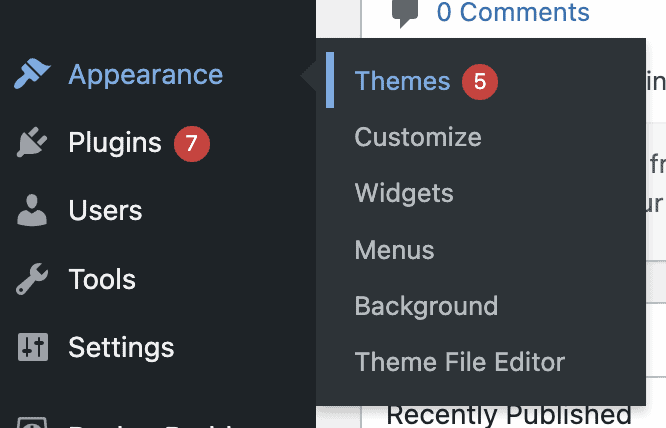
Choose and activate a theme by navigating to Appearance > Themes in your WordPress dashboard, select one that fits your style, and customize it to match your brand.
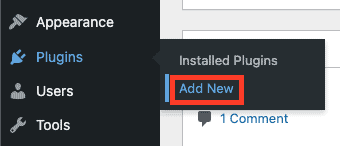
Next, install essential plugins by going to Plugins > Add New, focusing on additional functionalities.
Post-migration tasks
Your content is now on WordPress, but several important tasks remain to ensure your site functions perfectly and maintains your search engine rankings.
Test everything thoroughly
Review each page on your WordPress site: test navigation menus, contact forms, image displays, text formatting, and ensure all internal and external links are functioning correctly.
Point your domain to WordPress
As your domain is linked to Squarespace, update it to direct visitors to your new WordPress site. Log in to your domain registrar’s control panel and change the DNS settings to the nameservers or IP addresses provided by your WordPress host.
Keep in mind that updating your domain settings so everyone sees your new site might take 24-48 hours. During this time, some visitors may still see your old website.
Configure essential settings
Navigate to Settings > Permalinks in your WordPress dashboard and choose a URL structure that makes sense for your content.
Many sites work well with the Post name option, which creates clean URLs like yoursite.com/your-post-title. Save your permalink settings to ensure WordPress generates the proper URL structure.
Set up redirects from old URLs
Your Squarespace URLs likely differ from your new WordPress URLs. Install a redirect plugin like Redirection to create 301 redirects that automatically send visitors from old Squarespace URLs to the corresponding WordPress pages. This step preserves your search engine rankings and ensures bookmarked links still work.
Old URL: yoursite.squarespace.com/blog/your-post
New URL: yoursite.com/your-post
Optimize for search engines
Install an SEO plugin like Yoast SEO or RankMath to help optimize your content for search engines. These plugins guide you through setting up proper meta titles, descriptions, and other SEO elements that help your pages rank better in search results.
Implement backup and security
Set up automatic backups using a backup plugin like Blogvault, which can save your site files and database to cloud storage services. Install a security plugin like MalCare to protect against malware and hacking attempts. Configure these plugins to run automatically so you don’t have to remember to perform these tasks manually.


Schedule regular maintenance
Plan to update your WordPress installation, themes, and plugins regularly. Most hosting providers offer automatic WordPress core updates, but you should manually check for theme and plugin updates monthly. These updates provide security patches, bug fixes, and new features that keep your site running smoothly.
Parting thoughts
Moving from Squarespace to WordPress opens up a world of possibilities that simply weren’t available before. You now have complete control over your website’s design, functionality, and growth potential, along with access to thousands of plugins and themes that can transform your site into exactly what you envisioned.
The migration process requires careful planning and attention to detail, but the results justify the effort. With proper preparation, thorough testing, and consistent maintenance, your WordPress site will outperform your old Squarespace site in flexibility, customization options, and long-term scalability.If you are curious about migrating from other platforms like Blogger or Wix, be sure to check out our complete library of migration guides to ensure a seamless transition for any website you manage.
FAQs
Can I transfer my website from Squarespace to WordPress?
Yes, you can transfer your website from Squarespace to WordPress by exporting content like pages and posts. After exporting, you’ll need to import this content into WordPress and manually adjust the design and layout as needed.
Can I transfer my existing website to WordPress?
Yes, transferring your existing website to WordPress is possible using the built-in import/export tools. You’ll need to migrate content, set up redirects, and rebuild any custom designs on WordPress.
Can I move my website from Squarespace?
Yes, you can move your website from Squarespace by exporting content to any other platform by setting up a new hosting provider. Rebuild the design and ensure all features function correctly on your new platform.
Is Squarespace better than WordPress?
Squarespace is generally easier for beginners, offering built-in features, while WordPress provides greater flexibility and customization. The better choice depends on your specific needs and technical comfort level.

Shivani enjoys crafting guides that make every aspect of using WordPress simple and easy to follow. When she's not glued to her laptop, you can find her buried in a good book or occasionally, painting.


