Moving your WordPress site to a new location can feel overwhelming, especially if you’re worried about losing everything with one wrong move.
If technology isn’t your strong suit, the thought of switching hosts, moving from a local site, or moving to WordPress from another platform might leave you feeling anxious.
However, the import WordPress site process doesn’t need to be stressful. We have crafted this guide, using our experience with WordPress imports and exports, to provide a simple, step-by-step process.
Import your WordPress site by exporting content, themes, and settings, followed by a smooth transition to a new server. Once you’ve successfully imported your site, enhance its functionality with a WordPress migration plugin and other essential tools for backup and security to safeguard your site against potential issues.
Preparing for a WordPress site import
Before you move your site, you need to protect what you’ve built. This preparation phase is your safety net against potential issues.
- Take a complete backup of your current site. This includes everything: posts, pages, images, theme settings, and all the data that makes your site work.
- Download your backup to your computer immediately. Don’t rely only on cloud storage. Having a local copy gives you direct control and peace of mind.
- Write down all your login information. You’ll need credentials for both your old site and the new destination.
- Make sure your destination site is ready. WordPress should be installed and properly configured on your new host before you start importing.
- Test that your backup has everything you need. Quickly check that your most important pages, recent posts, and key images are all included. It’s much easier to fix missing content now than after you’ve started the import process.
A) Import WordPress site from managed to semi/self-managed hosting
Moving from managed hosting to a self-hosted environment gives you more control over your WordPress site. You’ll have access to more customization options, plugins, and tools that managed hosts often restrict. You have two main approaches for this transition:
Method 1: Import content only
This method transfers your posts, pages, and other content but leaves behind themes, plugins, and settings.
Export your content
- Log in to your current WordPress dashboard
- Navigate to Tools and then Export

- Under Choose what to export, select All content, and download the XML file

Import to your new site
- On your destination site WordPress dashboard, navigate to Tools and then Import

- Select WordPress and install the importer if needed
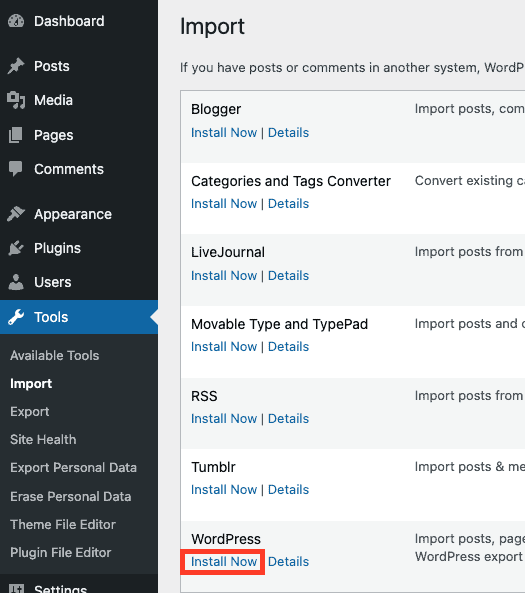
- Run the importer and upload your XML file.

- Next, you will have to assign authors for the imported content

Once you’re done importing, you’ll need to reinstall your themes and plugins manually, then adjust all your settings to match your previous setup.
Method 2: Full site migration using a plugin
This method transfers everything: content, themes, plugins, and settings. You can pick a migration plugin of your choice. For this article, we will be using Migrate Guru.
- Install the Migrate Guru plugin on your current and destination sites

- Select the host you are migrating to. If your host isn’t listed, just pick Other Hosts

- You can either use the migration key from your destination site or manually input your new host details

- Once done, click Migrate and let the plugin handle the entire transfer
The plugin method saves significant time since you won’t need to manually recreate your site’s appearance and functionality.
B) Import WordPress site from another CMS
Transitioning to WordPress from another platform offers endless possibilities.The same approach applies if you’re planning to migrate a WooCommerce site from another platform to WordPress.
Fortunately, many platforms simplify the process, making it easy to bring your content along.
Export your content
- Find your platform’s export feature. Look for options like export, backup, or download content in your current platform’s settings or tools section
- Export all your content. Create a downloadable file containing all your posts, pages, and other content (most platforms create XML files, though some use different file types)
- Download and save your export file. Save it to your computer and keep a backup copy
Import to your new site
- Look for your CMS importer tool. Navigate to Tools and Import in your WordPress dashboard. If the importer you need isn’t listed, search the plugin directory to see if an importer is available.

- Install and run the importer. Once you find the right plugin, install and run it
- Upload your exported file. Use the import feature to upload your content file and follow the step-by-step instructions
- Assign content authors. Create new user accounts or assign existing authors to the imported content during the process
Once the import is done, review transferred content for issues, install themes and plugins, and test all features to ensure smooth functionality before going live.
C) Import a WordPress site from a local environment
Transferring WordPress site from a local environment to a server can seem daunting, yet it’s a standard procedure accomplished by developers daily. Here’s how to go about it:
Export your content
We’ll be using Local by Flywheel as our local environment, but the process is similar for other setups as well.
- In Local by Flywheel, right-click on your site and select Export to create a zip file with all necessary components.


- Extract your zip file. On Windows, right-click the file and choose Extract All. On Mac, double-click the file to unzip it.
Import to your site
You will now have to upload your site files using FTP. You can use an FTP client like FileZilla
- Enter the FTP credentials your hosting provider gave you

- Find your server’s WordPress directory (usually called public_html or www)
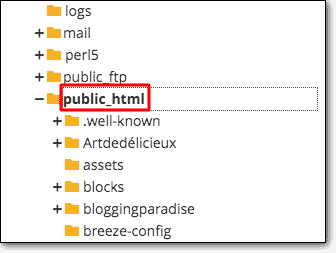
- Upload the wp-content folder from your extracted files to replace the existing one on your server
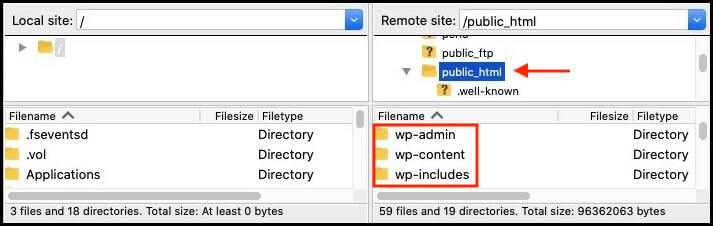
This transfers your themes, plugins, and all your uploaded media files. But you still need to import your database.You can also refer to this WordPress database migration process for alternate ways to handle database transfers.
We will be using phpMyAdmin as our database manager, though you can use the manager provided by your hosting provider— the steps are essentially the same.
- Access phpMyAdmin through your hosting dashboard and navigate to the Import tab
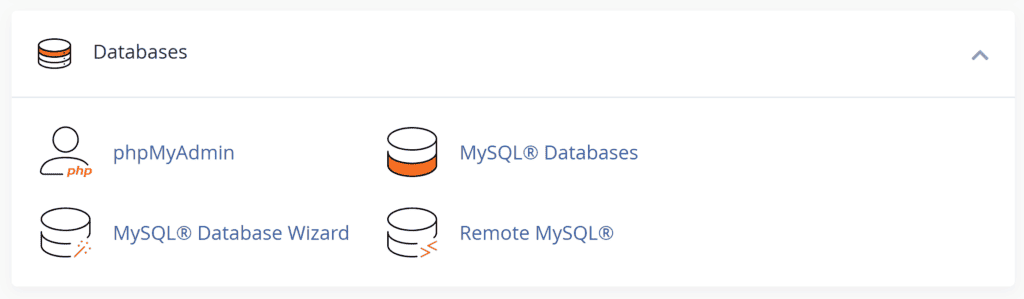
- Select the .sql file from your extracted export

- Click Import to transfer all your site data
- Next, find the wp-config.php file in your server’s WordPress directory and edit these lines with your hosting provider’s database information:
define(‘DB_NAME’, ‘your_database_name’);
define(‘DB_USER’, ‘your_database_username’);
define(‘DB_PASSWORD’, ‘your_database_password’);
Save the changes and test your live site. Visit your domain to make sure everything transferred correctly and your site functions as expected.
Post WordPress site import steps
Your imported site might look complete, but small issues often hide beneath the surface. These final steps catch problems before your audience discovers them.
Test all your links and features: Click through your navigation menu, contact forms, and any interactive elements to make sure they respond correctly
Review your posts, pages, and media files: Open your most important content to verify text formatting, images, and videos display properly
Update your URL settings: Navigate to Settings → General in your WordPress dashboard and confirm your site URL and home URL are correct for your new location.If your links don’t reflect the new site address, you can change your WordPress URL from the dashboard easily.
Fix any broken internal links: Look for links that still point to your old site address and update them to match your new domain
Adjust your SEO settings: Update any SEO plugins with your new domain information and verify your site title and description are correct
Create a fresh backup: After confirming everything works correctly, save a complete backup of your newly imported site. A backup plugin like BlogVault can automate this process for you.
Wrapping up
Ensure a seamless transition by preparing thoroughly and testing your site post-import.This approach also helps when you plan to move your WordPress site to root or make structural changes later.
Customize settings and adjust SEO to maintain rankings. Remember, ongoing site maintenance is crucial—regularly update plugins and themes, perform backups, and monitor performance. If challenges arise, engage with community resources or support.
FAQs
Can I import my WordPress site?
Yes, you can import your WordPress site using various tools and plugins. You’ll need to export your content from the old site and import it into the new one using the WordPress Importer tool or plugins designed for site migration.
How do I import a WordPress site into local?
To import a WordPress site into a local environment, use tools like Local by Flywheel. Export your site from the live server, then import the files and database into your local setup following the tool’s instructions.
How do I import a WordPress site for free?
You can import a WordPress site for free using the built-in WordPress Importer tool. Export your content as an XML file from the old site and import it into your new site through the WordPress dashboard under Tools > Import.
What is a WordPress importer?
A WordPress importer is a tool that allows you to import content from one site to another. It supports importing posts, pages, comments, and other elements using files like XML.
How do I import a page in WordPress?
You can import a page in WordPress by exporting it from the original site as part of an XML file. Use the WordPress Importer under Tools > Import to add the page to your new site.

Shivani enjoys crafting guides that make every aspect of using WordPress simple and easy to follow. When she's not glued to her laptop, you can find her buried in a good book or occasionally, painting.