You’ve searched for a table plugin, and TablePress keeps appearing. Choosing a plugin is a commitment; you need a stable tool, not one that causes site crashes.
The goal is to see if its popular fame is truly earned.
This definitive TablePress WordPress plugin review cuts through the noise. We weigh its strengths and weaknesses to help you make the right choice for your site.
This plugin excels at performance and data management, but its free version lacks advanced responsive and styling tools. Because your tables live in the database, a reliable backup plugin is non-negotiable to protect against accidental data loss.
TablePress WordPress plugin review at a glance
This table lays out the most important details for a quick scan:
| Feature | Key detail |
| Active Installs | 800,000+ sites use TablePress |
| Interface | Familiar Excel-style spreadsheet grid |
| Mobile Use | PRO: Advanced responsive stacking/collapsing modes |
| Data Import | Supports CSV, Excel, JSON, and HTML |
| User Tools | Live search, sorting, and pagination included |
| Performance | Lightweight code ensures fast page loading |
What can you do with TablePress?
The backend of TablePress is designed to feel like a simple spreadsheet. If you have any experience with Excel or Google Sheets, the interface is immediately intuitive. Adding text to cells, managing rows, and moving columns are all handled with straightforward buttons.
You just install the plugin, and it works; no initial configuration is needed.
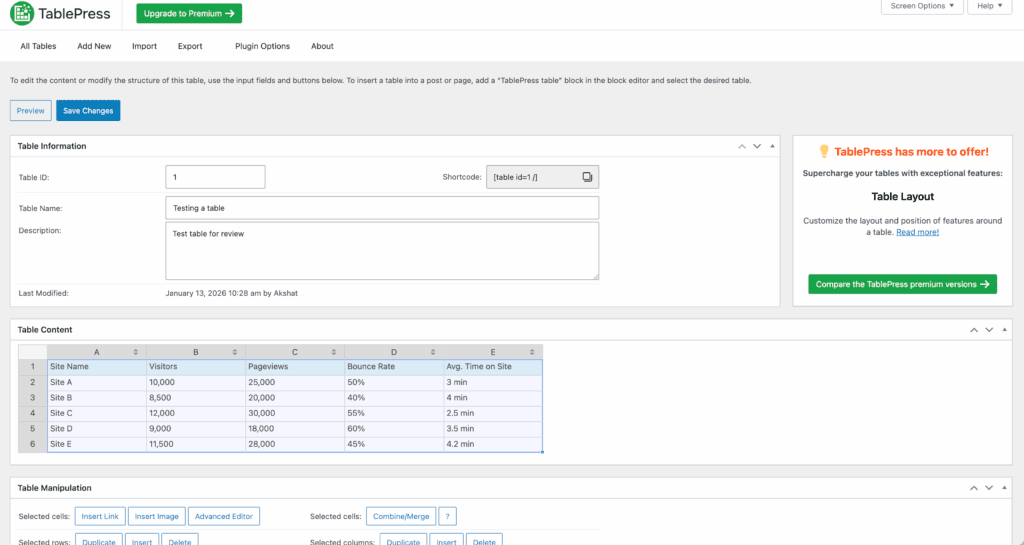
All tables you create are stored in a dedicated section in your WordPress dashboard, which keeps things organized. To add a table to a post or page, you copy and paste its shortcode.
For block editor users, a dedicated Gutenberg block is included to make this even simpler. You can even add images, but you must first upload them to your media library.
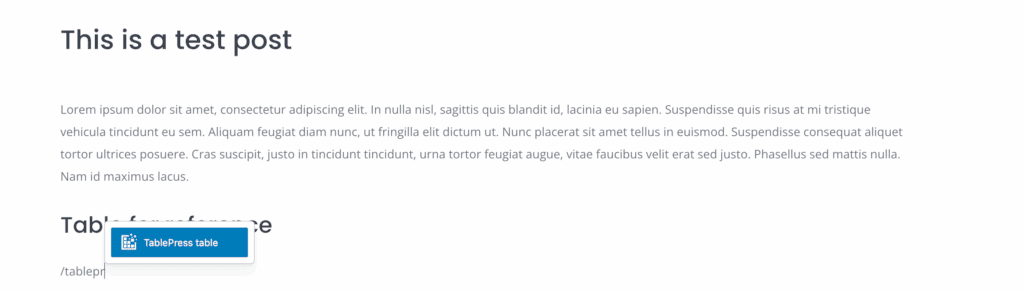
This tool is designed with a data-focused approach rather than as a visual builder. Its simple, dated interface contributes to its fast performance. However, it doesn’t offer advanced features like AI-generated tables or prebuilt templates, which might be available in alternatives such as Tableberg.
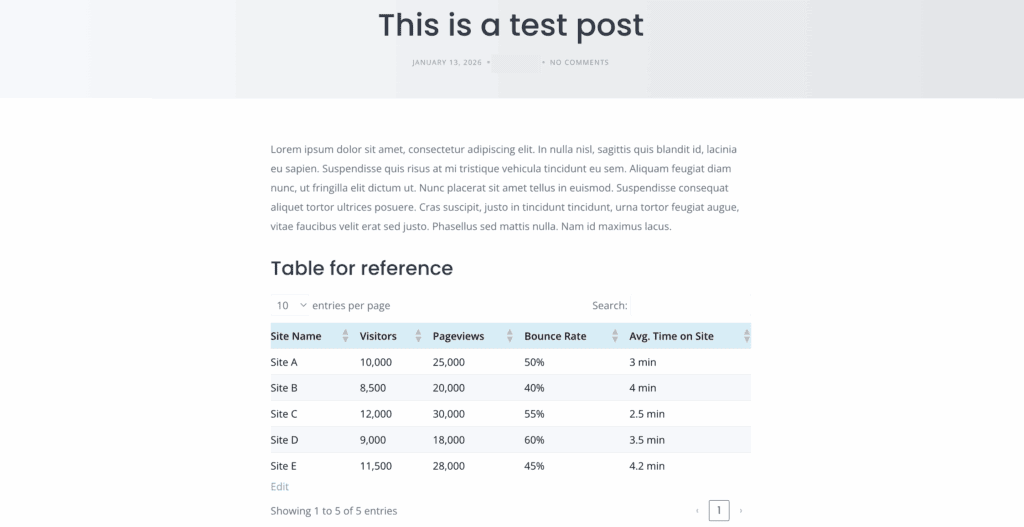
The learning curve for creating a basic table is practically nonexistent. Remember, even with a reliable plugin, having a recent WordPress backup is the best way to protect your work. While the premium version adds features like download buttons, the free version masters the core job of creating a structured table.
Mobile responsiveness
This is a critical point. The free version uses a horizontal scroll bar, which works fine for narrow tables. For wider tables, however, it creates a poor user experience by forcing visitors to swipe. You can fix this with custom CSS, but you must write it yourself.

This is a primary reason to consider upgrading. The premium version includes advanced responsive modes that solve this problem elegantly.
- Collapse mode: Hides designated columns on mobile and adds a small + button for users to expand the row and view the hidden data.
- Stack mode: Restructures each row into a vertical block on mobile devices, which makes the data much easier to read.
The functionality is stable, but a great mobile design isn’t automatic. You’ll need premium extensions or your own CSS skills to move beyond basic horizontal scrolling. Be sure to test your tables on multiple screens.
Data management & integration
Getting data into TablePress is one of its biggest strengths, storing everything securely in your WordPress database. It allows for effortless import from CSV, Excel (XLSX), HTML, and JSON files. This means you can manage your data in a familiar spreadsheet program and upload it directly.
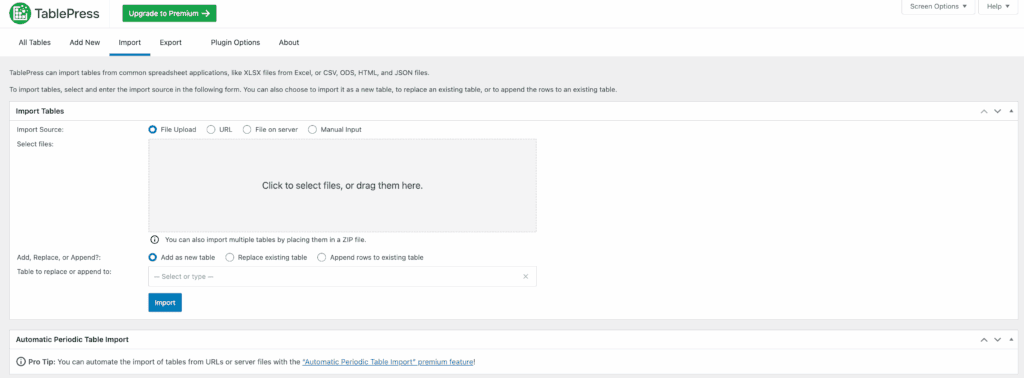
You can also export your tables into these formats. Pasting data directly from Excel also works surprisingly well for simple tables.
The Max version offers an Automatic Periodic Table Import feature. This allows your tables to stay updated automatically by syncing with a Google Sheet URL, ensuring your data is always current without manual intervention.
User permissions are tied to standard WordPress user roles (Admin, Editor, Author), a critical component of your site’s WordPress security. If you need to grant a specific user access to only one specific table, you will need the highest-tier Max plan for its Advanced Access Rights feature.
Front-end interactivity
The free version provides three essential interactive features for your visitors right away, with no setup required:
- Sorting: Users can click any column header to sort the table.
- Search: A live search bar allows users to instantly find information.
- Pagination: Long tables are automatically split into manageable pages.
For many websites, these core features are all that’s needed.
The premium version significantly expands on this. It adds advanced filtering, allowing users to narrow down data by specific criteria. It also provides buttons for visitors to download the table as a PDF or Excel file, or print it directly.

These interactive elements are powered by the proven and reliable DataTables JavaScript library, though it is always important to test for potential plugin conflicts. You can enable or disable each of these features on a per-table basis, giving you precise control.
Design & customisation
By default, the design of TablePress is clean but extremely minimalist. It inherits basic styles, like fonts, from your theme, so choosing a WordPress theme with good typography is a great first step. To customize the look further, you have two options.
- Use the “Custom CSS” box. The free plugin provides a dedicated area for you to write your own CSS to style your tables. This is powerful for developers but not helpful for non-technical users.
- Upgrade to the premium version. This unlocks easier styling options that don’t require you to write code.
This is not a “What you see is what you get” editor. You cannot click on elements to change their colors or borders for free.
Be aware that to make tables perfectly match your site’s branding, you will almost certainly need to write custom CSS or purchase the premium version. The free tool is excellent for structure, but gives you very limited control over style, an outcome that is also influenced by your theme and even your choice of WordPress hosting.
Reliability & support
As one of the best-rated plugins, TablePress is legendary for its stability, with a long history of reliable updates, minimal conflicts, and famously helpful developer support on the WordPress.org forums, meaning you can trust it’s secure.
However, there are critical operational details you must know:
- A warning on downgrading: If you buy the premium version and later cancel your subscription, your tables will revert to the free version. You will lose all premium features, which could negatively affect your site’s user experience.
- Deactivating vs. uninstalling: If you deactivate the plugin, your tables will disappear from your pages, leaving behind only a shortcode. Re-activating the plugin will restore them. If you uninstall the plugin, it will permanently delete all of your tables from the database. Always export your tables first.
Pricing
Until 2023, most TablePress features were free, but the plugin has since shifted to a freemium model. The current free version is best for basic tables, offering only the search, sort, and horizontal scrolling features.
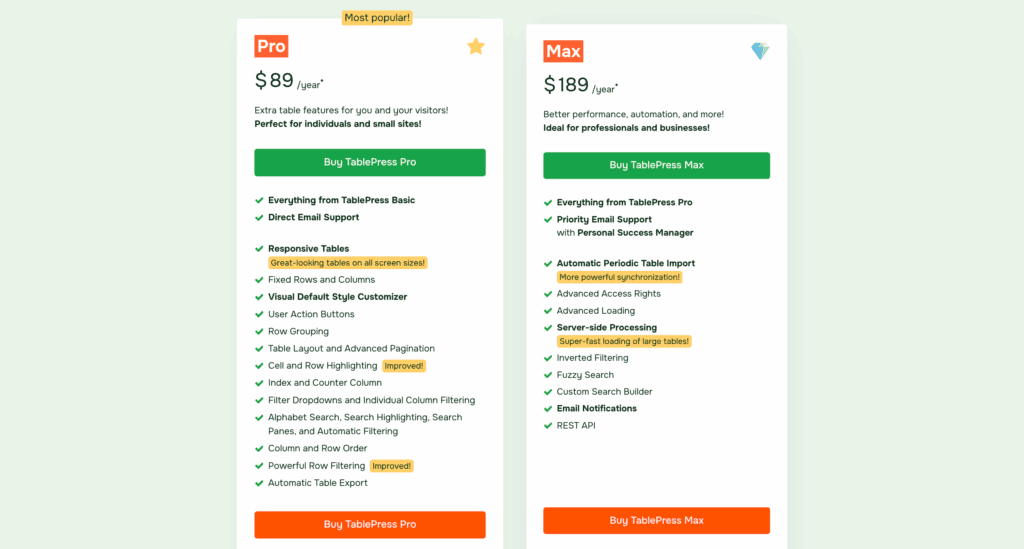
The Pro plan costs $89 per year, while the Max plan is $189 per year. Lifetime licenses are also available as a one-time purchase: $389 for Pro and $789 for Max.
Alternative table plugins to consider
TablePress is not a one-size-fits-all solution. Consider an alternative if your needs are different:
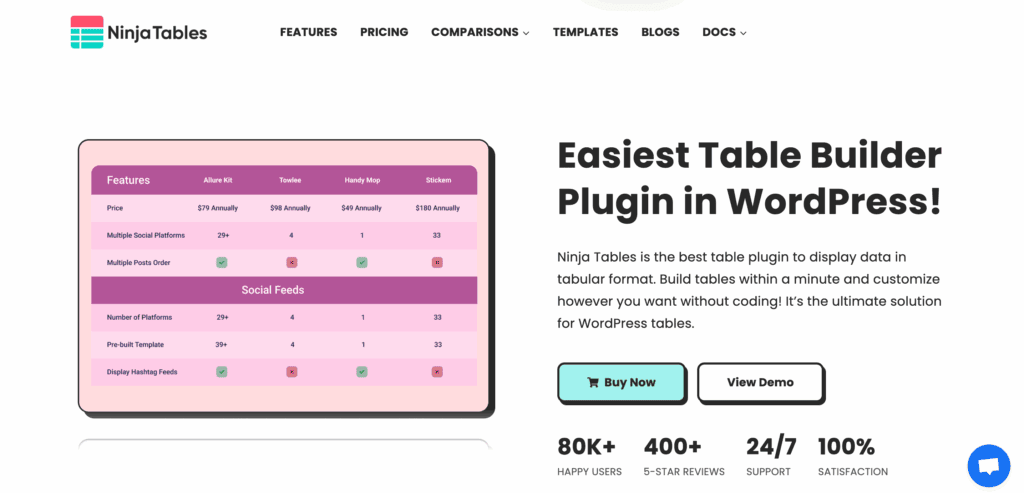
Ninja Tables: : For users who prioritize a visual, drag-and-drop styling experience, Ninja Tables is a strong contender. Its free version offers a modern interface with pre-built templates and predefined color schemes. To get full control with advanced custom color pickers, you will need the Pro version, but it’s ideal if you want to create highly customized designs without writing CSS.
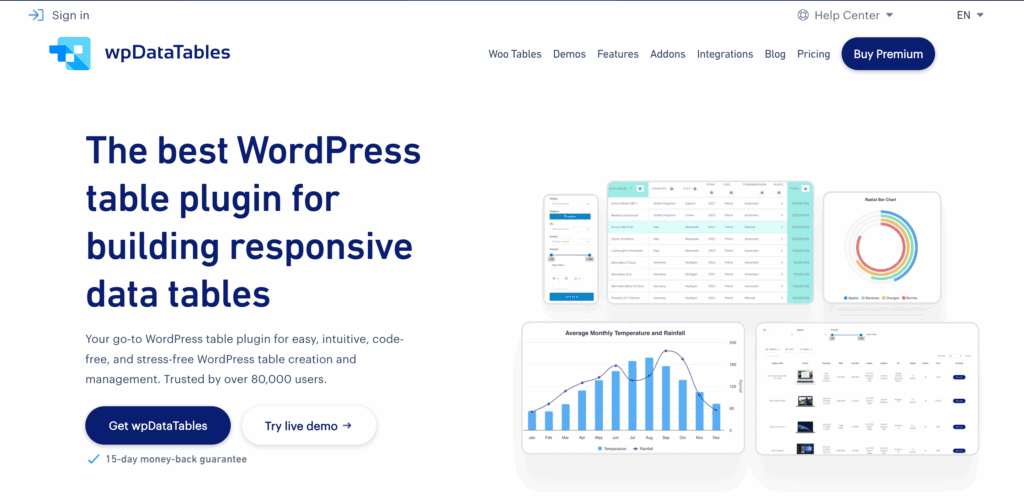
wpDataTables: The industry leader for creating interactive charts and establishing live connections to massive databases. It’s the best choice for visualizing complex data from external sources or MySQL.

Essential Blocks: Perfect for users who just need a simple, basic table directly within the Gutenberg editor, without advanced features like sorting or a separate plugin interface.
Parting thoughts
TablePress remains the gold standard for data-heavy tables due to its unmatched reliability and excellent performance. It’s the ideal tool for spreadsheet-focused power users, not visual designers.
However, modern mobile responsiveness is now non-negotiable, making the Pro features essential for most professional sites. The free version now serves best as a trial or for simple internal projects.
While not for decorative tables, it’s a trustworthy solution if you value data integrity and stability. Our advice: test the free version on a staging site before committing to a purchase.
FAQs
Is TablePress completely free or do I have to pay for basic features?
TablePress has a free version. It includes essential features like sorting and searching. Advanced functions like mobile responsiveness and auto-syncing require a paid plan.
How do I make TablePress tables responsive on mobile devices?
The free version uses horizontal scrolling on mobile devices. The premium version has better “Collapse” and “Stack” modes. You can also use custom CSS on the free version for a better mobile layout.
How can I change the colors and fonts of my table without coding?
Changing colors and fonts without code is a premium feature. With the free version, you must write custom CSS for any significant design changes.
Does TablePress slow down my WordPress site’s loading speed?
No, TablePress is very lightweight and well-coded. It has a minimal impact on your site’s speed and performs well even with very large tables.
Can I add images, buttons, or links into the table cells?
Yes, you can add images, buttons, and links to any cell. You just need to paste the required HTML code directly into the cell’s content box.
Is there a way to restrict table access based on WordPress user roles?
The free version uses default WordPress permissions. For more specific control, you need the Max plan. Its access rights feature lets you restrict a user to a single table.

Shivani enjoys crafting guides that make every aspect of using WordPress simple and easy to follow. When she's not glued to her laptop, you can find her buried in a good book or occasionally, painting.