
We’ve all been there. That simple thought, “we just need to display this data,” turns into a wrestling match with the basic WordPress table block. You know a dedicated WordPress table plugin is the answer, but a bloated or buggy one can slow down or even crash your site.
You don’t need a list of 50 options; you need the right one for your project.
Our goal is to help you pick a table plugin that solves your problem without creating new ones.
To find the right WordPress table plugin, match its features to your specific goal, whether it’s data, design, or simplicity. No matter which you pick, always use a backup plugin to protect your site before you test anything new.
Our top 3 WordPress table plugin picks at a glance
| WordPress table plugin | Best for | Key feature | Ease of Use | Score |
|---|---|---|---|---|
| TablePress | Reliability & Functionality | Free Sorting & Search | Very Easy (Spreadsheet-like) | ⭐ 4.8 / 5 |
| Ninja Tables | Live Data Sync & Dynamic Tables | Google Sheets Integration (Pro) | Moderate to Advanced | ⭐ 4.5 / 5 |
| Tableberg | Visual Design & Gutenberg Integration | Native Block Editor Experience | Very Easy (Visual Builder) | ⭐ 4.4 / 5 |
1. TablePress
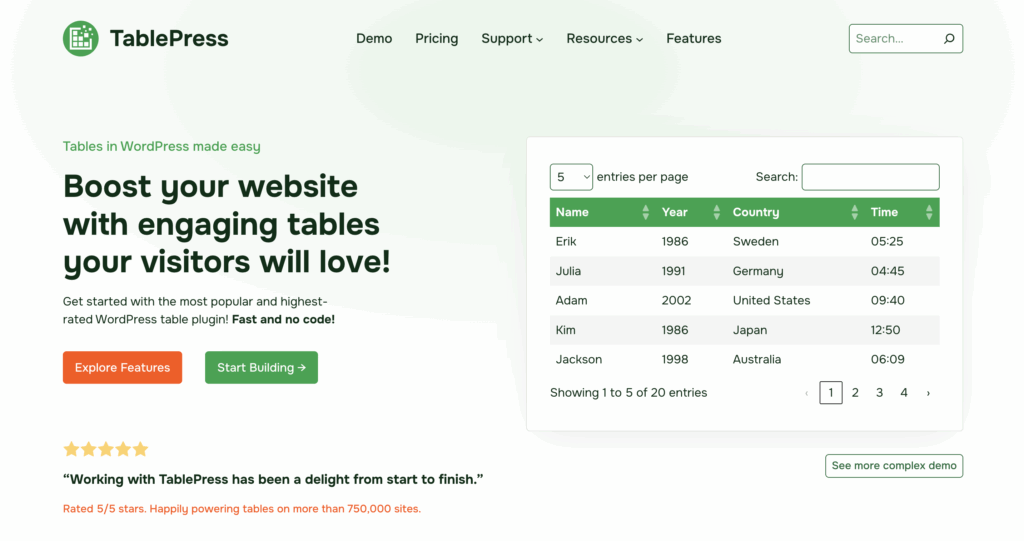
We have reviewed TablePress, and it’s clear why it remains a go-to choice for so many. The plugin is designed to help you manage structured data in a simple, spreadsheet-like backend. For that core task, it is exceptionally stable and gets the work done with no fuss.
Key features
The features here focus on function over looks, which is why so many people depend on it.
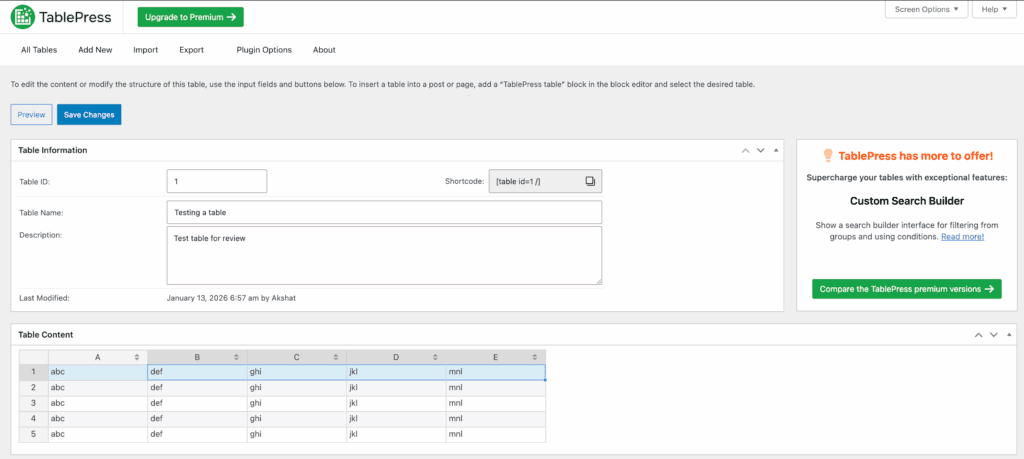
- Spreadsheet-like editor: The backend feels just like a simple spreadsheet. This means there’s almost no learning curve, and you can start entering data right away.
- Easy import and export: This is a huge time-saver. You can pull in data directly from CSV, Excel, and other files. This is perfect if your data already exists elsewhere.
- Solid core interactivity: The free version includes front-end sorting, search, and pagination. Many other plugins charge for these features, so getting them for free makes your data much more useful to visitors.
- PRO extensions: The paid plan adds critical features like better responsive modes for mobile devices and the ability to sync with Google Sheets.
Pros and cons
This plugin has two distinct sides: a highly functional free version and a powerful Pro upgrade.
| Pros | Cons |
| Rock-solid and highly reliable. | Requires custom CSS for modern table appearances. |
| Create and publish functional tables quickly. | Backend interface feels dated compared to block-based tools. |
| Essential import and export functions for spreadsheets. | Achieving truly responsive designs usually requires the PRO extension. |
| Handles large datasets without slowing the website. | |
| Outstanding and active free support from the developer. |
Pricing

- Free version: Available on WordPress.org. It covers all the core features for a basic, interactive table.
- PRO plan: Starts around $89 per year. This unlocks visual styling, better responsiveness, and other key features.
- MAX plan: Around $189 per year for advanced needs like syncing with external databases.
It’s important to know that TablePress moved to a subscription model in 2023. Some once-free features are now part of the PRO plan.
2. Ninja Tables
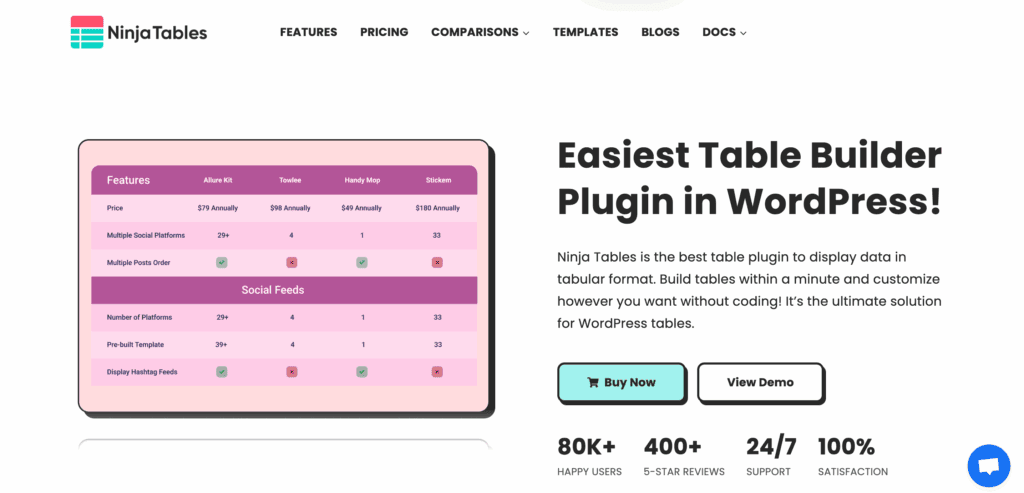
Our review of Ninja Tables shows it is a powerful choice for anyone needing more than just static data. It excels at creating dynamic, interactive tables by connecting to live data sources and giving your users advanced ways to engage with the information.
Key features
The features here are built for serious, data-heavy applications.
- Live external data integration: This is the best feature of the PRO version. You can connect your table to a Google Sheet, and it will update automatically when the sheet changes. This saves a massive amount of manual work.
- Advanced front-end features: The PRO version includes excellent sorting, advanced filtering, and conditional formatting that can change cell colors based on their content.
- WooCommerce product tables: You can automatically generate dynamic and filterable product comparison tables directly from your shop’s inventory. This is a huge benefit for e-commerce sites.
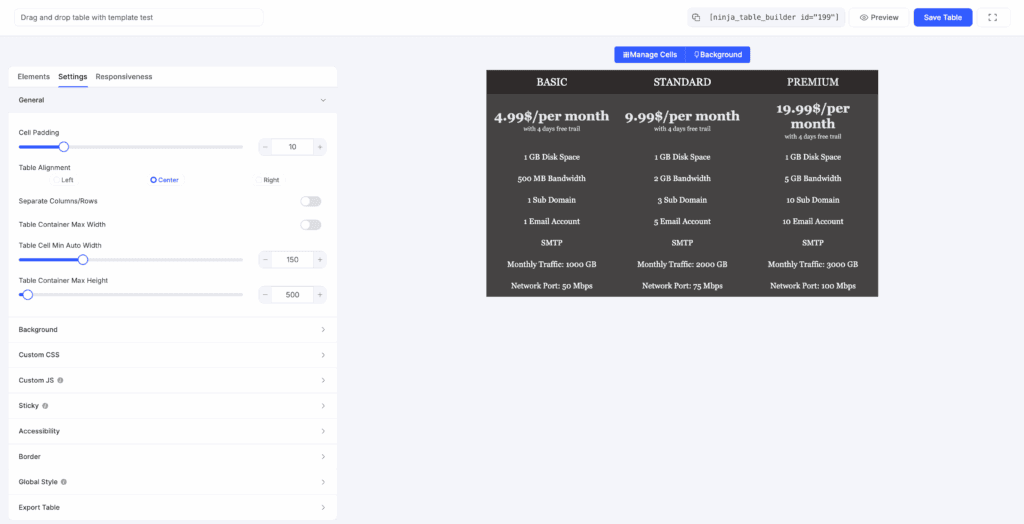
- Visual drag-and-drop builder: The interface is intuitive, allowing you to build complex tables without writing any code. This builder lives in your WordPress dashboard, and like any powerful tool, it’s best tested on a staging site first.
Pros and cons
Ninja Tables is very powerful, but be prepared for a bit of a learning curve for its advanced features.
| Pros | Cons |
| Unmatched Google Sheets integration, valuable for many projects. | Most powerful features are behind the PRO paywall. |
| Excellent front-end interactivity for visitors. | Configuring complex tables with live data can be challenging for beginners. |
| Great for building advanced WooCommerce product tables. | Editor only shows a shortcode; need to preview the page for the final design. |
| Visual builder simplifies managing columns and settings. | |
| The free version is useful for creating basic tables. |
Pricing
- Free version: Ninja Tables offers a free version on WordPress.org.
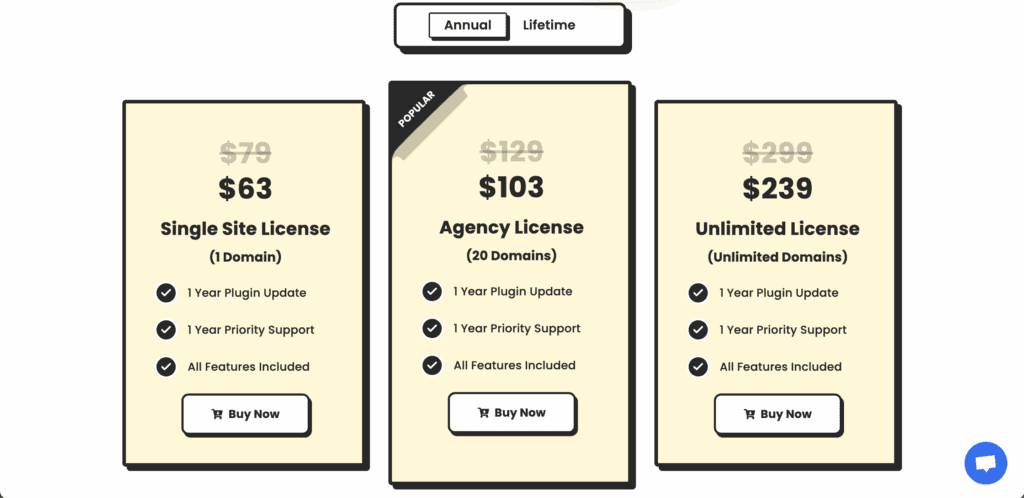
- PRO plans: A yearly subscription starts at approximately $79 per year for a single site license. The price scales up for more sites.
3. Tableberg
Our review of Tableberg shows it’s a plugin focused on form and seamless integration with the modern WordPress editor. While TablePress handles functionality, it is the tool for those who want tables built directly on the page. Its strength is visual styling, not complex data management.
Key features
Tableberg’s features are designed to feel natural inside the WordPress block editor.
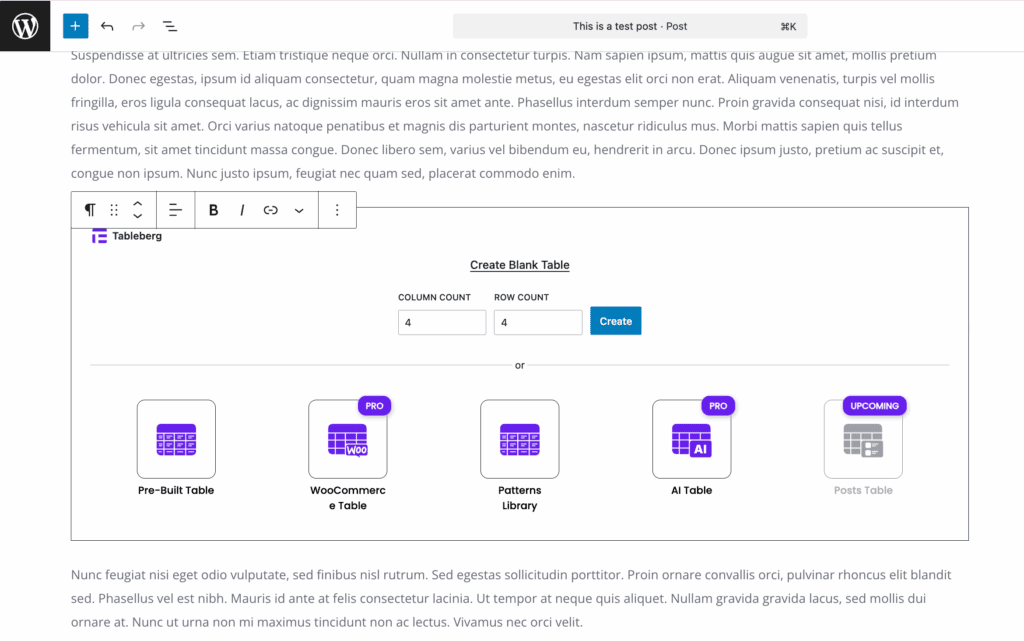
- Native Gutenberg block: This is its best feature. You build your table right on the page, so what you see is exactly what you get. There are no shortcodes or separate admin pages, a design choice that helps prevent common plugin conflicts.
- Advanced styling controls: You get precise control over borders, colors, and fonts for any part of the table. All settings are in the editor’s side panel.
- Pre-designed table patterns: This gives you a great starting point. You can pick a professional design and then just swap in your content.
- Cell content flexibility: You can easily add images, buttons, and other WordPress blocks directly into cells.
Pros and cons
This plugin is a great fit for content creators who value design and a smooth workflow.
| Pros | Cons |
| Seamless integration with the Gutenberg block editor. | Free version lacks front-end sorting, filtering, and search. |
| Powerful and easy-to-use visual styling controls. | Only works within the block editor, no separate section. |
| Lightweight code; doesn’t slow down the editor or site. | Cannot import or connect to external data sources like Google Sheets. |
| Responsive tables by default with good mobile controls. | |
| Pro license covers unlimited sites, offering fantastic value. |
Pricing

- Core plugin: Tableberg is free and available on WordPress.org.
- Pro plan: A single annual license costs around $49 per year and can be used on unlimited sites. This makes its premium upgrade a very competitive deal.
4. WPDataTables
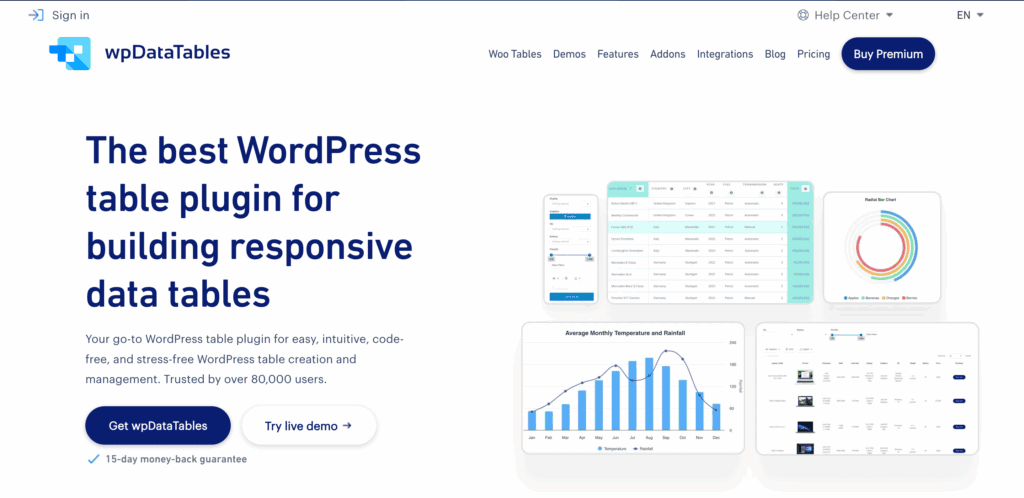
Our review of WPDataTables confirms it’s in a different league entirely. When you need to work with massive datasets, this is the ultimate WordPress table plugin for developers and data-intensive websites.
It is designed to display and manage huge, complex information. For simple tables it is overkill, but for its intended job, nothing else comes close.
Key features
The features here are built for high-performance data management.
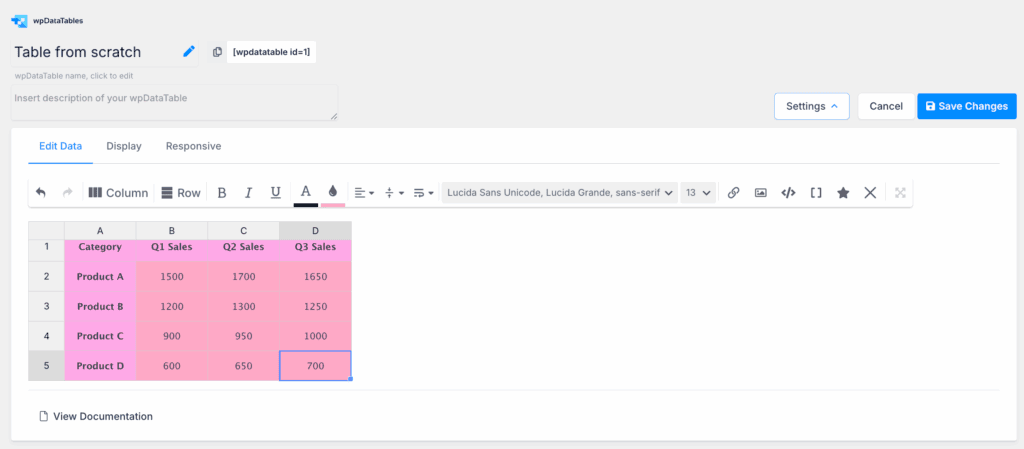
- Direct database queries: This is its core strength. You can create tables by writing queries that pull data directly from your site’s database or an external one.
- Handles massive datasets: It uses server-side processing. This means it can display millions of rows of data without slowing down your site to a crawl.
- Front-end table editing: You can allow logged-in users to edit data directly from the front end of your website. This is perfect for building directories or internal tools.
- Create charts from data: The plugin can automatically generate dynamic charts and graphs based on your table’s data.
Pros and cons
This is a professional-grade tool, and it comes with a corresponding learning curve.
| Pros | Cons |
| Unmatched ability to query and display huge datasets. | Very steep learning curve; requires technical knowledge for advanced use. |
| Server-side processing ensures optimal performance. | Interface can be intimidating and fragmented for non-technical users. |
| Powerful front-end editing feature for user-driven websites. | Manual tables lack interactivity like sorting and search. |
| Extensive formatting options, including conditional formatting and charts. | Only shows a shortcode in the editor; no live preview. |
| Robust free version for creating manual tables. |
Pricing
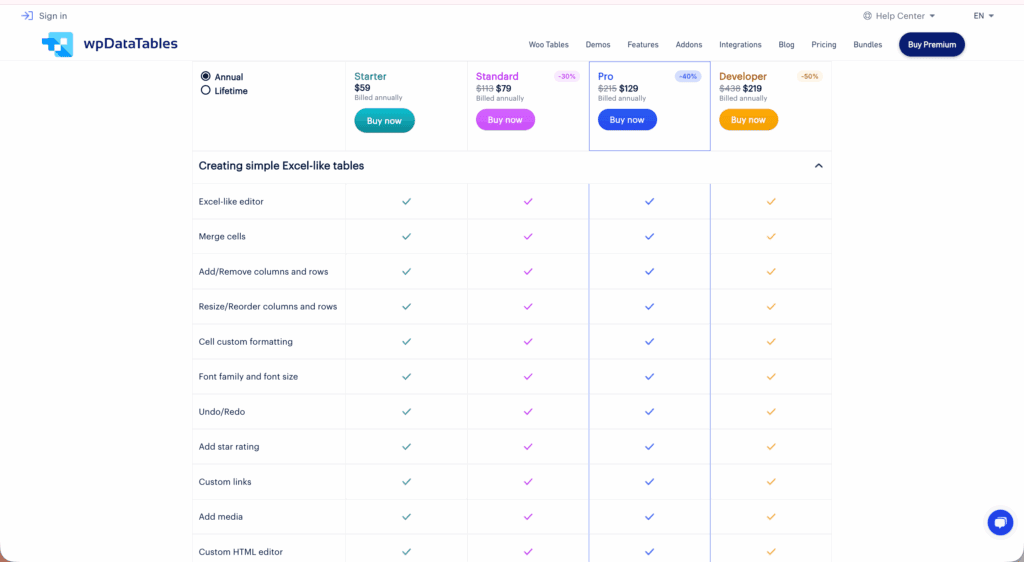
- Free version: You will find a free version of WPData Tables available on WordPress.org for creating basic manual tables and charts.
- Premium license: An annual subscription starts at around $59 per year for a single site. A lifetime license is also available.
5. WP Table Builder

We have reviewed WP Table Builder, and it’s the perfect choice if the idea of a steep learning curve sounds exhausting. It focuses on simplicity and a visual building experience, with a drag-and-drop editor that’s ideal for creating pricing pages or product comparisons without any technical skill.
Key features
This plugin is all about making the table-building experience simple and visual.
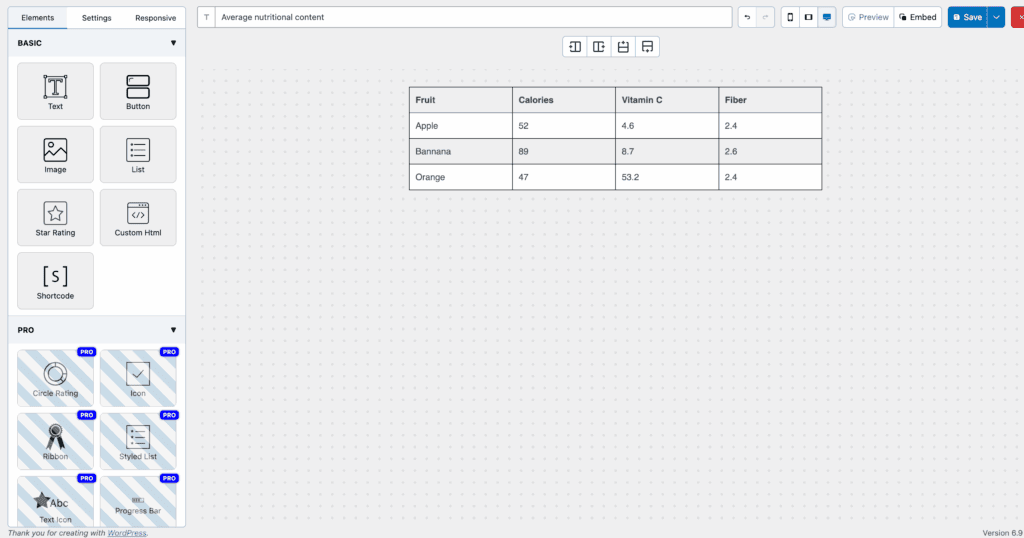
- Visual drag-and-drop builder: This is a true “what you see is what you get” editor. You build your table by dragging elements like text, buttons, and images into cells.
- Rich content elements: You can easily add star ratings, icons, and buttons to your cells. This makes it ideal for creating comparison and pricing tables.
- Live Gutenberg preview: Unlike plugins that just show a shortcode, this one renders a live preview of your table directly in the block editor.
- Responsive controls: You get clear options to manage how your table looks and behaves on desktops, tablets, and mobile devices.
Pros and cons
This plugin offers one of the best user experiences, especially for non-technical users.
| Pros | Cons |
| Extremely user-friendly visual builder with a gentle learning curve. | The free version includes only one pre-designed table template. |
| Live preview in the editor saves time. | Lacks direct integration with live data sources like Google Sheets. |
| Generous free version with good styling options like row coloring. | Core interactive features like pagination and search are Pro-only. |
| Affordable Pro plan unlocking important features like search. | Not designed for managing very large datasets. |
| Pre-made templates are a huge time-saver. |
Pricing
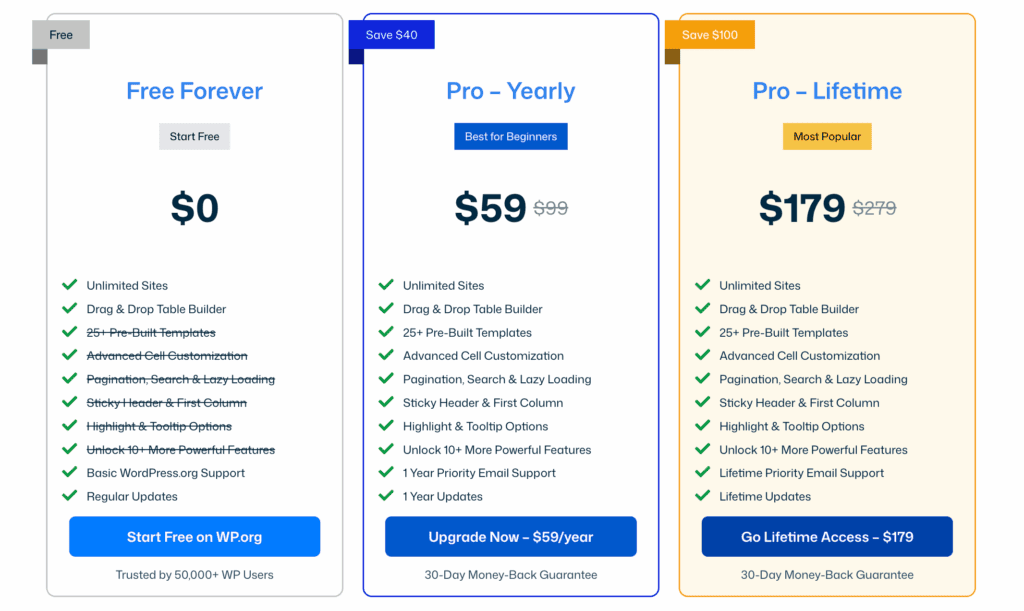
- Free version: The free WP Table Builder plugin is available on WordPress.org and includes the core drag-and-drop builder.
- Pro plan: A yearly subscription is around $59 per year and covers unlimited sites, providing excellent value. They also occasionally offer a lifetime deal.
How to choose your WordPress table plugin
By answering a few key questions, you can avoid common WordPress errors and quickly find the right plugin for your needs.
Start with your goal
First, think about the final result you want.
- Define its purpose. What is this table for? Is it a simple list of features, a visual pricing page, a dynamic catalog for your WooCommerce site, or a complex database report? Your answer will immediately point you toward the right type of plugin.
- Prioritize ease of use vs. control. For a simple visual builder, WP Table Builder is best. For direct, spreadsheet-like control over your data, TablePress is the tool to use.
- Decide on design. If you need deep visual styling options directly in the editor, Tableberg is the clear winner. If a clean, functional table is all you need, TablePress is fine.
Think about your data
Next, consider where your data comes from and how it will be used.
- Identify your data source. Will you enter data once (static), or does it need to auto-update from Google Sheets (dynamic)? For dynamic data, you need a Pro plugin like Ninja Tables or WPDataTables.
- Check visitor interactivity. Do your visitors need to sort, filter, or search the data? TablePress offers these features for free, while most other plugins require a paid upgrade.
- Consider data volume. This is a critical performance check. For tables with over 1000 rows, you need a plugin with server-side processing, like WPDataTables or TablePress, to avoid a slow-loading site.
Check the final details
Finally, make sure the plugin fits your technical needs.
- Test mobile responsiveness. This is crucial. Check how the table looks on a phone and avoid any plugin that only offers a horizontal scrollbar.
- Confirm compatibility. Ensure the plugin works well with your page builder (like Elementor or the block editor) and your theme.
- Assess your budget. Start with a free version, but be realistic. A small investment in a Pro plan now can save you hours of headaches later.
Your last step: Install and test.
Before you do anything, create a full WordPress backup. The best way to know for sure is to try your top two choices. Create a sample table with each one to see which editor and workflow feels best to you before you commit.
Parting thoughts
There is no single “best” WordPress table plugin, only the best tool for your specific job. The right choice balances your data’s complexity, your design needs, and how users will interact with it.
Always start with the free version of a well-supported plugin to maintain strong WordPress security and ensure it feels like a natural extension of your editor before you invest.
FAQs
Why should I use a WordPress table plugin instead of the default table block?
While the default WordPress block editor has a basic table feature, plugins offer advanced functionality like sorting, searching, data filtering, and automatic responsiveness for mobile devices.
Are these tables mobile-friendly?
Most modern plugins, such as TablePress or Ninja Tables, include responsive design features that allow tables to scroll horizontally or transform into a list view on smaller screens.
Can I import data from Excel or Google Sheets?
Yes, many WordPress table plugin options allow you to import data via CSV, Excel, or JSON files. Some advanced versions even let you sync tables live with Google Sheets.
Will a WordPress table plugin slow down my website?
Generally, no. Well-coded plugins are lightweight, but performance can be affected if you display thousands of rows at once. Using features like pagination (splitting data into multiple pages) helps maintain site speed.
Are tables created by plugins SEO-friendly?
Yes. Search engines can crawl and index the text within these tables. Some plugins also add Schema markup, which can help your data appear as “Rich Snippets” in Google search results.

Shivani enjoys crafting guides that make every aspect of using WordPress simple and easy to follow. When she's not glued to her laptop, you can find her buried in a good book or occasionally, painting.