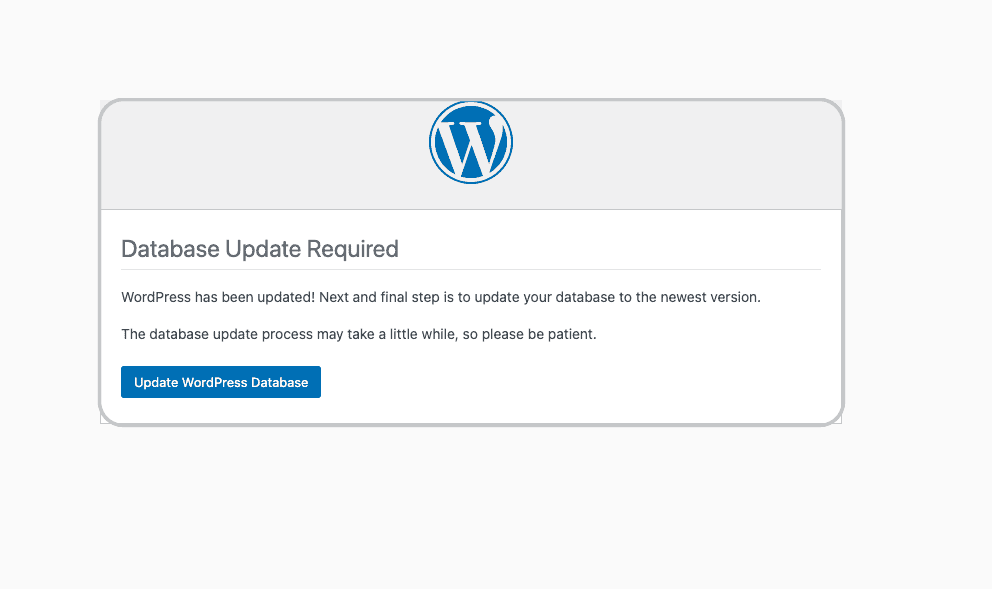
A WordPress update is complete, but then an Update WordPress database prompt appears.
Before opening phpMyAdmin or worrying that something has gone wrong, know that WordPress is usually asking to align its database with the new core files.
This guide will walk you through the process safely, show you how to create a reliable backup, and explain what to do if the update fails or the prompt keeps returning.
TL;DR: Confirm a restorable backup of your files and database, then click Update WordPress Database once in your own wp-admin and wait for the completion screen. If the prompt returns, the screen goes blank, or an error appears, stop repeating the update and contact your host or a WordPress professional.
What the notice means
WordPress has two parts that must agree after a core update: the files that run the site and the information stored in its database. The files may be updated first, and the newer files may then need the database to be updated to a newer structure.
That is what “Database Update Required” means. WordPress compares the database’s current state with the state expected by the installed files, applies the changes it needs, and finishes the update routine. On a network of WordPress sites, the routine also handles the network-level update.
You do not need to make those changes by hand. Do not change database version values, delete rows, or open a database editor just to make the notice disappear. A number can look correct even when part of the update did not run.
If the core files have not been updated yet, pause here and complete the core update first. The database step is the follow-up to a core update, not a replacement for it.
Check that this is the right task
People use “update the WordPress database” to describe several different jobs. Start with the exact message on your screen.
- “Database Update Required” after a core update: Use the dashboard steps in this guide.
- “WooCommerce Database Update Required”: If you run an online store, check our specific guide for WooCommerce database updates.
- “Error establishing a database connection”: WordPress cannot reach the database. This needs help with the hosting connection or site settings, not the database-update button.
- A domain, HTTPS, or www change: This is a site-address move. It needs a careful address-replacement process, not a database-structure update.
This quick distinction protects you from choosing a tool that cannot solve the problem. A connection problem will not be fixed by running the database update, and an address change should not be handled with random database edits.
Make a restore point as a safety measure
Before you click anything, make sure you can return the site to the state it was in before the update. A database export alone is not enough. A useful restore point includes the database and the site files, including plugins, themes, and uploads.
Check these four things:
- The notice is inside the correct site’s wp-admin. Open the dashboard yourself instead of following an unexpected email link.
- The backup completed successfully and is recent enough for this change.
- You know how the backup would be restored, or someone who can restore it is available.
- The site’s important activity is accounted for. A store, membership site, or lead-generation site deserves a tested staging or restore path before an update.
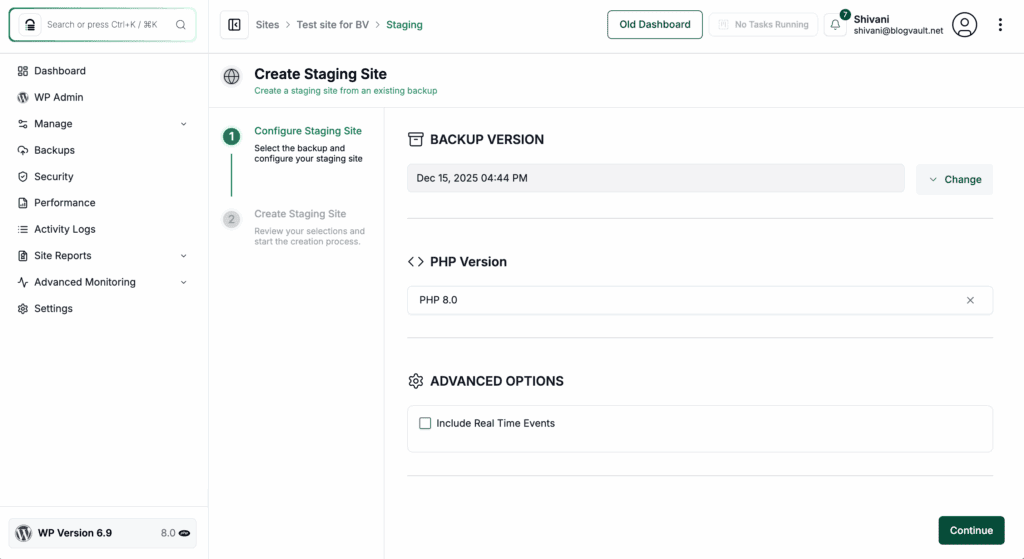
If you cannot confirm a full, restorable backup for a business-critical site, stop before the database step. Waiting for a safe restore point is a sound technical decision, not a failure.
Run the update from wp-admin
When the dashboard loads and shows the database notice, use this path. It is the safest option for most readers because WordPress selects the changes that match its installed files.
- Open the notice from your own dashboard. Sign in to the correct site and confirm that the page is in wp-admin.
- Confirm the restore point. Check that both the files and database are covered. If the backup is incomplete, do not continue just because the button is available.
- Click the update action once. Select Update WordPress Database, or the equivalent wording shown by your version of WordPress. Do not open several update pages or click the button repeatedly.
- Wait for the result. WordPress may show a short maintenance screen while the routine runs. Do not refresh during the operation. A blank screen, critical error occurs, or the update process failed, stop and do not keep clicking the button.
- Use the completion link. Return to the dashboard through the success or continue link. Do not make a manual database change because a version number looks unfamiliar.
The important moment is the handoff after the button press. The notice should be gone, the dashboard should load normally, and the public site should behave as it did before the update.
Check the site before moving on
A success message is encouraging, but it is not the only check. Give the site a short inspection before you declare the update complete.
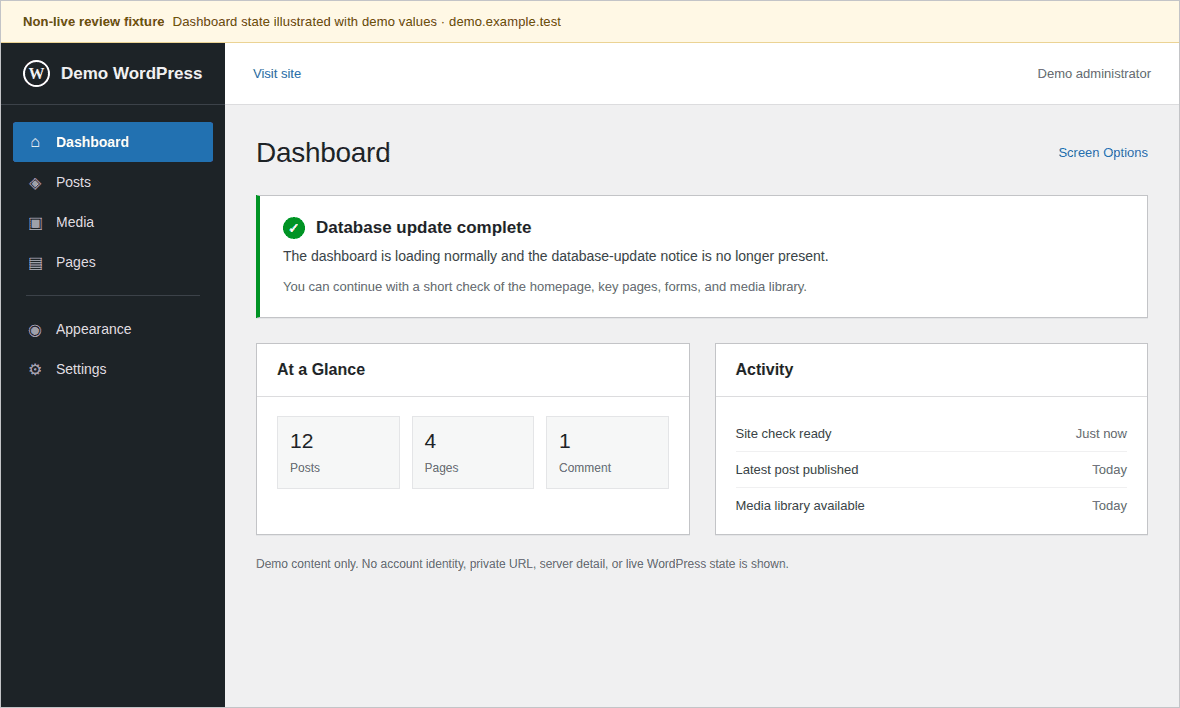
- Open wp-admin again and confirm the database notice does not return.
- Open the homepage and several important pages in a private browser window.
- Sign in and load the admin screens you normally use.
- Submit a form, place a test order, or complete another important action if the site depends on it.
- Open the media library and view a representative image or download.
- Open a post or page directly to check that its web address works.
- Confirm that the site is not stuck in maintenance mode.
- If you see a warning or unexpected behavior, save the exact message and ask your host which logs should be checked.
WordPress Site Health gives you another native admin screen for this high-level check:
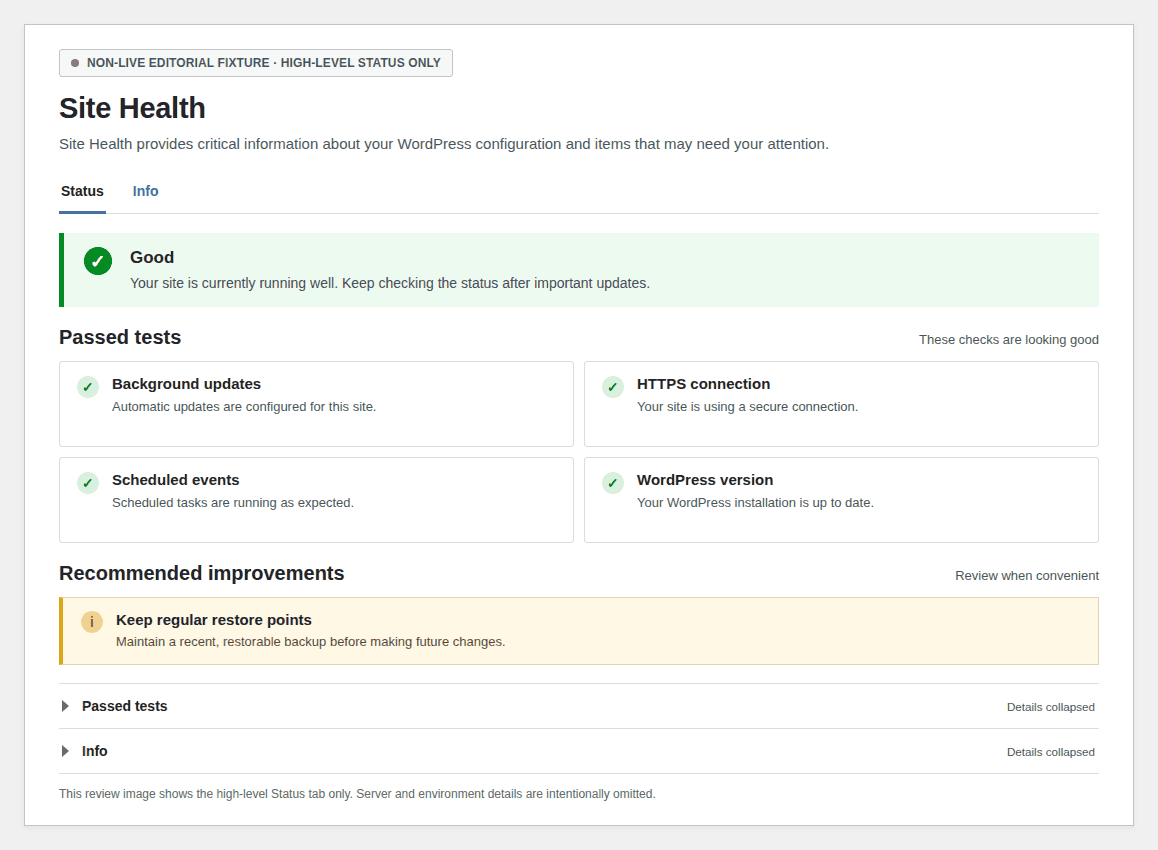
If these checks pass and the notice stays away, you do not need a separate database-editing step. WordPress has completed the work it was asking for.
Use a fallback only when it matches your access
The dashboard is the right path for most readers. The alternatives below are for specific situations. If the words or access involved are unfamiliar, give these instructions to your host or developer rather than experimenting on a live site.
Try the direct upgrade page after a manual file update
If someone chose to update WordPress manually and the dashboard did not show the notice or did not finish the process, an administrator may open /wp-admin/upgrade.php on the same site. Confirm the site address, full backup, and completed file update first. Load the page once and wait for its result.
Return to wp-admin and perform the checks above. This is a controlled fallback for a matching manual-update situation, not a universal repair page. Stop if it produces an error or the database notice keeps returning.
Use WP-CLI only if you already use SSH
If you already manage the site through SSH and WP-CLI, the official database-update command is wp core update-db. On a network of sites, –network updates the network databases. The –dry-run option compares versions without applying the update.
Run it only from the correct WordPress installation, with the right permissions and a restorable backup. If SSH or WP-CLI is unfamiliar, ask your host or developer to run it and verify the result. A command run from the wrong site can update the wrong database.
If the prompt keeps returning
Sometimes the update appears to finish, but the next visit shows “Database Update Required” again. You may also see “No update required. Your WordPress database is already up-to-date!” and then receive the same prompt later.
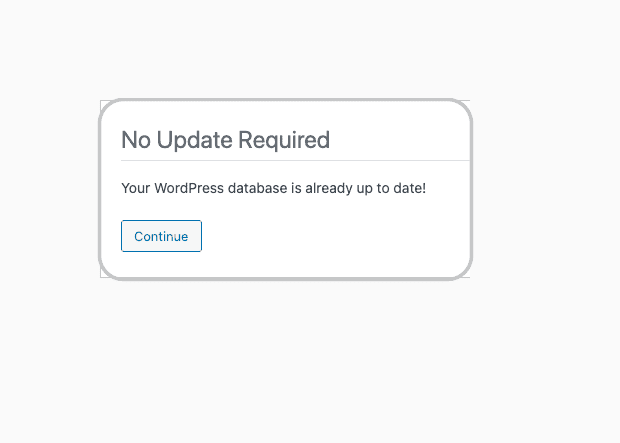
Treat that as an incomplete handoff, not an invitation to keep clicking. The site may be showing an old cached page, a site add-on may be interfering, the core files may be incomplete, or the database may have returned an error.If you use Elementor and the prompt freezes, read our guide on fixing stuck Elementor database updates.
Use these limited checks only when you have a restore point and can reverse each change safely:
- Confirm that you are in the intended site and that its core-file update completed.
- Clear the browser, page, delivery-network, hosting, or site-data cache through that system’s normal controls. These caches are separate, and rebuilding them can briefly affect performance.
- If the site uses a service that keeps old site data between visits, ask the host or service provider for its documented clearing procedure.
- If wp-admin is unavailable and you have safe file access, ask your host or developer about temporarily disabling all plugins as a conflict test. Restore them before reactivating plugins one at a time, preferably on a staging copy.
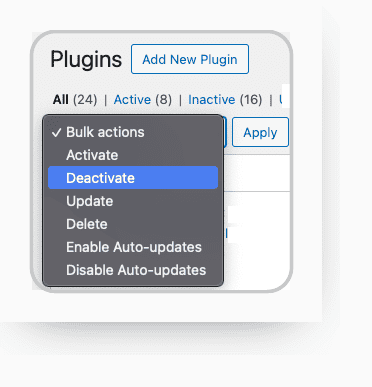
Do not edit database version values, delete rows, change connection credentials, run an address replacement, or restart a server as a generic response to the loop. Each action addresses a different problem and can make recovery harder.
Know when to ask for help
Stop and contact your host or a WordPress professional when:
- WordPress shows a database error, PHP error, critical error, blank page, or persistent maintenance screen.
- The public site is offline or wp-admin remains inaccessible.
- You do not have a restorable backup.
- You cannot tell which WordPress installation or database is active.
- The prompt returns after one controlled attempt and the basic checks do not resolve it.
- Someone asks you to change site settings, database tables, or server settings without explaining the existing setup.
When you ask for help, include the WordPress version, the time of the attempted update, the exact error text, and the relevant logs. Never send database passwords, API keys, or login credentials in a support request.
FAQs
Do I need to edit the database to update WordPress?
Usually not. Use the dashboard update action, the matching /wp-admin/upgrade.php fallback, or wp core update-db when you already have the required access. Manual table edits can hide an incomplete update and create a harder recovery problem.
Why does WordPress ask for a database update after a core update?
The core files and the database are on different expected versions. WordPress uses its own update routine to bring the database structure into line with the installed files.
What should I do if the database-update prompt keeps returning?
Stop clicking. Check the active site and the relevant cache only when you can reverse the change safely. Ask for help if the prompt continues, an error appears, or you do not have a tested backup.
Is changing wp-config.php the same as updating the WordPress database?
No. wp-config.php contains site connection settings, while the dashboard notice asks for a database-structure update. Incorrect connection settings can prevent WordPress from reaching the database at all.
Should I update the database before updating WordPress core?
No. Finish the core-file update first, then run the database step when WordPress presents it. If the files are incomplete, the database routine may be running against the wrong version of WordPress.
Conclusion
When WordPress asks you to update its database after a core update, think of it as the final handoff between the new files and the information your site already stores. Protect the site with a full restore point, use the dashboard action once, wait for the result, and check the parts of the site your visitors use.
If that handoff stalls, the prompt loops, or the site shows an error, the safest next step is not a more aggressive database edit. Preserve the backup, record the exact message, and bring in your host or developer with the information they need to fix the underlying problem.

Shivani enjoys crafting guides that make every aspect of using WordPress simple and easy to follow. When she's not glued to her laptop, you can find her buried in a good book or occasionally, painting.