Looking for a plugin for WordPress migration has likely led you to this exact spot. The UpdraftPlus vs All-in-One WP Migration decision.
They both help with migration, but they are fundamentally different tools. They approach the job in completely different ways.
We’re here to give you a clear overview of what each one actually does. Let’s ensure you grab the right tool.
Use All-in-One WP Migration for simple, one-time moves. Use UpdraftPlus for ongoing backups and large migrations. Always run a dedicated backup plugin. This creates a safety net against potential plugin conflicts.
Key differences at a glance

Detailed feature and use case breakdown
Primary purpose
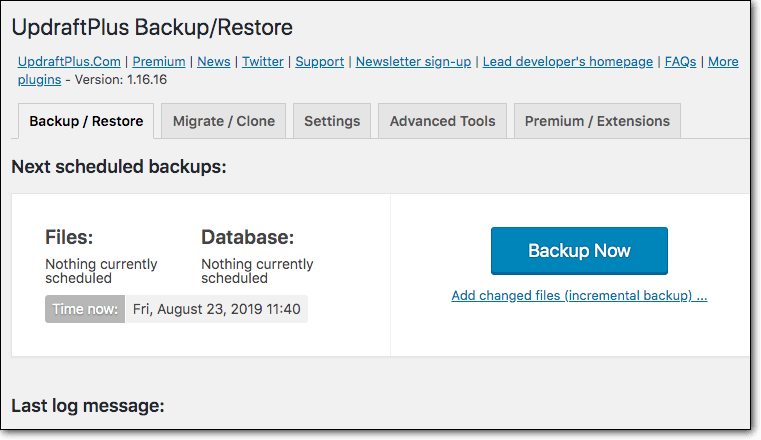
The UpdraftPlus plugin, in its free form, is a backup solution. Its main job is to create and store safe copies of your site.
Migration is something you can do with the free version, but it’s a manual process. It involves restoring a backup in a new location. The Premium version adds features that make direct migrations much smoother.

All-in-One WP Migration is a migration tool from the ground up. The free version is designed for one thing: to move your site easily. It does this by packing everything into a single .wpress file. Its premium extensions mostly remove limitations, like file size, and add extra destinations.

Ease of use
All-in-One WP Migration is incredibly easy. You click export, get one file, then drag that file into a new WordPress site. It automatically finds and replaces all your old website links. It’s a process designed for anyone, regardless of technical skill.
UpdraftPlus is more hands-on. In the free version, you create a backup, download several files (database, plugins, themes, etc.), upload them to the new server, and then use the plugin to restore them. You also have to handle changing the site URL yourself. It’s not hard, but it has more steps and more room for error.
Flexibility
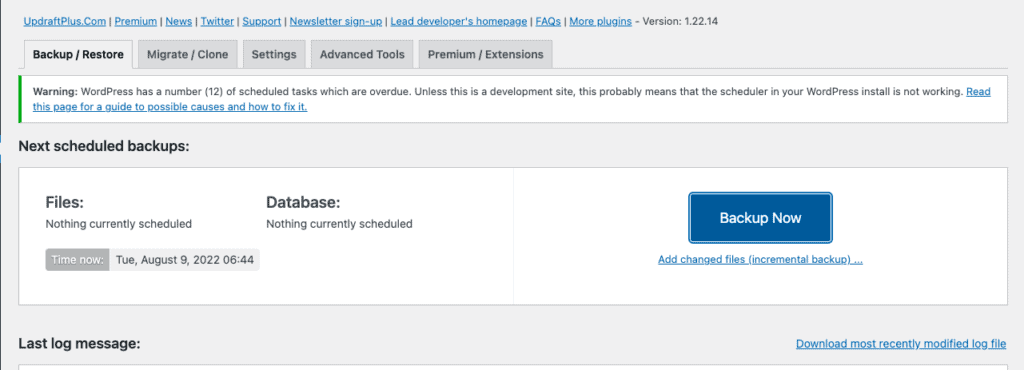
UpdraftPlus gives you more control over your data. Because it backs up site components separately, you can choose to restore only your themes or plugins. This is very useful for fixing a specific problem without overwriting your entire site. The premium version adds even more control, like backing up custom files outside your WordPress installation.
All-in-One WP Migration is less flexible. It creates one single archive. It’s an all-or-nothing approach. You migrate the entire site, not just a piece of it. This is great for simplicity, but not for surgical repairs. You also can’t easily access individual files from the .wpress archive without third-party tools.
Handling large sites
UpdraftPlus (Free) has no artificial size limit, which is a huge plus. It works around server restrictions by splitting large backups into smaller, manageable files (database, plugins, themes, etc.). However, on shared hosting, servers have strict time limits. Even a single one of those steps, like restoring a massive uploads folder, can take too long.
This can cause the process to fail, leading to a common updraftplus restore time out error. The issue isn’t the plugin, but the limited resources of the hosting environment.
The Premium version is more reliable for this. It uses incremental backups and processing large databases in chunks to avoid these errors.
All-in-One WP Migration (Free) hits a hard wall. The plugin itself may allow a 512MB export, but your server’s upload limit is what actually matters. This isn’t a theoretical problem. During our own testing, a site backup of just 191MB failed to import because the hosting server had a 100MB upload limit.

We fixed this by editing the server’s php.ini file to increase the upload limits. The only other option was to buy the Unlimited Extension. Most sites with significant media will force you into this choice: make a technical server change or pay for the fix.
Migration speed & efficiency
For smaller sites, AIO is faster because the single-file process is very efficient.
We tested this with a 1GB website. The AIO export took about a minute and created a 191MB file. As discussed in the previous section, the problem came during the import. Once we manually fixed it, the import itself took about three minutes.
The manual process with UpdraftPlus (Free) will always be slower due to the download and upload steps. However, UpdraftPlus Premium’s direct site-to-site transfer is very fast and efficient.
Pricing model
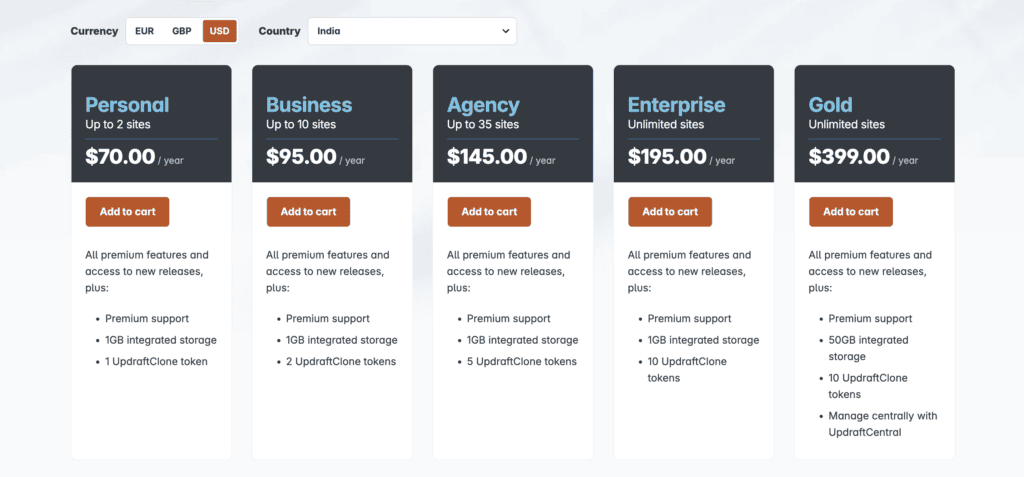
UpdraftPlus has a free version and a Premium version that is a yearly subscription. The subscription gives you access to all features, updates, and support.
All-in-One WP Migration has a free core plugin. To add features, like removing the size limit or connecting to cloud storage, you buy individual extensions. These are typically a one-time purchase.

Which one should you pick?
Choose UpdraftPlus if:
- Your main priority is automated, reliable backups. The free version is excellent for this.
- Your site is large, and you need a free migration solution. It’s more work, but it gets the job done without size limits.
- You need fine-grained control to restore just a part of your site.
- You manage a multisite network (Premium required).
Choose All-in-One WP Migration if:
- You are a beginner and need the absolute simplest process.
- Your site is small (under a few hundred megabytes).
- You are performing a one-time migration and just want it done quickly.
- You can afford the one-time fee for the Unlimited Extension if your site is larger.
The best alternatives
If neither plugin is the perfect fit, consider these excellent alternatives:
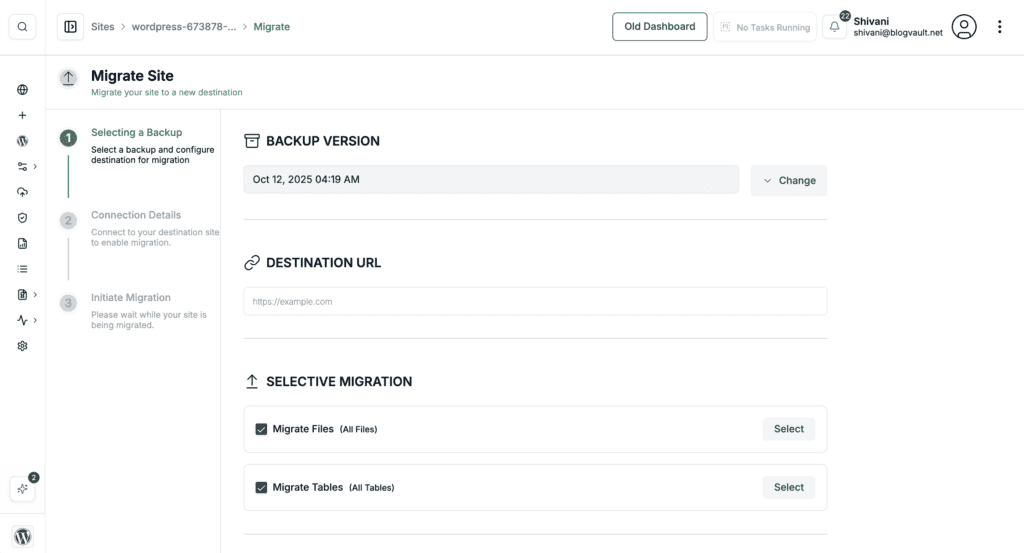
- BlogVault: As a premium service, BlogVault handles the entire migration process on its own servers. This means your site never slows down, and the transfer is extremely reliable, especially when moving large or complex websites.
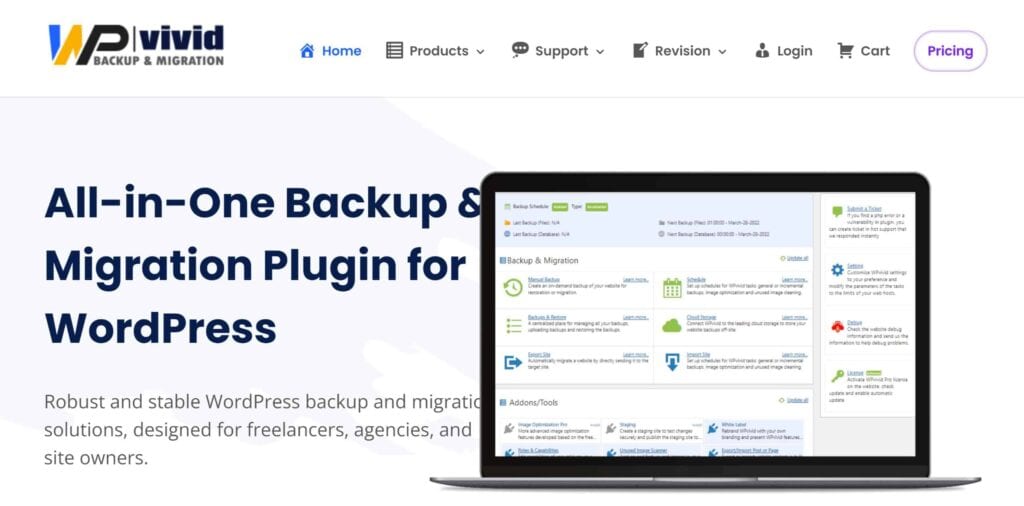
- WPvivid: The free version of WPvivid offers a simple key-based migration. You connect the old and new sites with a unique key, then push the data directly. This lets you avoid the hassle of manual downloads and uploads completely.
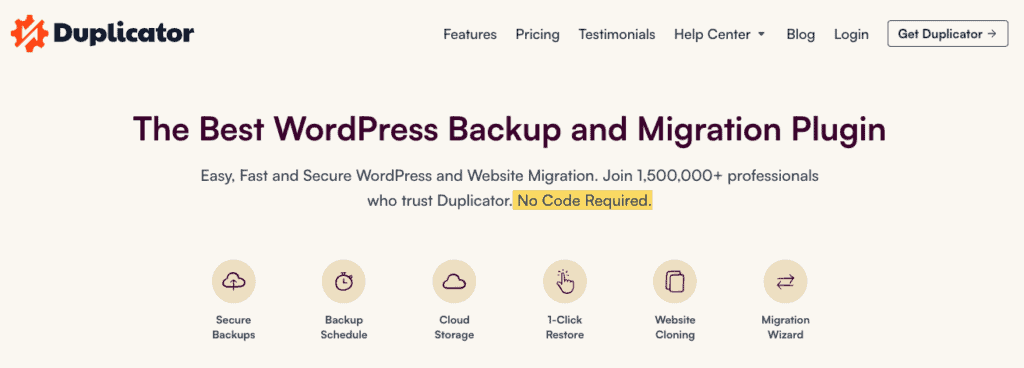
- Duplicator: This plugin bypasses common server upload limits by packaging your site into an installer and an archive file. You upload both and run the installer directly on the new server. This technical approach makes it a powerful free tool for moving sites of any size.
Parting thoughts
For your migration, the choice depends on site size and your budget.
Use All-in-One WP Migration’s free version for small sites. Its drag-and-drop process is the simplest you can get. For larger sites, its paid Unlimited Extension/manual fix is necessary to bypass the restrictive size limit.
Use UpdraftPlus Free for large migrations if you don’t mind a manual process. It has no size limits. UpdraftPlus Premium automates this, offering a much faster and more reliable site-to-site transfer. Before you start migrating your site, create a full backup. Never risk your live site.
FAQs
What is the difference between UpdraftPlus and all-in-one WP migration and backup?
UpdraftPlus is a dedicated backup plugin that can also migrate, while All-in-One WP Migration is a dedicated migration plugin that creates a backup during the process. UpdraftPlus is designed for ongoing protection, whereas AIO is built for simple, one-time site transfers.
What is the best WordPress migration plugin?
The best WordPress migration plugin depends entirely on your site’s size and your technical comfort level. All-in-One WP Migration is simplest for small sites, while Duplicator or UpdraftPlus Premium are more robust for larger ones.
Is all-in-one WP migration good?
Yes, All-in-One WP Migration is excellent for its intended purpose of simple, fast migrations for smaller websites. Its main limitation is the restrictive file size limit in the free version, which requires a paid extension for larger sites.
Which backup plugin is best?
UpdraftPlus is widely considered one of the best backup plugins because of its reliability and generous free features. For premium, off-site services BlogVault is a top choice, while WPvivid is another excellent free alternative.
How much does all in one WP Migration cost?
The core All-in-One WP Migration plugin is free, but its most useful extensions require payment. The Unlimited Extension to remove the import size limit is a one-time purchase, typically costing $69.
Is UpdraftPlus Premium worth it?
Yes, UpdraftPlus Premium is worth it if you need advanced features like automated migrations, incremental backups, and dedicated support. For basic scheduled backups to a single location, the free version is often more than enough.

Shivani enjoys crafting guides that make every aspect of using WordPress simple and easy to follow. When she's not glued to her laptop, you can find her buried in a good book or occasionally, painting.