You wanted to update your WordPress site and clicked Update on a plugin. For a moment, it looked like everything was working. Then something went wrong. The plugin still shows the old version, the dashboard displays an error, or the site is stuck in maintenance mode.
If you are dealing with a WordPress plugin update failed error, the most tempting next step is often to click the update button again, but that is usually the worst thing to do.
If a WordPress plugin update failed, first restore access to your site if anything is broken. Next, backup your WordPress site and troubleshoot the issue based on the exact error before trying the update again. For important sites, test the plugin update on a staging site first, then check the plugin, theme, forms, checkout, logs, and caches before you consider the issue resolved.
Most failed plugin updates are recoverable. The trick is to pause long enough to find out whether WordPress failed to download the package, write files, verify a premium license, or load the new plugin code.
Before you touch anything, write down the plugin name, the current versions if WordPress shows them, the exact error text, the time it failed, and whether one plugin failed or many WordPress plugins are not updating. Also check whether both wp-admin and the public site still load.
This guide is for plugin updates from Dashboard > Updates or Plugins > Installed Plugins. If the block editor says Updating failed or Publishing failed while saving a post, that is usually a REST API or editor issue, not a plugin update failure.
Match The Error First
The fastest fix is the one that matches the symptom. A stuck maintenance file, expired license, wrong file ownership, and post-update conflict can all look like “the update failed” from a distance.
| What you see | Likely cause | First safe step |
|---|---|---|
| Maintenance page or Another update is currently in progress | Interrupted update, update lock, or leftover .maintenance file | Wait briefly, then restore access if the update has stopped. |
| Download failed, temp-stream warning, or cURL error 28 | Disk space, temp folder, blocked outbound connection, or vendor timeout | Check storage and Site Health, then ask the host about outbound HTTPS and cURL if needed. |
| Could not copy file or Could not remove old plugin | Permissions, ownership, locked files, or disk space | Check file access and ask the host to verify ownership. |
| Unauthorized, license, or API error | Premium license, subscription, account connection, domain mismatch, or vendor API issue | Verify the license, subscription, vendor account, and connected site URL. |
| One plugin fails, many plugins fail, or the site breaks after update | Plugin package issue, server-wide update problem, or completed update causing a conflict | If one plugin fails, check the vendor. If many fail, start with hosting. If the site breaks, restore or deactivate first. |
The table is a map, not a reason to start replacing folders. Manual replacement can help, but it will not fix a server that cannot write files, reach the vendor server, or clear an update lock.
Restore Access Before Debugging
If the site is stuck in maintenance mode, fix access first. You cannot troubleshoot calmly while visitors see a broken page and wp-admin is unavailable.
During updates, WordPress creates a temporary .maintenance file in the WordPress root directory, beside wp-config.php. It normally removes that file when the update finishes. If the update is interrupted, the file can stay behind. Wait a few minutes first. If the update has clearly stopped and the site is still unavailable:
- Open FTP, SFTP, or your host’s File Manager.
- Go to the WordPress root directory.
- Find .maintenance.
- Delete only that file.
- Refresh the site and wp-admin.
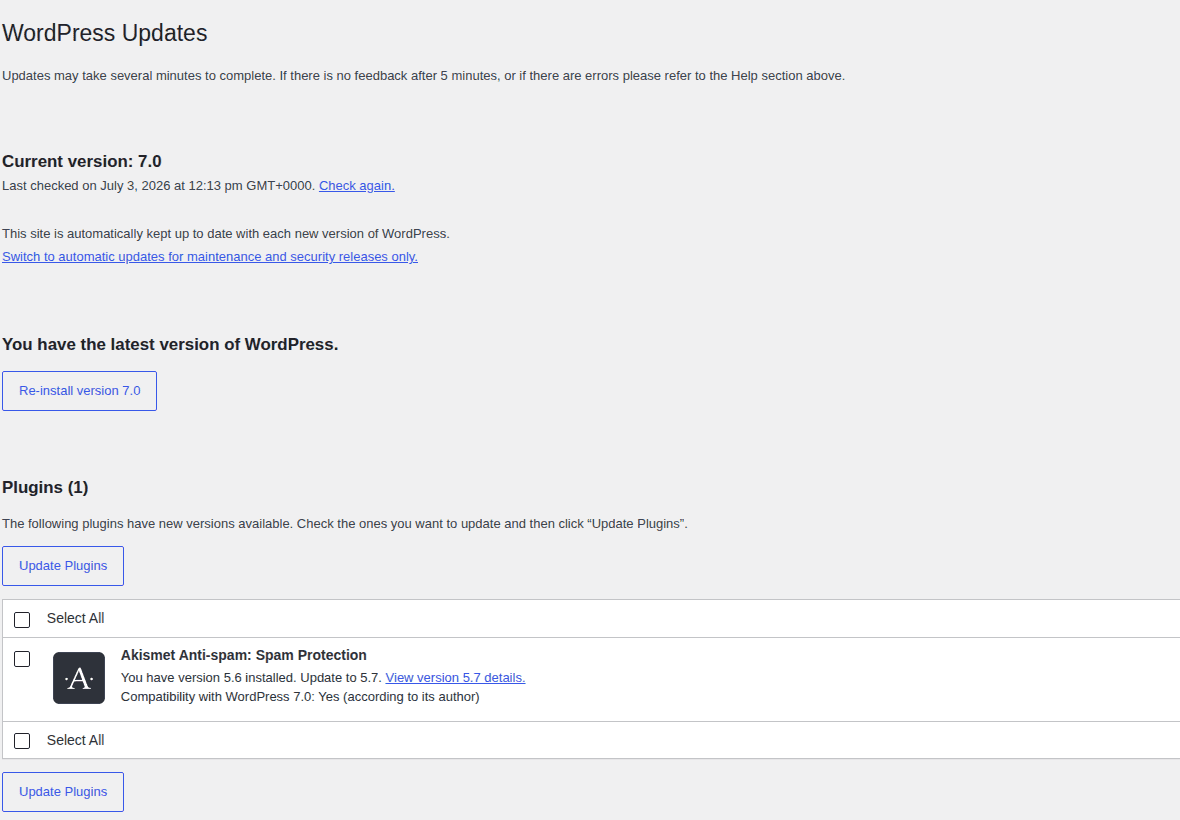
Deleting .maintenance restores access. It does not complete the plugin update or fix the cause. Once wp-admin loads, check Dashboard > Updates, Plugins > Installed Plugins, and Tools > Site Health. Access is the first win, not the finish line.
Backup Before Changing Files
Make a full backup before the next fix using a reliable backup plugin. Full means files and database, not only a database export or a copy of one plugin folder.
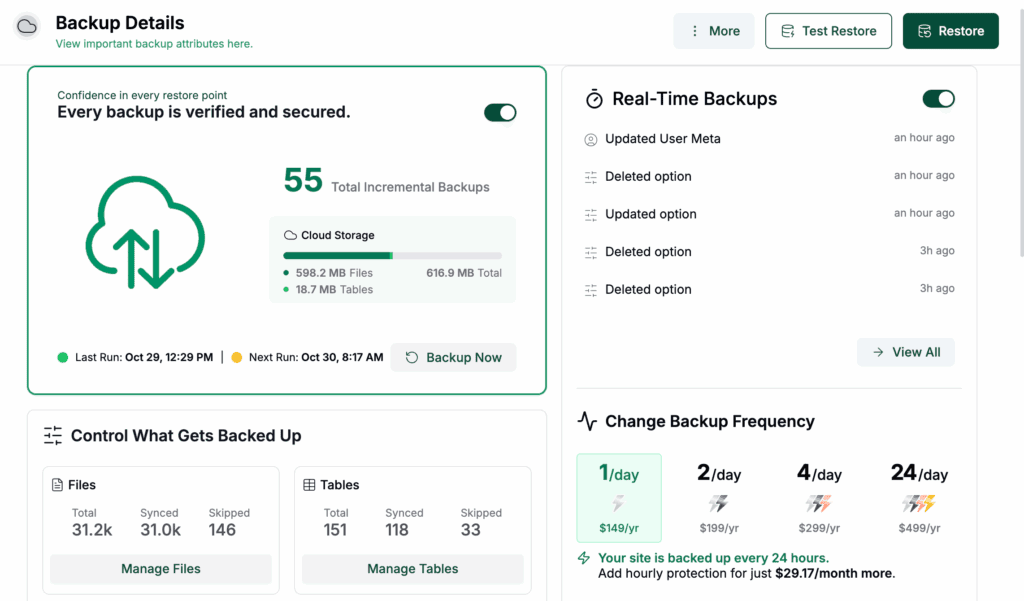
This is where small update errors get expensive. A plugin may power a checkout field, quote form, shortcode, membership rule, scheduled action, custom table, or email integration. Deleting or replacing it casually can remove more than the plugin folder.
Backup before deleting or replacing a plugin folder, changing permissions, editing wp-config.php, manually uploading a plugin ZIP, deactivating several live-site plugins, or retrying an update that already failed once.
If you would be embarrassed to lose the current state of the site, back it up before you continue.
Check Whether The Update Failed Or The New Code Broke
Sometimes WordPress never installs the new files. Sometimes the update succeeds, then the new plugin version breaks the site. That distinction matters. A failed install points to downloads, permissions, server limits, or licenses. A broken site after a completed install points to compatibility and conflicts.
Start with the plugin details: the changelog for the version you tried to install, the required WordPress and PHP versions, the Tested up to note, and the plugin support forum or vendor status page.
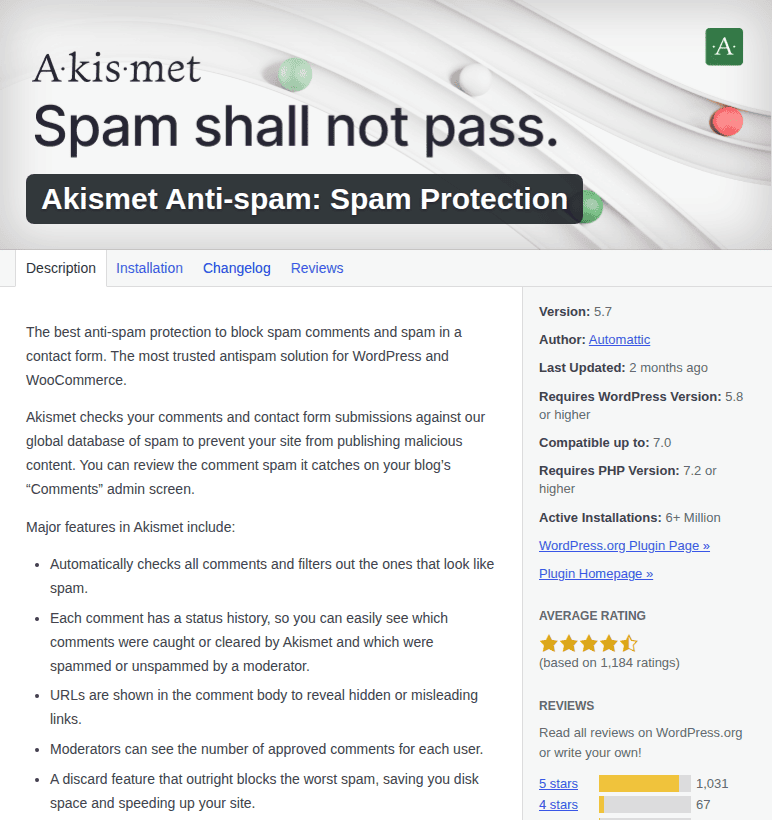
- If wp-admin works, deactivate non-essential plugins, test the affected plugin, then reactivate plugins one at a time. Test the broken workflow after each change.
- If wp-admin is blocked, use FTP or File Manager to rename plugin folders inside wp-content/plugins. Renaming a folder disables that plugin because WordPress can no longer load it. Start with the plugin that was updated or the one tied to the broken feature.
For a likely theme conflict, switch to a default WordPress theme. If admin is blocked, renaming the active theme folder can force a fallback, but do that only after a backup.

Fix File And Server Problems
When WordPress cannot copy, remove, unpack, or create files, the server is usually refusing the operation. The dashboard may call it a WordPress error, but the cause often sits in the hosting account. Check wp-content, wp-content/plugins, wp-content/upgrade, the plugin folder that failed, and available disk space.
Common baseline file permissions are 755 for directories and 644 for files. Your host may use a different setup, but those numbers are safer than opening everything wide.
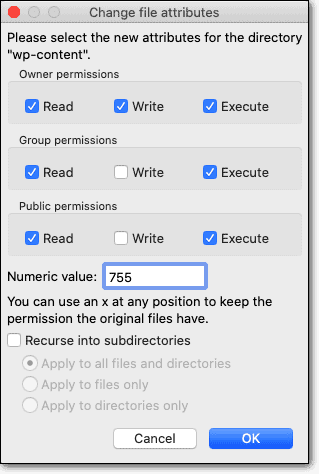
Do not leave plugin directories at 777. That can make an error disappear for a moment, but it gives far too much write access. If your host uses it briefly for diagnosis, ask them to change it back and fix ownership properly.
Ownership is different from permissions. Permissions are the numbers. Ownership is which server user owns the files. The numbers can look right and WordPress can still be blocked if the files belong to the wrong user.
For temp-directory errors, confirm wp-content/upgrade exists and is writable. A developer or host can define WP_TEMP_DIR in wp-config.php and point it to a writable folder under wp-content, but the folder must actually exist.
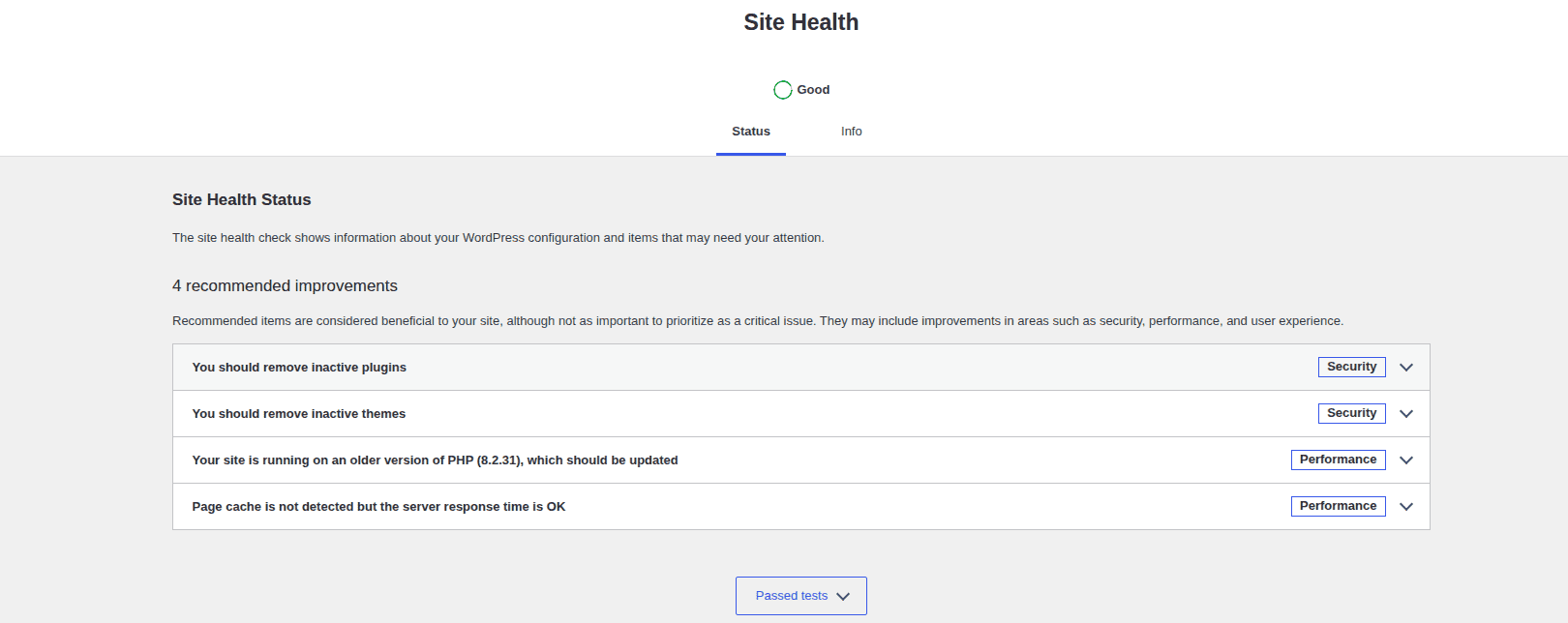
Server limits can cause similar symptoms, especially with large page builders, security plugins, ecommerce extensions, and backup plugins. Ask your host to check the likely bottlenecks first: PHP memory, max execution time, disk space, upload limits, WP-Cron, outbound HTTPS, and firewall rules.
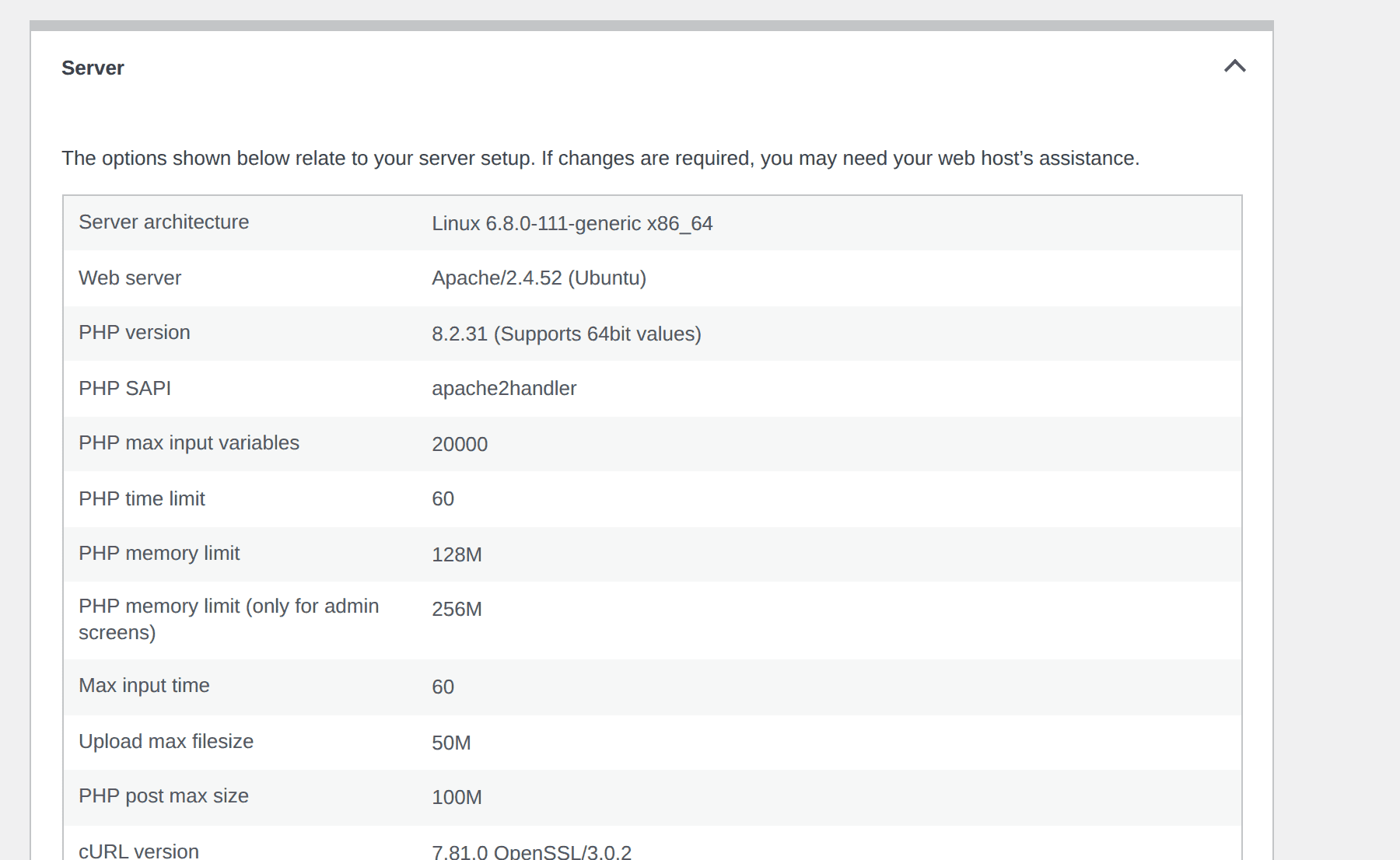
Increasing WP_MEMORY_LIMIT to 256M may help memory-related failures. It will not fix a blocked license server, wrong ownership, expired subscription, or vendor package problem. The practical rule: change configuration only when the error points there. If you are guessing, ask the host to check logs first.
Handle Premium Plugin Errors Separately
Premium plugin updates often come from the vendor’s server, not WordPress.org. That adds license checks, subscription status, account connection, API authorization, and site URL matching.
If a premium plugin says Unauthorized, check the subscription, license key, connected vendor account, assigned domain, and whether your plan includes updates. Pay special attention to site URL changes after staging, migration, HTTP/HTTPS changes, or www changes.

A paid plugin can keep working while updates are blocked. That does not make the problem harmless. It means the installed code still runs, but bug fixes, compatibility updates, and security patches may be unavailable, especially when vulnerable WordPress plugins are part of the risk.
If you see cURL error 28, the server timed out while trying to reach another server. With premium plugins, that may be the vendor’s update or license endpoint If one premium plugin fails while WordPress.org plugins update normally, the vendor usually needs to investigate the package, license, or updater. If many plugins fail, start with the host.
Retry Safely
Retry only after you have changed the condition that likely caused the failure. Pressing Update again without fixing anything asks the same system the same question.

Before you retry, confirm that site and wp-admin access are restored, a full backup exists, the exact error has been captured, and the likely cause has been addressed. Also check disk space, permissions, ownership, license status, and staging readiness where relevant.
For a simple low-risk site, retrying from Dashboard > Updates or Plugins > Installed Plugins may be fine after the cause is fixed.
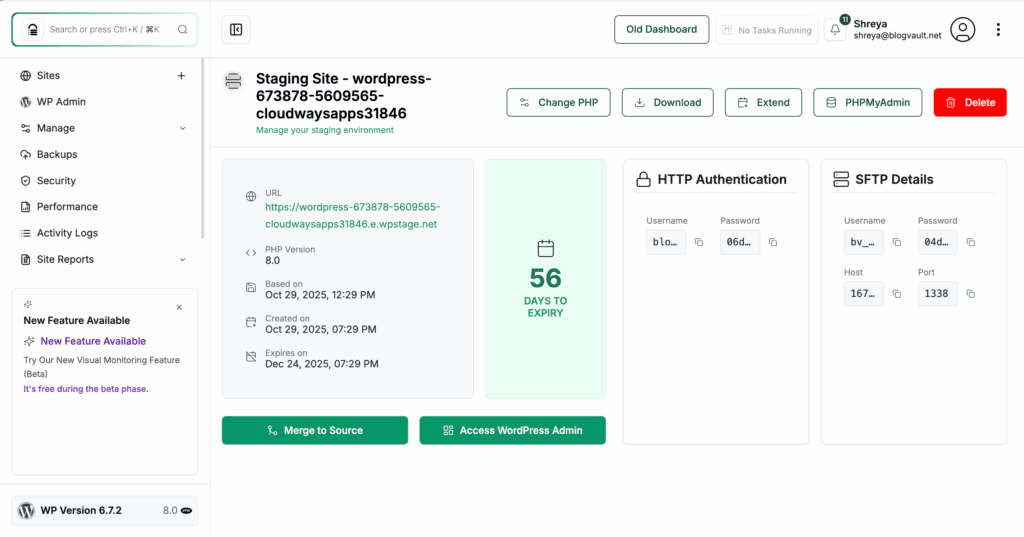
For a WooCommerce store, LMS, membership site, client site, or lead-generation site, test the plugin update on staging first. BlogVault staging helps because you can repeat the failed update away from production, then test checkout, forms, logins, emails, scheduled actions, and plugin settings before touching the live site.
Manual update is a fallback, not the first reflex. Use it when the dashboard path is blocked, you have a known-good ZIP, and you have a current backup.

The safe version is simple: download the plugin ZIP from WordPress.org or the vendor account, confirm the source is legitimate, back up files and database, deactivate the plugin if possible, replace the files carefully through wp-admin upload, FTP, SFTP, or File Manager, then check the version, settings, and dependent workflows.
Avoid deleting the plugin from wp-admin unless you know what that plugin does on deletion. Some plugins keep data. Some remove settings. You do not want to learn the difference on a live checkout.
Confirm The Update Worked
A success message only proves WordPress completed the install step. It does not prove the site still works.
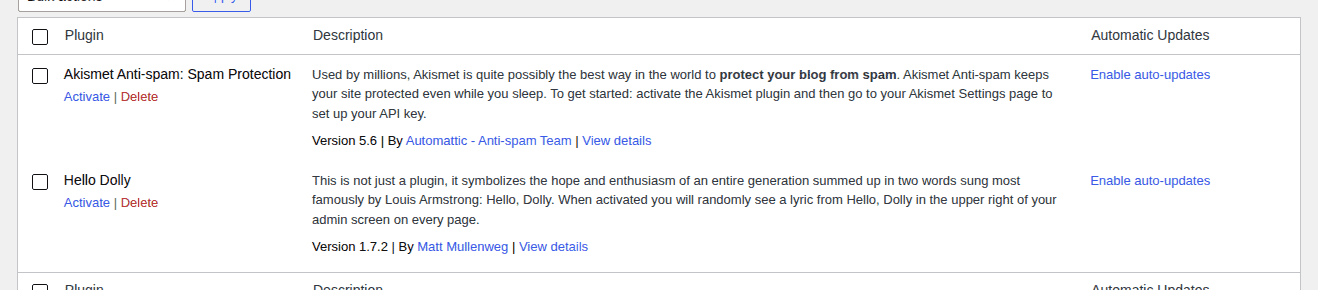
Check wp-admin for the plugin version, settings screen, admin notices, Dashboard > Updates, Site Health, and any plugin-specific status page. If the state is unclear, confirm whether the plugin was actually updated before you keep troubleshooting.
Check the frontend where the plugin actually matters: key pages, layout, mobile rendering, performance signals from an optimization test, and any blocks, shortcodes, widgets, or forms powered by the plugin.

Check the flows that matter most for your site: checkout, login, registration, password reset, forms, email notifications, bookings, memberships, downloads, payments, subscriptions, webhooks, and integrations.
Then check WordPress logs and cache: PHP error logs, wp-content/debug.log if enabled, WooCommerce logs where relevant, browser console errors, cache, and CDN behavior.

Clear caches after you know the update did not break the site. Cache can make a completed update look stale, but do not blame cache before checking the plugin version and admin state. The update is fixed when the plugin is current and the site still does the work visitors rely on.
Prevent The Next Failed Update
You cannot prevent every failed plugin update. You can prevent most of the chaos around one.
Use a safer update routine: keep WordPress core, PHP, and plugins supported, read changelogs before major updates, update WordPress plugins safely, decide when automatic WordPress updates are appropriate, update risky plugins one at a time, and use staging for stores, LMS sites, membership sites, and client sites. Keep a backup and restore plan, keep an update log if more than one person manages the site, and watch Site Health and logs after larger changes.
The habit that saves the most pain is boring: know how you will roll back before you update.
The goal is not to make updates dramatic. The goal is to make them routine enough that a failed update has a playbook.
When To Contact Support
Contact support if the problem is outside wp-admin.
- Ask your host about file ownership, disk space, permissions, PHP limits, cURL, DNS, outbound HTTPS, firewall rules, mod_security, server logs, WP-Cron issues, or stuck update locks.
- Ask the plugin developer or vendor if one plugin keeps failing, the license will not authorize, the update package seems broken, or the update finishes but the plugin breaks.
If the live site is losing money, restore service first and debug later on staging. Support message template:
Hi,
We are updating [plugin name] from [current version] to [target version] on [site URL].
- WordPress: [version]
- PHP: [version]
- Error: [exact message]
- Time: [date, time, timezone]
- Affected updates: [one / many / only premium]
- Free WordPress.org plugins update normally: [yes/no/unknown]
- License checked: [yes/no/not applicable]
- Tried: [backup, cleared maintenance mode, checked permissions or disk space, reconnected license, conflict test, staging test, manual update]
Can you check [server issue / firewall / logs / plugin package / license authorization]? The clearer your details, the faster support can help.
Conclusion
A failed plugin update is not a reason to panic-click the update button. Restore access, back up, match the error to the likely cause, and retry only after the condition has changed.
For important sites, do the risky part on staging and verify the real workflows afterward. The plugin version number matters, but the checkout, forms, logins, emails, and logs tell you whether the site is actually healthy.
FAQs
Why are my WordPress plugins not updating?
If many WordPress plugins are not updating, the cause is usually site-wide: permissions, ownership, disk space, server limits, firewall rules, WP-Cron, an update lock, or a security plugin blocking the process. If only one plugin fails, check that plugin’s compatibility, package, license, or vendor updater.
Is it safe to click Update again?
Not immediately. Capture the error, restore access if needed, back up the site, and fix the likely cause first. Retrying without changing anything can repeat the same failure or worsen a partial update.
What does “Could not copy file” mean?
WordPress could not write plugin files. Check permissions, ownership, disk space, and whether wp-content/plugins and wp-content/upgrade are writable. If permissions look correct, ask the host to check file ownership.
Why does a premium plugin update say unauthorized?
The license may be expired, entered incorrectly, assigned to another domain, disconnected from the account, or blocked by the vendor API. Check the plugin license screen, vendor account, subscription status, and site URL.
Should I delete the plugin and reinstall it?
Only if you know what the plugin does on deletion and you have a backup. Some plugins remove settings or data when deleted from wp-admin. Manual file replacement is often safer, but it still needs a verified ZIP and careful testing.

Shivani enjoys crafting guides that make every aspect of using WordPress simple and easy to follow. When she's not glued to her laptop, you can find her buried in a good book or occasionally, painting.