WordPress staging is usually a simple process. But for a multisite network, it’s a different game.
You’re not just managing one site. You’re responsible for an entire ecosystem where a single bad update can trigger a domino effect of failures.
We know standard solutions often fall short. That’s why we’re showing you how to build a WordPress multisite staging environment. One that actually works, so you can finally test with confidence.
A dedicated staging plugin like BlogVault simplifies the complex and risky process of cloning a WordPress Multisite for testing. It is the most effective way to test network-wide changes without jeopardizing the stability of your live sites.
What is WordPress multisite staging?
A WordPress Multisite staging environment is a complete, separate copy of your entire live network. It creates a safe, isolated place for you to test everything on your sites.
This is essential for trying out network-wide updates, new themes, or plugins. Why? It prevents one bad update from breaking dozens of your sites at once. The process clones all shared WordPress database tables and every single subsite’s data.
Prerequisites
Doing this prep work first is not optional. From our experience, skipping these steps is the number one cause of failed or broken staging setups.
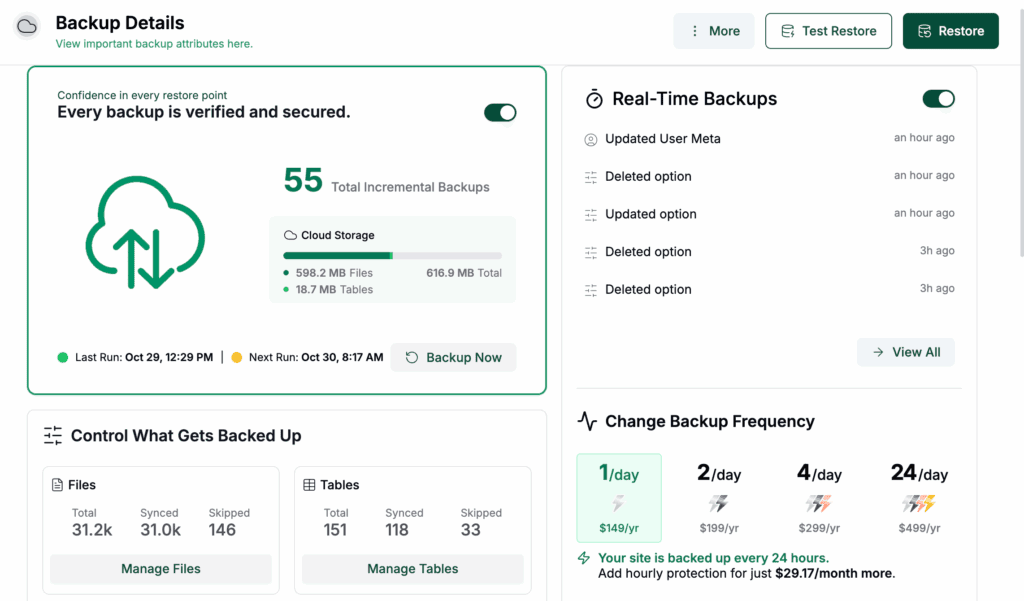
- Take a verified, complete backup of your multisite network. Before you do anything else, you must do this. Then, confirm you can actually restore from that backup if needed. An untested backup is not a backup.
- Document all custom domains and network-activated plugins. A quick list will help you verify that everything works correctly on the staging site. This becomes your quality assurance checklist.
- Ensure you have server (SFTP) and database (phpMyAdmin) access. You will need these credentials to access your site’s files and data, especially if something goes wrong.
A) Staging plugins
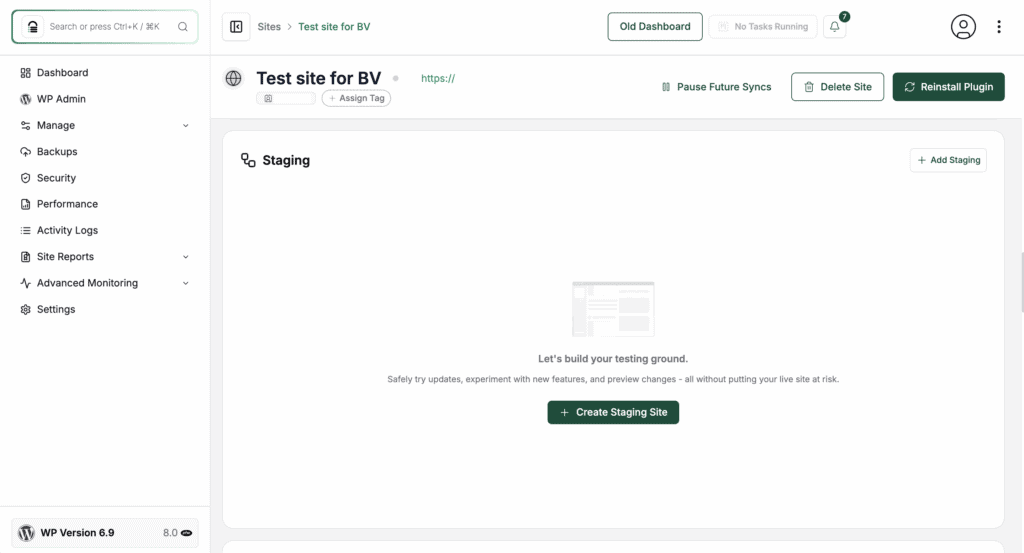
WordPress staging plugins automate the cloning process for your network. This is often the most practical choice for users who cannot or will not change their hosting provider.
Get connected to BlogVault: Start by installing the plugin on your Multisite network and linking it to your account.
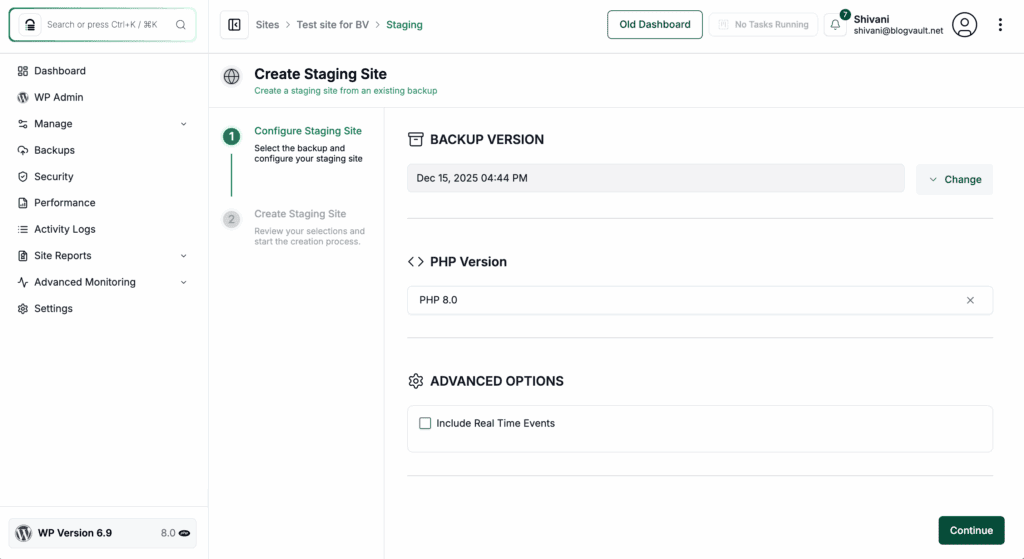
Launch the staging environment: In the dashboard, you can create a staging site with just one click, and yes, it is fully compatible with tricky sub-directory Multisite setups. BlogVault handles everything on its own infrastructure, which is a huge plus because it keeps your server’s resources free.
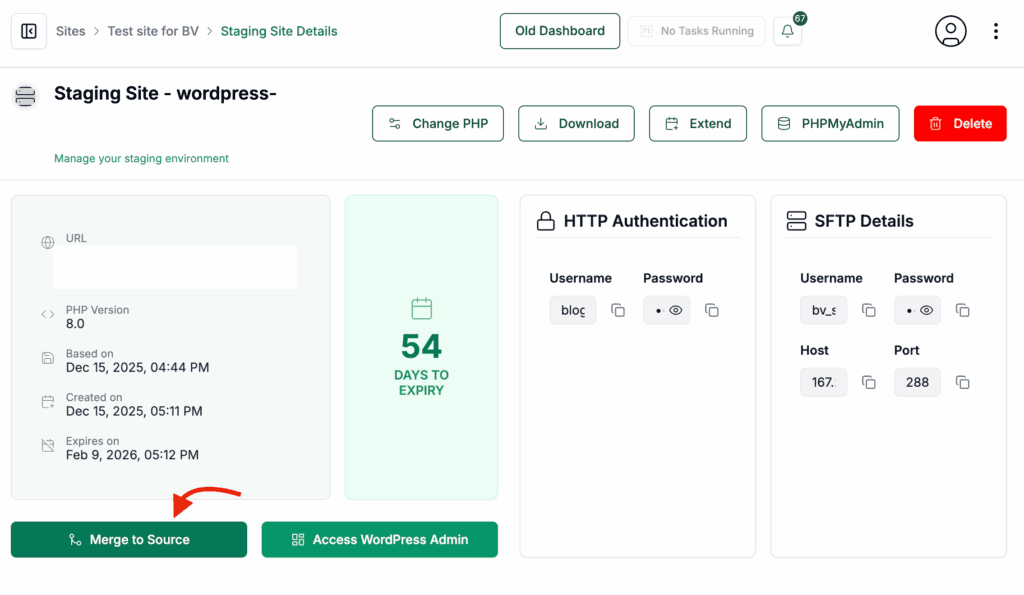
Push your work to the live site: BlogVault’s merge feature is designed for Multisite. We always have a fresh backup on hand before merging—it’s just a habit that gives you total peace of mind when you’re pushing important changes.
B) Managed hosting
This method uses hosting providers with built-in, one-click staging, making it a reliable and less technical option. It’s an ideal method only if your hosting plan can handle the resource load of a full network copy without slowing down your live site. Always check with your hosting provider to be sure.
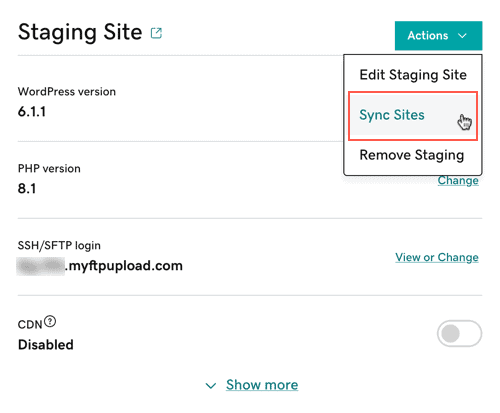
Create your staging site in one click: From their hosting dashboard, you can typically create a complete staging environment with a single button click. The host handles the entire cloning process for you. We have used GoDaddy as an example.
Benefit from tools built for Multisite: The real value here is that their tools are specifically designed to handle the complexities of a Multisite database correctly, which prevents data corruption.
C) Manual migration
This involves manually copying all your files and database tables using tools like WordPress FTP and phpMyAdmin. It provides maximum control but is extremely complex and prone to error.

Move all your data manually: You’ll start by using FTP to copy all your files and phpMyAdmin to export and import the database. Be prepared, as this is the most time-consuming part of the process.
Fix all the broken URLs: This is the most critical step. After moving, all your links and image paths will be broken. You cannot use a simple text editor’s find-and-replace, as it will corrupt your database by breaking how WordPress stores settings (this is called serialized data). You must use a specialized tool.

For developers: The professional standard is to use the command-line tool WP-CLI. It’s fast, powerful, and handles serialized data perfectly.
For everyone else: The safest alternative is the free Better Search Replace plugin. You’ll install it on your new staging site (even if it looks broken).
- Enter your old and new URLs in the Search for and Replace with fields.
- Select all the database tables from the list.
- Do a ‘dry run’ first to be safe. This is the most important step. It lets you preview the changes without any risk.
- Run the tool for real once you confirm the dry run looks correct. The plugin handles everything safely.
Common pitfalls
We have seen these mistakes made too many times. Be sure to avoid them.
- Failing to properly handle serialized data during a manual URL replacement will break your widgets, theme settings, and more.
- Forgetting to block search engines from indexing the staging site. This can create a major SEO problem with duplicate content that is difficult to fix.
- Assuming a single-site staging plugin will work for Multisite. It will not. It does not understand the shared database structure and will break your network.
- Not having a rollback plan (your tested backup) ready to go when you push changes live. Always have an exit strategy.
Parting thoughts
The complexity of creating a staging setup is all front-loaded. A proper environment will save you from endless future pain and emergency support tickets.
Your choice of method depends directly on your budget, technical skill, and hosting situation. Always start and end every major staging session with a fresh backup.
A reliable staging environment transforms network management from a frantic, reactive process to a controlled, professional one. Invest in the method that matches your network’s long-term needs.
FAQs
Does WordPress have a staging area?
No, WordPress itself does not have a built-in staging feature. Staging environments are usually created with staging plugins or offered by hosting companies.
What are the disadvantages of WordPress Multisite?
The main disadvantages are its complexity and that a single technical issue can bring down the entire network of sites. Additionally, not all plugins are compatible, and managing it requires more expertise.
What is the difference between a staging site and a live site?
A staging site is a private copy of your website used to safely test changes before making them public. The live site is the version your visitors see and interact with.
How to manage Multisite in WordPress?
You manage a Multisite network from a central “Network Admin” dashboard where a Super Admin controls themes, plugins, and users for all sites. Individual site administrators have more limited permissions within their own sites.
Is WordPress staging free?
It can be; many managed WordPress hosting providers include free one-click staging with their plans. If your host does not offer it, you will need to use a plugin or set it up manually.
What is the difference between staging and sandbox?
A staging site is a clone of your live site for pre-launch testing, while a sandbox is a completely isolated and often empty environment for experimental development. Think of staging as a final review and a sandbox as a blank sketchbook.
Should I use WordPress multisite?
You should set up and use WordPress multisite if you manage many similar sites that can share the same themes and plugins. If your websites are very different from each other, separate WordPress installations are usually a better choice.

Shivani enjoys crafting guides that make every aspect of using WordPress simple and easy to follow. When she's not glued to her laptop, you can find her buried in a good book or occasionally, painting.