

A WordPress multisite subdomain setup looks simple until the first new site opens a host 404 page, a certificate warning, or a different WordPress install. That usually means WordPress was ready, but DNS, server routing, or SSL was not.
Enable multisite, choose subdomains in Network Setup, add your first subsite from Network Admin, and back up the site before you touch config files. The setup only works when WordPress, DNS, server routing, and SSL all point to the same network install.
This guide walks you through the safe order: confirm the structure, prepare the site, set up the outside routing, enable multisite, add a test subdomain, and fix the common failures without guessing.
What a WordPress multisite subdomain means
A subdomain multisite network is one WordPress installation that runs several sites with addresses such as example.com, news.example.com, shop.example.com, and members.example.com.
These are not separate WordPress installs in separate hosting folders. You create the subsites inside Network Admin. Themes and plugins are installed once at the network level, then made available to the sites that need them. If you are still deciding whether the network model fits, start with the broader WordPress multisite tradeoffs before choosing subdomains.
The mistake I see most often is treating a hosting-panel subdomain as the same thing as a multisite subsite. It is not. The hosting panel routes a hostname. WordPress creates the site record. A working setup needs both.
| Layer | Job |
|---|---|
| WordPress | Creates and manages the subsite |
| DNS | Points the subdomain to the right host |
| Server routing | Sends the request to the multisite install |
| SSL | Makes HTTPS valid for that hostname |
If one layer is wrong, the site can look broken even when the other layers are fine.
Choose the right URL structure first
Choose subdomains because they fit the sites, not because they sound better for SEO. Google can work with subdomains and subdirectories. The real difference is operational.
| Structure | Use it when | Main catch |
|---|---|---|
| Subdomains | Sites need stronger identity, like regional, department, brand, or member sites | DNS, routing, and SSL need more care |
| Subdirectories | Sites are closely related and simplicity matters | URLs feel less separate |
| Mapped domains | Each site will use its own custom domain later | DNS, SSL, redirects, and mapping still need testing |
Use subdomains when separation is worth the extra setup. Use subdirectories when you want fewer moving parts. If the sites are unrelated businesses with different owners, separate WordPress installs may be easier to maintain. If you want to rehearse the choice away from production, build a local test network first.
Prepare the site before changing files
Multisite changes affect how WordPress routes every request. On a fresh test site, that is low risk. On a live site, it is the kind of change you do slowly.
Before you start, confirm:
- Create a complete backup first: Use a backup plugin that captures the files and database, not just an export of posts.
- Confirm the restore path before editing: A backup you have never restored is only a hope.
- Use staging for live sites: Test the change on a WordPress staging site if the site already has traffic, orders, forms, or logged-in users.
- Check file access before you need it: Make sure you can edit WordPress files through SFTP, SSH, file manager, or host tools.
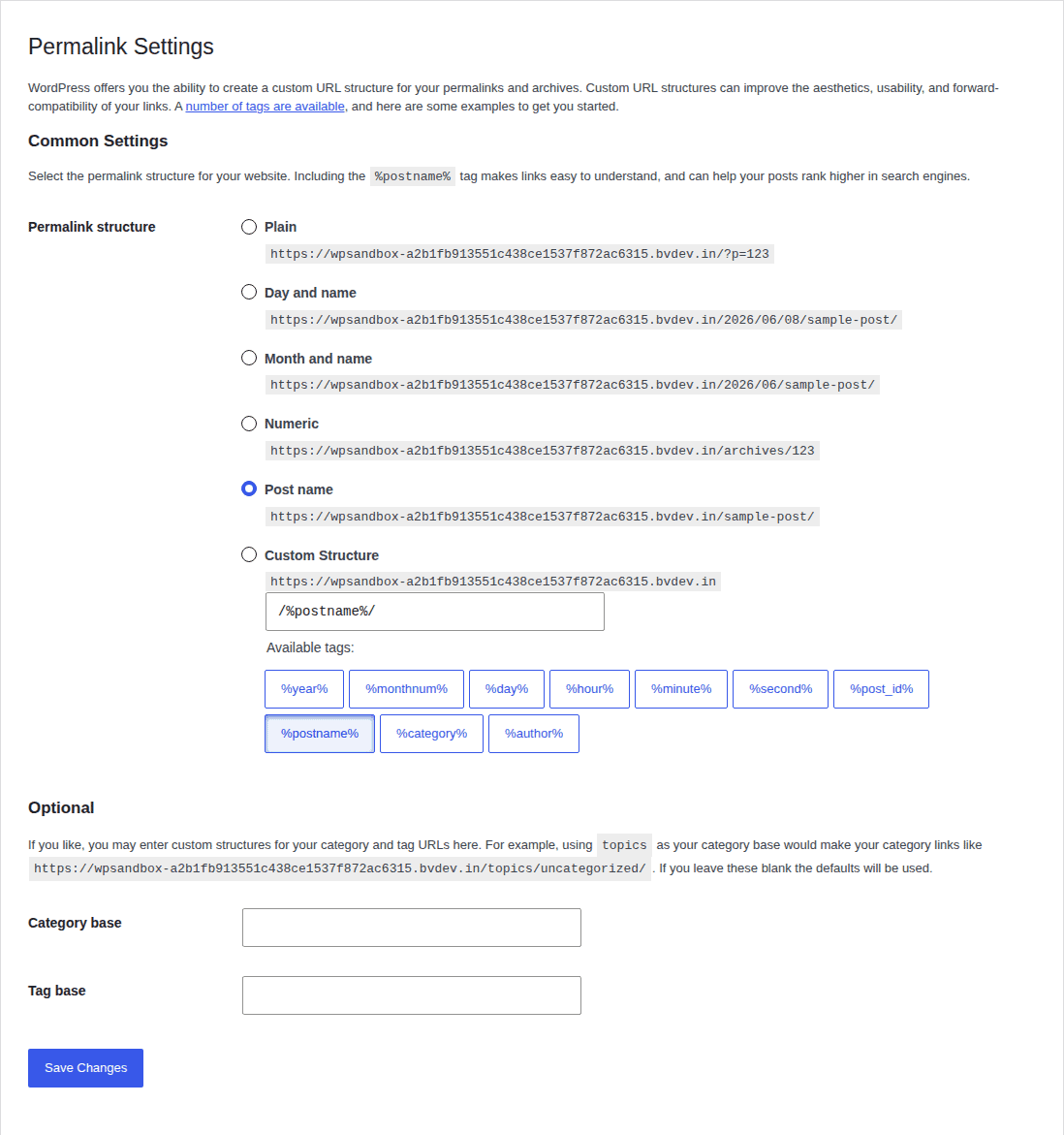
- Confirm admin and permalink basics: You need WordPress admin access and pretty permalinks working.
- Deactivate plugins temporarily: Reactivate them after the network is enabled and tested.
- Verify host support: Ask whether your plan supports WordPress multisite subdomains, wildcard routing, and SSL.
- Confirm DNS access: You need to add wildcard DNS or individual subdomain records.
- Plan SSL coverage: Each public subdomain needs a valid SSL certificate.
- Check server type: Apache uses rewrite rules in the htaccess file. Nginx and managed platforms need host-specific rules.
BlogVault fits this stage because the risk is not theoretical. A small config mistake can lock you out or break routing. Use BlogVault to create an offsite backup and staging copy before you change network structure. It does not configure multisite for you, but it gives you a clean way back.
Set up DNS, server routing, and SSL
WordPress can create shop.example.com as a subsite. It cannot make the internet route that hostname to your server by itself. Set up these three pieces before you add a full network of sites:
| Layer | What to set up | Good result |
|---|---|---|
| DNS | Wildcard DNS for *.example.com, or records for each planned subdomain | The subdomain resolves to your host |
| Server routing | A server alias, app mapping, virtual host, or reverse-proxy rule | The request reaches the same WordPress install |
| SSL | A wildcard certificate or a certificate for each subdomain | HTTPS loads without warnings |
This is the part to verify outside WordPress before assuming the dashboard setup is wrong.
Wildcard DNS is best when you will create many subsites or allow open-ended site creation. Individual records are fine when you only need a few fixed sites, such as news.example.com and members.example.com.
If you use managed hosting, ask this exact question: Can this account route wildcard subdomains to the same WordPress multisite installation and issue SSL for them? A general “we support WordPress” answer is not enough, especially if you plan to change a multisite subsite domain or map custom domains later.
Enable WordPress multisite
Once the backup, WordPress multisite staging plan, DNS, routing, and SSL plan are ready, enable the network from the main WordPress install.
- Back up and pause plugin conflicts first: Take a fresh backup, then deactivate plugins temporarily.
- Open the WordPress config file: Edit wp-config.php through your host file manager, SFTP, or SSH.
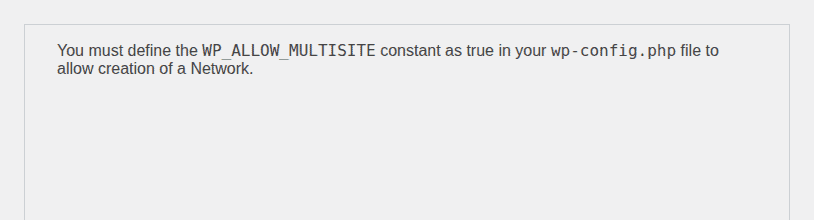
- Add the multisite permission line: Add this above the line that says to stop editing:
define( 'WP_ALLOW_MULTISITE', true ); - Refresh the WordPress dashboard: Go back to admin after saving the file.
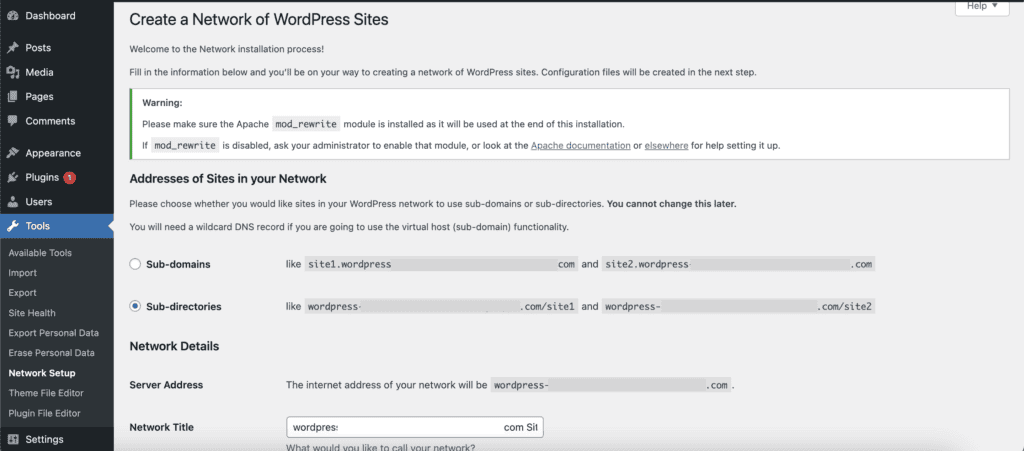
- Open the network setup screen: Go to Tools > Network Setup.
- Choose the subdomain option: Select Sub-domains, then add the network title and admin email.
- Install the network: Click Install and read the instructions WordPress shows.
- Copy your generated rules carefully: Add the generated constants to wp-config.php. If your server uses Apache, add the generated rewrite rules to .htaccess. For Nginx or a managed platform, use the host’s multisite rules instead.
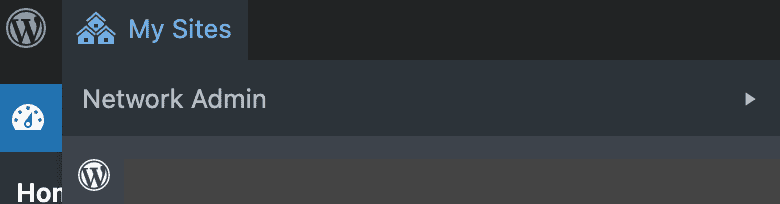
- Sign in again: Log out and back in. You should see My Sites and Network Admin in the admin bar.
Use the snippets from your own Network Setup screen. Do not copy config blocks from a tutorial and assume they match your site.
Add one subdomain site
Create one test subsite before you build the rest of the network. A single failing subdomain is easier to diagnose than ten.
- Open the network sites screen: Go to My Sites > Network Admin > Sites.
- Start a new site record: Click Add New.
- Enter only the subdomain part: For shop.example.com, the site address is usually shop.
- Add the site details: Enter the site title and admin email.
- Create and test the site: Click Add Site, then visit the subdomain and its WordPress admin screen.
- Check themes and plugins from Network Admin: Install shared code at the network level, then decide what should be network-activated and what should stay site-specific. If plugin behavior is central to the network, review WordPress multisite plugins before enabling them everywhere.
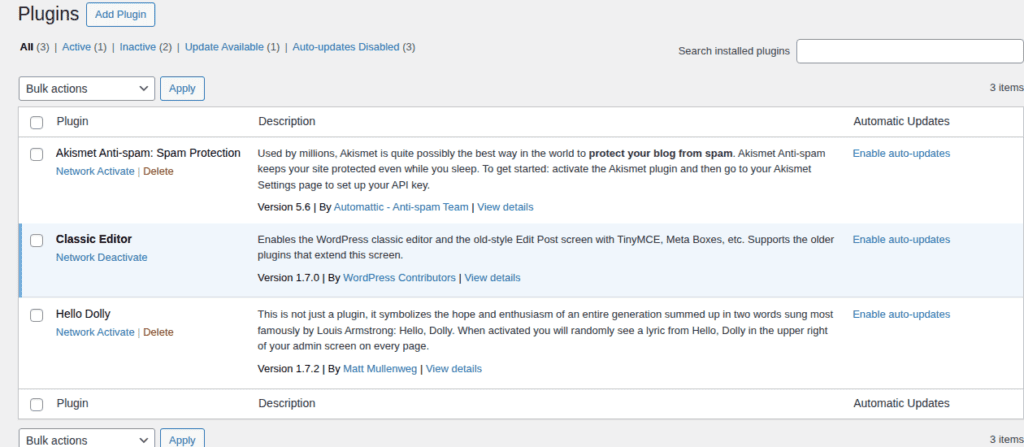
Be careful with network-activated plugins. One update can affect every site in the network. That is useful when you manage shared code well, and painful when one plugin behaves badly.
Verify before adding more sites
A homepage loading once is a good sign. It is not enough proof.
Check the first subsite for:
- Main site access: The root site still loads.
- Subdomain access: The new subdomain loads over HTTPS.
- Dashboard access: The subsite admin loads and lets you sign in.
- Valid certificate: The browser shows no SSL warning.
- Permalinks: A normal post or page URL works.
- Media uploads: Uploads display on the subsite.
- Login behavior: You can move between the main site and subsite dashboards without cookie errors, and the expected WordPress multisite roles behave correctly.
- Theme and plugin access: The expected options are available.
- DNS result: A DNS checker or command-line lookup points the subdomain where expected.
- Redirect and cache behavior: The subdomain does not bounce to the wrong URL.
Success looks plain: you can visit the subdomain, log in, publish content, upload media, and browse normal URLs without warnings or odd redirects.
Troubleshooting common issues
When a subdomain fails, diagnose the layer that failed. Random edits usually make this worse.
| Symptom | Likely cause | First check |
|---|---|---|
| Host 404 page | DNS or host routing | DNS target and app mapping |
| Default page or separate install | Wrong virtual host or folder | Server alias and subdomain target |
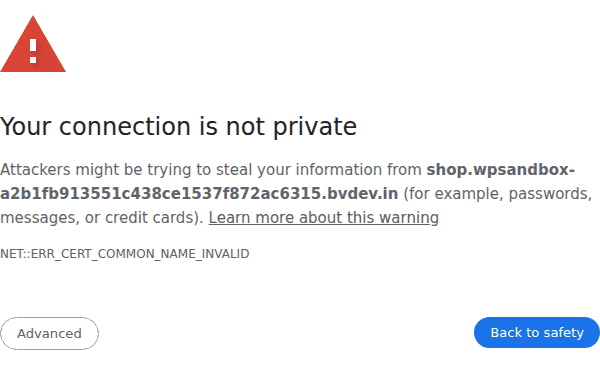
| HTTPS warning | Certificate missing | Wildcard or subdomain SSL |
| Wrong URL redirect | Site URL, mapping, cache, or redirect rule | Network Admin site settings and redirect rule |
| Login or cookie error | Mixed HTTP/HTTPS or domain mismatch | SSL and site URLs |
| Broken CSS, images, or 502 errors | Stored URLs, cache, PHP, or proxy issue | Cache, logs, and app status |
| Nginx ignores rules | Apache rules were used | Host-specific Nginx config |
Use this order: DNS first, server routing second, SSL third, WordPress settings fourth. WordPress cannot fix a subdomain that never reaches WordPress.
If the failure includes suspicious redirects, unknown admin users, or files changing again after repair, scan the site before restoring traffic. If a failed change happened on production, stop making live edits. Restore the last known good state or move the fix to staging. This is why the backup step matters.
Changing structure later
You can switch a multisite network from subdirectories to subdomains later, but treat it as a migration. It is not a casual dashboard preference.
A proper switch may require:
- Change the network constant: Update the subdomain setting in WordPress config.
- Update server rules: Adjust Apache, Nginx, app routing, or reverse-proxy rules.
- Fix site domains and paths: Make sure each subsite has the right URL.
- Repair stored URLs safely: Use a serialized-data-safe tool, such as WP-CLI search-replace, when content or metadata needs URL changes.
- Add DNS and SSL: Every new subdomain needs routing and HTTPS.
- Set redirects: Preserve traffic from old URLs where needed.
- Clear caches: Remove stale redirects and stored page output.
- Test each subsite: Check login, media, dashboards, forms, and permalinks.
Do not do this live as your first attempt. Build the plan on staging, keep a complete backup, and involve a developer for large networks. If the change moves a whole network between hosts or URL structures, use a dedicated multisite migration plan.
Domain mapping and mixed structures
WordPress multisite supports domain mapping without extra plugins, but DNS, SSL, routing, and redirects still need to be set up correctly. Standard multisite uses one site structure—either subdomains or subdirectories—while mixed setups like example.com/shop and members.example.com usually need a separate install, mapped domain, or custom routing.
When to avoid a WordPress multisite subdomain
Subdomain multisite is the wrong choice when shared management becomes shared risk. Skip it if:
- The sites need separate ownership: Different clients, businesses, or release schedules often need separate installs.
- The plugin stacks are very different: Network-level plugin management can become a liability, especially for stores where WooCommerce adds order, payment, and extension risk.
- Your host cannot route subdomains cleanly: WordPress settings will not solve host limitations.
- You do not have backups and staging: Multisite is not the place to improvise recovery.
- You only want it for SEO: Structure alone will not fix weak content or poor site management.
Use a WordPress multisite subdomain when the shared codebase is the advantage. Avoid it when every site needs its own rules.
Final recommendation
If you are starting fresh and your host supports subdomain routing and SSL, follow the setup flow and create one test subsite first.
If the site is live, back it up, stage it, test the network there, then move carefully. BlogVault is useful here because multisite gives one change a wider reach, and a WordPress multisite backup plugin should cover the full network, not just one visible subsite.
If your host cannot route subdomains to the same WordPress install, choose subdirectories, mapped domains on better hosting, or separate installs.
FAQs
What is a WordPress multisite subdomain?
It is one WordPress installation where subsites use subdomains such as news.example.com or shop.example.com. The sites share WordPress core, themes, and plugins, but each subsite can have its own content, settings, users, and dashboard.
How do I set up WordPress multisite with subdomains?
Backup the site, enable multisite in wp-config.php, choose Sub-domains in Tools > Network Setup, copy the generated config rules, then add your subsite in Network Admin. You also need DNS, server routing, and SSL for the subdomain.
Do I need wildcard DNS for WordPress multisite subdomains?
Use wildcard DNS when you want many or open-ended subsites. For a small fixed network, individual subdomain records can work.
Why is my multisite subdomain showing a 404?
The subdomain is probably not reaching the multisite install. Check DNS first, then the server alias, app mapping, virtual host, or reverse-proxy rule.
Can I switch from subdirectories to subdomains later?
Yes, but treat it as a multisite migration. Test on staging first because the change can affect config, server rules, site URLs, stored URLs, DNS, SSL, redirects, and caches.

Shivani enjoys crafting guides that make every aspect of using WordPress simple and easy to follow. When she's not glued to her laptop, you can find her buried in a good book or occasionally, painting.


