If you’re trying a WordPress plugin update from GitHub and there’s no “Update now” button, you’re not alone. When a plugin lives on GitHub instead of WordPress.org, the usual WordPress update flow doesn’t apply.
But, you can’t afford to just let it be. A WordPress update will fix bugs, patch security issues, and keep your site compatible. So, it’s important to figure out how to update your plugins from GitHub, as soon as possible.
This article will show you two different methods to update your plugins. We’ve got your back. We’ll show you everything you need to know.
Download the Git Updater plugin from the website. Install and activate the plugin. After that, you should be able to update the plugin from your plugins dashboard. Before you begin, take a backup of your WordPress website to keep your site safe.
Why does a WordPress plugin update from WordPress not happen automatically
You can only update WordPress from the dashboard, if the WordPress.org update system knows of it. But, the system can’t recognise updates from GitHub. Here are some reasons why:
- WordPress.org vs. GitHub infrastructure: WordPress checks WordPress.org for new versions, changelogs, and download ZIPs using built-in APIs. GitHub isn’t part of that system, so WordPress can’t see version numbers or offer a one‑click update by default.
- Security implications of outdated plugins: When a plugin doesn’t auto‑update, it’s easy to miss critical security fixes. Outdated code can expose your site to known vulnerabilities or break after a core WordPress update.
- Update notification gap: WordPress can’t “see” GitHub plugins. So, you won’t get the normal dashboard badges or email alerts. That means you might not know an update exists unless you check GitHub releases or subscribe to repository notifications.
How to Update WordPress Plugins from GitHub
This section gives you two reliable ways to update a WordPress plugin from GitHub. Both methods are easy to do and require no technical know-how.
Method 1: Git Updater (Recommended)
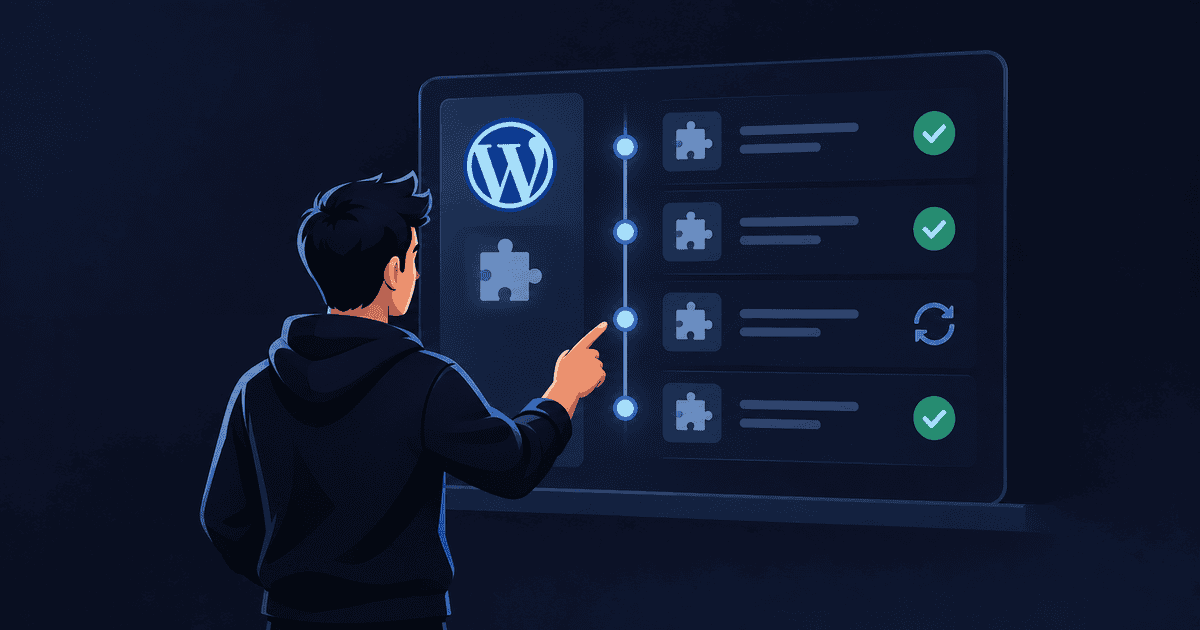
The easiest way to update your plugin is using the admin panel. The Git Updater by Andy Fragen does just that, by bridging WordPress and GitHub. It surfaces update notices and lets you update with one click, from your WordPress admin panel.
- Download the official plugin: Go to the official website for Git Updater. Choose whether you want a paid or free version. Then, download the latest version.
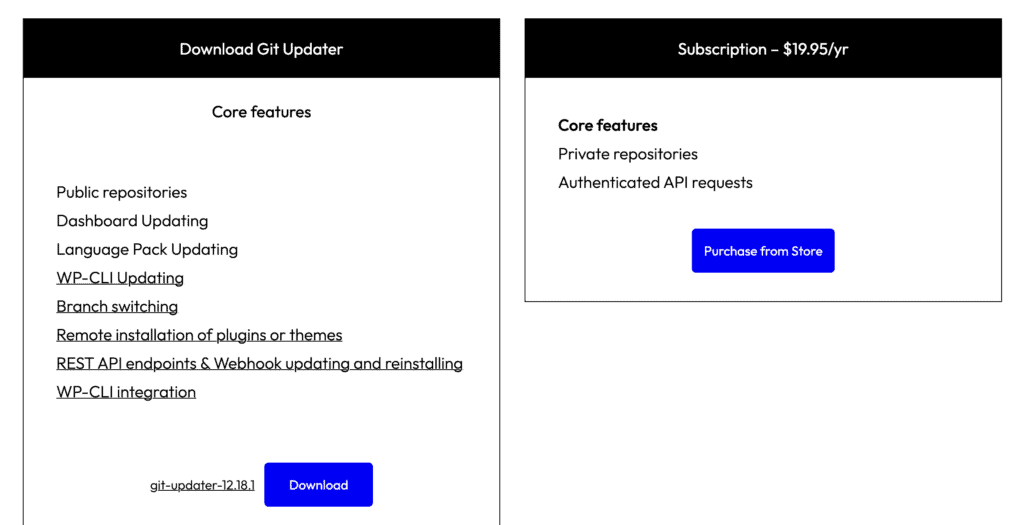
- Install on WordPress dashboard: Go to Plugins > Add New > Upload Plugin, choose the ZIP you downloaded, then Install and Activate.
- Choose either the free or paid version: On activation, you’ll be prompted to add a license key or continue with the free version. Pick what fits your needs.
- Check for available updates: Look under Plugins > Installed Plugins for the Update now link next to your GitHub plugin. Click Update now. Git Updater will download the latest release from GitHub and replace the old version safely.

Method 2: Manual ZIP Updates
If you’ve manually updated a plugin, this is the same process. It’s a straightforward, no-plugin way to run a WordPress plugin update from WordPress. It’s quick, works for public or private repos, and is ideal when auto-updates aren’t set up. The only flaw is that you will have to keep checking for updates or sign up for notifications.
- Download the latest ZIP: Go to the plugin’s GitHub repo. Prefer Releases and download the latest versioned ZIP. If there’s no Release, use Code > Download ZIP.
- Upload via WordPress dashboard: In your dashboard, go to Plugins > Add New > Upload Plugin. Choose the ZIP you downloaded and click Install Now.

- Replace the existing plugin: WordPress will detect the same plugin and prompt you to Replace current with uploaded. Confirm to overwrite the old version. If you don’t see the prompt, deactivate and delete the old plugin first, then install the ZIP.
- Activate and verify: If needed, click Activate. Your settings usually remain intact since they’re stored in the database.
- Test the site: Check key pages and plugin features. Clear cache (host/CDN/plugin). If anything breaks, restore WordPress backup or roll back to the previous GitHub release.
Troubleshooting Guide for WordPress plugin updater WordPress
If a WordPress plugin update fails or isn’t appearing on the dashboard, it’s a problem. It usually comes down to configuration, access, or versioning. Here are some popular problems:
1. Update unavailable:
Ensure Git Updater is installed. Make sure it’s installed and active, and that your plugin shows up in its settings. If it’s not showing up, it’s because WordPress can’t identify updates. This is likely because the plugin’s header doesn’t include the right metadata. Open the plugin’s main PHP file on GitHub and ensure that the GitHub Plugin URI points to the repository. Then, check that the GitHub Branch is set to the branch you release from, such as main or master.
If nothing changes, force a refresh by visiting Dashboard > Updates and clicking Check again, then clear any site or CDN caches.
Public repositories can still hit GitHub API rate limits, so add a GitHub access token in Settings > Git Updater to avoid silent failures.
2. Private repository access errors:
Private repos require a valid token. Create a GitHub personal access token with the repo scope and paste it into Settings > Git Updater under GitHub. If the repository is owned by an organization with SSO, make sure the token is authorized for that organization. Tokens expire or get revoked; if updates stop working, regenerate the token and save it again.
3. Connectivity issues:
Your server must reach api.github.com and github.com, so allow outbound requests through any firewall or security plugin. If you use GitHub Enterprise on a custom domain, add that host in Git Updater’s settings so it knows where to look.
Best Practices for WordPress Updates
When you plan a WordPress plugin update from WordPress, a few habits will keep your site safe and your workflow calm. Treat these like your checklist before any WordPress update, especially for plugins that don’t come from WordPress.org.
- Always back up before updates: Use backup plugins like BlogVault to take a fresh, full backup so you can restore in minutes if something breaks. BlogVault stores backups offsite, runs fast incremental backups, and offers one‑click restore. I would recommend that you make this a rule before every plugin or theme change.

- Monitor changelogs: On GitHub, check the Releases page and read the changelog notes. Look for database changes, removed functions, new minimum PHP/WordPress versions, and dependency updates. Look for anything that might affect your theme, other plugins, or custom code.
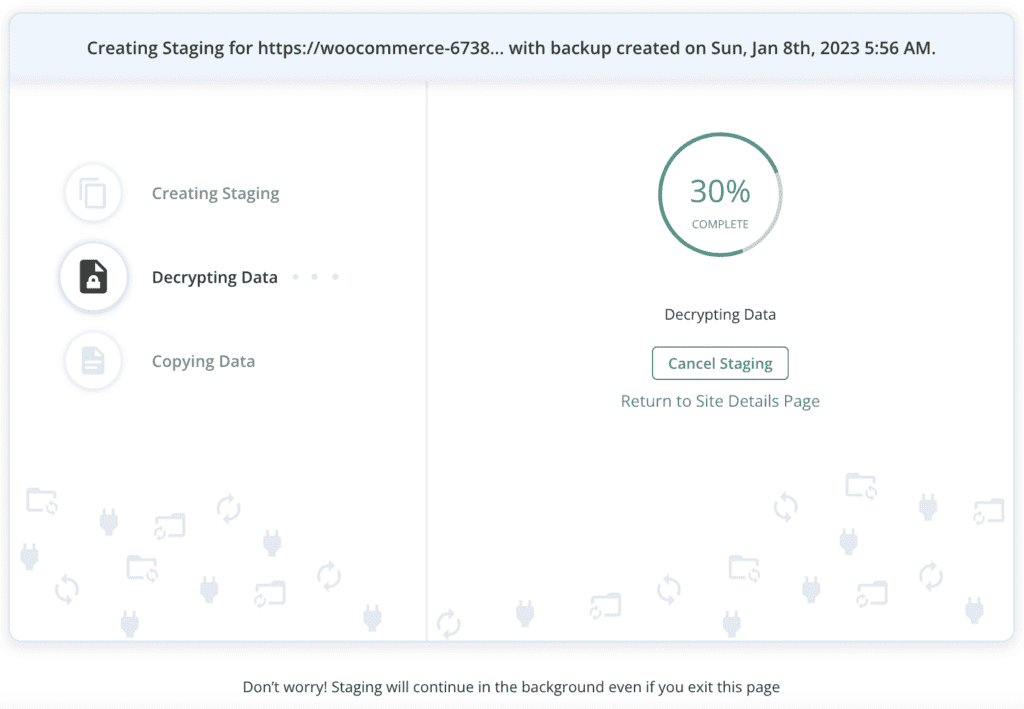
- Test updates first: Use a staging site to try the new version before touching production. BlogVault can spin up staging in a click, so you can update the plugin there, run through key user flows, and confirm there are no errors or layout issues. Only push to live once you’re confident.
- Use UpdateLens: BlogVault’s UpdateLens helps you see what changed, compatibility notes, and potential risk signals for plugin and theme updates. So you can prioritize safely.

Final thoughts
All plugin updates, even those from Github, need to be handled carefully. Automatic updates come with serious risks. This is especially true if you’re blindly updating major plugins like a page builder plugin. Instead, we recommend you take precautions like backups and testing on a staging site. You can use a plugin like BlogVault to do both.
BlogVault will automatically take a backup, in real time. So you will always have a complete backup to restore in one-click. Even the staging site is a one-click solution that you don’t need any technical knowledge to build. BlogVault also offers safe updates that will test out the updates and then tell you if it’s safe to update it or not.
FAQs
How to automatically update WordPress plugins?
You can enable auto-updates in Plugins > Installed Plugins by clicking Enable auto-updates for each plugin. For plugins hosted on GitHub, first use Git Updater and then use the auto-update toggle However, we would not recommend you enable auto-updates because of how risky it can be. Updates can lead to conflicts that can lead to crashed sites and other issues.
How to install a WordPress plugin from GitHub?
The simplest way is to download the ZIP from the repository’s Releases page (or use Code > Download ZIP if no releases), then go to Plugins > Add New > Upload Plugin, upload the file, install, and activate. If you plan to keep it updated through WordPress dashboard, install Git Updater, connect the repository (add a GitHub token for private repos), and let it handle future updates. Prefer release ZIPs for stability.
How do I update a plugin on WordPress?
For plugins from WordPress.org, go to Dashboard > Updates or Plugins > Installed Plugins and click Update now. For GitHub-hosted plugins, use Git Updater so updates appear in the same screens and run them with one click; without it, download the latest release ZIP from GitHub and upload it via Plugins > Add New > Upload Plugin, then confirm Replace current with uploaded. If you prefer the command line, use WP-CLI with wp plugin update plugin-slug. Back up with BlogVault first and verify key pages after the update.
How do you revert a plugin update in WordPress?
The fastest and safest method is to restore a backup; BlogVault lets you roll back to a recent restore point in minutes. You can also reinstall a previous version or downgrade a plugin in WordPress using tools like the WP Rollback plugin or download an older version from the plugin’s Advanced View, and for GitHub plugins download the prior tagged release (for example v1.2.3) and upload it to replace the current version. If the site is broken, use Recovery Mode from WordPress’ email or disable the plugin via SFTP by renaming its folder, then test on staging before attempting the update again.

Shreya has been a writer for as long as she can remember. Now, she writes articles that help WordPress users manage the sites that they're proud of, with little to no coding