You usually look for this fix after WordPress has already complained. A plugin update fails, WooCommerce shows a low memory warning, a page builder will not save, or the site throws an error that says the allowed memory size has been exhausted.
If you are dealing with a WordPress memory exhausted error, the memory-limit fix below is a practical first step, but keep troubleshooting if the same task keeps failing.
If you are trying to learn how to increase PHP memory limit for WordPress, start with wp-config.php, but do not stop there if your host enforces a lower PHP limit.
Backup your site first, ideally with a backup plugin, then add define( 'WP_MEMORY_LIMIT', '256M' ); above the “That’s all, stop editing” line in wp-config.php and check Tools > Site Health > Info > Server. If the value does not change: your server PHP limit, host plan, PHP config file, .htaccess setup, or a plugin/theme conflict is probably overriding the setting.
The annoying part is that there are two layers involved. WordPress can ask for more memory, but PHP and your host decide the hard ceiling. Think of WP_MEMORY_LIMIT as the request and PHP memory_limit as the rule the server actually enforces.
For most sites, 256M is the right first target. Use 512M only when the workload justifies it, such as WooCommerce, large imports, image processing, backups, scans, or heavy builder edits.
Check the current limit first
Do this before you edit anything. Otherwise, you will not know whether the change worked.
Open your WordPress dashboard and go to Tools > Site Health > Info > Server. Look for PHP memory limit.
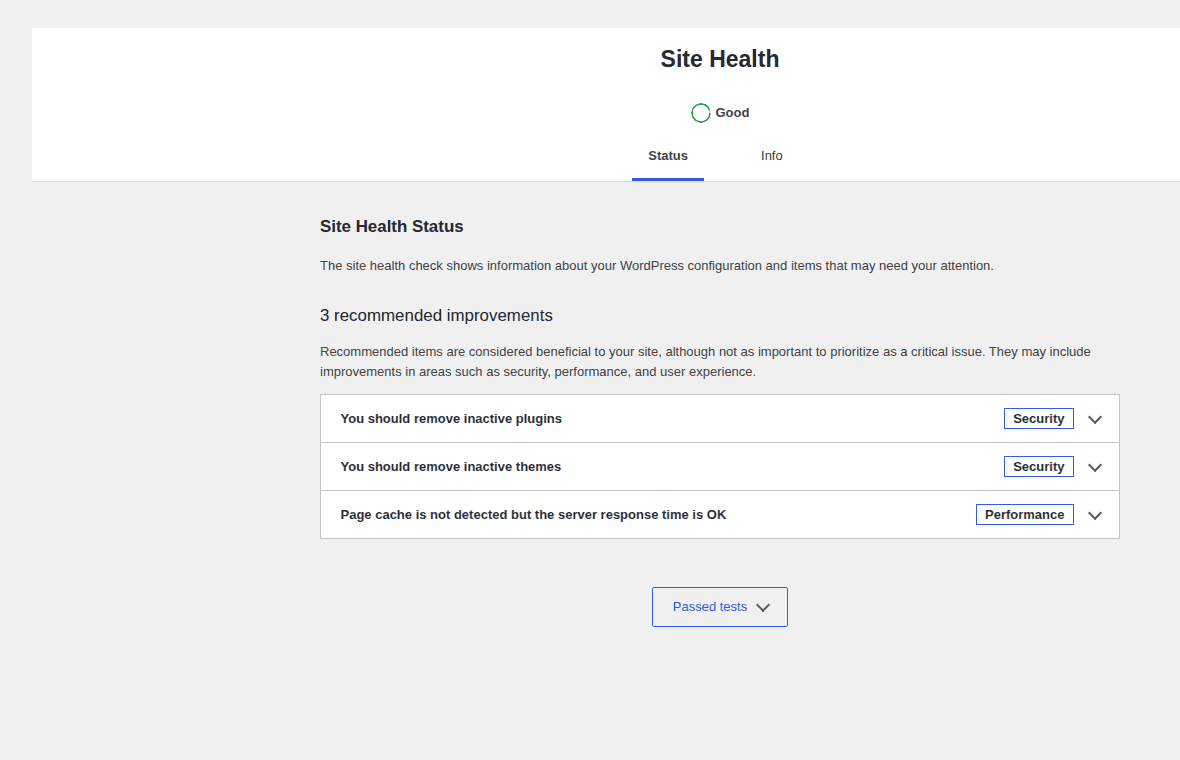
If you run WooCommerce, also check WooCommerce > Status > System Status. Stores often show both the PHP limit and the WordPress limit, and those numbers may not match.
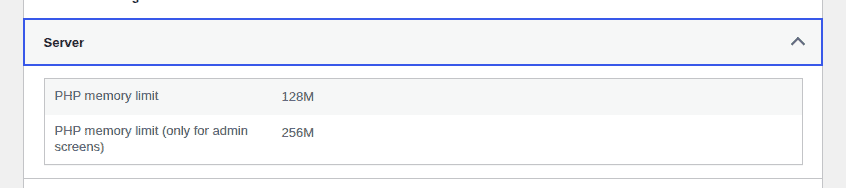
Use this as a practical read, not a contest where the biggest number wins. The goal is to give WordPress enough room to finish the job, not to turn a memory warning into a hosting stress test.
| Current value | What it usually means |
|---|---|
| 40M or 64M | Too low for many modern WordPress sites |
| 128M | Fine for small sites, tight for heavier admin work |
| 256M | Good first target for most active WordPress sites |
| 512M | Useful for WooCommerce, imports, builders, scans, and large media work |
| 1024M or more | Stop and investigate the workload before raising it again |
A higher memory limit does not make WordPress faster by itself. It only gives one PHP task more room before it fails.
How much PHP memory should WordPress have?
For most WordPress sites, 256M is the right first target. It is high enough for normal plugin updates, admin work, and a typical modern plugin stack without being so high that it hides a broken job.
Use 512M when the site has a clear reason: WooCommerce, large imports, image processing, backup archives, malware scans, page builders, or heavy admin operations. If the site already has 512M and still crashes, the next useful move is diagnosis, not another bigger number.
Be careful with 1024M or higher. That may be valid on a busy store or custom server, but it should come after logs, workload checks, and host confirmation. Memory is a ceiling. It is not a performance upgrade.
Choose the right method
The safest method depends on what you can access. Do not edit server files just because a tutorial lists them.
| Your situation | Start here | Why |
|---|---|---|
| You are not comfortable editing files | Ask your host | It avoids a broken config file |
| You have File Manager, FTP, SFTP, or SSH | Edit wp-config.php | It is the common WordPress-level fix |
| You use cPanel, Plesk, hPanel, or managed hosting | Use the host PHP settings panel | It changes the server limit cleanly |
| You run WooCommerce or a page builder | Edit wp-config.php, then verify the PHP server limit | Heavy admin tasks often need both layers aligned |
| You manage a VPS or custom server | Change PHP memory_limit directly | The server config controls the ceiling |
| You work on a local site | Edit the local tool’s PHP config and restart | Local tools often use their own config files |
| The value stays at 40M | Check placement, host caps, duplicate settings, and plugins | Something else is overriding the change |
The pattern is simple: beginners should use host support or a hosting control panel, most site owners should start with wp-config.php, and developers or VPS owners should check the server-level PHP setting.
The annoying part is that several methods look interchangeable in tutorials. They are not. wp-config.php changes what WordPress asks for. PHP settings change what the server allows. Host support changes what your plan is allowed to use. If you edit the wrong layer, the number can stay stubbornly unchanged no matter how carefully you typed the line.
Make the change reversible
Most memory-limit fixes are simple. The risk is the file edit.
A missing character in wp-config.php can break the site. A PHP rule in the wrong .htaccess setup can cause a 500 error, which means the server could not load the page. Before you edit anything:
- Take a full backup of the site, or back up your WordPress site with a backup plugin if you do not already have one. If you are doing this without a plugin, back up WordPress manually before editing server files.
- Download a copy of the exact file you will edit.
- Keep File Manager, FTP, SFTP, or SSH open until you verify the site loads.
- Avoid doing this during a sale, campaign, or checkout rush.
- Use staging to test the change on a staging site for WooCommerce stores, client sites, and high-traffic sites.
BlogVault fits this part of the job because it is a safety layer, not a memory editor. A BlogVault backup gives you a restore point before you touch wp-config.php, .htaccess, or PHP settings. BlogVault staging is also useful when you want to test the change away from the live site.
Method 1: Edit wp-config.php
This is the best first method for many WordPress sites. Open the WordPress root folder using your host File Manager, FTP, SFTP, or SSH. The root folder is the place that contains wp-admin, wp-content, and wp-includes.
If you need a slower walkthrough of file access and placement, use a guide to edit the wp-config.php file before changing the live file.
Find wp-config.php and download a copy before editing the live file. Add this line above That’s all, stop editing! Happy publishing.
define( 'WP_MEMORY_LIMIT', '256M' );A clean placement looks like this:
define( 'WP_MEMORY_LIMIT', '256M' );

/* That's all, stop editing! Happy publishing. */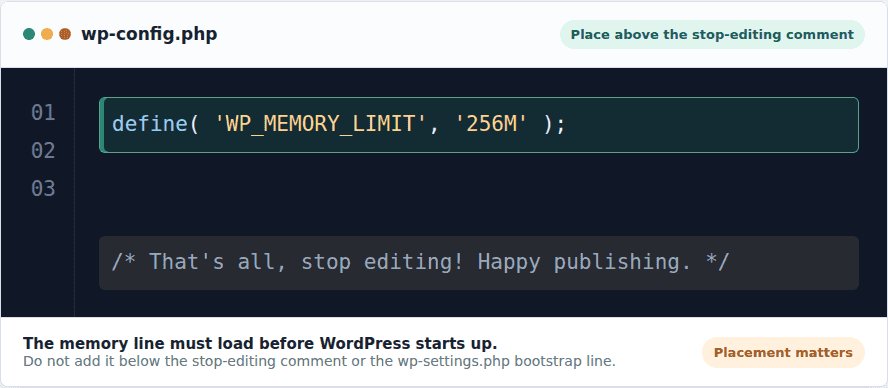
Do not add it after the stop-editing line, and do not place it below the WordPress bootstrap line that loads wp-settings.php. By then, WordPress is already starting up and your new value may arrive too late to matter.
Save the file and reload the site. If the site loads, check Tools > Site Health > Info > Server again. WooCommerce users should also check WooCommerce > Status > System Status.
If the value changed and the original task now works, stop here. More edits add more risk.
Add admin memory only when dashboard tasks fail
Some failures happen only in the dashboard: imports, plugin updates, WooCommerce admin jobs, media processing, backup jobs, malware scans, and page-builder saves. For those cases, add this near the first memory line in wp-config.php:
define( 'WP_MAX_MEMORY_LIMIT', '512M' );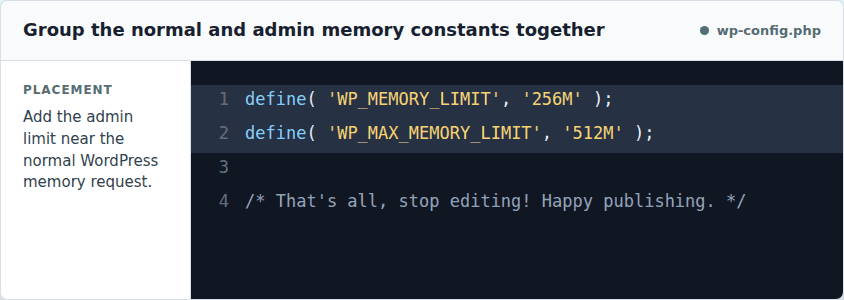
WP_MEMORY_LIMIT is the normal WordPress memory request. WP_MAX_MEMORY_LIMIT is the higher amount WordPress can request for some admin tasks. This still cannot break past the server’s PHP limit. If PHP only allows 256M, WordPress cannot force 512M.
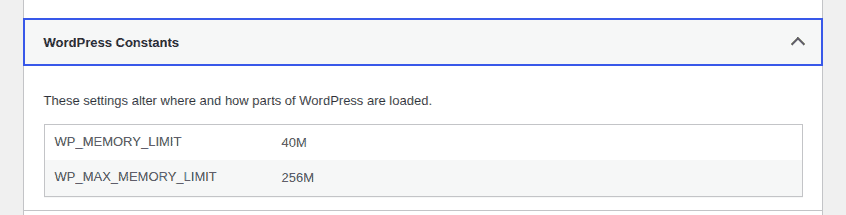
Use this as an admin safety valve, not as the first thing you paste into every site. If the frontend is fine but the dashboard fails during heavy work, it can help. If the whole site is hitting fatal memory errors, check the normal WordPress and server PHP limits first.
Method 2: Raise the server PHP limit
Use this when wp-config.php does not change the active value, or when your host gives you a PHP settings screen. Look in your hosting dashboard for names like:
- PHP Options
- MultiPHP INI Editor
- Select PHP Version
- PHP Settings
- Plesk PHP settings
- hPanel PHP configuration
- Performance or Advanced settings
Set the PHP memory limit to 256M as the first target. In a PHP config file, the setting often looks like this:
memory_limit = 256MThe file name depends on the host. It may be php.ini, .user.ini, phprc, or a host-specific file.
Method 3: Use .htaccess only if your host supports it
The .htaccess method is common, but it is fragile.
.htaccess is an Apache server rules file. A bad line there can stop the site before WordPress loads. On many modern hosts, this line is ignored. On some hosts, it causes a 500 error right away. Use it only if your host says it is supported. Add this to .htaccess in the WordPress root:
php_value memory_limit 256M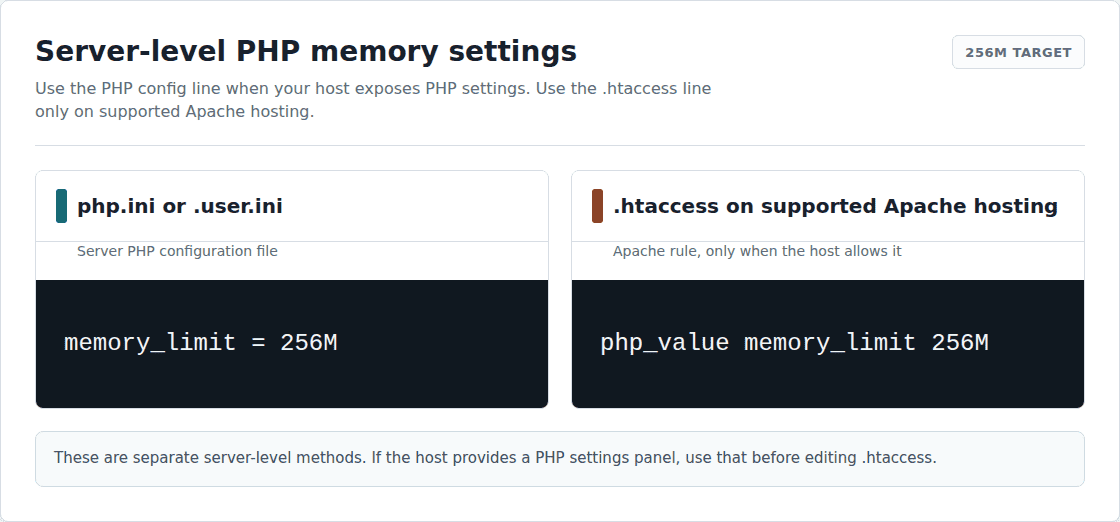
Reload the site. If you see a 500 error, remove the line and save the file again. If your host offers a PHP settings panel, use that instead.
Method 4: Ask your host
Host support is often the cleanest fix, not a last resort.
Use this route when you cannot access the right file, the dashboard does not expose PHP memory settings, the value will not change, or you are on managed hosting with plan-level limits. Send this:
Please increase the PHP memory_limit for my WordPress site to 256M.
Could you also confirm:
- the current PHP memory_limit for this domain
- the maximum allowed on my hosting plan
- whether the change applies only to this domain or to all sites under my account

The site is showing memory-related errors during WordPress admin or plugin operations.
If this is a WooCommerce store, say that in the ticket. Hosts usually understand why stores and admin-heavy sites need more memory than small brochure sites.
Verify the active value
Do not trust the file save. Trust the value WordPress and PHP report. Check these places:
- Tools > Site Health > Info > Server
- WooCommerce > Status > System Status, if you use WooCommerce
- Your host PHP settings page, if it shows the active value
- A temporary phpinfo file only if you know how to create and delete it safely
phpinfo is a small PHP test page that shows server settings. Delete it after checking because it can expose server details visitors do not need to see. Then repeat the task that failed. Install the plugin, run the import, save the builder page, process the image, or run the WooCommerce action again.
The number matters only if the real workflow now completes.
If the limit still will not change
Do not keep adding random memory lines. Work through the likely causes.
- Check the wp-config.php placement: The line must sit above That’s all, stop editing! Happy publishing. If it is too low, WordPress may not use it.
- Search for duplicate memory settings: Another WP_MEMORY_LIMIT line can override your change or create confusion. Keep one clear setting.
- Confirm you edited the right site: Staging sites, old migrations, subdomains, and multiple WordPress installs make this mistake common.
- Check the server PHP limit: If PHP is capped below the WordPress value, the lower number wins.
- Ask about host caps: Some hosts let you save a higher value but still enforce a lower plan limit.
- Restart PHP or the local site: Local tools and custom servers may not apply config changes until restart.
- Clear server-side PHP cache if needed: Start with host PHP or cache controls. An opcode cache is a server cache for compiled PHP code; sometimes it needs a refresh before config changes show.
- Test plugins and themes if the value changed but the error remains: The memory setting may be fine while a plugin, theme, import, scan, or builder task is still using too much memory. Test this on a WordPress staging site if the site is important.
- Check local development tools separately: LocalWP, Docker, MAMP, Valet, and similar tools may use their own PHP configuration. Editing the WordPress file may not change the local PHP process until you update the tool’s PHP setting and restart the site.
Do not edit wp-includes/default-constants.php. That is a WordPress core file, and updates can overwrite your change. It is the wrong place for a site-specific fix.
If memory errors keep coming back
Raising memory is valid when the site needs more room. It is not a cure for wasteful code, broken jobs, malware, or hosting that no longer fits the site. Use the symptom to decide what to check next:
| Symptom | Check next |
|---|---|
| Error after activating a plugin | Plugin conflict, bad update, or plugin workload |
| Error while saving a builder page | Builder modules, revisions, custom widgets, PHP version, admin memory |
| Error during WooCommerce tasks | Imports, scheduled actions, reports, checkout extensions, product volume |
| Error during image uploads | Image size, image processing, media plugins |
| Error during backups or scans | Site size, archive method, scan workload, server limits |
| Random memory spikes | Malware, cron jobs, bots, custom code, weak hosting |
If the value is already 256M or 512M and the same error keeps coming back, check error logs and isolate the process that fails. Remove unused plugins and themes, update PHP where safe, optimize large images, review WooCommerce scheduled actions, and scan for malware if the spike is sudden.
More memory can stop the crash. It does not explain why the site needed that much memory.
FAQs
How do I increase PHP memory limit for WordPress?
Add define( 'WP_MEMORY_LIMIT', '256M' ); to wp-config.php above the stop-editing line, then verify the active value in Tools > Site Health > Info > Server. If it does not change, raise the server PHP memory_limit through your host panel or host support.
What is the difference between WP_MEMORY_LIMIT and PHP memory_limit?
WP_MEMORY_LIMIT is what WordPress asks for. PHP memory_limit is the server rule that PHP enforces. If the server limit is lower, the server wins.
What is WP_MAX_MEMORY_LIMIT?
WP_MAX_MEMORY_LIMIT is the higher memory amount WordPress can request for some admin tasks, such as updates, imports, image processing, and WooCommerce jobs. It still cannot exceed the server’s PHP memory_limit.
Is 256M enough for WordPress?
Yes, for many sites. Use 256M as a practical first target. Use 512M for WooCommerce, page builders, large imports, image processing, backups, scans, or other heavy admin work.
Why does WordPress still show 40M after I changed wp-config.php?
The line may be in the wrong place, another setting may be overriding it, or your host may cap PHP memory at the plan level. Check placement first, then check hosting PHP settings or ask support to confirm the active limit.
Why did changing .htaccess cause a 500 error?
Your server probably does not allow php_value rules in .htaccess, or the line was added in a way Apache could not parse. Remove the line, save the file again, and use your host PHP settings panel or host support instead.
Conclusion
For most sites, the safe path is short: check the current value, back up the site, add the memory line in wp-config.php, verify the active number, and move to PHP server settings or host support only if WordPress still shows the old limit. Start with 256M unless you have a clear reason to use more.
If memory errors keep returning, treat the limit as a clue, not the whole diagnosis. Find the plugin, theme, import, scan, image job, malware issue, or hosting limit that is forcing WordPress to ask for more than it should.

Shivani enjoys crafting guides that make every aspect of using WordPress simple and easy to follow. When she's not glued to her laptop, you can find her buried in a good book or occasionally, painting.