The best way to master WordPress is to experiment without fear of breaking anything.
While setting up WordPress on a live site is the end goal, a local setup is the perfect practice space.
This guide shows you how to install WordPress on localhost using two simple methods, giving you a risk-free environment to build your skills.
To install WordPress on your computer, you can use either the simple, one-click LocalWP for speed or the manual XAMPP method for a deeper technical understanding. This creates a private sandbox to build your site safely before you’re ready to move it to a live server.
Choosing your path
You have two main paths to install WordPress on your computer. Your choice really depends on whether you want speed or a deeper understanding of how things work.
Go the automated route if your goal is speed and design.
- You’ll use a tool like LocalWP.
- This is the best choice if you want to start building websites quickly without getting bogged down in server configuration. It simplifies everything to a few clicks.
Go the manual route if you want to learn the fundamentals.
- You’ll use a tool like XAMPP.
- This method gives you a real understanding of how the server and database work together. Honestly, this knowledge is incredibly useful later on.
Both methods will give you a fully functional WordPress site on your computer. The only difference is the journey you take to get there.
How to install WordPress on localhost
The installation process involves two main stages: setting up the server environment and then running the WordPress installer. Let us show you exactly how to go about it.
Option 1: Using Local by Flywheel (Recommended)
For the fastest and simplest experience, Local is the tool you should use. It was designed specifically for WordPress development and handles all the tricky parts for you.
We’ll walk you through getting it running.
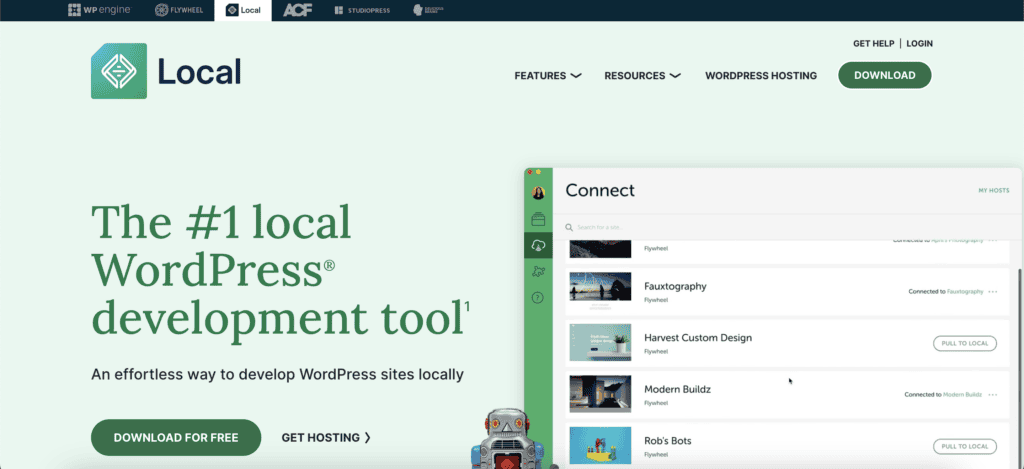
Download and install the app: First, you’ll grab the free Local application from their website and run the installer.
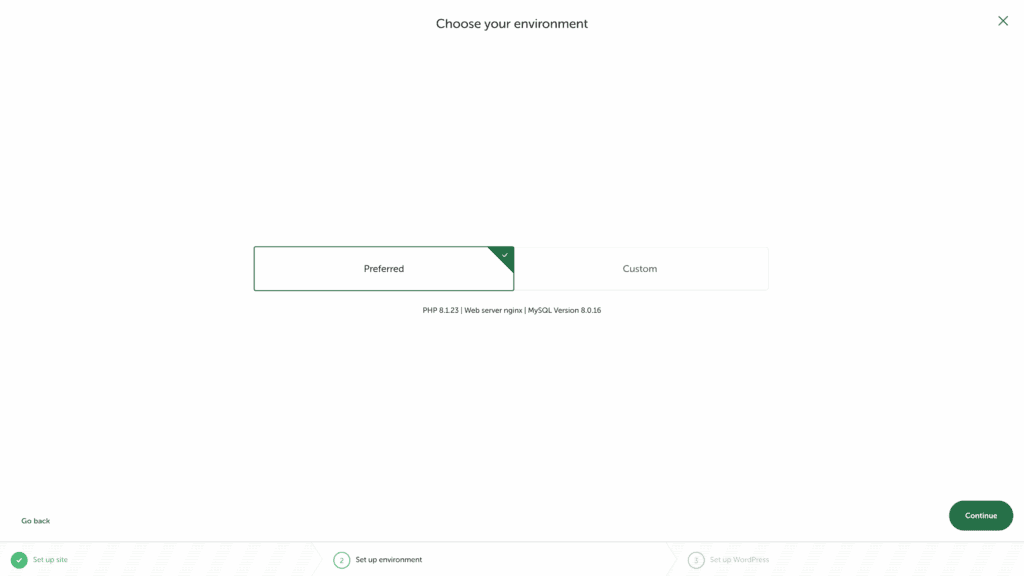
Create your new site: Once it’s open, you’ll click the large plus icon to create a new site. You can then give your project a name and stick with the Preferred environment settings. This lets Local choose the best server versions for you.
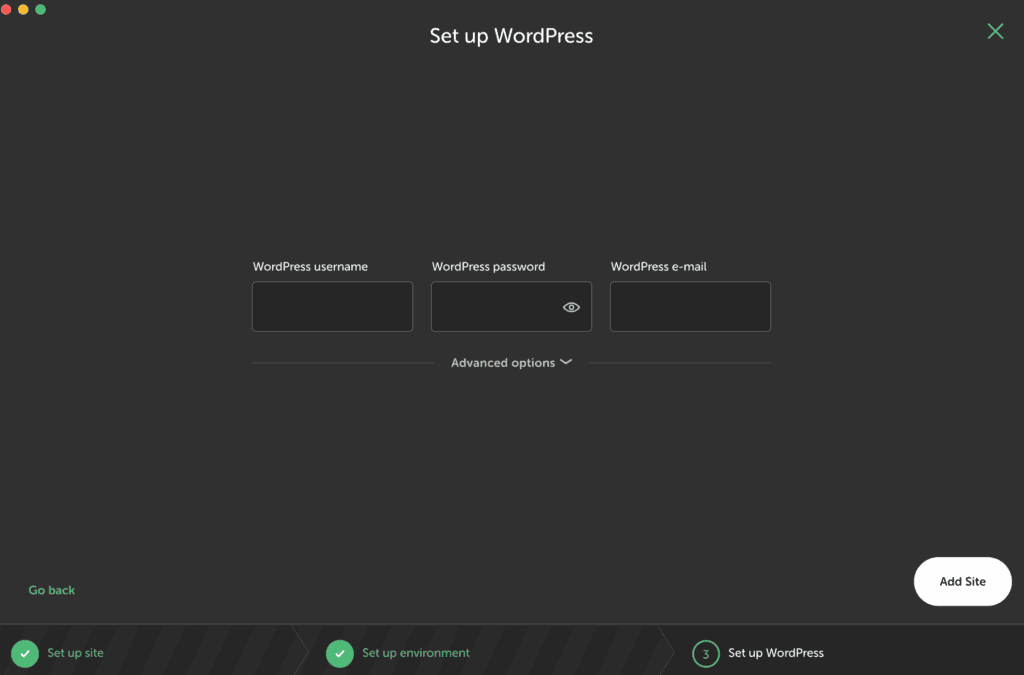
Set up your login and add the site: Now, you’ll create your WordPress username and password. Our suggestion? Write these credentials down somewhere safe right now. It’s so easy to forget them. Once you’ve done that, you just click Add Site.
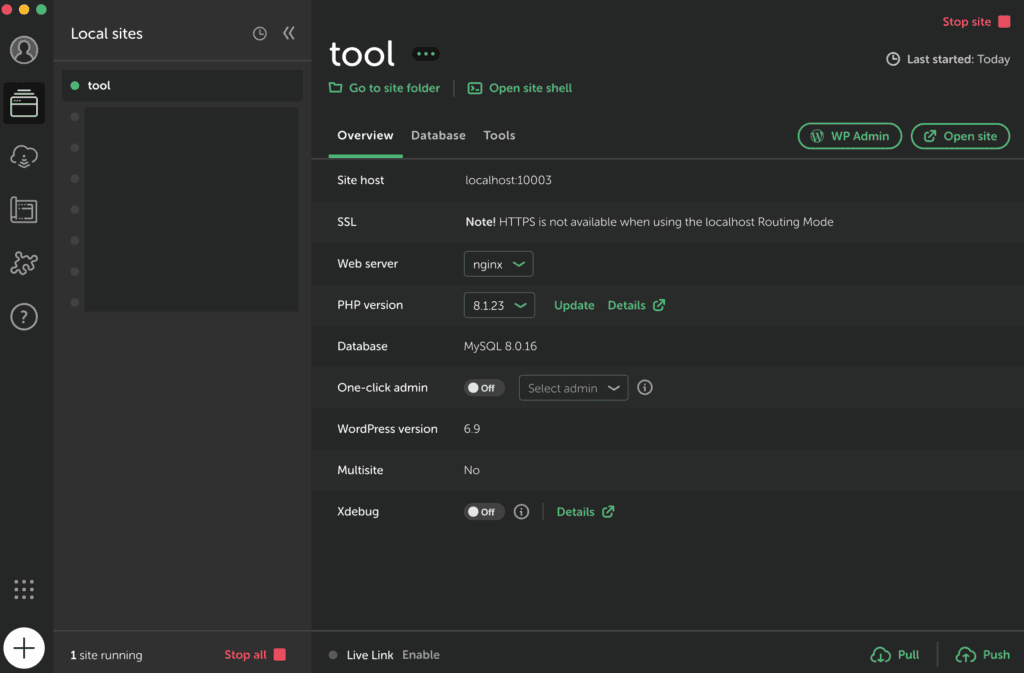
And that’s it. Local automatically downloads WordPress, sets up the database, and configures everything. It gives you a local URL and one-click access to your WordPress admin area. This is the perfect environment to learn how to safely update WordPress.
Option 2: Using XAMPP
If you want to understand the manual process, using XAMPP to install WordPress is the classic choice. It gives you direct control over your server environment.
Here is the step-by-step process you’ll follow.
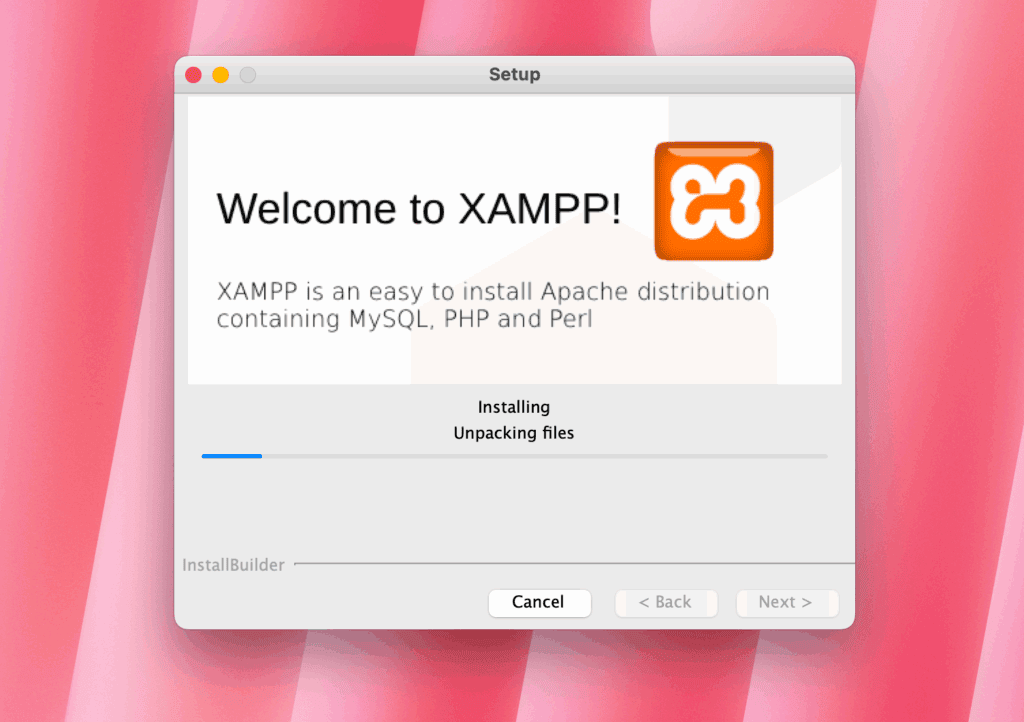
Install the XAMPP software: You’ll start by downloading and running the XAMPP installer for your operating system. During the setup, just make sure Apache, MySQL, PHP, and phpMyAdmin are selected.
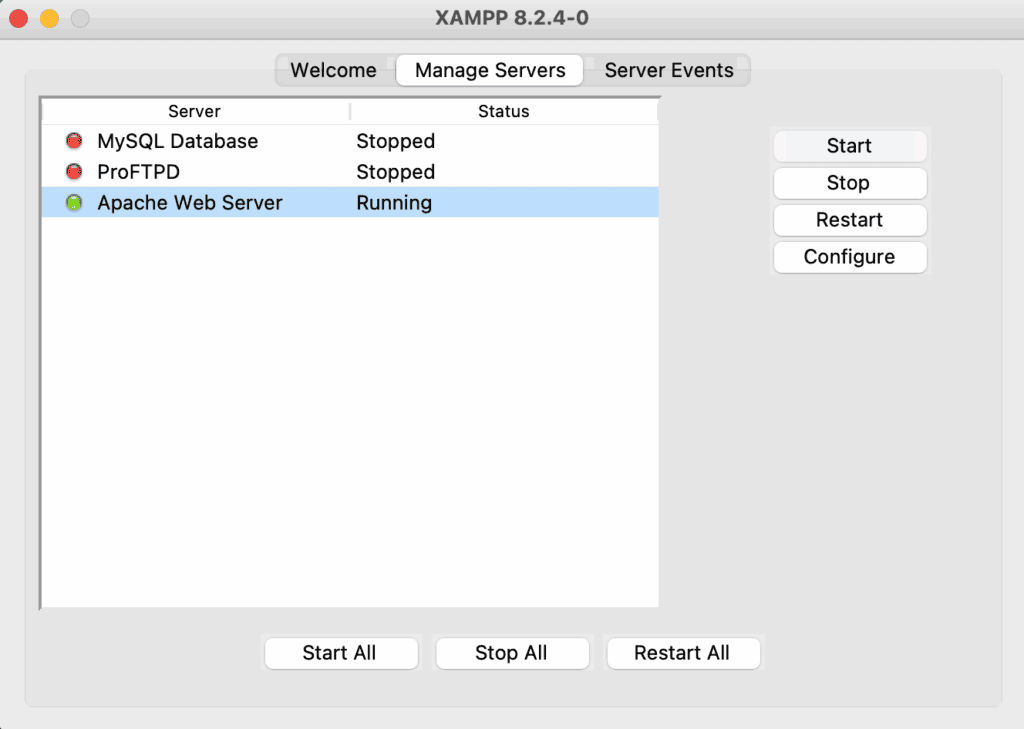
Start the local server: After installation, you need to launch the XAMPP Control Panel and under Manage Servers start both the Apache and MySQL modules. You’ll know they’re working when their status turns green.
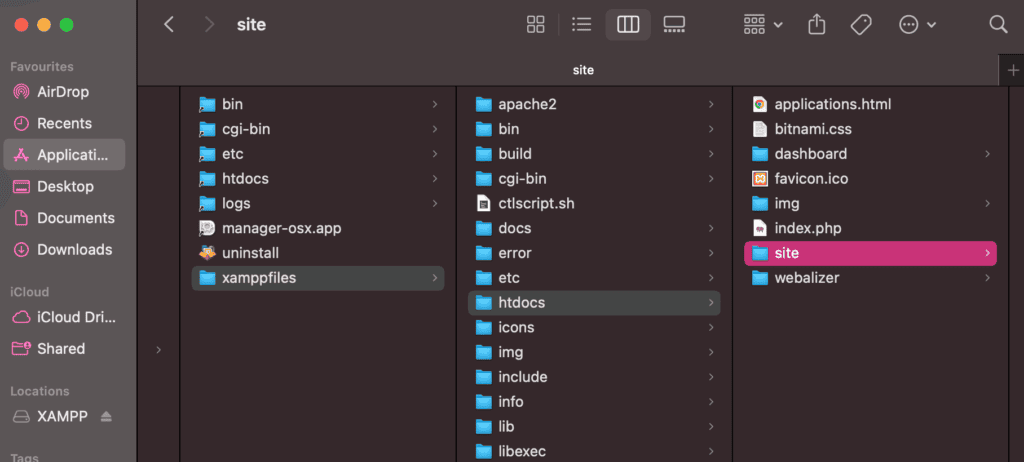
Download and place the WordPress files: Next, go to WordPress.org and download the latest WordPress .zip file. Then, you’ll find your XAMPP installation folder, open the htdocs folder, and create a new folder inside it for your site. You’ll extract all the WordPress files into this new folder.
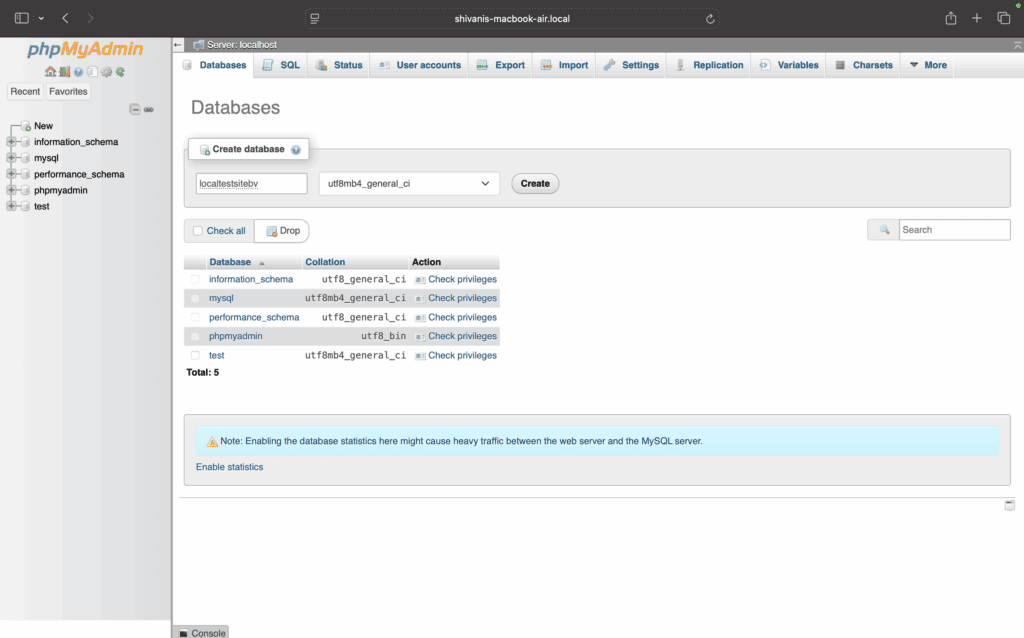
Create your database: Open your browser and navigate to the XAMPP dashboard at http://localhost. On the welcome page, click the phpMyAdmin tab in the top navigation menu. This will open the interface where you can create a new database for your WordPress site.
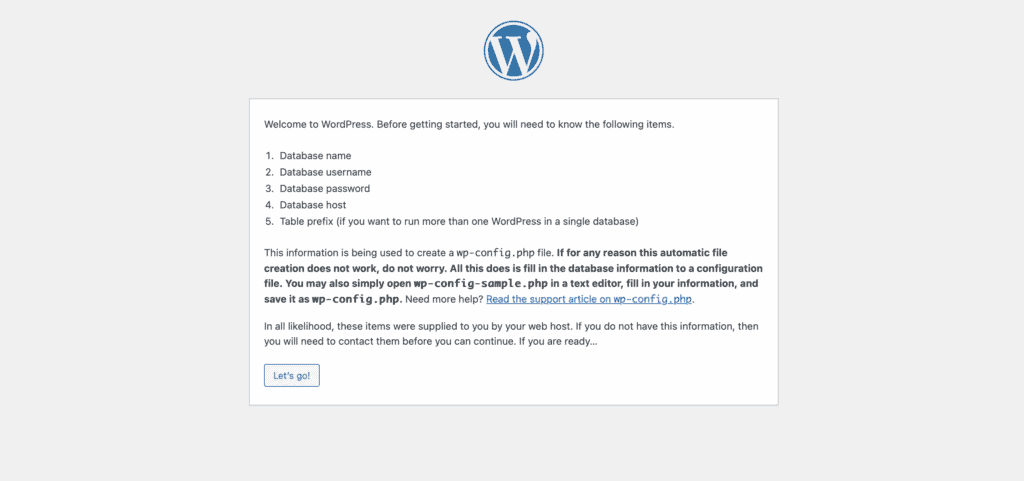
Run the WordPress installation: Finally, you’ll open your browser and navigate to http://localhost/foldername. This launches the WordPress setup screen.

When it asks for your database details, use the database name you just created. For the username, enter root, and you must leave the password field blank.
This is a default XAMPP setting that trips a lot of people up. After that, you just complete the on-screen prompts, and your site is ready.
What to do after installation
You have a private WordPress installation, which is the perfect place to learn and experiment safely. Nothing you do here can break a live website.
Here are a few things you should do right away:
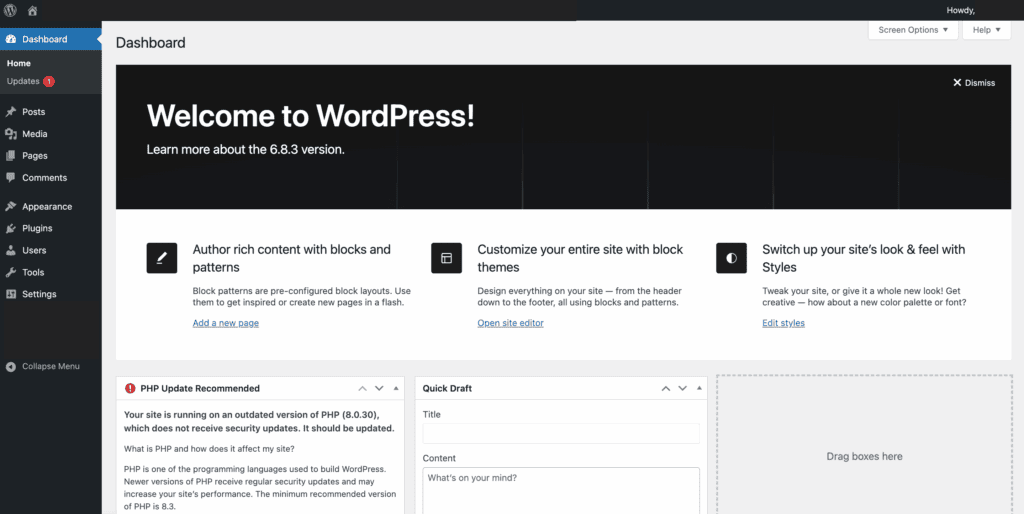
Log into your new WordPress dashboard and get familiar with the interface.
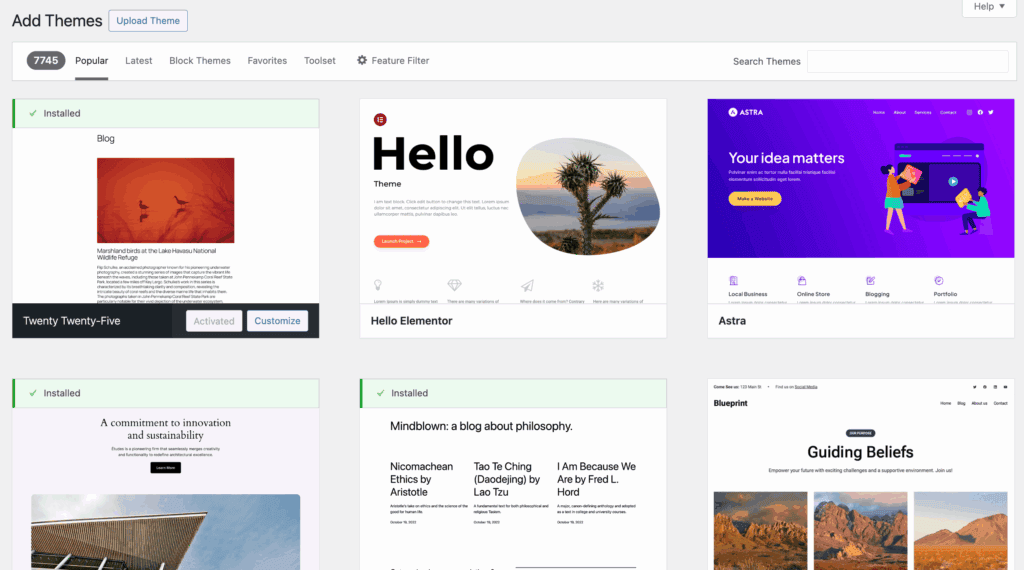
Go to Appearance > Themes and install a new theme.
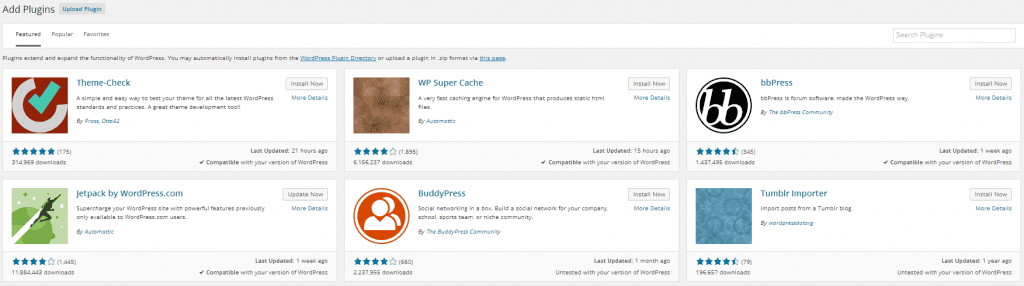
Navigate to Plugins > Add New and add a few essential plugins.

Go to Settings > Permalinks and change the structure to Post name. This is a small step that is crucial for user-friendly URLs and better SEO.
Most importantly, this is where you should practice updating your themes and plugins. It’s much better to see if an update causes an issue here than on a live site.
Troubleshooting common localhost issues
At some point, something will probably go wrong. It’s a normal part of the process, and most issues are easy to fix.
Here are some of the most common problems you might run into:

Error establishing a database connection: This message is very specific. It means your wp-config.php file has the wrong database credentials. Double-check the database name, the username (root), and that the password is blank for XAMPP.
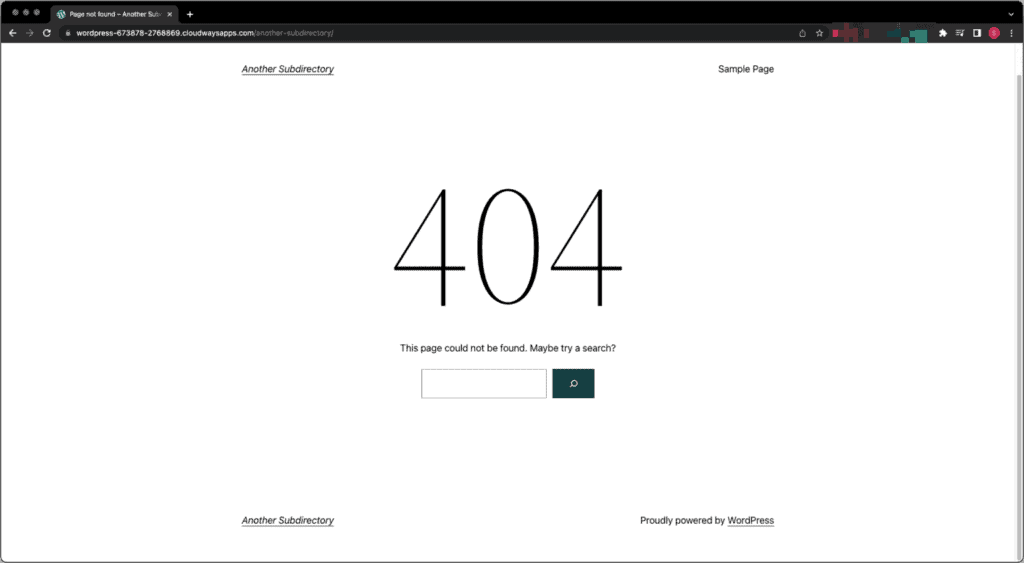
Site not found error: This typically means a wrong file path. You need to check that your WordPress folder is directly inside the htdocs directory and that your URL (localhost/your-folder-name) matches the folder name exactly.
Outdated changes appearing: If you make a change but don’t see it, your browser is likely showing a cached version of the page. A hard refresh (Ctrl+Shift+R on Windows, Cmd+Shift+R on Mac) usually fixes this.
Finally, always remember to ensure the MySQL module is running in your XAMPP control panel. Your site needs it to access any of its content.
Parting thoughts
And there you have it: your own private WordPress playground. Because you now know how to install WordPress on localhost, this is your chance to experiment, break things, and learn without any risk.
Honestly, this is how all the best websites get built, so you’re starting off on the right foot. When you’re ready, moving your local site to a live server will be your next step.
FAQs
How to install WordPress step by step?
Installing WordPress involves a few key steps. First, you need a local server environment. Next, you create a database and finally run the WordPress installer. Tools like LocalWP automate this process, while XAMPP requires you to do each step manually.
How to run WordPress on localhost without Xampp?
You can run WordPress on localhost without XAMPP. You simply need to use an alternative local server application like LocalWP, MAMP, or WampServer. These tools provide the same necessary environment (Apache, PHP, MySQL) that WordPress requires to run.
How do I download a WordPress site to localhost?
To download a live WordPress site, you must first export its database and download the wp-content folder using FTP. Once you have those files, you import the database into your local server and replace the local wp-content folder to clone the site.
How to login to WordPress on localhost?
You can log in to WordPress on localhost by navigating to your unique login URL. This is typically http://localhost/your-site-folder/wp-admin. Simply enter the username and password you created during the installation to access your dashboard.
Is XAMPP necessary for WordPress?
No, XAMPP is not necessary for WordPress at all. It is just one of many tools that can create the required local server environment. Alternatives like LocalWP or MAMP accomplish the exact same goal of allowing WordPress to run on your computer.
What is the alternative to XAMPP for WordPress?
A very popular alternative is LocalWP, which is built specifically for streamlined WordPress development. Other great options include MAMP (for Mac and Windows) and WampServer (for Windows only).

Shivani enjoys crafting guides that make every aspect of using WordPress simple and easy to follow. When she's not glued to her laptop, you can find her buried in a good book or occasionally, painting.