Migrating to WordPress is the answer to Shopify’s rising fees and limits. The problem is, while you’re ready for the freedom of WooCommerce, the actual process of moving is probably keeping you up at night.
This guide turns that anxiety into action. All with a clear, step-by-step plan for your Shopify to WooCommerce migration.
A successful Shopify to WooCommerce migration depends on careful planning and using an automated plugin for the transfer. Once moved, test everything rigorously before going live and complete your setup with essential tools like a backup plugin.
Pre-migration planning
Good planning is essential. It separates a smooth move from a total nightmare so follow these steps before you begin.
- Select quality hosting: Choose a good host. Popular options include BlueHost or Kinsta.
- Back up Shopify: Create a complete backup of your products, customers, and themes.
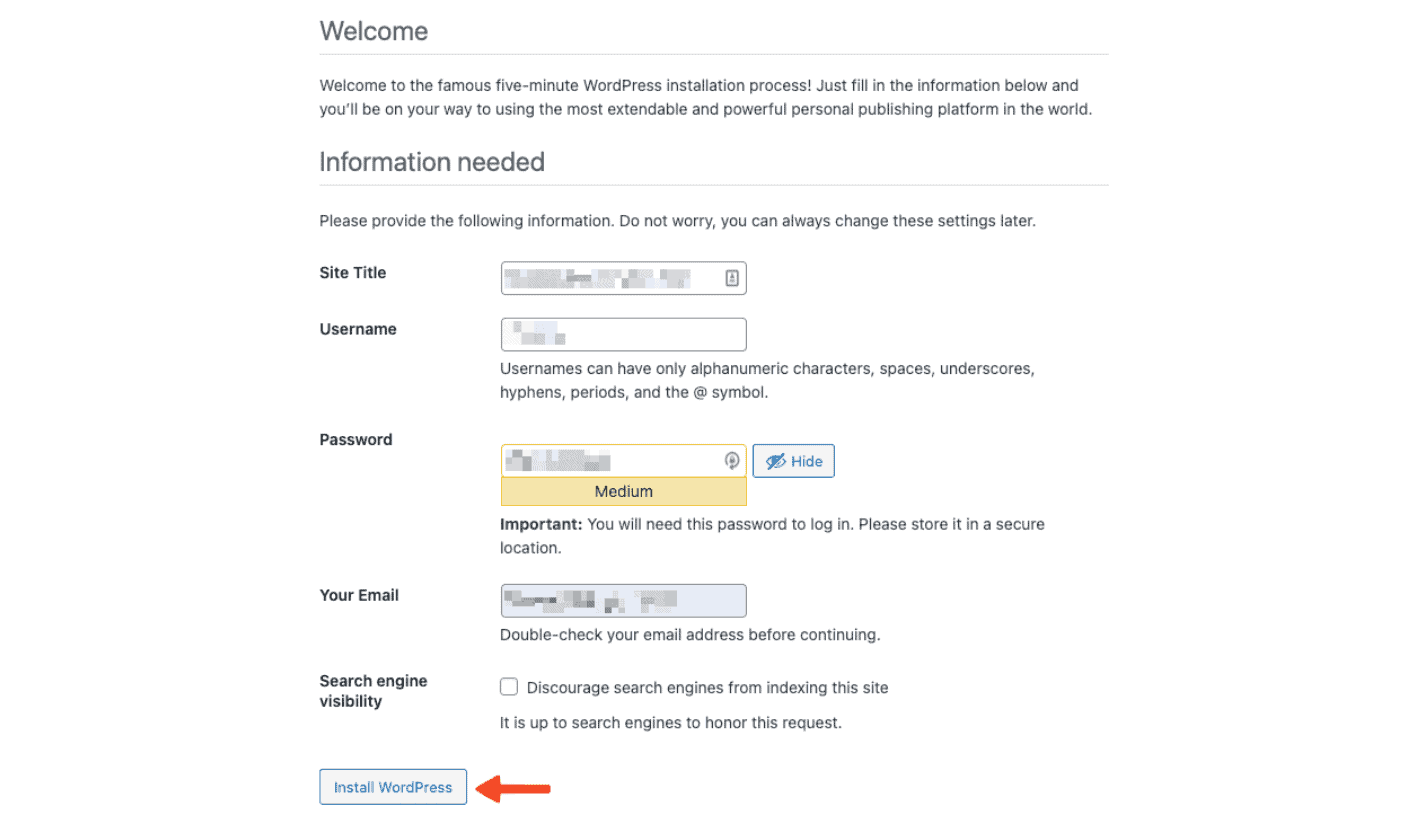
- Install WooCommerce on WordPress: Set up a fresh WordPress installation on your new host. Add the WooCommerce plugin and run its setup wizard.
- Audit your data: Clean up your Shopify data. Remove old products or tags.
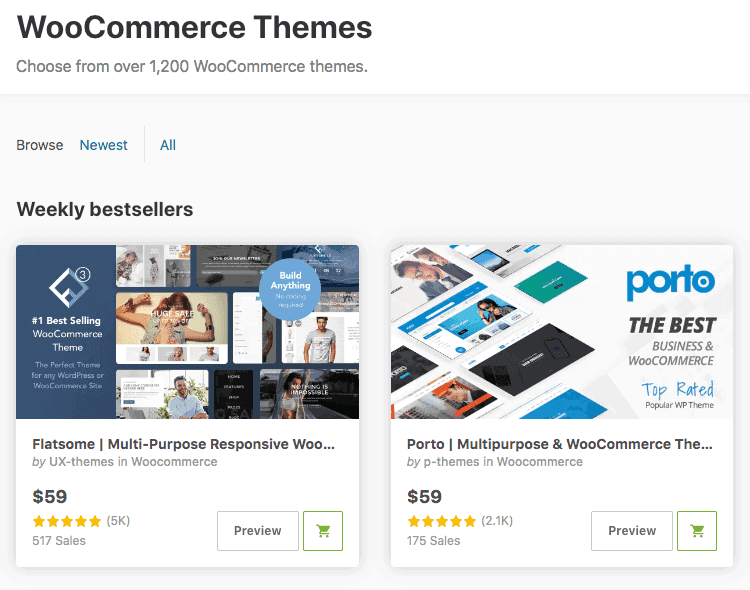
- Choose a new theme: Pick a theme that is built for WooCommerce, like Astra.
- List Shopify apps: Make a list of all your current apps and their functions.
- Find plugin replacements: Research WooCommerce plugins to replace your Shopify apps.
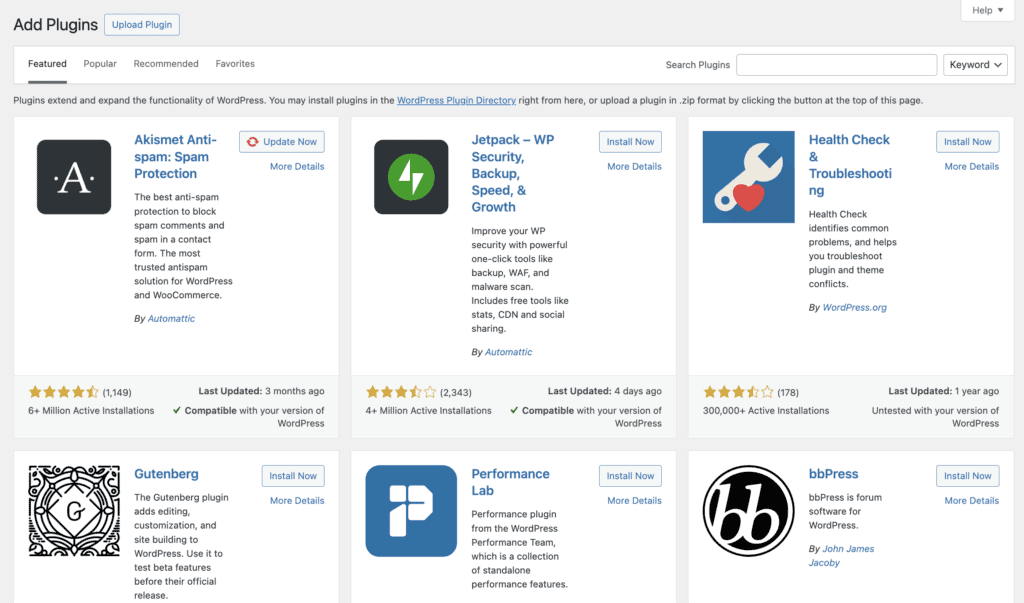
- Plan the domain switch: Know how you will change your DNS to point to the new site.
- Set a timeline: Decide on a migration date and add extra days as a buffer.
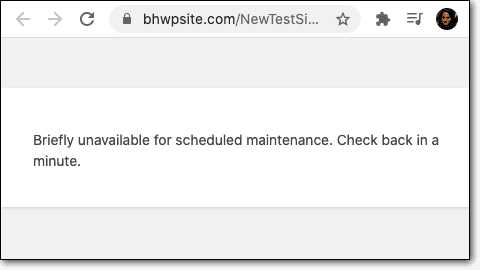
- Use maintenance mode: Put your new WordPress site in maintenance mode to hide it.
How to move from Shopify to WooCommerce
You have three main ways to move your data. Let’s look at each one.
Method I: Use a dedicated plugin
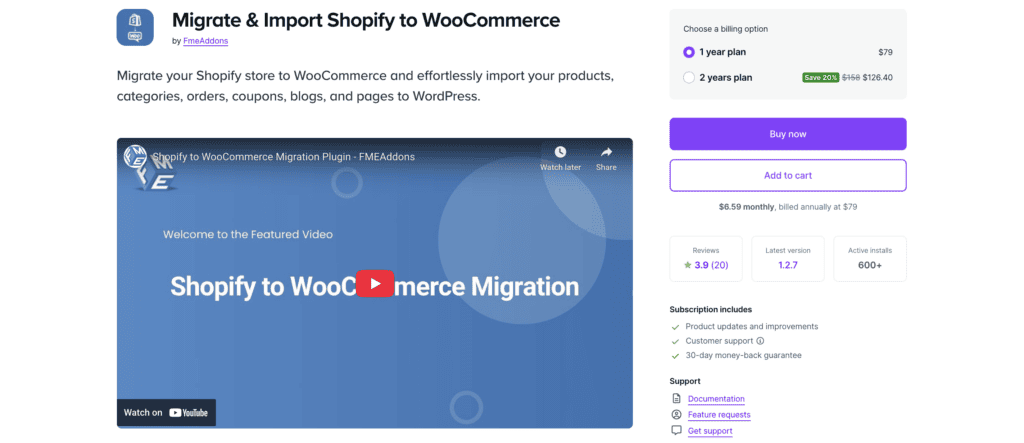
For most people, this is the best option. A special tool automates the hard parts. We recommend the official Migrate & Import Shopify to WooCommerce plugin.
Here are the steps.
- Install the tool. Buy the tool from WooCommerce.com. Then, upload and activate it on your WordPress site.
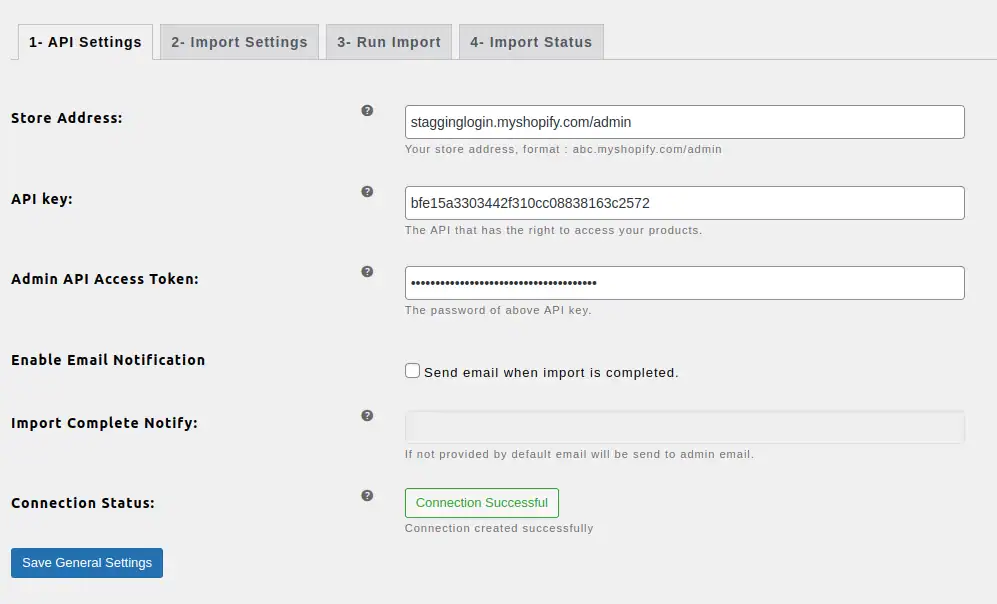
- Connect via API. In your Shopify admin, create a private app to get an API key and password. Paste these into the plugin’s settings to securely connect your stores.
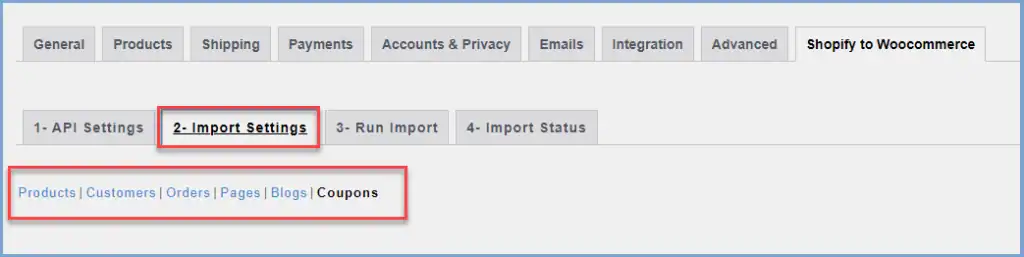
- Choose what to import. Use the plugin’s interface to select the data you want to move. This includes products, orders, and customers.
- Run the migration. Start the import and monitor the progress bar. Do not close the browser tab until it is 100% complete.
- Verify the data. Once finished, do a quick spot check. Confirm your data has appeared correctly in WooCommerce.
Method II: Manually migrate your store
Keep in mind that this method is difficult and risky. It takes a lot of time. You move all your data by hand using CSV files.
Here are the steps:
- Export CSV files. From Shopify, export your products, customers, and orders.
- Manually download images. You must individually download every single product image.
- Import the product CSV. Use the built-in WooCommerce importer to upload your file.
- Carefully map the data fields. You must map each column from Shopify’s file to the correct field in WooCommerce. This step is prone to errors.
- Use a plugin for customers/orders. Import your customer and order CSVs using a separate plugin.
- Re-upload and assign images. Upload all images to WordPress. Then, edit each product one by one to assign the correct images.
Method III: Hiring a developer or agency
This is your safest option. It is best if you lack time or confidence. It is also the most expensive choice.
Here are the steps to hire help.
- Find an expert. Look for vetted developers on the official WooCommerce.com “WooExperts” page.
- Review their work. Ask to see case studies of previous Shopify migrations.
- Discuss your project. Explain your needs, including design, SEO, and custom features.
- Confirm the process. Get a clear plan and a price quote before you begin.
Post-migration checklist
Your data has been moved. But do not go live without going through this checklist:
- Verify all data. Check your product catalog, images, and prices.
- Test the checkout. Place several test orders with different payment methods.
- Check customer accounts. Make sure a test customer can log in and see their history.
- Confirm shipping and taxes. Check that the cart’s calculations are correct.
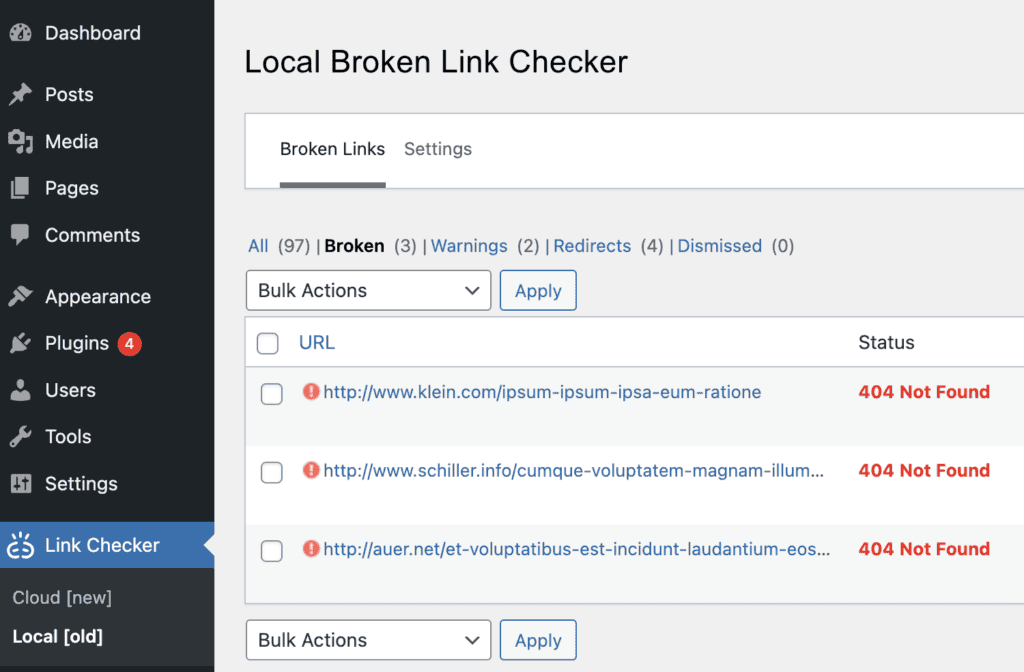
- Test all links. Use a tool to find broken links. Ensure your redirects are working.
- Verify email notifications. Check both customer and admin order confirmation emails.
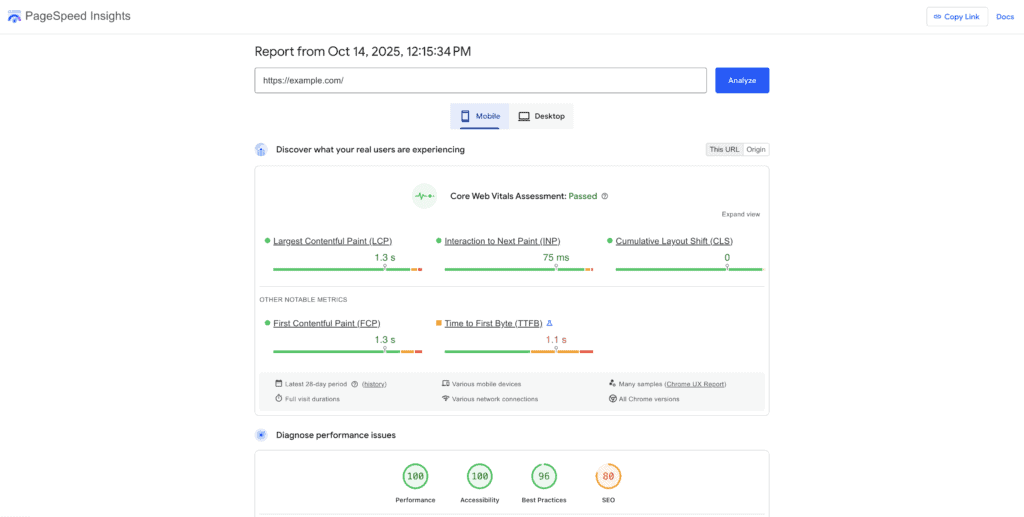
- Check site speed. Use a tool like Google PageSpeed Insights to check performance.
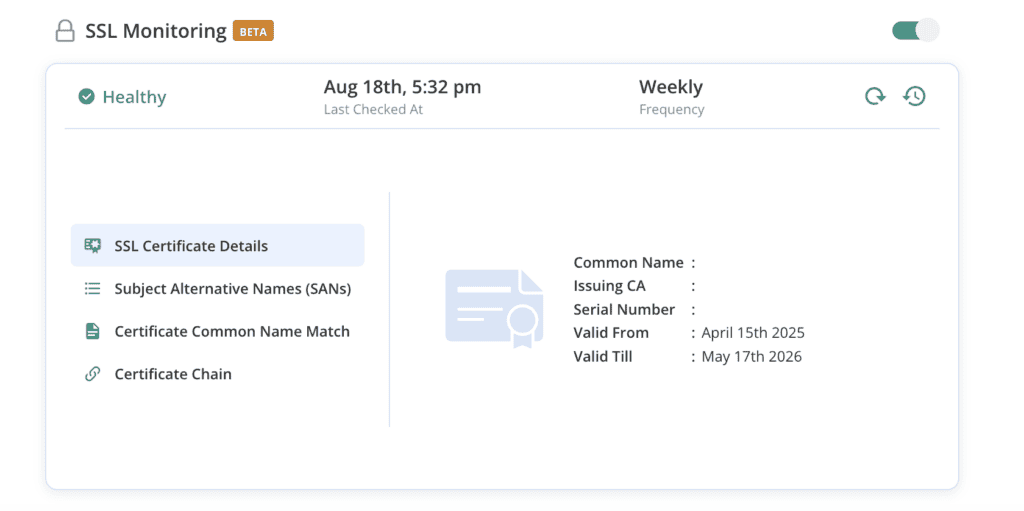
- Confirm security. Make sure your SSL certificate is working correctly.
- Go live. When everything works, you can remove maintenance mode.
Essential WooCommerce configuration and setup
Your store has been moved, but is not fully set up. Here are the final steps.
- Set up payment gateways. Connect your store to Stripe and PayPal.
- Configure shipping and taxes. Fine-tune your shipping zones and tax rules.
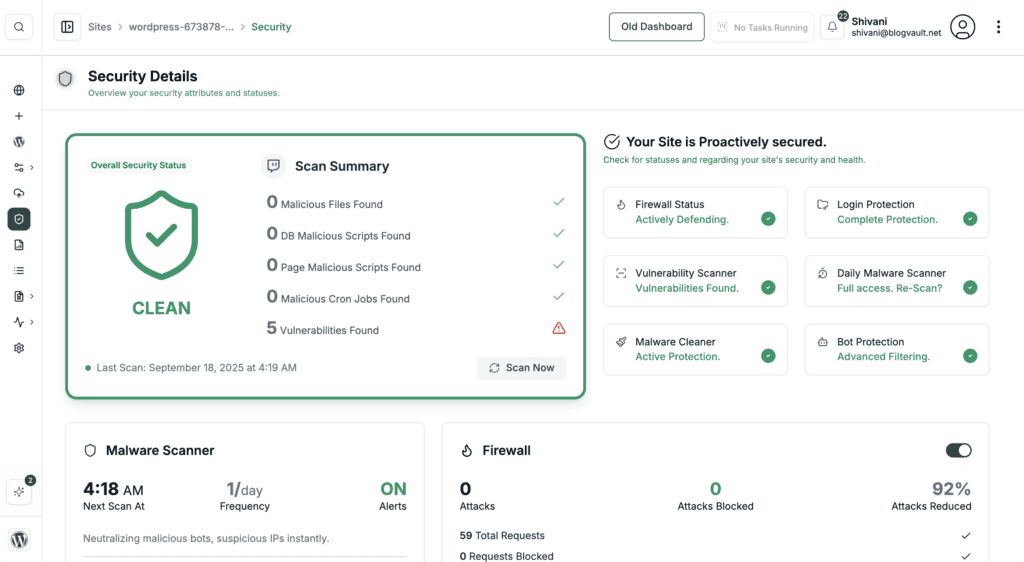
- Install security. Add a security plugin like MalCare to protect your site.
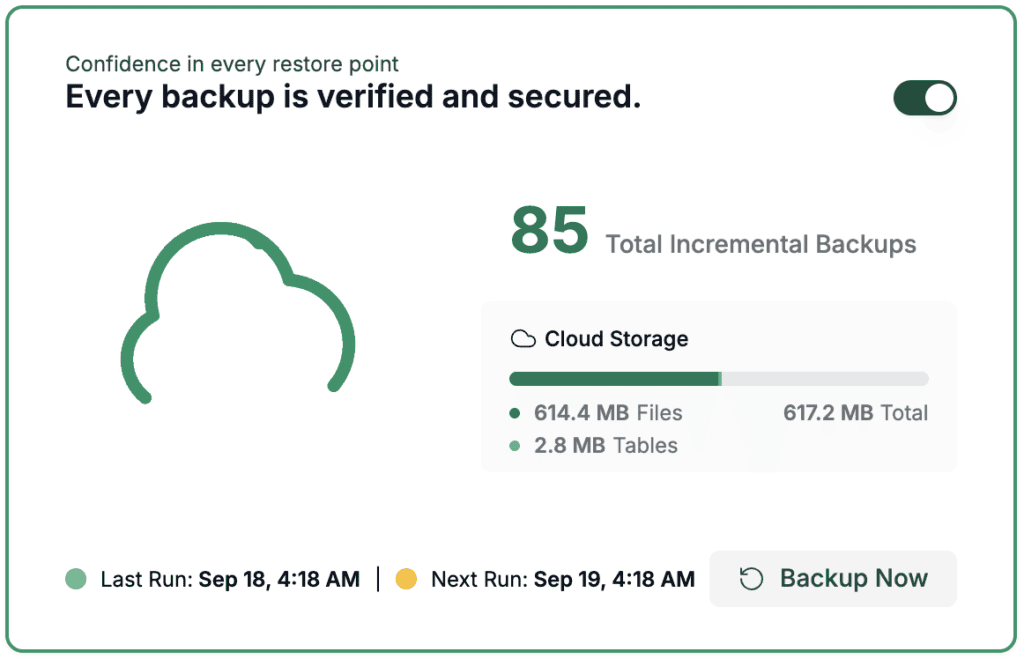
- Create backups. Set up an automatic backup solution.
- Improve performance. Install a caching plugin to keep your store fast.
- Add integrations. Reconnect your email marketing and analytics tools.
- Customize your design. Use your theme’s settings to match your brand.
Common pitfalls to avoid and best practices
Let’s review what to do and what to avoid. This ensures a risk-free migration to WordPress.
Common pitfalls
- Forgetting to back up your Shopify store.
- Ignoring SEO redirects and losing search traffic.
- Moving messy data without cleaning it first.
- Underestimating how long a manual move takes.
- Not testing the checkout process enough.
- Using a cheap or unsupported migration plugin.
Best practices for a smooth migration
- Always perform the migration on a staging site first.
- Keep your Shopify store live until the new site is ready.
- Create a 301 redirect for every page with a new URL.
- Choose a good migration tool or a good developer.
- Tell your team and customers about the move.
- Monitor your site’s performance after launch.
Parting thoughts
Moving from Shopify to WooCommerce is a big decision. It is an investment in your brand’s future. The entire Shopify vs WooCommerce debate really comes down to this: Shopify is simple, while WooCommerce offers freedom.
Good planning prevents expensive mistakes. Choose the right migration method for you. Never cut corners on testing. This move lets you build your business on your own terms.
FAQs
Can you migrate Shopify to WooCommerce?
Yes, you can. It is a common move for growing stores. You can use plugins, do it manually, or hire a pro.
Can I use Shopify with WooCommerce?
No. They are two different platforms. You must choose one to run your ecommerce store.
Can I transfer my Shopify store to WordPress?
Yes. WooCommerce is a plugin for WordPress. Moving to WooCommerce means you are moving to WordPress.
Is WooCommerce better than Shopify?
It depends. Shopify is easier for beginners but has more limits. WooCommerce gives you more control but requires you to manage hosting.
Is WooCommerce no longer free?
The WooCommerce plugin itself is still free. You must pay for hosting, a domain name, and any premium themes or plugins.
Do I need WordPress if I have Shopify?
No. Shopify is a hosted platform. It includes software and hosting. You only need WordPress if you leave Shopify for a solution like WooCommerce.

Shivani enjoys crafting guides that make every aspect of using WordPress simple and easy to follow. When she's not glued to her laptop, you can find her buried in a good book or occasionally, painting.