If you’re evaluating WordPress table plugins, you’ve likely found the default block too limited. Your search brought you to this Tableberg review because you need a seamless Gutenberg experience, perhaps comparing it to other alternatives.
We test its core promise: intuitive design control. But a pretty table doesn’t mean much if the plugin is a headache to use or slows down your site.
We look at the whole picture—from features to performance—so you can end your research with confidence.
Tableberg is a top choice for creating stylish, responsive tables directly in the WordPress editor. Before testing it, use a backup plugin to protect your site from potential plugin conflicts.
Tableberg review in a nutshell
For those in a hurry, here’s the quick takeaway:
| Feature | Verdict |
| Ease of use | Provides a seamless native Gutenberg experience for tables. |
| Design & styling | Offers granular control without the need for coding. |
| Advanced features | Covers presentation needs well with Pro, but may not suit data-heavy applications. |
| Performance | Lightweight with clean code that maintains site speed. |
| Value | The free version offers substantial features, and the Pro plan provides additional benefits. |
| Best for | Suitable for users wanting responsive tables with a smooth in-editor workflow. |
| Not for | May not meet needs for complex formulas, database connections, or shortcode-based workflows. |
Editor integration & ease of use
With Tableberg you build and edit the table within the post editor. You avoid the extra steps required by plugins like TablePress, where you have to navigate to a separate admin screen, make your edits, and save.
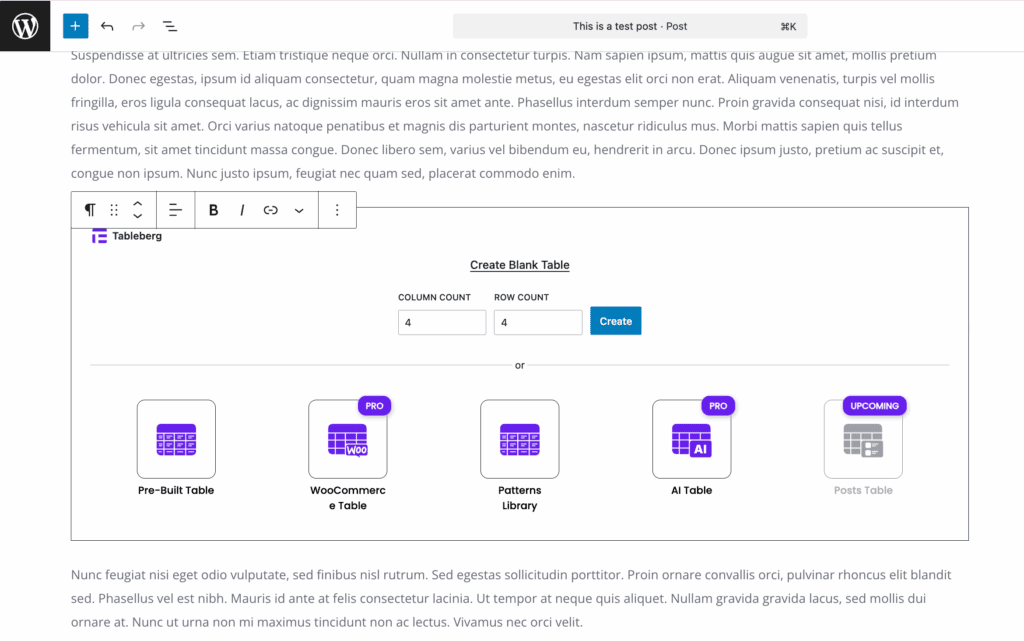
Tableberg removes the friction of managing tables as separate items from your content. This is a bigger deal than it sounds; it keeps you focused on creating content without breaking your rhythm.
The whole experience feels less like a plugin and more like a native WordPress feature. Adding rows and columns is obvious with a few simple clicks.
A quick click on the Edit table option pulls up a handy menu for common actions. Because each cell is its own block, the editing process is instantly familiar. This smooth workflow is its most compelling feature.
Design & styling control
This is where Tableberg leaves the default Gutenberg block in the dust. It gives you a full settings panel to visually control your table’s appearance, and you don’t need to know any code.
You can finely tune borders, colors, and padding. These styles can be applied to the whole table or targeted to headers, specific rows, or even single cells.
Tableberg speeds things up with two tools: pre-built tables and design patterns.
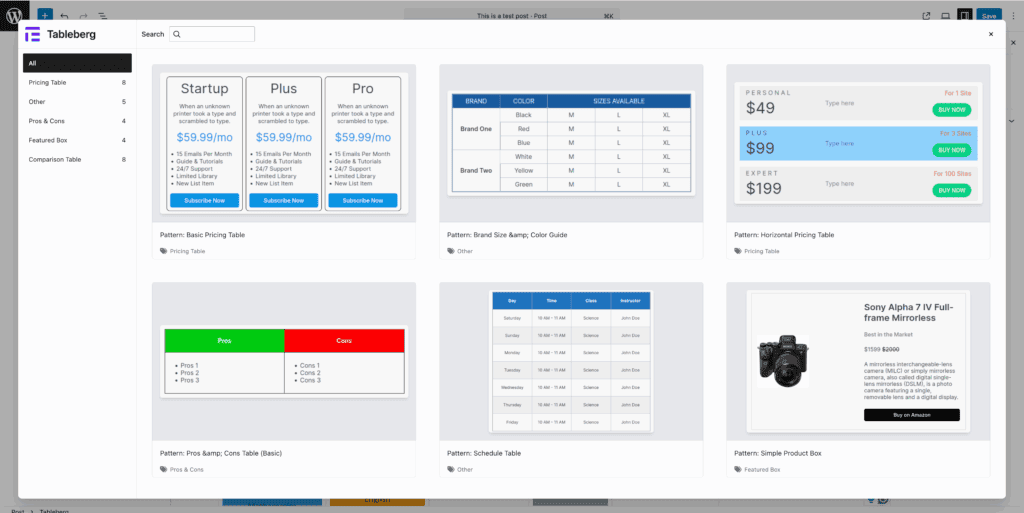
You can insert a pre-built table directly when you add the block. Alternatively, you can browse the design patterns, copy one you like, and paste it into the editor. Both methods give you a complete, styled table with placeholder content ready for you to edit.

Just be aware that the libraries for both mix free and pro options. Regardless of how you start, the responsive controls are solid, giving you clear options for how your tables will look on mobile screens.
Advanced table features
The free version of Tableberg covers the essentials well, like reliable cell merging and splitting. You can also drop other blocks like images, buttons, and icons right into the cells, which is very useful.
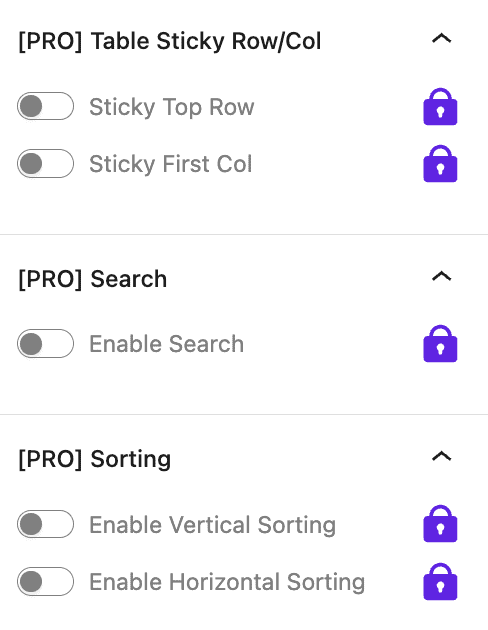
Most interactive elements are reserved for the Pro version. This is where you find front-end sorting and searching, a must-have if you want visitors to filter long tables. Pro also adds the ability to move rows and columns. Other Pro-only features include:
- Interactive star ratings for reviews.
- Ribbons and badges to make certain rows stand out.
- An option for custom HTML in cells.
- An AI tool to generate a table from a simple prompt.
Performance & technical quality
The big question with any new plugin: will it bloat my site? The good news is that Tableberg is built on a lean, modern codebase. We experienced no slowdown in the editor, even with larger tables.
The plugin follows WordPress standards, and its tables are responsive by default. The code it generates is clean HTML, which helps with both your page speed and SEO.
It also uses optimized asset loading, so it doesn’t bog down pages that don’t have a table. This focus on performance makes it a safe and stable choice.
Support & documentation
The support structure is solid. The official documentation is clear, with helpful written guides and video tutorials. For free users, support is on the WordPress.org forums. A Pro license provides priority email support, known for its fast and responsive service.
For developers, the documentation also provides info on hooks and customizations. Examining the plugin’s update history reveals a clear pattern of meaningful improvements, which is why it’s crucial to know how to update plugins safely.
Integration & compatibility

Tableberg is a pure Gutenberg block system. It’s designed to work flawlessly with modern block themes, but choosing a theme carefully is still your most important first step. You can start from scratch or use a pre-built template. The Pro version adds a useful WooCommerce product table template.
This is the deal-breaker for some: Tableberg does not use shortcodes. You cannot embed its tables in classic editor content, theme files, or widgets. It is built exclusively for the block editor. It also doesn’t connect to external data sources like Google Sheets. It’s a completely self-contained tool.
Pricing & licensing model
The core plugin from WordPress.org is 100% free, and it’s generous enough for many use cases. It doesn’t feel like a crippled demo.
The Pro version is an affordable annual license. The standout feature of its pricing is that one license works on unlimited sites. For agencies and freelancers, that’s a steal. While key features like sorting are behind the paywall, the price is competitive, and the discount details are transparent.

Alternatives to look at
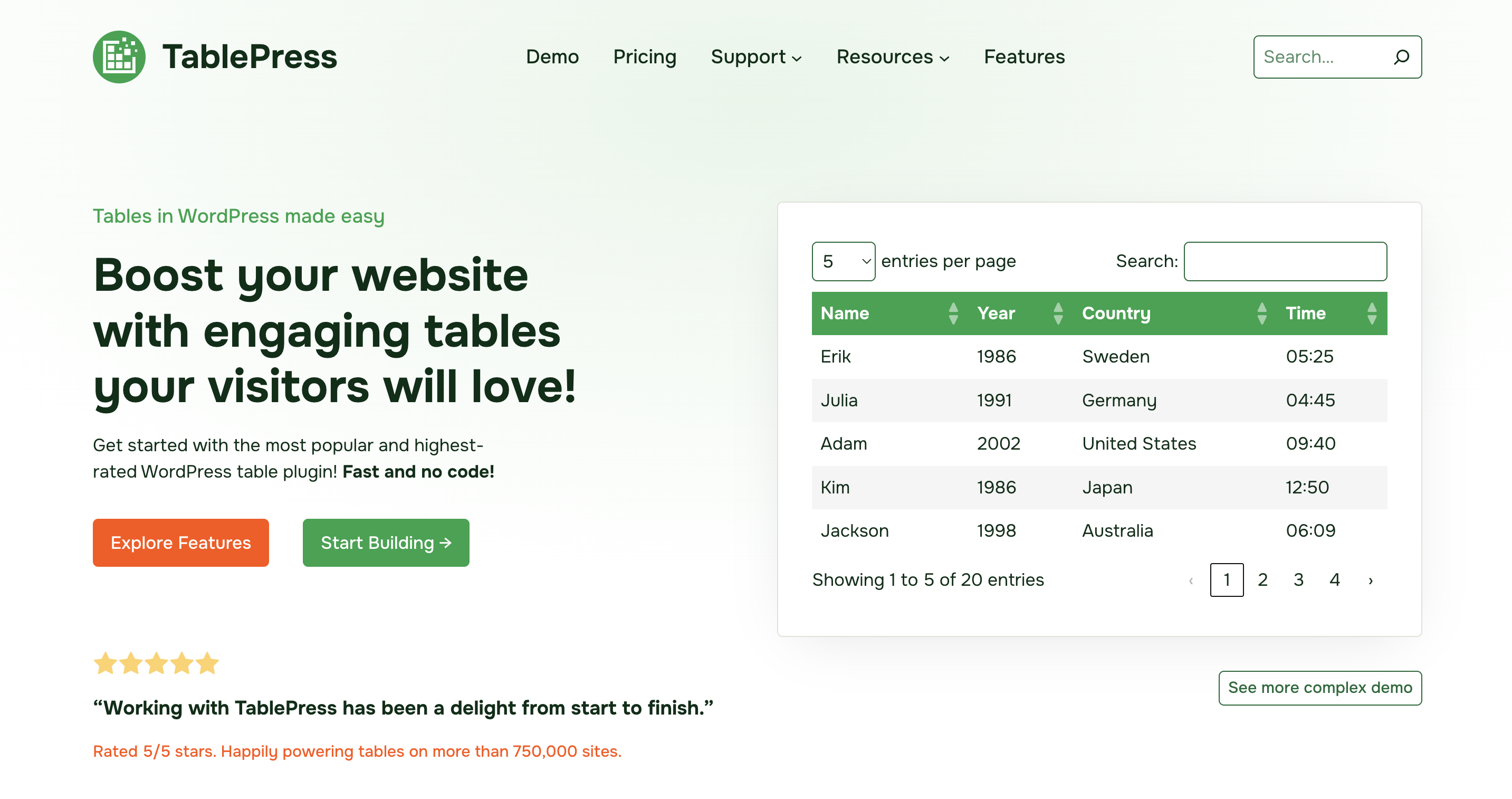
TablePress: The powerhouse for complex, data-heavy tables. Use this for formulas and advanced data features.
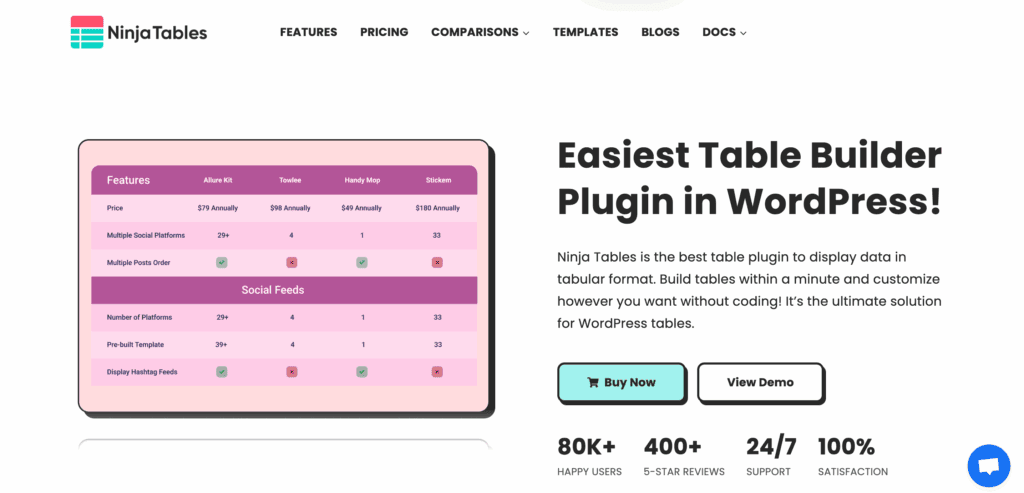
Ninja Tables: A fantastic all-around option that balances a modern UI with powerful features.
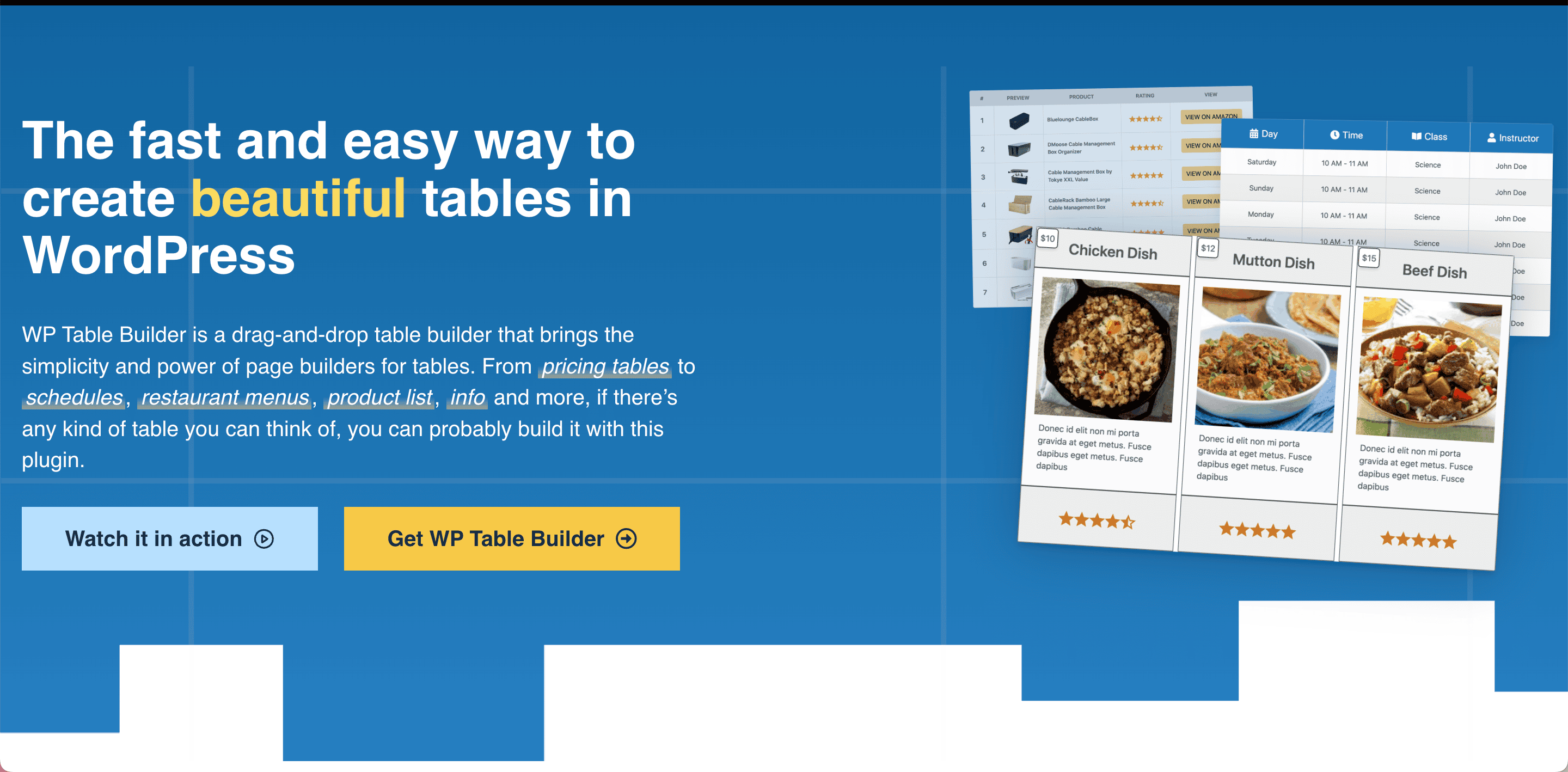
WP Table Builder: A drag-and-drop builder whose interface may appeal to those accustomed to page builders.

Gutenberg Table Block: Only use this for the most basic, unstyled tables.
Parting thoughts
So, what’s the final verdict? Tableberg is the best plugin for anyone who prioritizes first-class design control and ease of use inside the Gutenberg editor. It’s far more flexible for styling than TablePress, though its functions are more limited in the free version. Just remember that before making major changes, a full website backup is non-negotiable.
For the modern WordPress user, Tableberg elegantly solves the problem of creating great-looking tables. The Pro version is a smart investment for anyone who builds tables often. For the block editor, it’s the specialist tool you’ve been looking for.
FAQs
Is Tableberg better than TablePress?
No, it serves a different primary purpose. Tableberg excels at visual, inline editing within Gutenberg, while TablePress is stronger for managing large, data-heavy tables from a dedicated dashboard.
Can I use Tableberg with Elementor or Divi?
Not optimally, as it’s built specifically for the native block editor. You may experience limited or awkward integration compared to plugins designed for those page builders.
What features are exclusive to Tableberg Pro?
Pro unlocks interactive features like front-end sorting/searching and advanced design blocks like star ratings and icons. It also adds essential table manipulation tools, such as moving rows and columns.
Does Tableberg support responsive tables for mobile?
Yes, both free and Pro versions offer responsive controls. The Pro version provides more advanced patterns and easier styling for complex responsive layouts like stacked pricing tables.
How does the AI table generator work?
It’s a Pro feature that creates a table structure and content based on a text prompt. This automates the initial setup for comparison or data tables, saving manual entry time.
Is there a way to import data from Excel or CSV?
Yes, Tableberg supports importing data from CSV and XML files. This allows you to populate tables without manually typing all the content into the block editor.

Shivani enjoys crafting guides that make every aspect of using WordPress simple and easy to follow. When she's not glued to her laptop, you can find her buried in a good book or occasionally, painting.