

You need to immediately fix the WordPress error behind that frustrating FooGallery 404 error. Maybe you clicked on one of your beautiful galleries, only to be hit with a “Page Not Found” screen? Or your customers are complaining about seeing the 404 error instead of your beautifully curated photographs. We recognise how jarring it is. It’s never a good feeling to display a broken site to your customers.
So, what’s really going on? Think of it as a broken signpost on your website; your server simply can’t find the path to your gallery. The good news is this isn’t a disaster. It’s almost always caused by a simple configuration glitch after an update or a broken link. We’ll walk you through everything you need to know to fix the problem.
Build a staging site to test any fixes safely before applying them to your live website. The error is most often fixed by regenerating your permalinks or finding a plugin conflict.
Understanding the FooGallery 404 Error
When you install gallery plugins like FooGallery, they often create their own unique URLs or “routes” to display your galleries. A 404 error is your server’s way of saying, “I looked for that gallery page, but I can’t find it at this address.” It’s not a sign of a major crash, but rather a miscommunication between your browser’s request and your server’s ability to locate the content.
So, what causes this breakdown? It’s usually one of a few common culprits:
- Corrupted Permalinks: WordPress has lost the correct URL path to your gallery pages.
- Caching Conflicts: An outdated, saved version of your site with old links is being shown to visitors.
- Plugin or Theme Conflicts: Another plugin or your theme is interfering with FooGallery’s code.
- Missing or Corrupted .htaccess File: The core file that directs traffic on your site is broken or missing.
- Post-Update Issues: A recent update to WordPress or another plugin has created an incompatibility.
Expert Advice: Create a test site now. You’re about to make major changes to your WordPress site. It’s safer to troubleshoot this error on a staging site than a live one.
Now that we understand what is causing the error, let’s get to the fixes. Here is everything you need to do fix the FooGallery 404 error:
Step 1: Check that the gallery is working correctly in the backend
Before we start troubleshooting technical fixes, let’s start with the most basic check. You can quickly rule out simple content issues and determine if you’re dealing with a FooGallery blank page or a true 404 error.
Check if the Gallery Exists and is Published
First, we need to ensure the gallery you’re trying to display hasn’t been accidentally deleted or left as a draft.
- Navigate to the FooGallery Menu. In your WordPress dashboard, find “FooGallery” in the left-hand sidebar and click on “Galleries.”
- Find the Specific Gallery. Look through the list for the gallery that’s causing the 404 error. Make sure it hasn’t been accidentally moved to the trash.
- Verify the Status. Check that the gallery is published and not saved as a draft. A draft gallery will not be visible on the live site and can cause confusion.
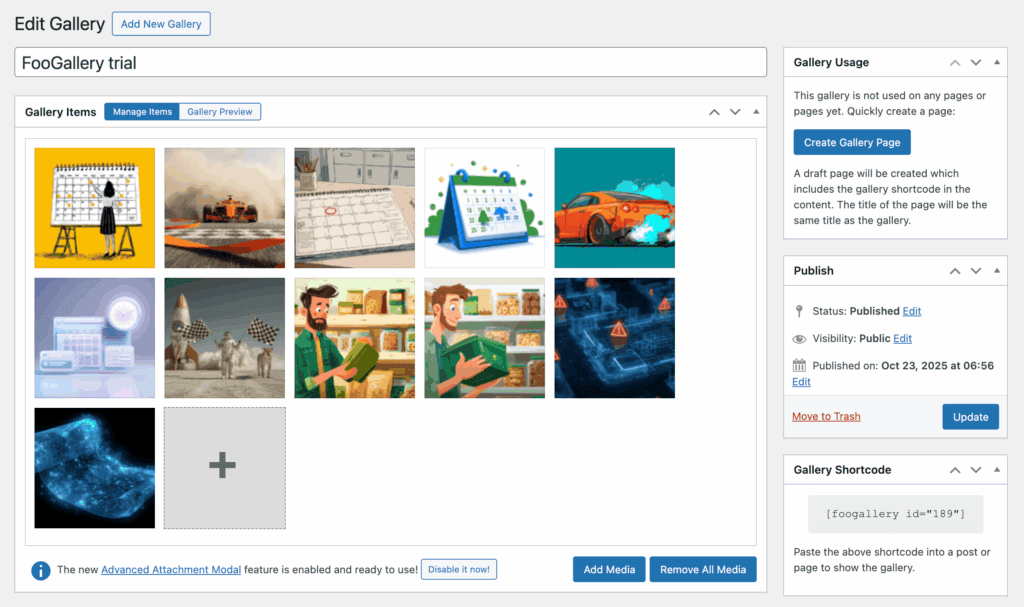
Preview the Gallery in the Backend
If the gallery exists, the next step is to see if it works correctly within the editor. This helps isolate the problem to either the gallery itself or the page it’s displayed on.
- Edit the Gallery. Click on the gallery’s title to open the editor.
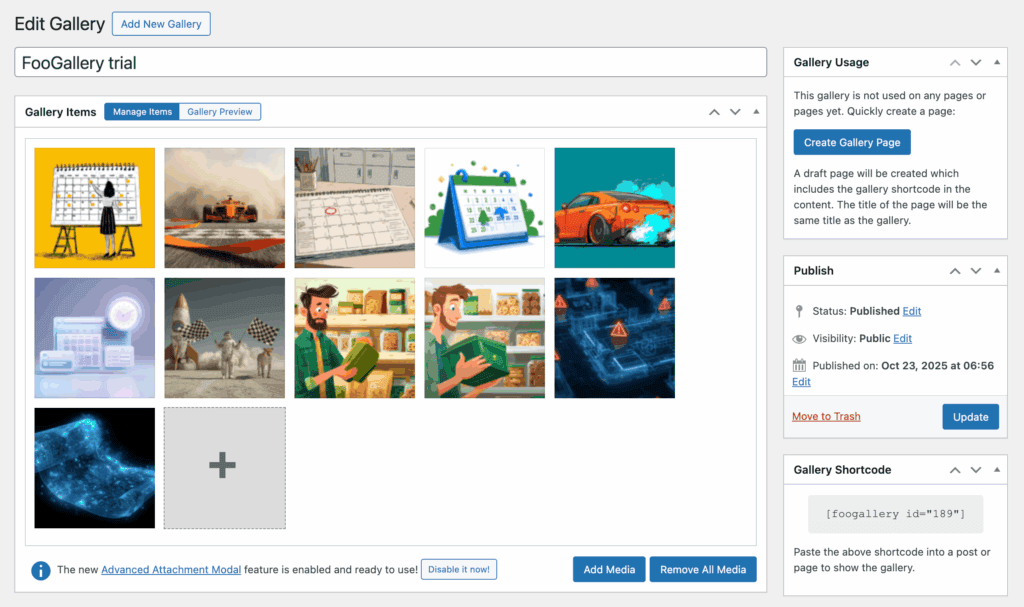
- Confirm Images are Present. Make sure the images are still attached to the gallery. Sometimes, a separate WordPress media library 404 issue can cause images to become unlinked, breaking the gallery from the inside.
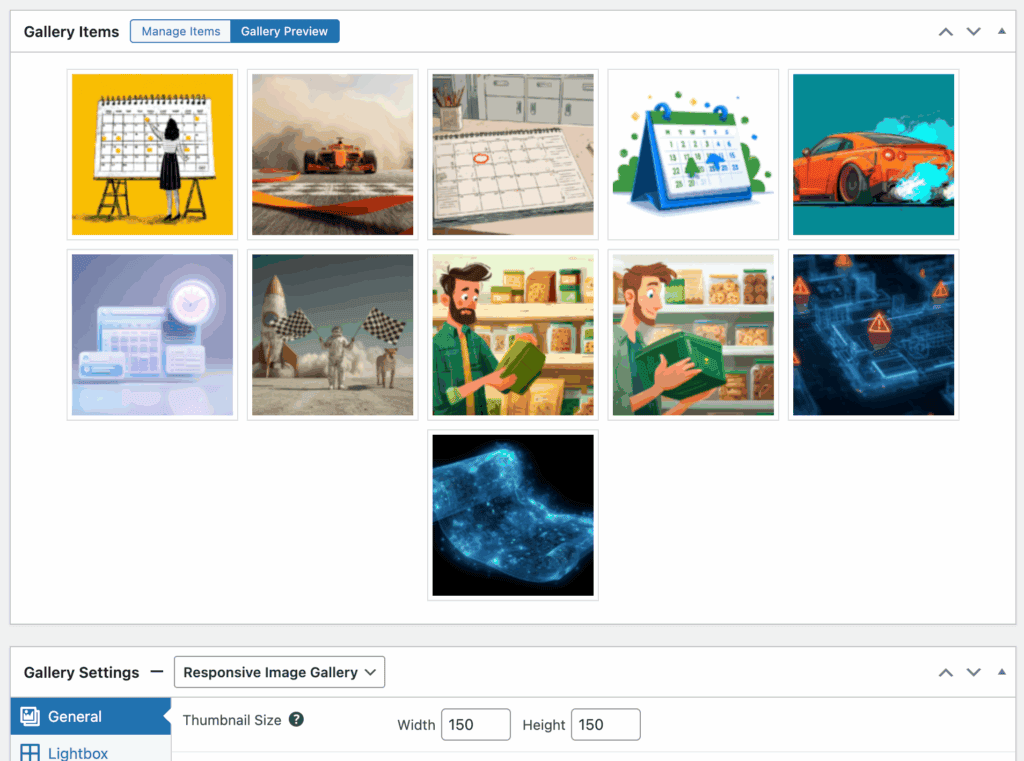
- Use the Preview Function. Click the “Preview” button within the FooGallery editor. If the gallery loads and displays correctly here, you can be confident the gallery itself is fine. This tells us the problem is likely on the frontend—a permalink issue, a caching problem, or a conflict.
Step 2: Check for JavaScript Errors
In our review of FooGallery, we realised that while the gallery may be created correctly, you still have to insert it on a page correctly. Is the page itself loading, but the gallery is just a blank space where your images should be? This is a tell-tale sign that you’re dealing with a JavaScript conflict.
To confirm this, load the page on Chrome, right-click anywhere on the problem page, select “Inspect,” and then click the “Console” tab. If you see any red error messages, you’ve found your culprit. If you recognise a specific plugin that is causing the issue, reach out to their developers.
There is a FooGallery setting that changes when the gallery’s JavaScript code runs. This helps it avoid conflicts with other scripts that might be loading at the same time. Enable this feature while the developers fix the conflict.
- Go to FooGallery Settings. In your WordPress dashboard, navigate to FooGallery > Settings.
- Click the Advanced Tab. Find and select the “Advanced” tab at the top of the settings page.
- Enable the Custom Ready Event. Look for the setting labeled “Use Custom Ready Event” and check the box next to it.
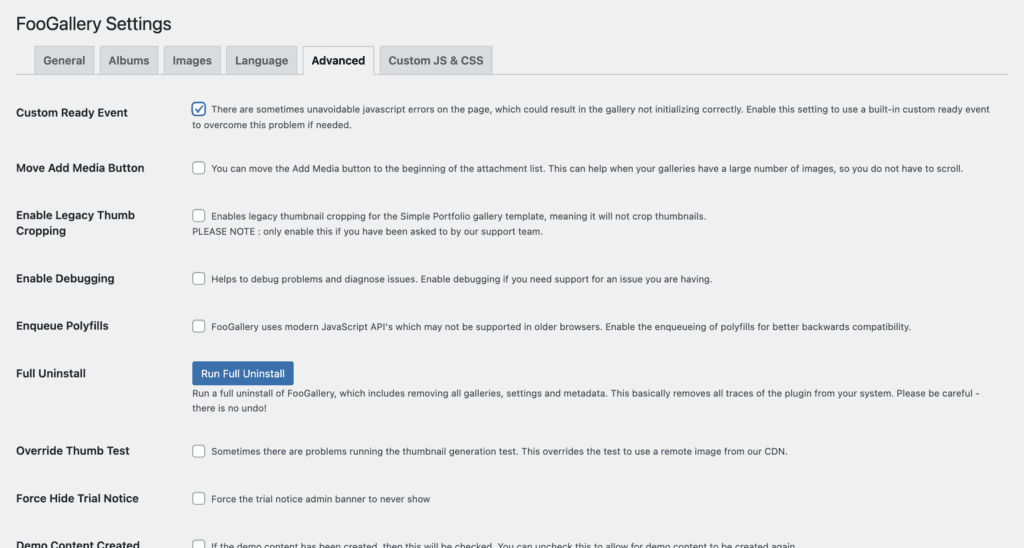
- Save and Clear Caches. Click “Save Changes.” Afterwards, make sure to clear your website’s cache (from any caching plugins) and your browser’s cache to see the changes.
After enabling this setting, revisit the broken gallery page. This simple toggle often resolves loading problems caused by theme or plugin conflicts without you having to deactivate anything.
Step 3: Reset Permalinks
Fixing 404 errors of all sorts can usually be fixed by resetting your permalinks. Think of it as forcing WordPress to re-read and update its internal map of all your site’s URLs. It’s a 30-second fix that often solves the problem instantly:
- Navigate to Permalinks. In your WordPress dashboard, go to Settings > Permalinks.
- No Changes Needed. You don’t actually have to change any of the settings here. The goal is just to prompt a refresh.
- Click Save Changes. Simply click the “Save Changes” button at the bottom. This action flushes the old URL rules and generates a fresh set.

- Check Your Gallery. Go back to your website and check if the gallery page now loads correctly.
Step 4: Clear Caches to Resolve FooGallery 404 Errors
WordPress cache plugins store a saved copy of your site to make it load faster, but if that copy contains old or broken links, it will keep showing the error even after you’ve fixed it. To ensure you and your visitors see the most up-to-date version of your site, you need to clear cache WordPress at every level.
- Clear the FooGallery Cache. Go to FooGallery > Settings. In the “General” tab, click both the “Clear Gallery HTML Cache” and “Clear CSS Optimization Cache” buttons.

- Clear Plugin Caches. If you use a caching plugin like WP Rocket or W3 Total Cache, find its settings in your dashboard and use the option to “Purge All Caches” or “Clear Cache.”
- Clear Your Browser Cache. Finally, clear your own browser’s cache or open the page in an incognito/private window to bypass the cache and see the live version.
Step 5: Rectify Plugin and Theme Conflicts
If all else fails, identifying a plugin conflict is the likely solution. Just like apps on your phone, not all WordPress plugins and themes work perfectly together. A piece of code from one can interfere with another, breaking its functionality. The following process helps you isolate and identify the exact source of the conflict.
- Deactivate All Plugins. On your staging site, go to Plugins > Installed Plugins. Select all plugins except for FooGallery, and deactivate them. If the gallery now works, you know a plugin is the cause. Reactivate them one by one, checking the gallery each time, until the error reappears. The last plugin you activated is the culprit.
- Switch to a Default Theme: If it’s a failed theme update. temporarily switch to a default WordPress theme like “Twenty Twenty-Four.” If the gallery works, your theme is causing the conflict.

Step 6: Fix a WordPress Media Library 404 Error
Fixing a media gallery that is not showing up is the next step. Sometimes the gallery page loads, but the images inside it are broken, which is a symptom of a WordPress media library 404. This means the gallery container is fine, but the links to the individual image files are incorrect. This often happens after a site migration or if images are moved or deleted.
- Open the Gallery Page. Go to the page on your live site where the broken gallery appears.
- Inspect the Broken Image. Right-click on a broken image placeholder and select “Inspect” from the menu to open your browser’s developer tools.
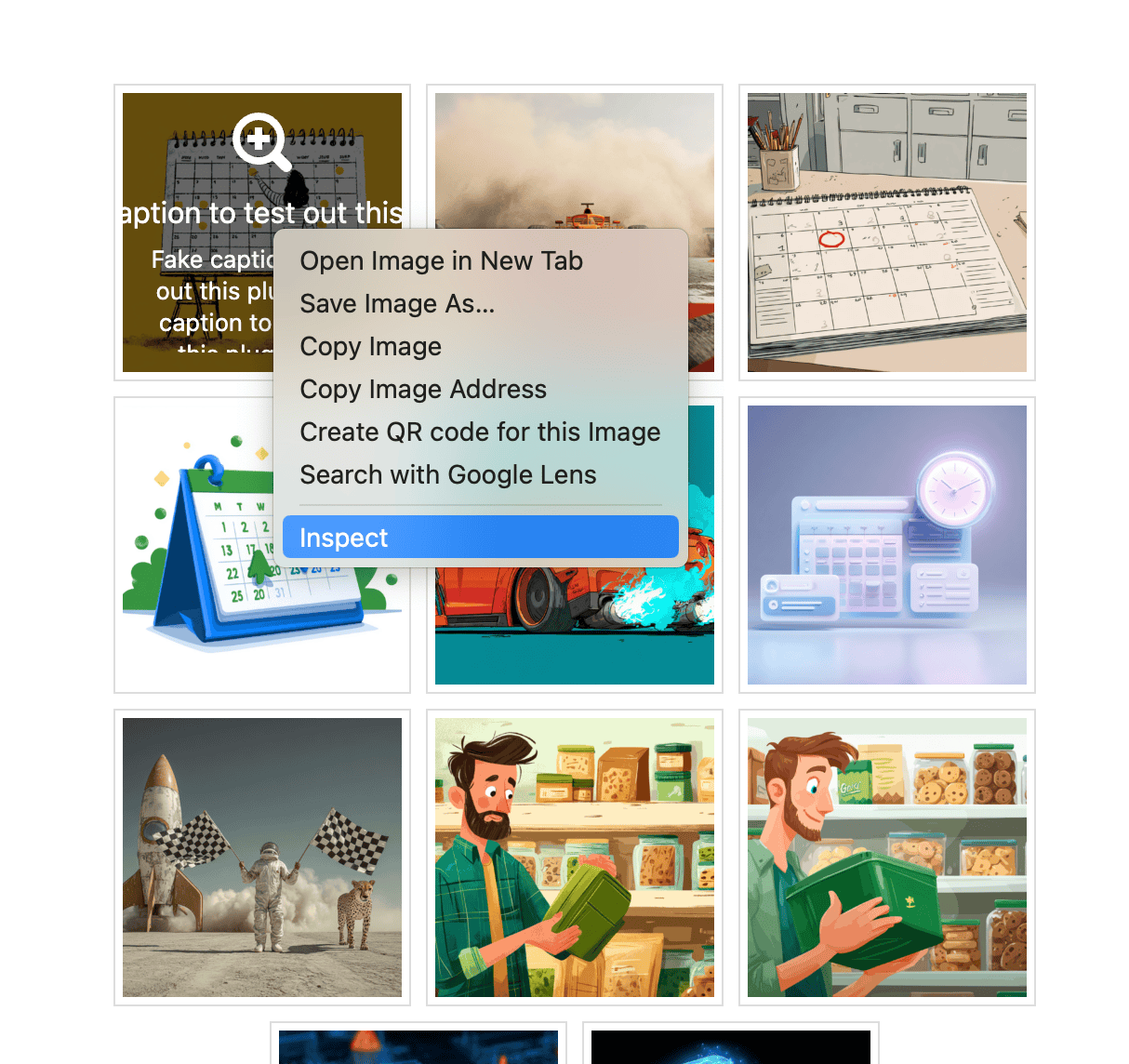
- Check the Image URL. Look for the image source URL (it will start with src=). Check if the path is correct. It should typically point to a location within your /wp-content/uploads/ folder.
- Re-add the Image. If the URL path is wrong, the simplest fix is to edit the gallery in your WordPress dashboard and re-add the missing image from your Media Library. This will ensure it has the correct, updated link.
How to Prevent FooGallery 404 Errors in the Future
Maintaining your WordPress site is the best way to prevent the 404 FooGallery error. Adopting a few simple maintenance habits can save you from future headaches and ensure you don’t have to fix broken gallery WordPress issues down the line
- Test Updates First: Safely updating WordPress is necessary to make sure that a conflict doesn’t arise. Before updating a plugin, theme, or WordPress core on your live site, always run the update on your staging site first.
- Clear Caches Regularly: Routinely purge the cache for your WordPress site, server, and FooGallery caches. You need to especially do this after making changes to your site.
- Redirect Deleted Content: If you delete a gallery, don’t just let the link die. Use a redirection plugin to create a 301 redirect to a relevant page, protecting your SEO and user experience.
- Keep Your Site Lean: Regularly review and remove any plugins and themes you are no longer using. Fewer active plugins mean fewer potential conflicts.
Final Thoughts
A 404 error like this one can be alarming, but as we’ve seen, it’s rarely a sign of a catastrophic failure. More often than not, it’s a symptom of a simple configuration issue triggered by a change or a lack of routine maintenance.
This is why BlogVault’s staging site is highly recommended. It helps you update plugins, test new themes, and make other changes in a safe, private environment. By catching conflicts before they hit your live site, you can ensure your galleries—and your entire website—remain stable and error-free.
FAQs
How do I fix error code 404?
A 404 error means the server couldn’t find the requested page. The most common fixes are regenerating your WordPress permalinks (Settings > Permalinks > Save Changes), clearing all caches, or checking for a plugin/theme conflict.
Does 404 error mean I was blocked?
No, a 404 error does not mean you were blocked. It simply means the page you are trying to reach doesn’t exist at that URL. Being blocked would typically result in a 403 Forbidden error or prevent you from accessing the site entirely.
How to fix 404 bad request error?
A “404 Not Found” error and a “400 Bad Request” error are different. A 404 means the server understands the request but can’t find the page. A 400 means the server cannot understand the request at all, often due to a malformed URL or a problem with your browser’s cookies or cache. Clearing your browser cache is a good first step for a 400 error.
How to fix link error 404?
To fix a 404 link error, you must either restore the content at that URL or redirect the broken link to a new, relevant page. If you are the site administrator, you can use a redirection plugin to create a 301 redirect from the old URL to a live one.

Shreya has been a writer for as long as she can remember. Now, she writes articles that help WordPress users manage the sites that they're proud of, with little to no coding


