Choosing a backup solution is the final, critical step in securing your WordPress site. You’ve done the research, but now you’re stuck in the UpdraftPlus vs Solid Backups debate.
You know the anxiety of hitting “update” or the panic of a broken site with a useless host backup.
You’re apprehensive. What if you choose wrong? This guide dissolves the confusion. We will give you the clarity needed to finally get the peace of mind that comes with a bulletproof backup plan.
Having a reliable backup is the most important step you can take to protect your website. Choose UpdraftPlus for its excellent free version and multisite support, or pick Solid Backups for its high performance and a guaranteed way to restore a completely crashed site.
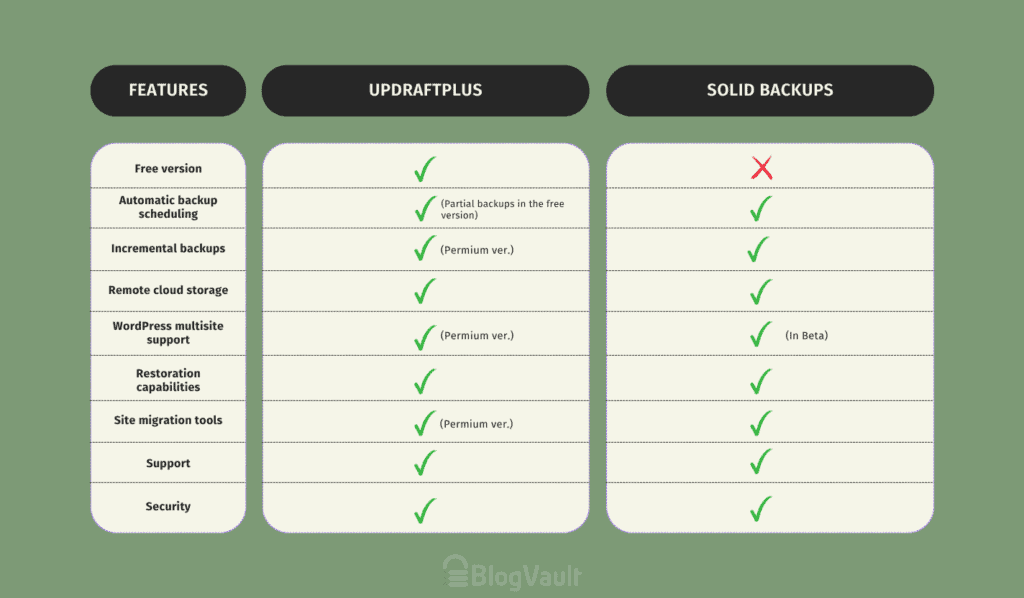
UpdraftPlus vs Solid Backups at a glance
UpdraftPlus in a nutshell
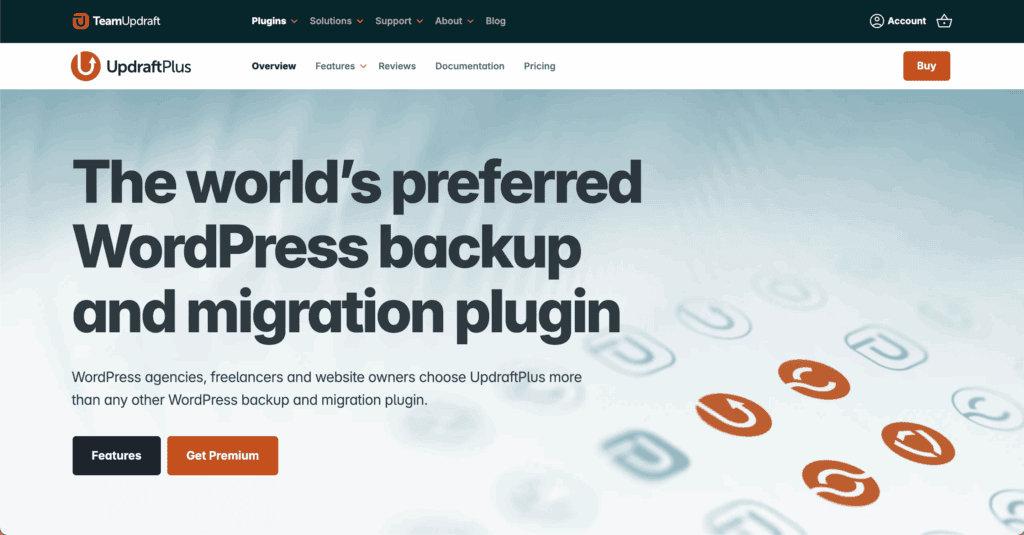
Having reviewed and tested UpdraftPlus extensively, we can confirm its reputation as the most popular free WordPress backup plugin is well-earned. It offers a generously featured free version that reliably handles the core task of backing up your site.
For most website owners, this is an ideal starting point. The interface is functional, as it connects to an extensive list of cloud storage options you likely already use (such as Google Drive or Dropbox), and it is fundamentally dependable.
The premium version is available for users who require more advanced features, but the free plugin is a complete solution in its own right.
Solid Backups in a nutshell
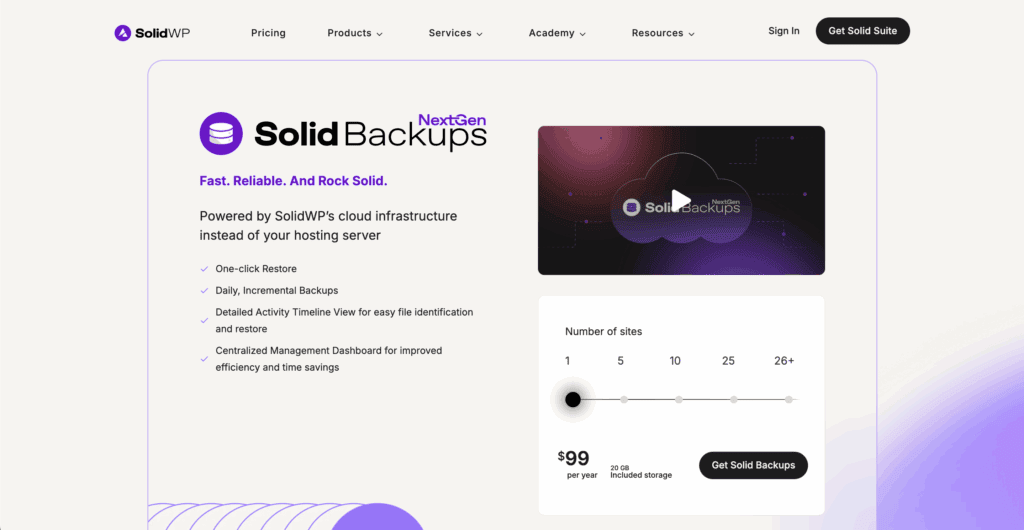
When evaluating the best WordPress backup plugins, you’ll find long-standing tools like BackupBuddy (now Solid Backups) alongside other modern solutions.
This is a premium-only solution with no free version. From the outset, it is designed for users who require a more robust system, such as freelance developers, agencies, and security-conscious businesses.
Its primary advantage is its integration into the broader SolidWP platform, which includes security. Integration is key. The best WordPress security plugins often combine real-time backups with an advanced firewall and malware removal, providing comprehensive protection.
In-depth feature comparison
On the surface, both plugins back up your website. However, the methods they use and the features they include create critical differences in functionality and user experience.
Automated backup scheduling
With UpdraftPlus Free, you can set basic intervals: daily, weekly, or every few hours. However, you cannot specify an exact time, so backups may slow your site during peak traffic.

The free version also performs a partial backup, only covering the wp-content folder and database while ignoring core files like wp-config.php unless you upgrade.
Solid Backups, by contrast, provides complete scheduling control right away. It offers flexible timing and its most powerful feature: real-time database backups.
For any site with frequent transactions or updates (like an e-commerce store), this is critical. It ensures every single order or comment is saved the moment it happens, offering superior data protection.
Incremental backups
Incremental backups save the files that have changed since the last backup, dramatically reducing server load.
- UpdraftPlus offers incremental backups only as a premium feature. The free version performs a full backup every time, which can be slow and resource-intensive on larger websites.
- Solid Backups includes this in all its plans. This is a significant performance advantage. Your backups complete faster and use far fewer server resources, preventing the risk of a backup process crashing your site.
Remote cloud storage integration
With UpdraftPlus Free, you are responsible for providing the storage. It is crucial to connect your own cloud storage account immediately. By default, backups are stored on your local host.
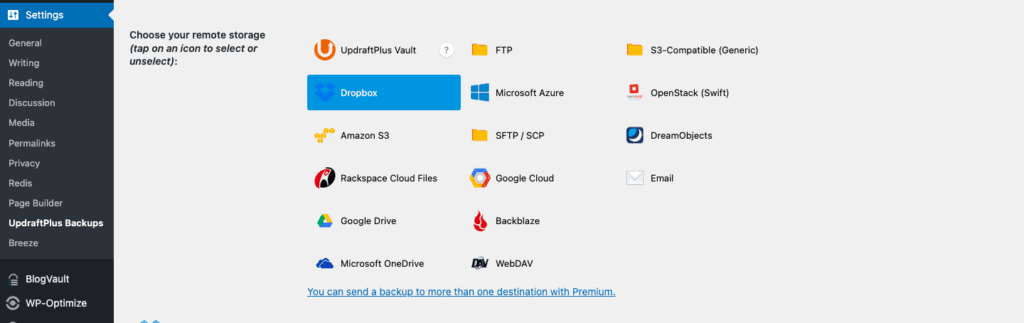
This slows your site down and puts you at high risk of losing everything in a server crash.
Once you move into the premium territory, both plugins offer a similar convenience. Solid Backups includes 1GB of their Solid Stash cloud storage with every subscription. Similarly, UpdraftPlus Premium includes 1GB of its dedicated UpdraftVault storage, while also retaining its vast library of third-party integrations for added flexibility.
WordPress multisite support
While multisite support is a premium feature for both plugins, UpdraftPlus has a clear and decisive advantage. Its multisite functionality is mature, extensively tested, and trusted by network administrators.
Solid Backups describes its multisite support as an experimental, beta-level feature. For a function as vital as network backups, relying on a beta feature introduces a significant risk.
In contrast, UpdraftPlus offers a mature and fully supported multisite solution, making it the demonstrably safer choice for network administrators.
The all-important restoration process
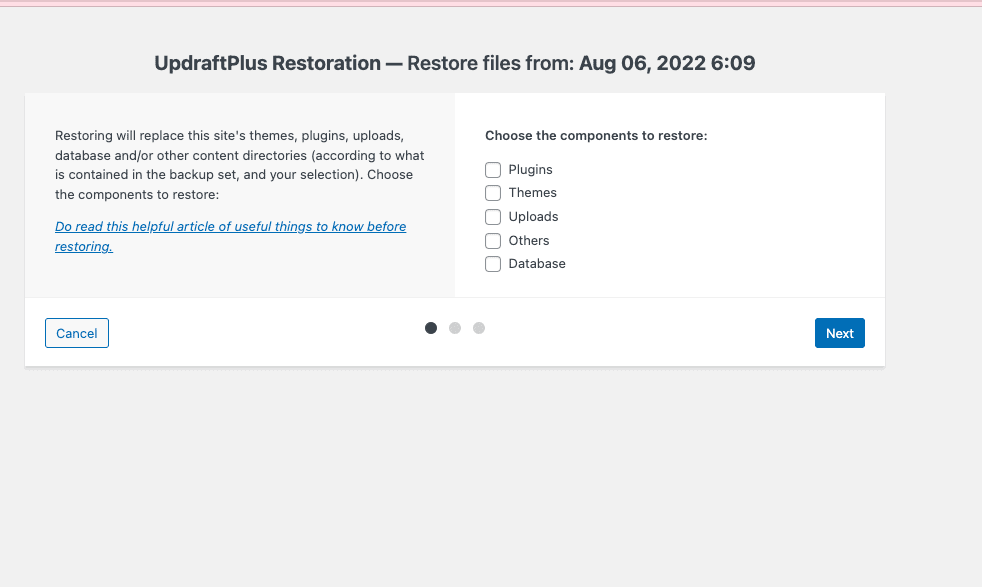
UpdraftPlus restores from within the dashboard, which is simple unless a fatal error locks you out. If that happens, you must perform a difficult manual restoration.
This manual process requires you to download your backups (from your cloud storage or the premium Vault), set up a fresh WordPress installation, and then upload and restore from within that new site. It is a complex procedure not recommended for most users.
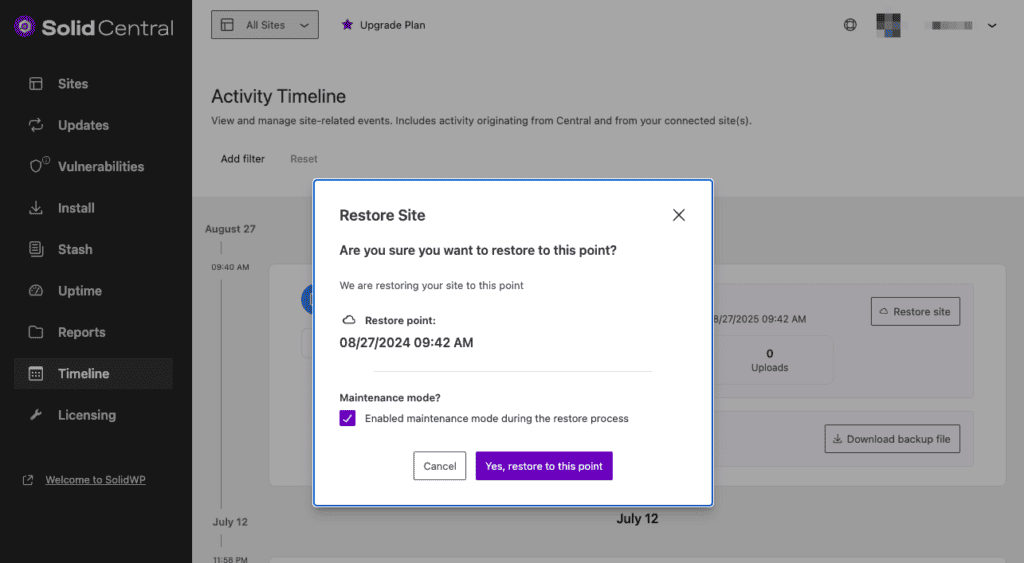
Solid Backups provides two restoration methods. For simple rollbacks, you can use the standard one-click restore feature from within the WordPress dashboard.
For critical situations like a crashed site or migration, you use the ImportBuddy tool. This is a standalone PHP script that runs independently of WordPress, providing an essential and powerful method for disaster recovery when the admin dashboard is inaccessible.
Site migration tools
Sooner or later, you’ll probably need to migrate your site. How these plugins handle it directly impacts your wallet.
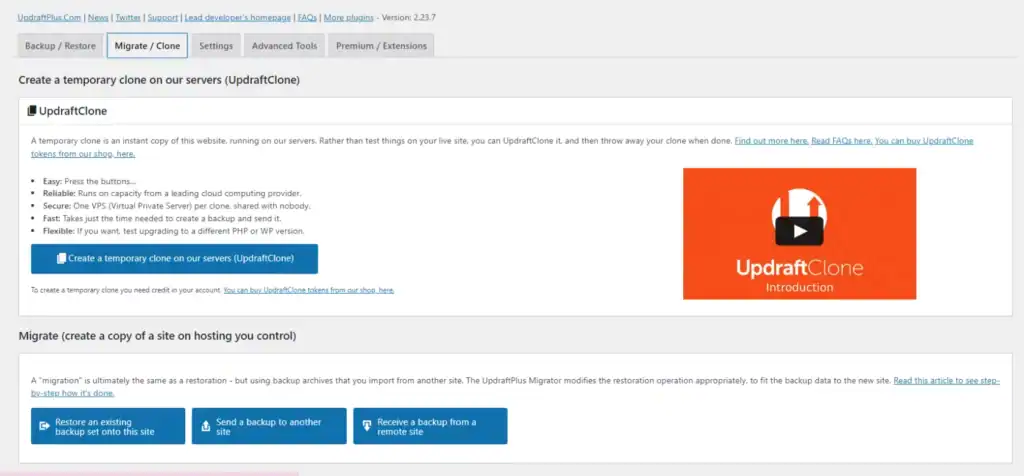
With UpdraftPlus, the migration tool is a key feature of its premium plans. It’s called UpdraftPlus Migrator, and it is not included in the free plugin. This means you must upgrade to a paid plan to get this functionality.
By contrast, Solid Backups treats migration as a core feature included in all plans. Its ImportBuddy tool, the same one used for disaster recovery, is perfectly suited for moving a site.
This provides excellent all-in-one value for users who know they will need to migrate.
Support channels & responsiveness
With the free version of UpdraftPlus, support is limited to the public WordPress.org forums, where users often seek urgent help for critical failures like the UpdraftPlus restore error 500.
Responses are not guaranteed to be fast or come from official developers. Upgrading to UpdraftPlus Premium grants access to a professional, dedicated ticket system.
Solid Backups, as a premium-only plugin, provides all customers with direct access to a professional support team via tickets. There is no forum-only support tier.
Both products also offer extensive documentation for users who prefer self-service.
Security & encryption standards
The security of your backups is as important as the backups themselves. It should be one part of a complete WordPress security checklist.
UpdraftPlus focuses on securing the backup file itself. Its premium version offers database encryption, which protects your sensitive data if the backup file is ever compromised.
Solid Backups is more proactive. It integrates malware scanning to check your live site before the backup runs. This is a key advantage, as it helps prevent you from saving an already infected site.
Ease of use & user interface
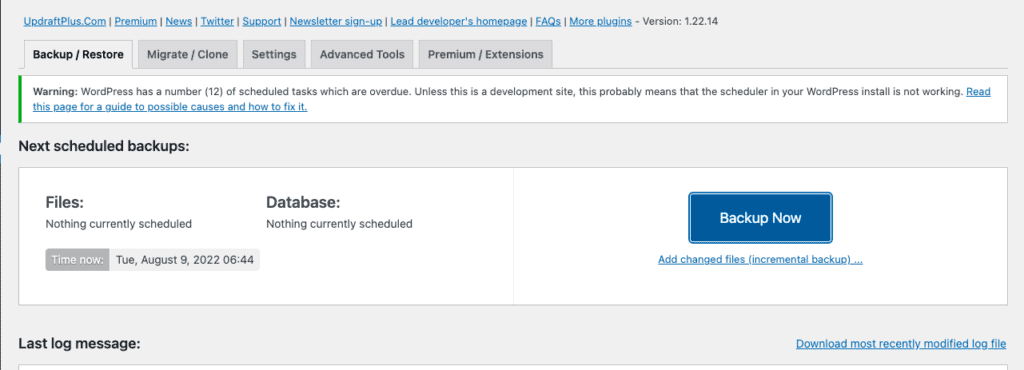
The UpdraftPlus interface is functional and familiar. It isn’t modern, but its straightforward design is instantly recognizable and easy to use.
The Solid Backups interface is more modern and polished, fitting its place in the SolidWP suite.
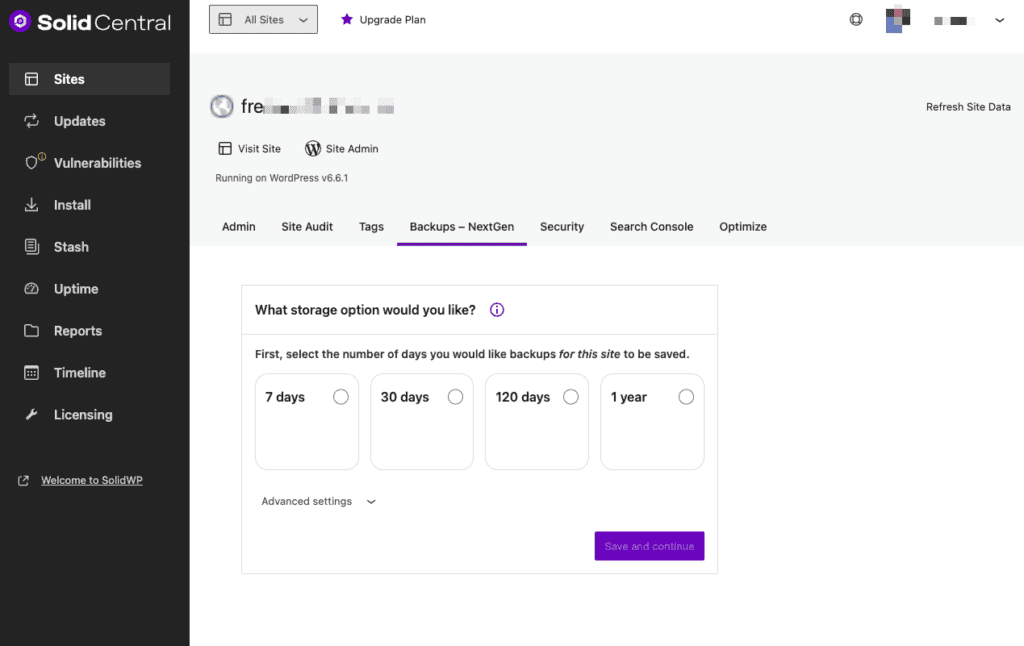
Both plugins are easy to set up and learn. The choice comes down to personal preference: a classic, functional design versus a more modern aesthetic.
Ultimately, both are designed to get the job done with minimal fuss. which is exactly what you need when facing a major issue like the WordPress white screen of death.
Pricing models
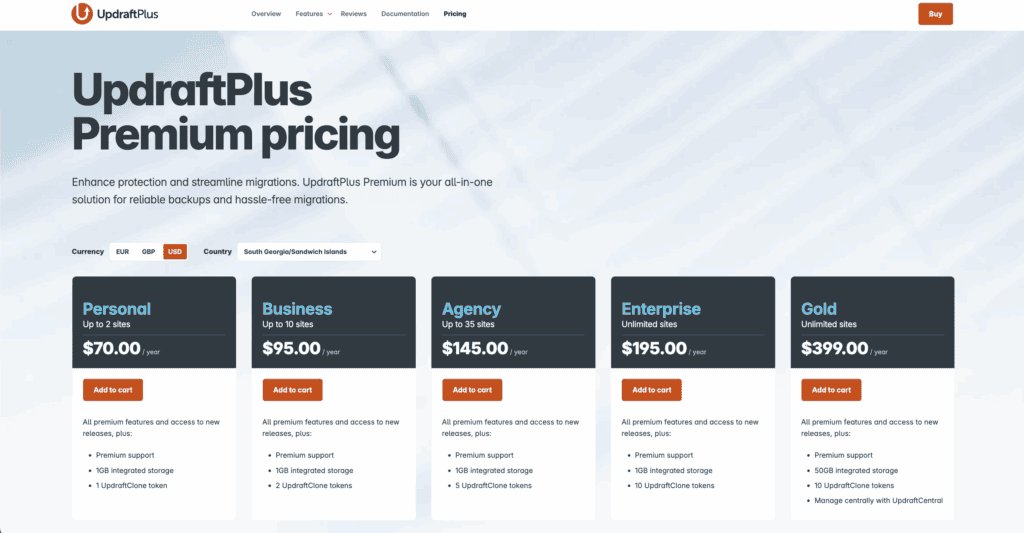
UpdraftPlus uses a freemium model. Its powerful free version is its primary advantage, allowing users to implement a reliable backup strategy at no cost. You can upgrade to premium plans (starting around $70/year) to add features like incremental backups and migration.
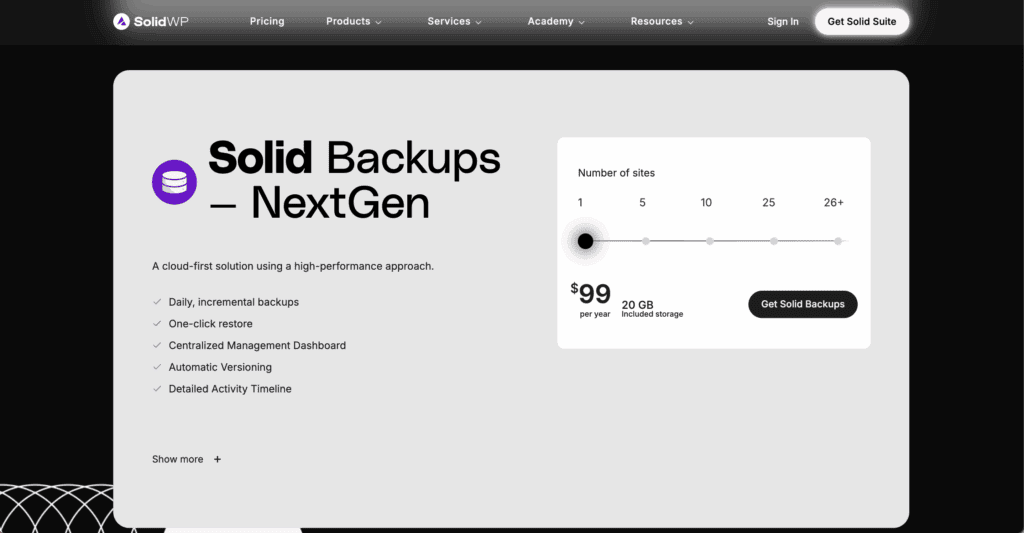
Solid Backups is an all-in-one premium model. There is no free version. Its higher initial cost (around $99) includes advanced features like malware scanning and migration in the base price.
Which plugin is the right fit for your site?
The right choice depends entirely on your specific requirements.
- Choose UpdraftPlus if: You need a powerful, reliable, and free solution for a single site. It is also the definitive choice if you run a WordPress multisite network. Its wide array of third-party cloud storage integrations offers maximum flexibility.
- Choose Solid Backups if: You are a developer, agency, or business owner who needs a comprehensive, premium solution. The integrated security scanning, including cloud storage, and the failsafe ImportBuddy restoration tool are compelling features for professional use cases.
Other backup plugin alternatives to consider
While UpdraftPlus and Solid Backups are top contenders, the market offers other excellent solutions worth evaluating.
BlogVault
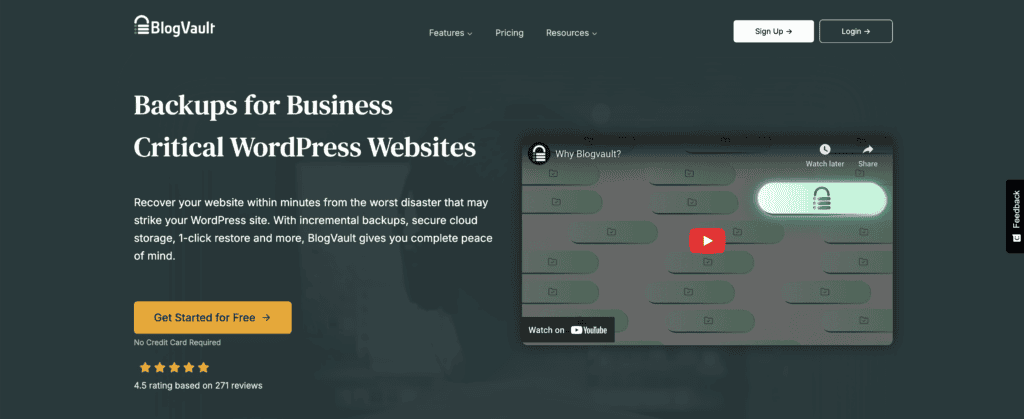
BlogVault operates more like a service (SaaS) than a simple plugin. It performs backups on its own servers, meaning zero load on your website. It’s a premium, hands-off solution known for reliability and features like integrated staging and super-easy migration.
Best for: Users who want a completely managed, off-site backup solution and are willing to pay a subscription for convenience and performance.
Duplicator
Duplicator is renowned as the go-to tool for site migration and cloning. While it can create full-site backups, its primary strength isn’t in scheduled, automated protection. It excels at packaging a site for moving to a new host or creating a copy on a local server.
Best for: Developers and site builders who frequently need to move or duplicate websites. It’s a tool for a specific job, not a daily backup strategy.
Jetpack Backup
Jetpack Backup is a premium service integrated into the Jetpack suite. Its standout feature is real-time backups, which save every change as it happens. Restorations are simple, and the activity log lets you see exactly what changed and when.
Best for: E-commerce sites, membership sites, and busy blogs where data loss between scheduled backups is unacceptable. Requires a Jetpack subscription.
WPvivid Backup & Migration
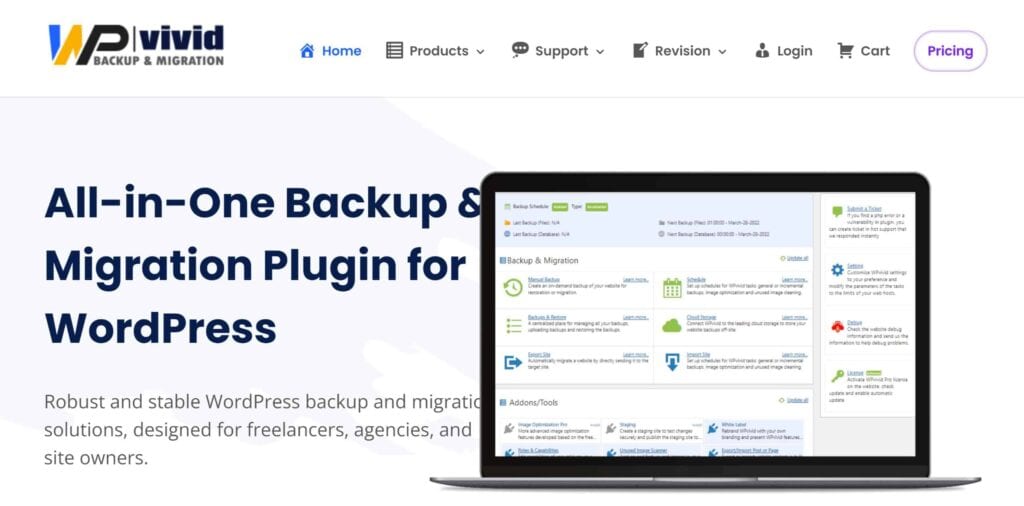
WPvivid has become a very strong competitor to UpdraftPlus, offering an impressive number of features in its free version. It includes remote storage options, scheduling, and even a one-click staging site feature, which is typically a premium offering.
Best for: Users looking for a free alternative to UpdraftPlus that includes advanced features like staging without the need to upgrade.
Best practices to follow once you make your choice
Selecting a plugin is only the first step. A successful backup strategy requires consistent management.
- Test Your Backups: An untested backup is not a reliable backup. Periodically perform a test restore on a staging environment to confirm your files are viable.

- Always Store Remotely: Never rely on backups stored on the same server as your website. If your server fails, you will lose both your site and your only means of recovery. Sending your backups to an off-site location is the cornerstone of a reliable backup strategy.

- Schedule Logically: Align your backup frequency with how often your site’s content changes. A dynamic e-commerce site needs daily backups; a mostly static site may only need them weekly.
Parting thoughts
Both UpdraftPlus and Solid Backups are reputable, high-quality tools capable of securing your website. The decision rests on your specific needs, budget, and technical requirements.
UpdraftPlus provides exceptional value, offering a free version robust enough for a vast number of users and best-in-class support for multisite networks.
Solid Backups is a professional-grade tool designed for users who need an integrated security solution, superior performance via incremental backups, and a guaranteed restoration method for any disaster scenario.
FAQs
What is the difference between UpdraftPlus and Duplicator?
UpdraftPlus is primarily for scheduled, ongoing backups, while Duplicator excels at manual site migration and cloning. Think of UpdraftPlus for regular safety nets and Duplicator for moving your entire site in a single package.
What is the difference between UpdraftPlus and BlogVault?
UpdraftPlus is a plugin that sends backups to your own storage, whereas BlogVault is a service that performs backups on its own secure, offsite servers. This means BlogVault uses none of your server’s resources for the backup process, offering a more premium experience.
Where does UpdraftPlus save backups?
UpdraftPlus saves backups to a remote cloud storage location that you connect, such as Google Drive, Dropbox, or Amazon S3. If you do not configure a remote location, it defaults to saving them on your local web server, which is not recommended.
What is the difference between UpdraftPlus and WP Staging?
UpdraftPlus is a backup and restoration tool, while WP Staging is specifically designed to create a clone of your site for testing and development. You use UpdraftPlus for disaster recovery, whereas you use WP Staging to safely test changes before pushing them live.
How do I export a backup from UpdraftPlus?
You can download a backup from your WordPress dashboard by going to the “Existing Backups” tab in UpdraftPlus and clicking on each file component. Alternatively, you can log into your connected remote cloud storage (like Google Drive) and download the files from there.
Why is my UpdraftPlus backup not finishing?
An UpdraftPlus backup typically fails to finish due to server resource limits, such as low memory or a short script execution time set by your web host. Try adjusting the backup splitting size in the plugin’s expert settings to create smaller chunks, which helps bypass these limitations.

Shivani enjoys crafting guides that make every aspect of using WordPress simple and easy to follow. When she's not glued to her laptop, you can find her buried in a good book or occasionally, painting.