A WordPress plugin can transform a basic website into whatever you want it to become. A good WordPress gallery plugin, for example, can turn your simple image grids into stunning visual showcases.
A professional-looking gallery is crucial. It grabs your visitors’ attention, makes your portfolio or products look more appealing, and keeps people on your site longer. It’s a simple upgrade that has a massive impact on how users perceive your brand and your work.
But with hundreds of plugins to choose from, finding the right one can feel overwhelming. We’ve done the hard work for you by testing and comparing the best options. This guide will help you pick the perfect, easy-to-use gallery plugin to make your images pop, no technical skills required.
Our review of NextGen delves into why it’s our top pick. It has powerful features and professional-grade control, perfect for photographers. However, since galleries are image-heavy, they can slow down your site. To prevent this, always pair your gallery plugin with a performance plugin to keep your pages loading fast for every visitor.
Key Features to Look For in a Gallery Plugin
Choosing a gallery plugin can feel confusing with so many options available. To make the right choice, focus on these five essential features that separate a good plugin from a great one.
- Beautiful Layout Options: The main reason to use a plugin is to make your galleries look better. A great plugin will offer a variety of layouts beyond a standard grid.
- Speed & Performance: Your website is slow with all the images you have on it. Image galleries can make it worse if not built correctly..
- Ease of Use: You shouldn’t need technical skills to create a stunning gallery. The best plugins are beginner-friendly and have an intuitive interface
- Cost (Free vs. Premium): Most gallery plugins offer a free version with a paid “premium” or “pro” upgrade. A strong free version should give you all the essential tools to create beautiful, responsive galleries.
1. NextGEN Gallery
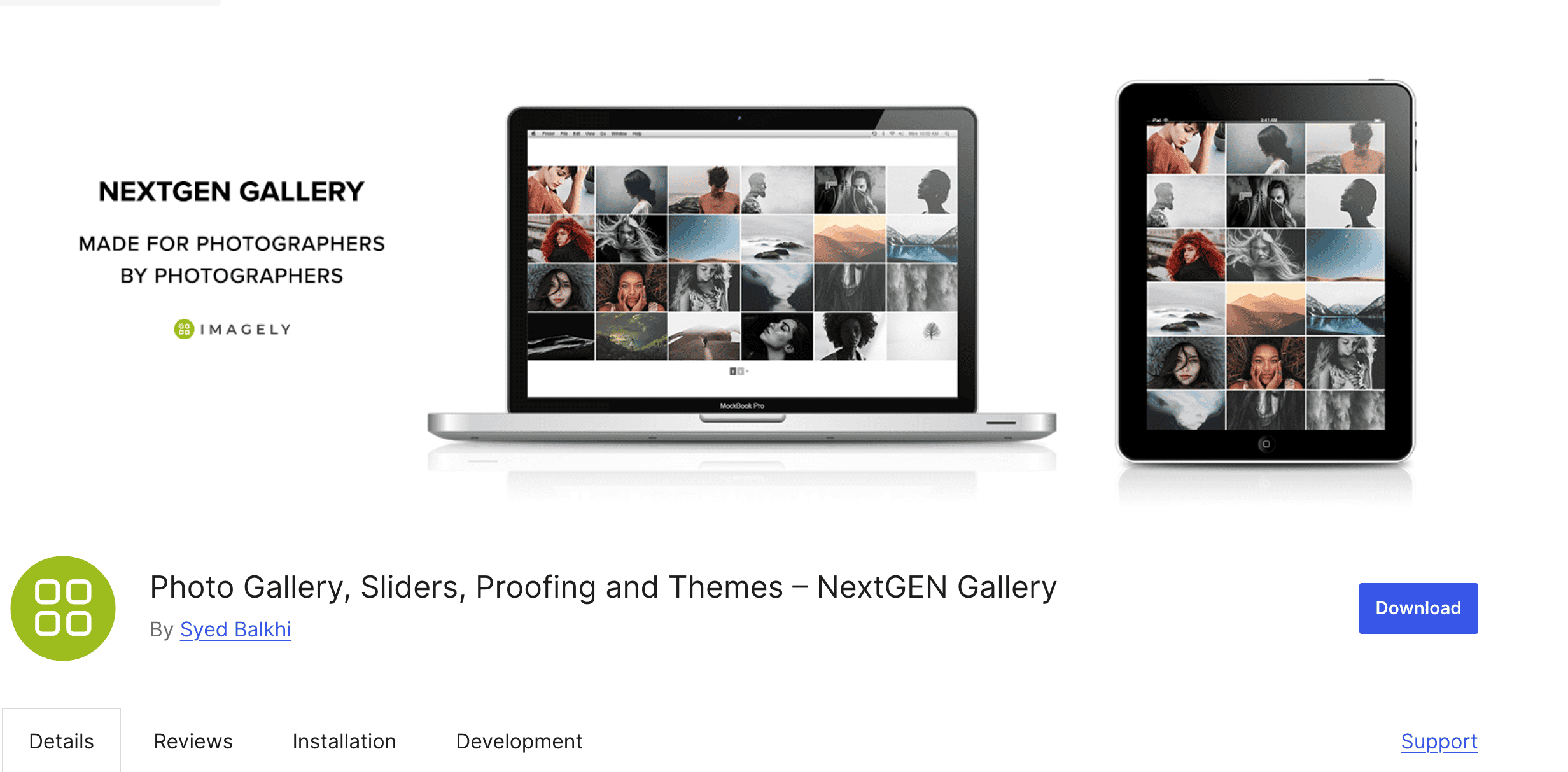
My first experience of NextGEN is that it’s a true powerhouse. Imagely built it to be a complete image management system, and I saw that right away. It’s not just a simple plugin; it adds its own extensive menu to your WordPress dashboard for managing albums, tags, and settings. This depth creates a steeper learning curve, so instead of a quick drag-and-drop experience, you’ll need to invest time to understand its structure and get the most out of it.
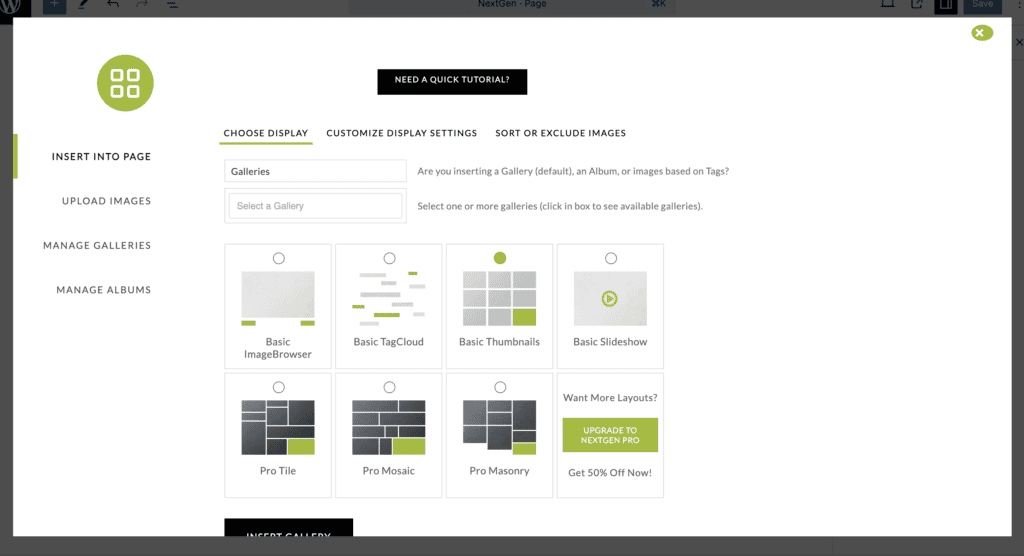
Think of it less as a simple gallery plugin and more as an all-in-one tool for professional photographers. This plugin is for professionals who run a business from their website. You can set up client proofing galleries, enable e-commerce to sell prints, and automatically add watermarks to protect your work. These aren’t just display features; they are business tools that help you manage your entire photography business from start to finish.
Key Features:
- Batch uploads, metadata import, and drag-and-drop reordering.
- Multiple gallery layouts (masonry, mosaic, slideshow) and album styles.
- Built-in e-commerce to sell digital downloads and prints.
- Image protection with watermarking and right-click disabling.
- Adobe Lightroom integration.
Pricing: A free version is available. Premium plans start at $69.50/year.
Best for: Professional photographers needing an all-in-one solution for managing, displaying, and selling their work.
2. FooGallery
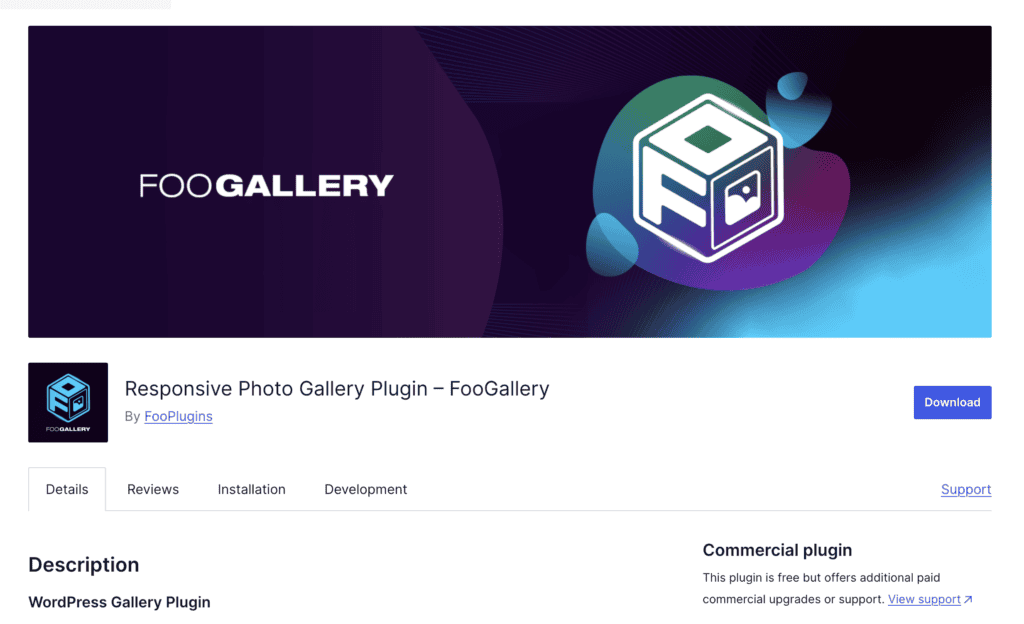
I tested FooGallery and I loved that its interface is clean and highly intuitive. It integrates so well with the WordPress media library that it feels like a natural, upgraded part of the core experience rather than a clunky add-on.
The standout feature during my testing was the live preview, which made the entire creation process a breeze. I could see exactly how my gallery would look and behave as I changed settings, eliminating the tedious cycle of saving, switching tabs, and refreshing the page.
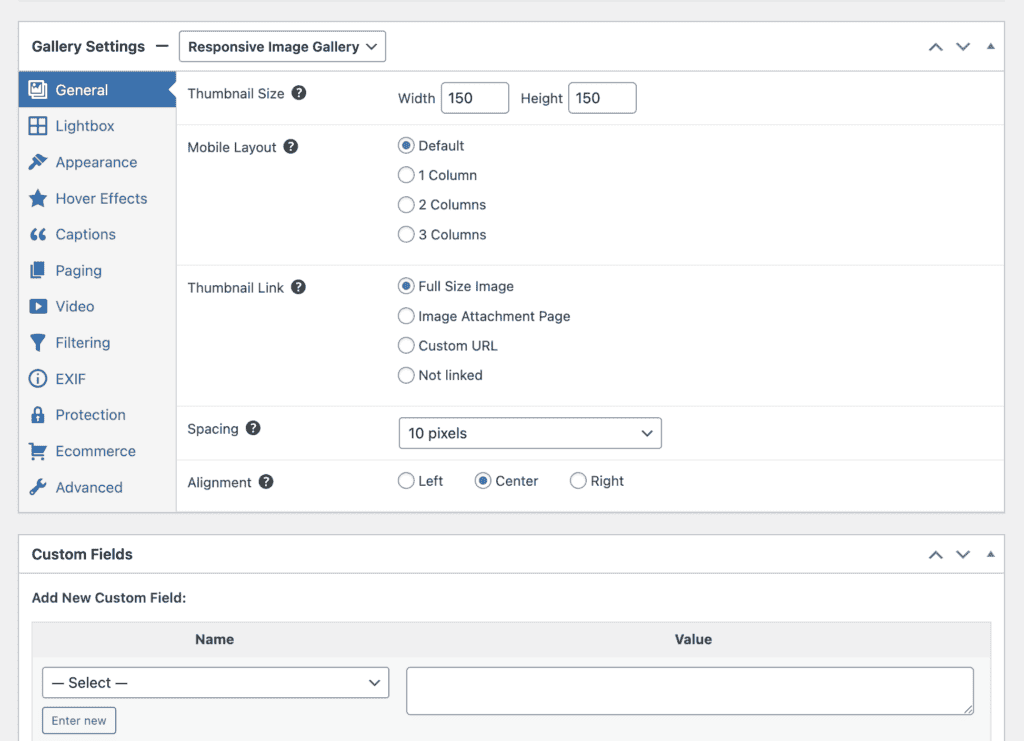
This seamless workflow, combined with the fact that powerful features like lazy loading are included for free, makes FooGallery a perfect example of a plugin that respects your time and delivers professional results without any hassle.
Key Features:
- Performance-focused with built-in lazy loading and SEO optimization.
- A variety of responsive layouts like masonry, justified, and carousel.
- Video support for YouTube and Vimeo (Pro).
- Advanced filtering by media tags or categories (Pro).
- WooCommerce integration for selling photos (Pro Commerce).
Pricing: A powerful free version is available. Premium plans start at $33.99/year.
Best for: Users who prioritize speed, ease of use, and a great-looking gallery without needing to immediately pay for an upgrade.
3. Envira Gallery
Testing Envira Gallery felt like a breath of fresh air, especially after dealing with more complex plugins. Its signature drag-and-drop builder is one of the most user-friendly I’ve ever used.
It fits so perfectly into the WordPress dashboard that it feels like a natural part of the system. I didn’t have to hunt for settings or guess what buttons did; everything was right where it should be, making the process feel incredibly simple.
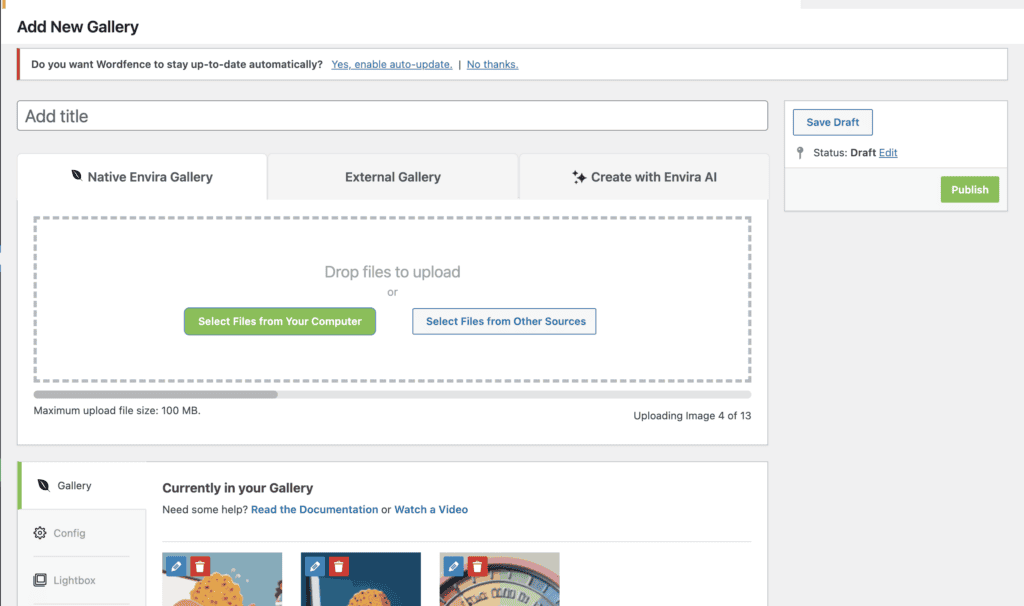
I was able to create a beautiful, fully responsive gallery in just a couple of minutes. The plugin’s modular approach, using addons for extra features, is brilliant because it keeps the core tool light and fast.
You start with a simple, high-performance tool and only add the features you need—like watermarking or social sharing—as your site grows. This makes it a clear winner for anyone new to WordPress who wants immediate, professional-looking results.
Key Features:
- Intuitive drag-and-drop builder for fast gallery creation.
- Ability to organize galleries into filterable albums.
- E-commerce and client proofing features.
- Image protection with watermarking and password protection.
- Social sharing and video support.
Pricing: A free Lite version is available. Premium plans start at $39.50/year.
Best for: Beginners, bloggers, and businesses who want a simple, fast, and intuitive gallery-building experience.
4. Modula Gallery
Our review of Modula immediatelystood out to me immediately for its focus on pure creativity. While testing its “Custom Grid” feature, I had a genuine ‘wow’ moment.
Instead of being locked into a fixed layout, I could simply drag the corners of each image to resize them. This let me create a unique, masonry-style mosaic that looked completely custom—a level of control other plugins can’t offer without custom code.

What surprised me most was how easy it was. Modula gives you this incredible artistic freedom through a simple interface, making it feel more like a design tool than a technical plugin.
Key Features:
- Unique Custom Grids with drag-and-resize functionality.
- SpeedUP™ technology for fast-loading galleries.
- A wide variety of built-in hover effects and animations.
- Video support for YouTube and Vimeo.
Pricing: A free version is available. Premium plans start at $39/year.
Best for: Creatives, artists, and designers who want full control over the visual layout of their gallery to create a unique look.
5. Supsystic Gallery

What I discovered with Supsystic is that it’s all about options. From the moment I activated it, I wasn’t met with a simple “create new gallery” button but a full dashboard showcasing a huge range of different gallery types. While its interface felt a bit less modern and more crowded than sleeker plugins like Envira or FooGallery, the reason became clear: this plugin is designed to give you a massive toolbox of creative choices right from the start, rather than hiding them behind layers of settings.
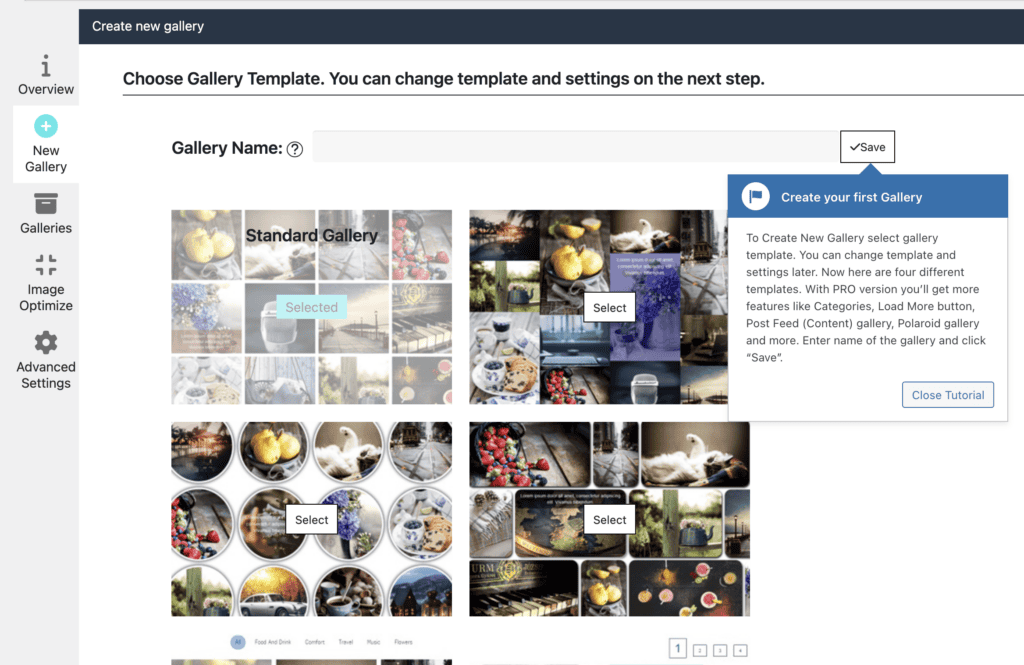
I was genuinely impressed by the sheer variety, which went far beyond the standard grids and carousels I’d seen elsewhere. I experimented with the Polaroid style, which automatically added a classic white border and a slight rotation to my images, creating a fun, nostalgic feel perfect for a travel blog. The real standout for me, however, was the “Post Feed” gallery. With a few clicks, I created a dynamic, visual grid of my latest blog posts, complete with featured images and titles. This is a fantastic feature for boosting engagement and visually showcasing your content archive.
Key Features:
- Diverse gallery types including grid, masonry, carousel, polaroid, and post feeds.
- Numerous pre-made templates for quick and easy setup.
- Social sharing buttons and integration.
- Advanced tools like watermarking and pagination.
Pricing: A free version is available. The Pro version starts at $46 for a single site.
Best for: Users who want a huge selection of creative and unconventional gallery styles to choose from.
6. Wonder Gallery

In my tests of Wonder Gallery, it proved to be the specialist in animation and modern effects. The plugin uses a straightforward, wizard-based setup that guided me smoothly through each step of the creation process. I was prompted to add images, select a layout, and then choose from a list of clean and professional animations. This step-by-step approach makes adding what could be a complex feature feel incredibly simple.
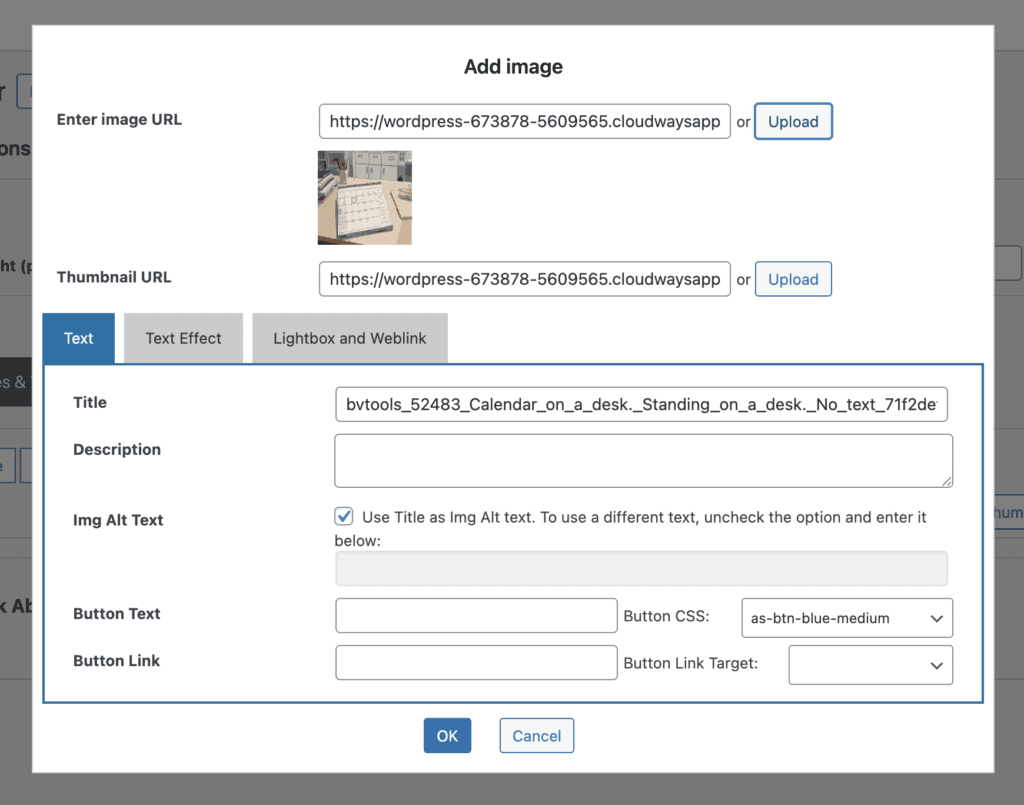
The end result was a gallery with slick transitions and fluid motion that added a dynamic, premium feel to the page. I was particularly impressed with the touch-swipe navigation on my phone; it was buttery smooth and highly responsive, which is critical for user experience. It’s clear this plugin is built for users who prioritize visual flair and want a modern, animated gallery that looks great on any device.
Key Features:
- Multiple transition and hover animations.
- Touch-swipe navigation optimized for mobile devices.
- Support for YouTube, Vimeo, and self-hosted videos.
- Built-in lightbox functionality.
Pricing: A free version is available with a branding watermark. Pro versions are available to remove branding.
Best for: Users who want to add modern animations and slick transition effects to their image and video galleries.
7. Responsive Lightbox & Gallery
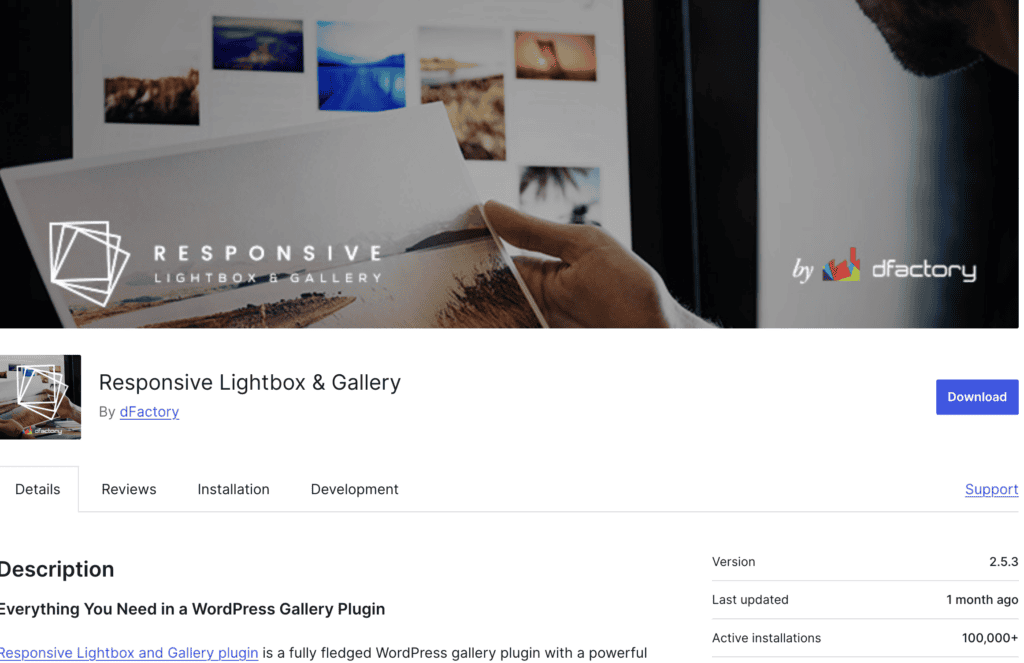
The Responsive Lightbox & Gallery from dFactory became my go-to recommendation for one specific task: adding a great lightbox. It’s incredibly lightweight and easy to set up, adding no noticeable bloat to your site.
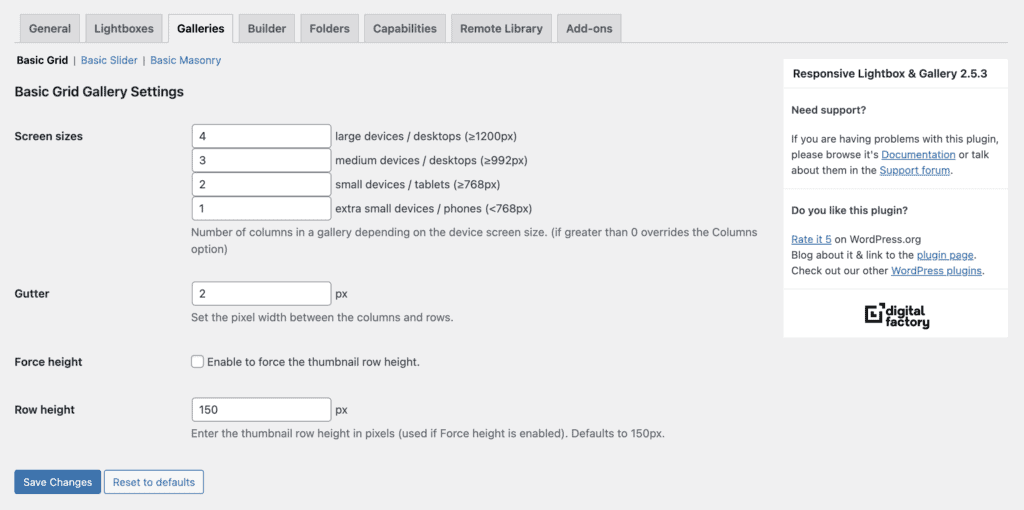
Its killer feature is its ability to automatically upgrade your entire website. With just a few clicks, it applies a beautiful pop-up effect to all your existing WordPress galleries and image links. This “set it and forget it” functionality is the most efficient way to instantly improve your user experience without having to rebuild a single gallery.
Key Features:
- Multiple free responsive lightbox scripts to choose from.
- A simple drag-and-drop gallery builder.
- Automatically applies lightbox effects to WordPress galleries and image links.
- Lightweight and optimized for speed and SEO.
- WooCommerce product gallery support.
Pricing: A robust free version is available, with premium add-on extensions sold individually or in bundles.
Best for: Users who primarily want to add a high-quality, customizable lightbox to their images and create simple, fast galleries.
8. Essential Grid Plugin
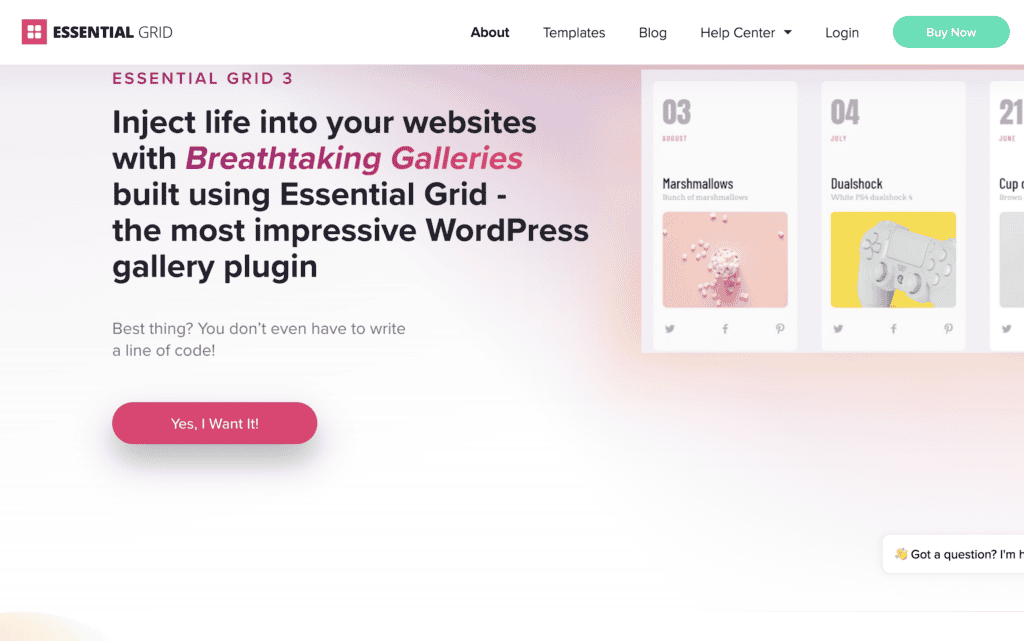
After working with Essential Grid, it was clear that this is much more than just a gallery plugin—it’s a complete grid-building engine. The first thing I had to do was choose a content source, and the options went far beyond images to include blog posts, WooCommerce products, and custom post types. This immediately signaled that it was a tool for building complex, data-driven layouts.
The vast number of settings, from the detailed skin editor to the advanced content filtering options, gave it the steepest learning curve of any plugin I tested. While I was able to create a stunning, filterable portfolio that pulled in content from multiple sources, it required significant time and effort. This makes it an incredibly powerful tool, but one I would only recommend for experienced users or developers building custom site features.
Key Features:
- Displays content from posts, WooCommerce, custom post types, and more.
- Advanced skin builder for customizing animations and hover effects.
- A wide selection of grid, masonry, and cobble layouts.
- Includes lazy loading and other performance optimizations.
Pricing: This is a premium-only plugin available on CodeCanyon for a one-time purchase, typically around $79.
Best for: Developers and designers who need to build complex, filterable grids for portfolios, blogs, or e-commerce stores.
Best Practices for Using a WordPress Gallery Plugin
Installing a great gallery plugin is only the first step. To get the most out of it and ensure your website stays fast and user-friendly, follow these essential best practices.
- Optimize Images First: Always resize and compress your images before you upload them to keep your gallery loading fast.
- Think Mobile-First: Choose a fully responsive plugin and always check how your gallery looks on a phone.
- Enable Lazy Loading: Turn on lazy loading in your plugin’s settings to dramatically improve initial page load speed.
- Add Alt Text to Every Image: Fill out the Alt Text field for better SEO and accessibility for all your visitors.
- Use Albums for Large Collections: Organize a large number of photos into albums or categories to make them easier for visitors to browse.
- Choose the Right Layout: Don’t just use the default. Experiment with different layouts like Masonry, Grid, or Carousel to find the best fit for your content.
- Protect Your Work: If you’re a photographer or artist, use features like watermarking or right-click disabling to prevent image theft.
- Don’t Overload the Page: For very large galleries, use a “Load More” button or pagination to avoid slowing down the page.
- Stick to One Gallery Plugin: Avoid conflicts and a slow site by choosing one gallery plugin and sticking with it.
Final thoughts
After testing all these options, it’s clear that a dedicated gallery plugin is a non-negotiable tool for anyone serious about their website’s visual presentation. While many plugins are excellent, we found that NextGEN Gallery offers the most comprehensive suite of tools for serious photographers and businesses who need a complete image management and sales solution.
However, a powerful plugin with many high-resolution images needs a fast foundation to perform at its best. To ensure your stunning galleries don’t slow down your site and hurt your user experience, we recommend pairing NextGEN with a performance optimization service like Airlift, which will keep your entire website running at top speed.
FAQs
What is the best gallery plugin for WordPress?
The “best” plugin depends on your specific needs. For beginners who want an easy-to-use, drag-and-drop experience, Envira Gallery is an excellent choice. For professional photographers who need advanced features like e-commerce and client proofing, NextGEN Gallery is the industry standard. For users who prioritize speed and a great free version, FooGallery is a fantastic all-rounder.
How to use a gallery plugin in WordPress?
Using a gallery plugin is a straightforward process:
- Install and activate the plugin from the WordPress repository.
- Navigate to the plugin’s menu in your WordPress dashboard and click “Create New Gallery.”
- Add images from your Media Library to the new gallery.
- Customize the gallery’s layout, style, and other settings.
- Add the gallery to any post or page using its dedicated Gutenberg block or by copying and pasting its shortcode.
How to do a gallery on WordPress?
You have two main options. You can use the basic, built-in WordPress gallery block, which is suitable for creating simple, uniform image grids. For more advanced layouts, better performance, and features like albums, watermarking, or video support, it is highly recommended that you install and use a dedicated gallery plugin like the ones mentioned in this article.
Is Foo Gallery free?
Yes, FooGallery has a very powerful and popular free version available on the WordPress repository. This free version includes multiple layouts, lazy loading, and is fully responsive. For users who need more advanced features like video support, advanced filtering, or e-commerce integration, FooGallery also offers premium plans.

Shreya has been a writer for as long as she can remember. Now, she writes articles that help WordPress users manage the sites that they're proud of, with little to no coding