When it comes to plugins for galleries, this NextGEN Gallery review will help you decide if it’s the right fit for your website. You’ve heard it’s the most powerful gallery plugin, but a quick search reveals a confusing mix of praise from professionals and frustration from beginners. This conflict is paralyzing when you just want a simple way to make your photos look great.
This article cuts through the noise. We’ll give you a straightforward breakdown of NextGEN’s pros and cons, specifically for someone who isn’t a WordPress expert. We’ll cover its powerful features, its notorious learning curve, and help you decide if it’s the right tool for the job or if a simpler alternative is a better choice for you.
I created a test site with lots of images to test NextGen on. While the dashboard looked impressive and was packed with features, the plugin was incredibly slow and buggy from the start. My entire admin area became sluggish, making even simple tasks a frustrating chore.
Setting the scene
NextGEN Gallery is a pioneer in the WordPress gallery plugin space, acting as a complete photo management system for professional photographers since 2007. It was built to solve the poor image management and lack of professional tools in early WordPress, and it remains one of the most powerful and comprehensive gallery plugins available. However, its power comes with a reputation for being complex and unintuitive for beginners.

To see if NextGEN’s professional-grade power is worth its steep learning curve, we put it through a comprehensive test. We installed it on a test site, created several galleries, and evaluated it based on the key factors a photographer needs:
- Management & Organization: Can it handle thousands of images efficiently with its own album and gallery system?
- Professional Tools: How well do its core features like e-commerce, client proofing, and watermarking actually work?
- Design & Customization: Can you customize layouts and styles to match your brand without getting lost in the settings?
- Performance: Does this feature-packed plugin slow down the website or the admin dashboard?
- Usability: Is the interface really as confusing as users say, or can a beginner navigate it?
- Pricing: What do you get for free, and is the Pro version a necessary investment for serious users?
Here’s everything we learned from our hands-on review.
Display Options
How you present your photos is critical for making a strong impression. In our NextGEN gallery review, we were looking for a variety of layouts to suit different styles, from classic grids to modern mosaics. We looked at what NextGEN offers in both its free and paid versions.
- Free Version: Includes the essential display types needed for a basic portfolio, such as thumbnail galleries, slideshows, and image browser layouts. It also provides compact and extended album styles to group your galleries.
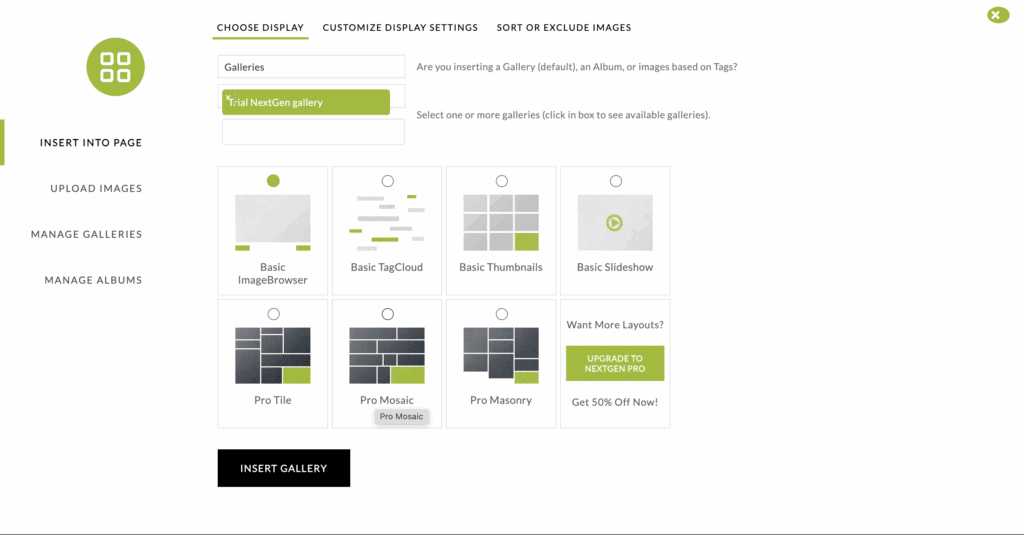
- Premium Version: Unlocks a much wider range of professional and visually engaging layouts, including Masonry, Mosaic, Filmstrip, and Tiled galleries.
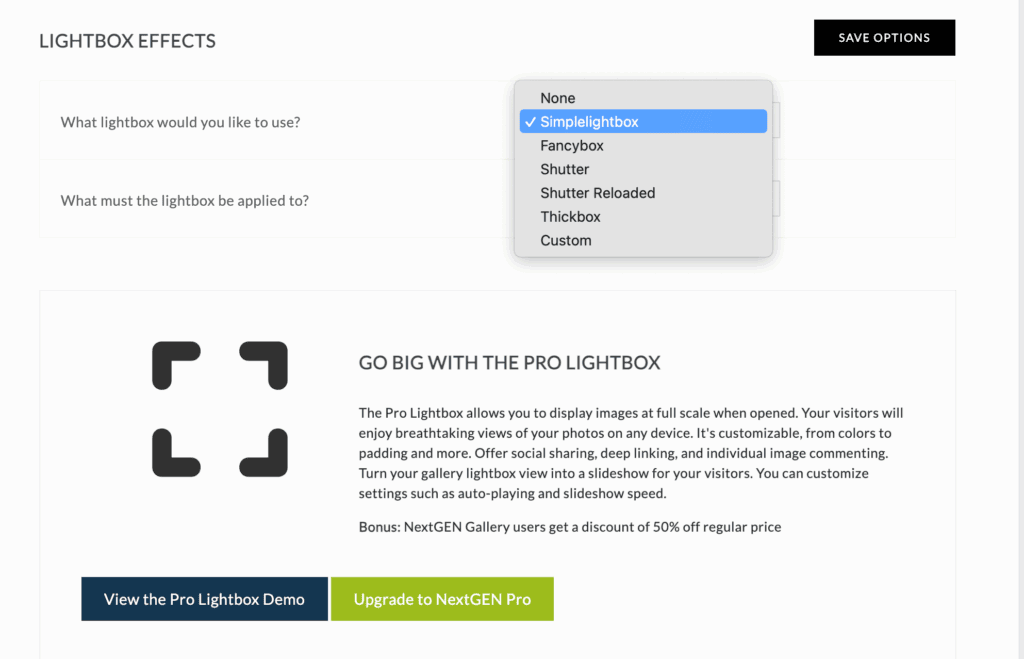
- Pro Lightbox: While a basic lightbox is included for free, premium plans offer an enhanced “Pro Lightbox.” This version adds a fullscreen display, social sharing buttons, and commenting features, which is excellent for client feedback.
Design and Customization
Your gallery should feel like a natural part of your website, not a tacked-on element. Customization options allow you to match your brand’s aesthetic and organize your work effectively for visitors.
- Customization Options: The plugin provides controls to adjust image size, spacing, animations, and transitions, giving you the ability to fine-tune the look and feel of each gallery.
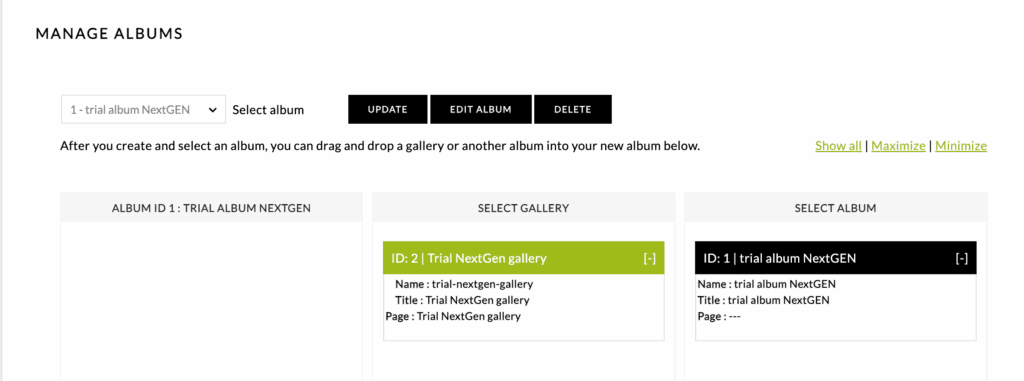
- Albums and Tags: For photographers with large portfolios, NextGEN allows you to organize multiple galleries into albums. You can also use tags for better navigation, helping visitors filter and find specific images.
- Premium Themes: The NextGEN Pro and Ultra plans include the Imagely Theme, which comes with over 84 pre-designed templates built specifically for photographers.
Image Security
Protecting your work from being stolen online is a top priority for any photographer. A good gallery plugin should offer robust features to prevent unauthorized use of your images.
- Right-Click and Drag Protection: NextGEN includes a feature to disable right-clicking on your images, making it more difficult for casual visitors to save or steal them.
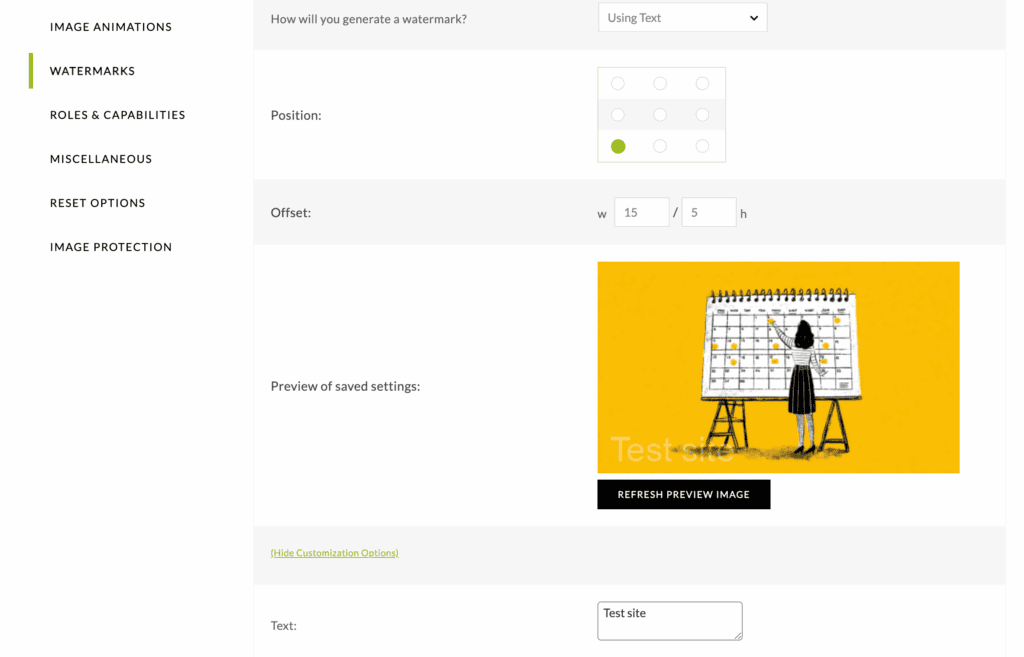
- Watermarking: You can automatically add text or image watermarks to your photos. The plugin gives you full control over the watermark’s size, position, and opacity to protect your work while maintaining its visual appeal.
- Site-Wide Protection: A premium feature allows you to enable image protection across your entire WordPress site, securing not just your galleries but all uploaded images.
SEO features
A beautiful portfolio is only effective if potential clients can find it. Strong Search Engine Optimization (SEO) features help your images get discovered by search engines like Google, driving organic traffic to your site.
- Metadata: NextGEN makes it easy to add essential alt text and captions to your images, which search engines use to understand and rank your content.
- Deep Linking: This powerful feature gives each individual image a unique URL. This allows search engines to index and rank your photos individually, increasing their visibility in image searches.
- Front-end Search: A premium feature adds a search function directly to your galleries, allowing visitors to easily find images by searching for keywords and tags.
Performance
Website speed is crucial for user experience. A slow-loading gallery can frustrate visitors and cause them to leave your site. We looked at NextGEN’s features designed to keep galleries fast and responsive.
- Lazy Loading: To improve initial page load times, the plugin only loads images as the user scrolls down the page. This is essential for galleries containing many high-resolution photos.
- Image Resizing: NextGEN automatically creates smaller, optimized versions of your images for display on the web, ensuring fast load times while preserving the original high-resolution files for print sales or downloads.
- Responsive Galleries: All gallery layouts are fully responsive, meaning they automatically adapt to look great on any screen size, from desktops to mobile phones.
Pricing
NextGEN’s pricing operates on a “freemium” model, meaning you can start for free and upgrade for more advanced features. Here’s a breakdown of what you get at each level.
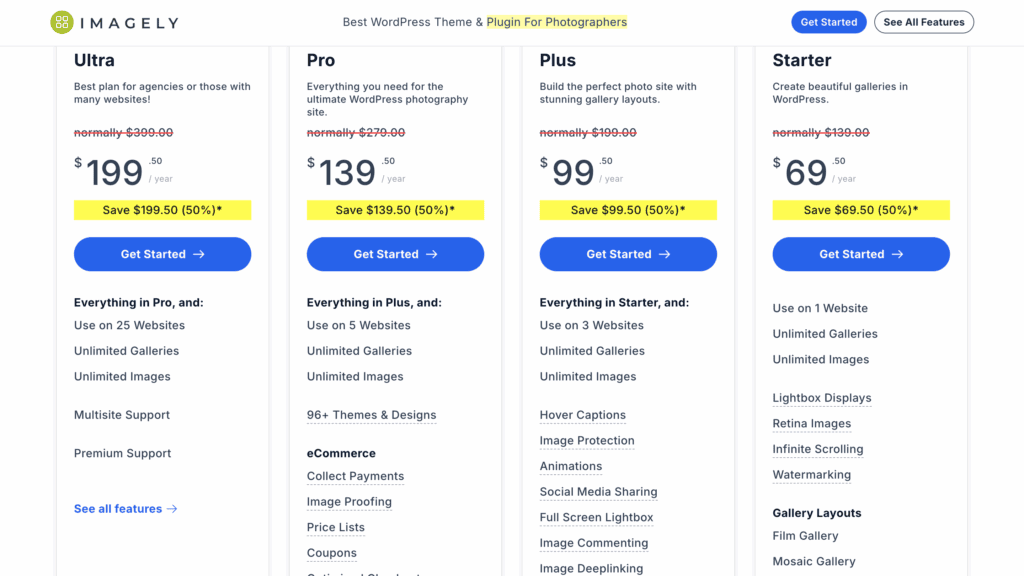
- Free Version: The free plugin, available from WordPress.org, provides all the core gallery and album management features. It’s a good way to test the interface and basic functionality.
- Paid Plans: Imagely offers several annual paid plans (Starter, Plus, Pro, and Ultra) that unlock more display types, professional tools, and dedicated support.
- Pro Plan: Aimed at professional photographers, this is the most popular paid tier. It includes all the key features you’d need to run a business, such as eCommerce for selling prints, client proofing galleries, and Adobe Lightroom integration.
Usability
When I installed the NextGen gallery plugin, I was really impressed by the clean UI. However, the frustration began immediately with the upload process. While there are several options, adding images from the existing WordPress media library only allowed me to select one image at a time. This could be really frustrating if you already have a robust media library and need to bulk upload it. We ended up using the option to import images from our device because that allowed me to upload a bunch of images at once. I uploaded 67 images and it took a few minutes.
I quickly created a gallery. There wasn’t a lot of customization available andHowever, it was a struggle to figure out what to do next. A lot of the other gallery plugins I tested used shortcodes to insert a gallery onto a page and I couldn’t find any for this plugin. I created a blog post and tried NextGen block to insert a gallery in the block editor. But, it failed. Despite trying a few different times, I couldn’t preview the gallery. I looked it up and there was a lot of outdated information on how to add the gallery. I have no idea why this was happening and how to fix it. But, as a last ditch effort, I tried to insert a gallery into a new page and that worked.
The editing process itself felt dated. There was no live editor. You have to get into a slow cycle of making a change, saving a draft, and manually refreshing the preview page to see the result.
The last thing I want to bring to your attention is the speed. I inserted a carousel gallery and it was noticeably slow. Every time I clicked the button to switch to the next image in the gallery, it took a few seconds for the image to load. This would be a bad experience for any visitor.
Alternatives to NextGen Gallery
After spending time with it, I found NextGEN Gallery powerful but far too frustrating for most users. If you’re looking for alternatives that offer a much better balance of features and ease of use, here are my top two recommendations:
- FooGallery: This is an excellent choice if your top priority is simplicity and a user-friendly interface. It’s incredibly easy to learn and create beautiful, responsive galleries in minutes.
- Envira Gallery: A fantastic all-rounder that provides powerful features similar to NextGEN but in a much more modern and intuitive package. It’s a strong competitor for professionals who don’t want to deal with a steep learning curve.
Final thoughts
I have mixed thoughts about NextGen. On one hand, I love the features they offer but I was frustrated by the usability. It offers professional-grade features for e-commerce, client proofing, and deep image management. This is undeniably robust. On the other hand, the day-to-day experience of using it was buggy, unintuitive and slow. So, it was not my favourite plugin. However, if you want to use NextGEN, we recommend you combine it with a performance plugin like Airlift.
Airlift works to optimize your entire website, mitigating the sluggishness that heavy plugins like NextGEN can cause. By handling complex optimizations in the background, it ensures your pages—galleries included—load quickly for your visitors.
FAQs:
Is NextGEN Gallery free?
Yes, NextGEN Gallery has a free version available on the WordPress plugin repository. This version includes all the core features for creating and managing basic thumbnail galleries, slideshows, and albums. However, for advanced features like e-commerce, client proofing, premium gallery layouts, and image protection, you will need to upgrade to one of their paid plans.
What is the best gallery plugin for WordPress?
There is no single “best” gallery plugin for everyone, as the right choice depends entirely on your needs.
- For professional photographers who need an all-in-one solution for selling prints, managing client proofs, and organizing thousands of images, NextGEN Gallery is one of the most powerful options.
- For beginners or users who prioritize ease of use and a simple, intuitive interface, plugins like FooGallery or Envira Gallery are often a better choice.
How do I add NextGEN Gallery to a WordPress page?
Adding a NextGEN gallery to a page is a multi-step process that happens outside the standard WordPress editor:
- First, go to the NextGEN Gallery section in your WordPress dashboard and create a gallery by uploading your images.
- Navigate to the page or post where you want the gallery to appear.
- Click the “Add Gallery” button (it’s typically a green button above the content editor) or add the NextGEN Gallery block.
- A new window will open. Select the gallery you want to insert, choose a display type (like “Thumbnail Gallery”), and customize the settings.
- Click “Insert Gallery.” A shortcode will be added to your page.
- Save or publish your page and preview it to see the gallery live.
Is Photo Gallery by 10Web free?
Yes, like NextGEN, Photo Gallery by 10Web operates on a freemium model. It has a free version with features for creating basic, responsive galleries and albums. For more advanced functionality, such as additional gallery views, e-commerce integration, and social sharing, you would need to purchase their premium version.

Shreya has been a writer for as long as she can remember. Now, she writes articles that help WordPress users manage the sites that they're proud of, with little to no coding