Hosting for a WordPress multisite sounds like the neat answer when your WordPress work starts multiplying.
One login for the school departments. One plugin list for regional franchise sites. One theme library for a publication network. One place to add a new subsite instead of spinning up another full WordPress install.
Then the shared parts start to matter.
One plugin update can affect every site. One overloaded server can slow the whole network. One bad restore plan can turn a small subsite mistake into a full-network rollback. Multisite is convenient because the sites share one WordPress system. The risk comes from the same place.
That is the real question behind WordPress Multisite hosting. You are not just asking whether a host can run WordPress. You are asking whether it can safely run one WordPress installation that many sites depend on.
Quick Answer
WordPress Multisite hosting is hosting that can support one WordPress installation running many subsites. A good multisite setup must handle the network’s URL structure, DNS, SSL, server resources, caching, backups, staging, migration, WP-CLI or SSH access, and restore needs.
Use Multisite only when the sites belong together. If the sites need separate owners, separate plugin stacks, separate contracts, separate backups, or separate recovery points, separate WordPress installs are usually safer. For separate installs, WP Remote can keep management centralized without sharing one WordPress install.
The shortcut is one dashboard. The hidden cost is shared infrastructure.
Is Multisite Is The Right Architecture
Hosting cannot rescue the wrong structure. Before comparing plans, decide whether these sites should share one WordPress installation at all. Use Multisite when:
- The sites belong to the same organization, school, franchise, publication, product network, or brand family.
- The sites can share themes, plugins, users, governance, and update rules.
- One Super Admin should control the network.
- The sites are likely to stay together.
Avoid Multisite when:
- The sites belong to unrelated clients, owners, or businesses.
- Each site needs separate plugins, billing, compliance, backups, or support terms.
- Each site owner needs full technical control.
- The sites may need to split off later.
The agency trap is common. Putting 40 client sites into one dashboard looks efficient until one client needs a different restore point, a separate migration, a custom plugin stack, or a contractually separate support boundary.
Use Multisite when central control is the point. Use separate installs when isolation matters more.
Understand What The Host Is Running
Multisite is not many separate WordPress installs hidden behind one login. It is one WordPress installation with a network layer.
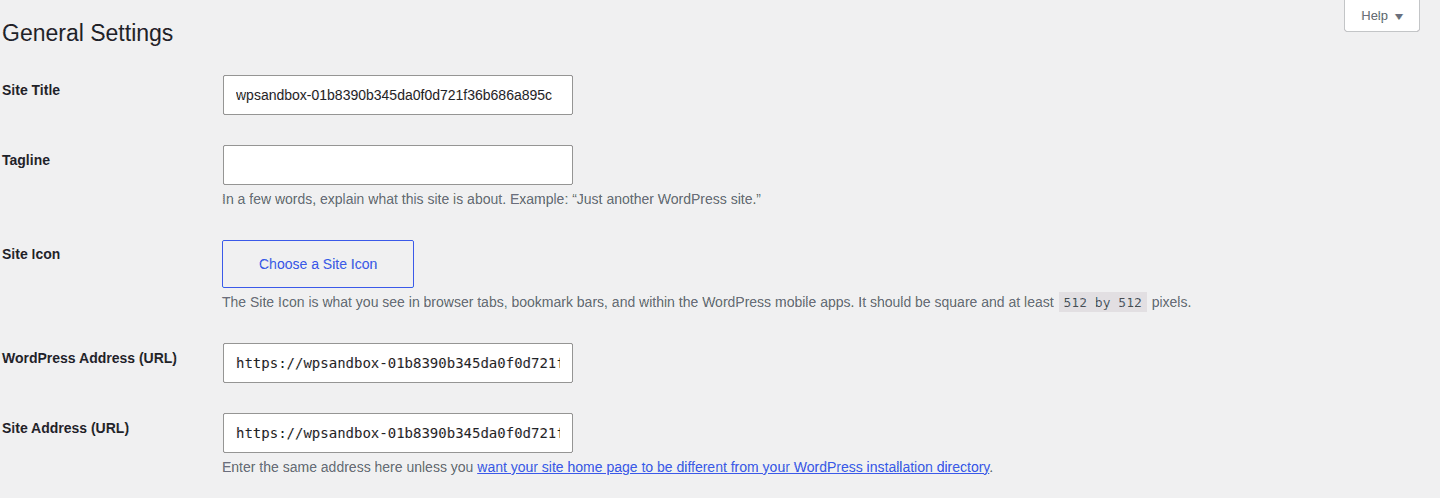
WordPress core files, themes, and plugins are shared. Each subsite has its own content, settings, media directory, and database tables. Some users and network settings are shared. A Super Admin controls the network; site admins usually have narrower control.
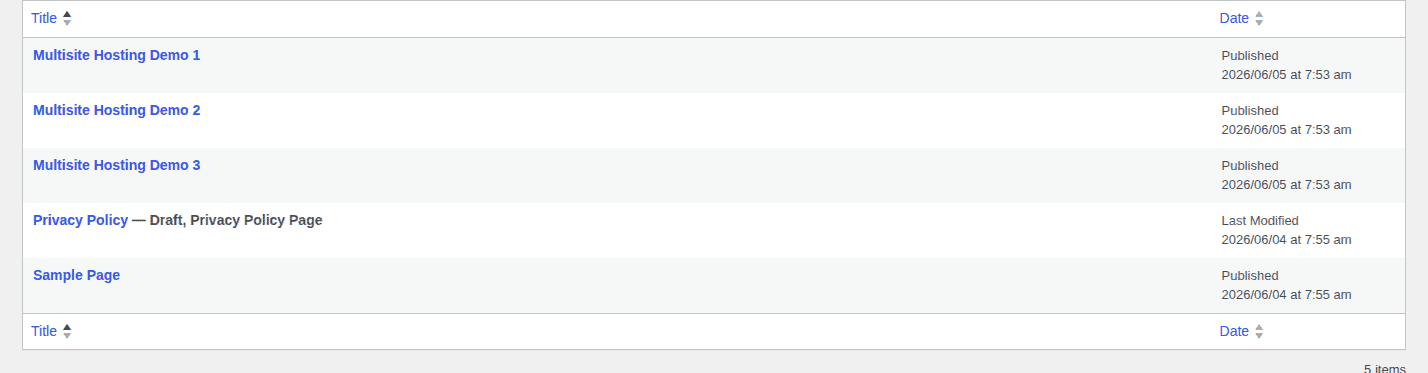
That is why hosting requirements change. A server problem, plugin conflict, caching mistake, database limit, or bad restore can affect more than one site at once.
On the frontend, each site still needs to feel like a normal WordPress site even though the backend infrastructure is shared.

The visible benefit is one dashboard. The hidden cost is a bigger blast radius.
Pick The URL Model
Your URL structure controls DNS, SSL, redirects, caching, and migration work. Choose it before you buy hosting or enable Multisite, because changing it later is possible but unpleasant in the way production changes tend to be unpleasant.
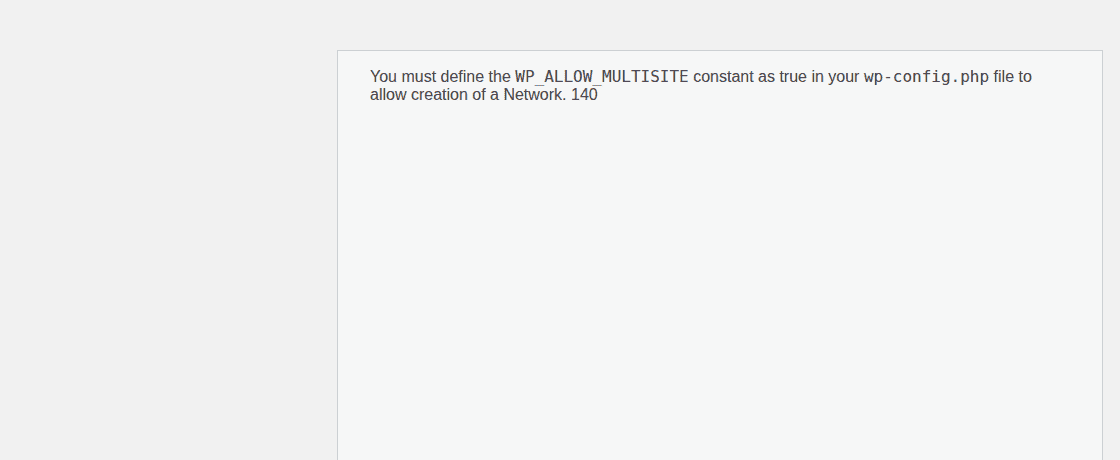
Here are the three common models:
- Subdirectory:
example.com/site1. This is usually the simplest DNS and SSL setup, though server rewrite rules still matter. - Subdomain:
site1.example.com. This needs DNS and server support for subdomains. On-demand site creation may need wildcard DNS. - Mapped domain:
site1.com. WordPress supports domain mapping, but each domain still needs DNS and SSL handling from the host or your own setup.
Do not accept “we support WordPress” as the answer here. Ask whether the exact plan supports your exact model: subdirectories, subdomains, mapped domains, or a mix.
Wildcard DNS is not always required. It usually matters when new subdomain sites are created automatically. Subdirectory networks do not need it, and manually created subdomains or mapped domains may use a different setup.
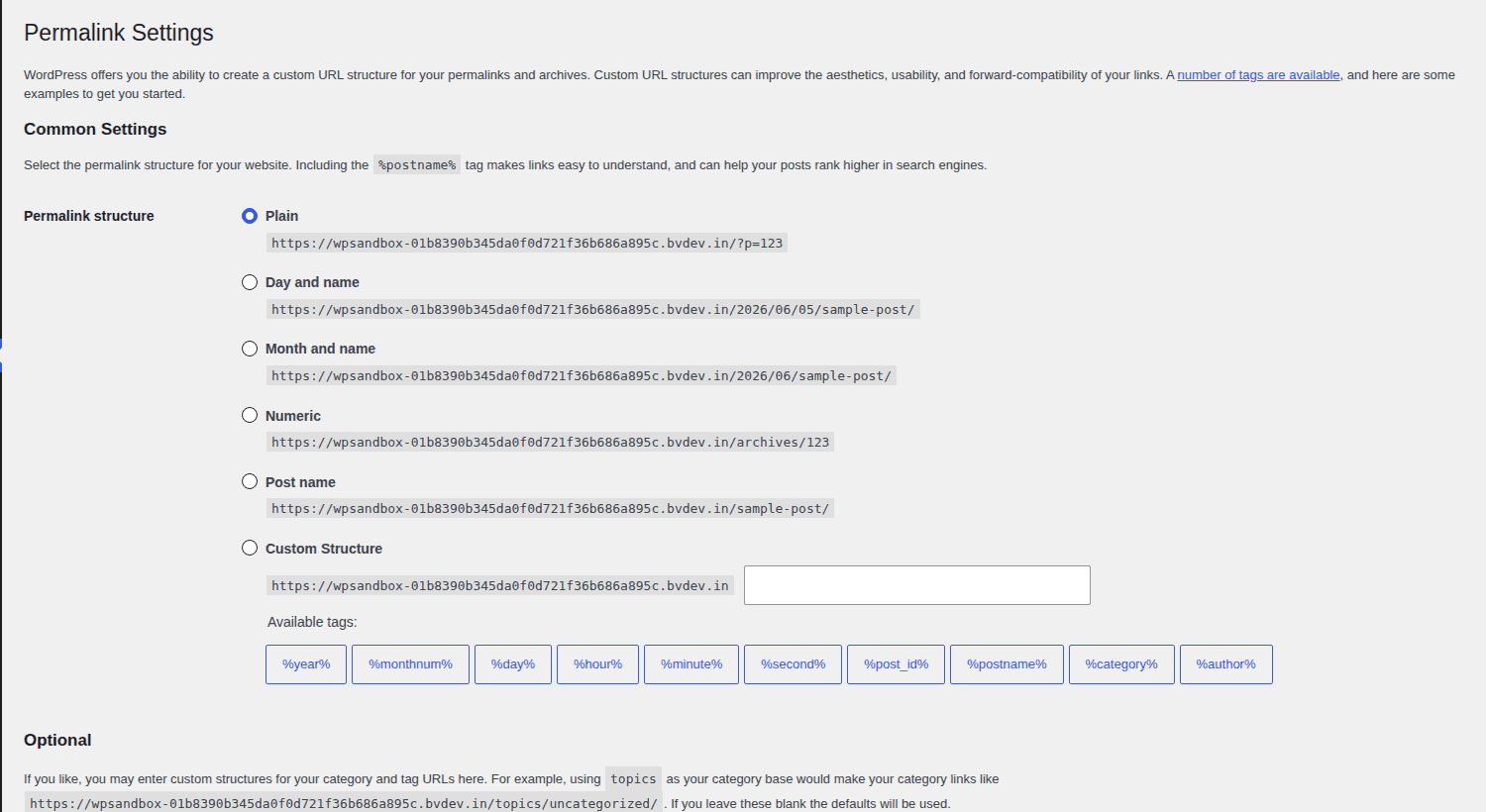
The URL model is not cosmetic. It decides how much DNS, SSL, and migration work you are buying.
Check The Real Hosting Requirements
A Multisite host has to support the whole network, not just the main site.
Start with the modern WordPress baseline: PHP 8.3 or newer, MariaDB 10.6 or newer or MySQL 8.0 or newer, HTTPS, and proper Apache or Nginx support. Older versions may still run WordPress in some cases, but they are not where you want to build a new network.
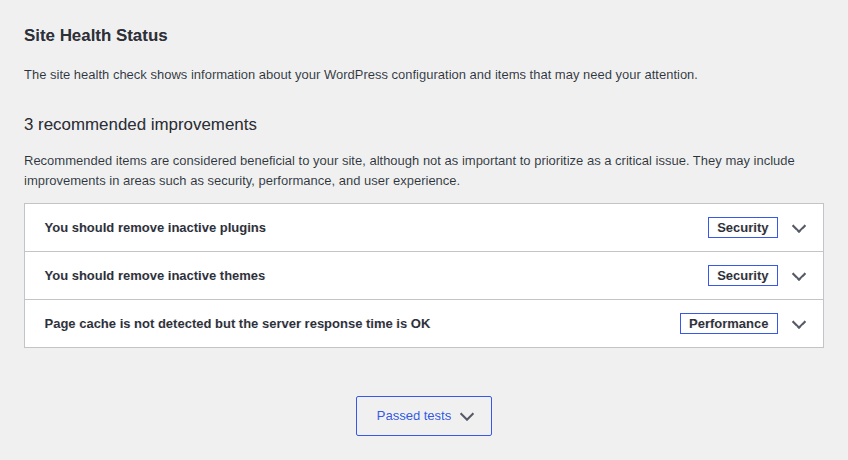
Then check the parts that matter more in Multisite:
- CPU, RAM, PHP workers or process limits, PHP memory, database capacity, and storage for all subsites together.
- Database table limits, database size limits, inode limits, backup size limits, and traffic throttling.
- Page caching, CDN support, performance optimization through Airlift, and persistent object caching such as Redis or Memcached.
- SSH, WP-CLI, logs, monitoring, and support staff who understand Multisite.
- Rewrite-rule support and file access for setup and troubleshooting.
Do not size the host by site count alone. Five busy WooCommerce, membership, or logged-in subsites can be heavier than 50 quiet brochure sites.
The useful question is not “How many sites can I create?” It is “What happens when several of them get busy at the same time?”
Choose The Hosting Type
The right hosting class depends on traffic, plugin load, database growth, admin activity, media storage, and how painful downtime would be.
- Shared hosting: Use only for tiny, low-traffic, low-risk networks where the host explicitly allows Multisite. Verify CPU, inode, database, backup, and support limits before you commit.
- VPS hosting: Use when the network is growing and someone technical can manage hardening, monitoring, patching, object cache, backups, and emergency response.
- Managed cloud or managed WordPress: Use when you want scaling help, platform support, backups, staging, caching, and fewer server chores. Confirm support for your URL model, domain mapping, caching rules, plugins, and restore needs.
- Dedicated hosting: Use for high-traffic, compliance-sensitive, or heavily customized networks. Make sure failover, monitoring, database scaling, backups, and incident ownership are clear.
- Enterprise hosting: Use for mission-critical publishing, education, government, SaaS/WaaS, or large organizational networks that need SLAs, workflow controls, access policies, compliance, and deep support.
- Separate installs or reseller hosting: Use for unrelated clients or sites that need isolation. This is often the better architecture for agencies managing independent businesses.
Shared hosting can run a small Multisite network if the host explicitly allows it. For serious networks, start your comparison at VPS, managed cloud, managed WordPress, dedicated, or enterprise hosting.
The cheap plan is not cheap if one traffic spike slows every subsite.
WordPress Multisite Hosting Options
There is no single best WordPress Multisite host for every network. A university department network, a franchise with mapped domains, and an agency with unrelated client sites are three different hosting problems wearing the same WordPress label.
Use this list as a shortlist, not a final recommendation. Plans change, and Multisite support often depends on the exact tier, URL structure, domain count, and support agreement.
WP Engine
WP Engine is a fit for managed WordPress teams that want platform support for Multisite, staging, caching, backups, and production workflows. Before choosing it, confirm that the exact plan supports Multisite, your domain model, staging expectations, and any plugin or caching limits that could affect the network.
Kinsta
Kinsta is a fit for managed WordPress networks that need isolated resources, dashboard controls, caching, CDN, monitoring, backups, and staging. Check the current plan requirements before budgeting. Multisite support can depend on tier, and the wrong plan can leave you comparing features that are not available to your network.
Pressable
Pressable is a fit for users who want managed WordPress hosting on Automattic-owned infrastructure, especially for directory-based Multisite configurations. Confirm subdomain or mapped-domain needs separately. Directory support does not automatically answer every DNS and SSL question.
Cloudways
Cloudways is a fit for teams that want managed cloud flexibility on providers such as DigitalOcean, AWS, or Google Cloud without running the whole server stack alone. You still need to verify DNS, SSL, domain mapping, backup, caching, and server sizing for the chosen cloud server. Managed cloud reduces server chores; it does not remove architecture decisions.
SiteGround
SiteGround is a fit for small to mid-sized WordPress networks that want mainstream managed WordPress features such as backups, staging, CDN, caching, and WP-CLI. Treat it as a fit for lighter networks unless the plan, resource limits, and support team explicitly match your expected load.
Bluehost
Bluehost can fit small, simpler Multisite networks where cost and standard WordPress hosting matter more than advanced platform controls. Confirm whether support will help with your exact Multisite setup. Shared plans can hit resource limits quickly when several subsites become active.
Pagely
Pagely is a fit for higher-scale managed WordPress networks that need AWS-backed hosting, staging, cloning, and room to scale database or front-end resources. The pricing and operational model make more sense for serious business networks than tiny projects.
WordPress VIP
WordPress VIP is a fit for enterprise publishers, universities, governments, and large organizations with strict performance, workflow, security, and governance requirements. This is enterprise infrastructure, not a budget hosting plan. Expect procurement, process, and technical review.
Self-managed VPS or cloud server
A self-managed VPS or cloud server is a fit for developers or technical teams that want full control over Nginx or Apache, Redis, database tuning, SSL, deployment, and monitoring.
You own the maintenance of your WordPress site. If nobody is responsible for patching, backups, logs, and incidents, control becomes liability.
The useful pattern is simple: managed WordPress hosts reduce day-to-day server work, VPS and cloud setups give more control, and enterprise platforms add governance and support. None of them remove the need to plan backups, staging, DNS, SSL, and migration.
If a provider says it supports Multisite, ask what that means in practice. Does it support subdirectories only? Subdomains? Mapped domains? Wildcard DNS? Individual SSL certificates for mapped domains? Single-subsite restore? WP-CLI? Those answers matter more than the logo on the pricing page.
Prove Recovery Before The Network Matters
Backups, staging, and migration are not side chores in Multisite. They are part of the hosting decision.
Backups
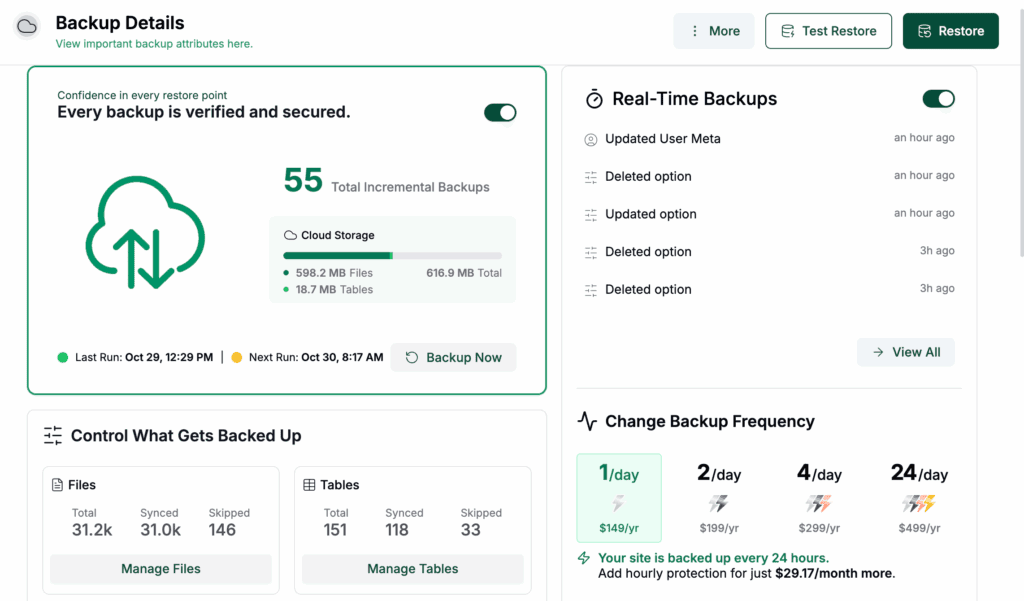
A useful Multisite backup must include files, themes, plugins, uploads, the full database, shared network tables, and per-site tables. It also has to restore cleanly.
Host snapshots are helpful, but they can be too blunt. If one department deletes media, you may not want to roll back the entire network. Ask whether you can restore one subsite without affecting the others.
If your host cannot handle selective subsite restore or large networks reliably, use a multisite-aware system built for WordPress multisite backups, such as BlogVault. The point is not just having a copy. The point is having the right restore option when the problem is small but urgent.
Staging
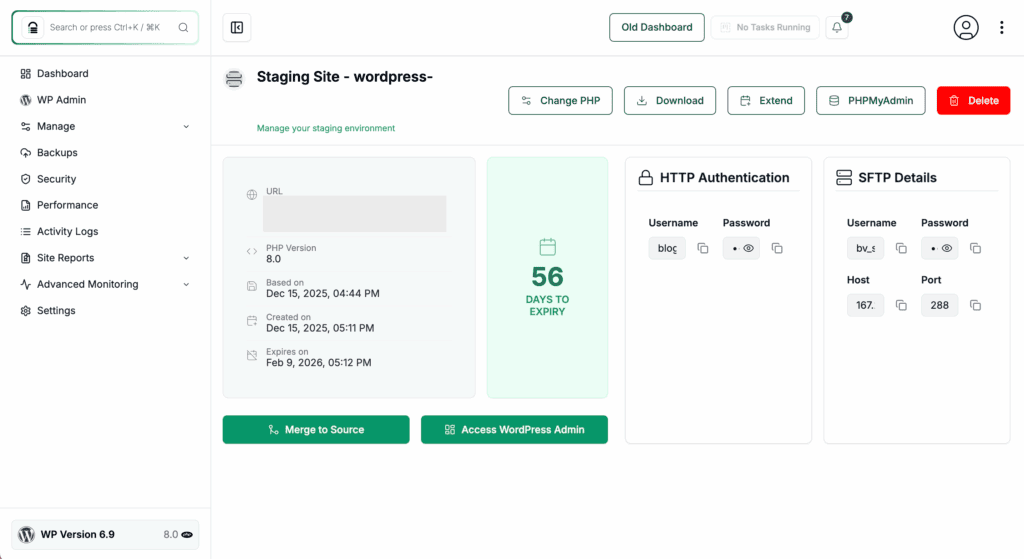
One network-activated plugin can touch every subsite. Test core updates, PHP changes, themes, plugins, caching rules, on staging before they reach production.
Network-activate only what truly belongs everywhere. If a form plugin is needed on three sites, do not make 60 sites carry it.
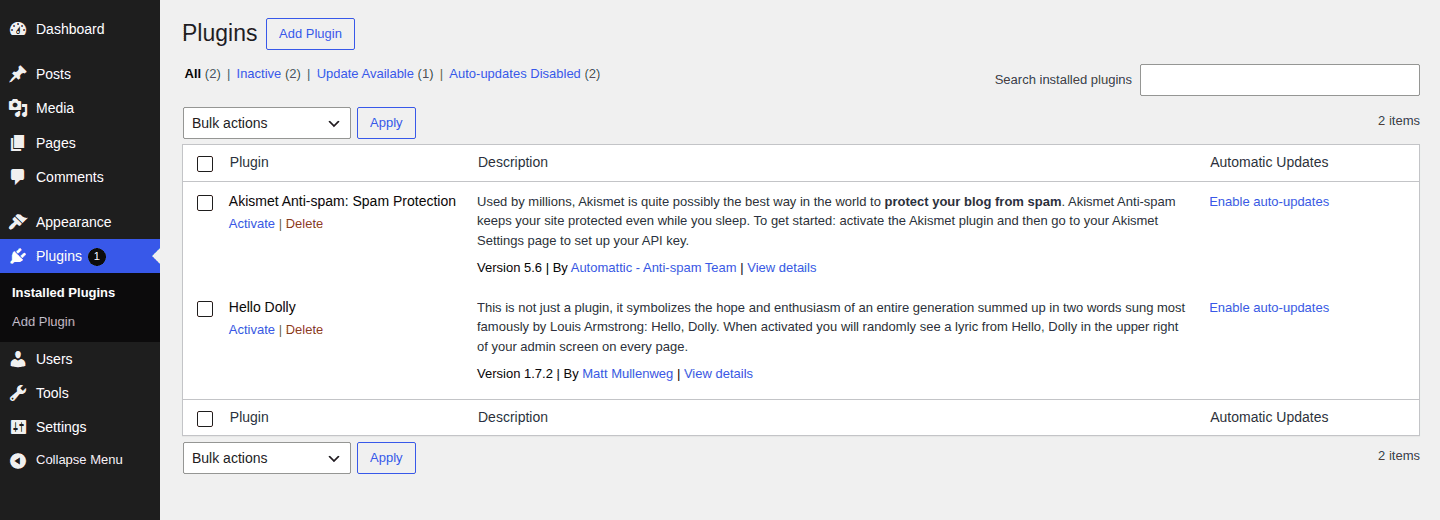
A BlogVault multisite staging site is useful here because it gives teams a place to test network-wide changes away from the live network.
Migration
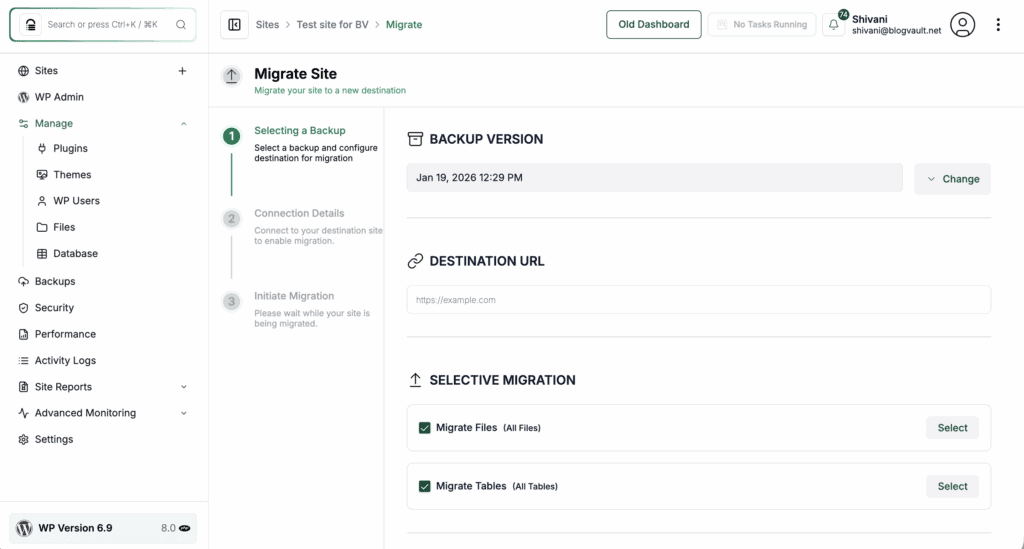
Moving Multisite is not a normal site move with extra files. You have subsite tables, upload paths, shared users, domain mapping, SSL, search-and-replace work, DNS cutover, cache clearing, and rollback to plan.
Before changing DNS, confirm the new host supports your URL model. A host that handles subdirectories well may still be a poor fit for wildcard subdomains or many mapped domains.
BlogVault can help when you need to migrate a WordPress multisite to a new host or domain, especially when URL replacement and lower downtime risk matter. It does not replace capable hosting; it reduces migration risk around a capable host.
Ask Your Host These Questions
Use this checklist before enabling Multisite or moving an existing network.
- Do you support WordPress Multisite on this exact plan?
- Do you support my URL model: subdirectory, subdomain, mapped domains, or a mix?
- If I use subdomains, do I need wildcard DNS for my setup?
- How is SSL handled for subdomains and mapped domains?
- Which PHP, MariaDB, and MySQL versions are available?
- What are the CPU, RAM, PHP process, memory, storage, inode, and database limits?
- Are there database table-count or database-size limits?
- Is Redis or Memcached available?
- How do page caching and CDN rules work with Multisite?
- Are backups offsite, and can they restore one subsite?
- Is Multisite staging available?
- Do you support SSH, WP-CLI, and FTP/SFTP file access?
- What happens if one subsite gets a traffic spike?
- What migration help is included?
- Who handles DNS, SSL, caching, and rollback during a host change?
If the answer sounds generic, keep asking. Multisite support is more specific than WordPress support.
Avoid These Mistakes
- Most Multisite hosting problems start as reasonable shortcuts.
- Using Multisite for unrelated sites: A shared dashboard is not worth messy ownership, restores, migrations, and compliance boundaries.
- Trusting “unlimited” hosting: Unlimited sites still hit CPU, memory, process, storage, database, inode, and backup limits.
- Ignoring restore granularity: A full-network backup is not enough when real problems often happen one subsite at a time.
- Choosing subdomains without DNS and SSL planning: WordPress can route the network, but DNS and certificates still need outside support.
- Network-activating too many plugins: Every global plugin adds shared load and shared failure risk.
- Skipping staging: In Multisite, a bad update can affect every site that depends on the shared codebase.
- The pattern is simple: the shortcut saves time early and spends it later, usually during an outage, migration, or update that already has enough drama.
FAQs
What is WordPress Multisite hosting?
WordPress Multisite hosting is hosting that can support one WordPress installation running many subsites. It must handle shared code, shared users, per-site content, DNS, SSL, caching, backups, restores, staging, migration, and network-wide resource usage.
Is WordPress Multisite hosting different from normal WordPress hosting?
Yes. It is still WordPress hosting, but it has to support many subsites from one installation. That adds DNS, SSL, database, caching, backup, restore, staging, migration, and support requirements.
Can WordPress Multisite run on shared hosting?
Yes, but only for very small, low-traffic networks where the host explicitly supports Multisite. Shared hosting is a poor fit for busy networks, mapped domains, heavy plugins, strict recovery needs, or many active admins.
What type of hosting is best for WordPress Multisite?
Most serious networks should compare VPS, managed cloud, managed WordPress, dedicated, or enterprise hosting. Choose based on workload, recovery needs, support expectations, and URL structure.
Is WordPress Multisite good for agencies?
Only when the sites are related and share governance. For unrelated client sites, separate installs or isolated hosting accounts are usually safer.
Do I need wildcard DNS for WordPress Multisite?
Not always. Wildcard DNS is usually needed for on-demand subdomain networks. Subdirectory networks do not need it, and manually created subdomains or mapped domains may use a different setup.
Conclusion
Choose the architecture first, the URL model second, and the host third. Then prove backups, staging, migration, restore, and your disaster recovery plan before the network carries important traffic.
WordPress Multisite hosting is not about how many sites a plan lets you create. It is about whether one shared WordPress system can be run, tested, moved, and recovered without guesswork.
If the sites are related and the host can support the full network, Multisite can be a clean way to manage growth. If the sites need isolation, separate installs are not a step backward. They are the safer architecture.

Akshat is the founder and CEO of BlogVault, MalCare, and WP Remote.