You try to send a test email in your Post SMTP plugin, and instead of a success message, you see a bad request(invalid_grant) Post SMTP.
If this showed up after form emails stopped, WooCommerce emails went missing, or password reset emails failed, you probably care less about the error itself and more about how quickly you can fix it. You want to know what broke, whether emails are being missed, and what to check first without wasting time.
We are going to walk through that clearly and help you fix this issue with your SMTP plugin without getting buried in technical language.
This error usually means Post SMTP can no longer use a saved sign-in approval to send mail through your email provider. In Post SMTP, this is most commonly seen with Gmail, Google Workspace, and sometimes Microsoft 365 or Outlook setups that use OAuth sign-in. Before you start fixing it, make sure you have a recent site backup in place as a safety measure.
In simple terms, your email provider refused the connection request that Post SMTP tried to make.
That is what this error usually means.
Most often, Post SMTP is trying to use a saved sign-in approval that is no longer valid. The plugin itself is often fine. The problem is the connection behind it.
That is why the error feels so confusing. Your site may still load normally. The plugin may still look set up correctly. But email deliverability stops because the sign-in link between WordPress and your email provider has broken in the background.
If your main concern is whether emails are still going out, do not assume they are. Test it. That matters if your site sends:
- order emails
- contact form notifications
- booking confirmations
- membership emails
- password reset messages
Fixing the bad request(invalid_grant) Post SMTP
If emails may not be going out, the most useful thing you can do is work through the likely causes in the right order.
Not every step will apply to every site. That is normal. The goal is to restore email functionality quickly without changing settings that were never the problem.
Check whether email is failing right now
Before changing settings, confirm the impact.
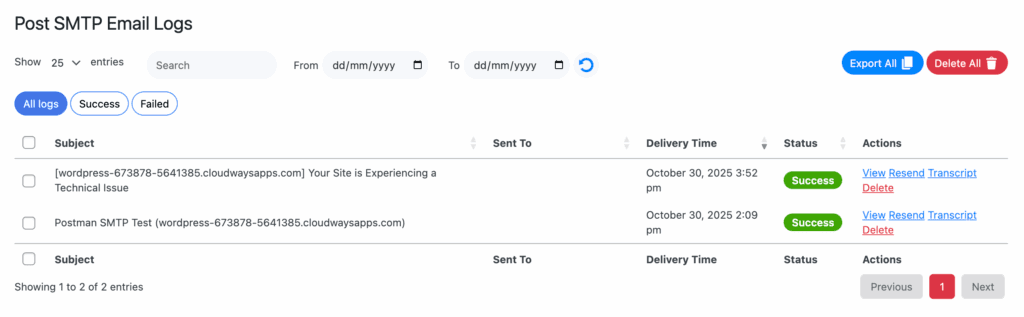
Send a test email in Post SMTP. Then check the email log, which is the built-in record of email attempts and errors inside the plugin. If your site handles orders, leads, bookings, memberships, or password resets, think about what may have failed since the issue started.
You may want to:
- check recent form submissions
- review recent orders
- look for users who did not receive an email
- plan to resend important emails once the issue is fixed
This matters because fixing the connection is only part of the job. You may also need to clean up what was missed. That often means retracing steps the same way you would after a failed WordPress update.
Re-grant permission to the email account
This is usually the fastest fix.
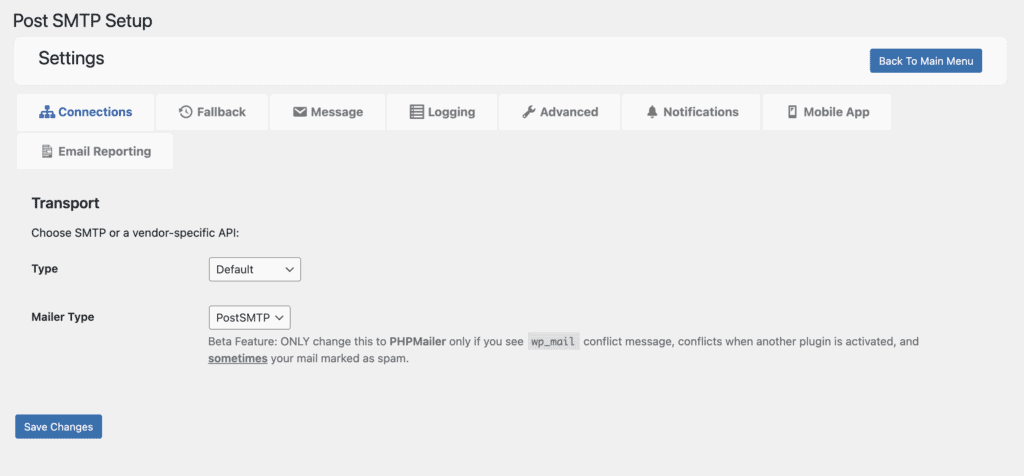
In your WordPress dashboard, go to: Post SMTP > Settings. Then look for the option to reconnect the account or Grant OAuth 2.0 Permission. The exact wording can vary a bit depending on the mailer and Post SMTP version, but the goal is the same. You want to refresh the saved approval.
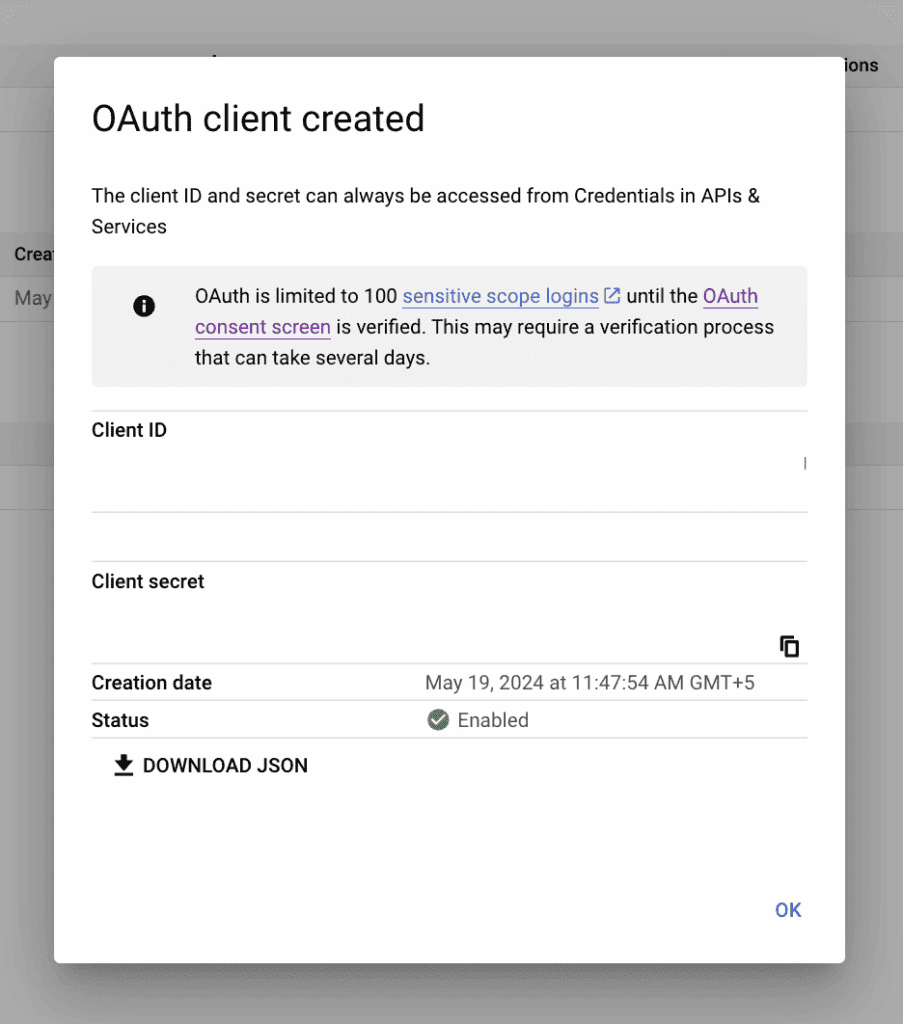
Sign in with the correct Google, Microsoft, or other supported account, then allow access again. If you have already worked through how to configure Gmail SMTP in WordPress, this part will feel familiar.
If you see a warning such as This app is not verified, read it carefully before proceeding. On self-created Google apps, this can happen when the app has not gone through Google’s review process. If you created the app for your own site and trust it, you may be able to continue by opening the advanced option and approving it manually.
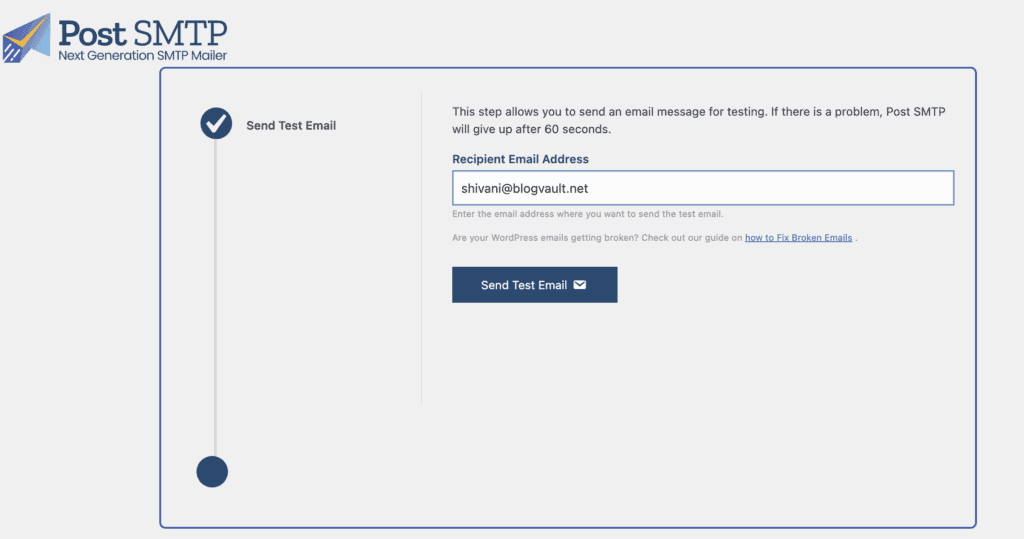
Once the connection is restored, send another test email.
If the saved sign-in approval had simply expired, been revoked, or stopped being accepted, this may solve the problem straight away.
Check the app details against the provider settings
If reconnecting does not solve it, check the app values Post SMTP is using.
Open the app or developer settings for your mail provider and compare those values with what is entered in Post SMTP.
Make sure:
- the values match exactly
- they come from the correct app
- the live site is not using staging values
- nothing was changed on the provider side without being updated in WordPress
If you created new app details and did not update Post SMTP, the old ones will not keep working.
Compare the return URL shown in Post SMTP with the one approved by the provider
This is one of the biggest causes of the error, especially after site changes.
Post SMTP will show the exact page the provider should send users back to after sign-in. That same page must be approved in the provider’s app settings.
Compare them carefully.
Pay attention to:
- http versus https
- www versus non-www
- the full domain
- the full path
If you performed a site migration recently, this becomes even more important.
Confirm that WordPress is using the correct site address
Next, go to: Settings > General
Then check:
- WordPress Address
- Site Address

These should match the actual live site.
If you recently changed the domain, added SSL, or pushed a staging site live, check this carefully. Also remember that some hosts or advanced setups force the site URL in config files, so the dashboard may not always show the full picture.
Remove old account access if the connection still seems stuck
If the setup still fails, remove the old approval from the account side and reconnect it fresh.
- For Google, go to your Google Account > Security and look for connected apps or third-party access.
- For Microsoft accounts, check the connected apps and permissions in the account security area or the admin center if it is a managed account.
- Then remove the app tied to your WordPress email setup and reconnect it through Post SMTP. This helps when the old approval still exists but no longer works properly.
If you are making repeated changes on a live site, this is a good time to make sure you have a WordPress backup and know how to restore a backup in WordPress if needed.
Check whether the Google app is still in Testing instead of Production
If you are using Gmail or Google Workspace and the error keeps returning after a few days, stop and check this.
- In Google Cloud Console, go to: APIs & Services > OAuth consent screen. Look at the Publishing status.
- If it is set to Testing, that may be the problem. Apps in testing mode often issue approvals that expire much sooner, which can cause Post SMTP to work briefly and then fail again.
- If the app is ready for normal use, change the status to Production, which means the app is being treated as live rather than as a limited test version.
This is one of the most overlooked causes of recurring invalid_grant errors in Post SMTP.
If this is a managed work or school account, check for admin restrictions
If the email account belongs to a business, school, or team, there may be rules above your plugin settings.
An admin may need to allow the app or the sign-in method. If access is restricted, the setup can fail even when everything on the WordPress side looks correct.
If this applies to your setup, check whether:
- the app is allowed
- the user account can approve access
- outside app connections are limited
If you do not control the account, this step can save a lot of time.
Check the wider site environment
If the main connection details look correct and the error is still there, look at the environment around the site.
That includes:
- security plugins
- firewall rules
- blocked outgoing requests
- hosting-level protection tools
- server time issues
These are valid causes, but they are not where most people will find the fix. They matter more when everything else appears correct and the issue still remains.
This part often overlaps with broader checks like troubleshooting WordPress plugin conflicts or working out whether a WordPress firewall plugin is blocking a needed request.
Test whether the fix worked
After each change, send a test email in Post SMTP.
Do not leave all testing until the end. Test as you go. That is how you find the real cause instead of making several changes and guessing which one solved it. It is the same approach used when debugging WordPress issues.
Then check the email log again.
If your site sends important emails through forms, WooCommerce, bookings, memberships, or password resets, test one of those too. A real workflow test tells you more than a settings screen.
If messages failed while the issue was active, now is the time to:
- resend order emails
- follow up on missed form leads
- trigger password reset emails again if needed
What to do if reauthorization still fails
If you have:
- re-granted permission to the account
- checked the app details
- compared the approved return URL
- confirmed the WordPress site URL
- removed old access
- checked the Google app publishing status
- ruled out admin restrictions
and the error still remains, create a new app connection and use that instead.
Then:
- add the correct return URL
- copy the new app details into Post SMTP
- reconnect the account
- send a fresh test email
This can help when the original app setup was edited too many times or was never fully correct. If you are going this deep, it is worth keeping a fresh WordPress backup nearby and knowing how to roll back a WordPress site if something else gets changed along the way.
Alternative mailer options
If you are tired of dealing with sign-in issues, you do have other options.
Post SMTP works with other mail services such as:
- SendGrid
- Mailgun
- Amazon SES
- Microsoft 365 / Outlook
In some cases, you may also be able to use Gmail SMTP with an App Password instead of the Google sign-in method. An App Password lets you connect an app without using your main Google password. That can be simpler, but only if the account allows it. Usually that means:
- 2-Step Verification is turned on
- App Passwords are available
- a Google Workspace admin has not blocked them
If you are also considering a different SMTP plugin, common alternatives include:
WP Mail SMTP
FluentSMTP
Easy WP SMTP
That said, switching plugins is not always necessary. If your current Post SMTP setup was working before, the issue is often the account connection or app setup rather than the plugin itself.
If your site depends heavily on email, it may be worth thinking about whether your current mail service or SMTP plugin is still the best fit long term.
Parting thoughts
The bad request (invalid_grant) Post SMTP error usually means your email provider no longer accepts the saved sign-in approval that Post SMTP is trying to use.
In most cases, the cause is a broken saved approval, a changed site URL, a return URL mismatch, wrong app details, testing mode, or account access that changed in the background.
Before you make changes, make sure you have a recent backup in place. Then work through the connection step by step, test after each change, and focus first on anything that was recently updated.
FAQ
Why does Post SMTP show bad request(invalid_grant) Post SMTP?
This happens because your email provider no longer accepts the saved sign-in approval or app connection that Post SMTP is trying to use.
Does this mean Post SMTP is broken?
Usually no. Most of the time, the plugin is fine. The issue is the sign-in connection between your site and the email provider.
Can this happen even if it worked before?
Yes. That is very common. A small change to the site URL, app settings, account access, password, or provider rules can break a setup that had been working fine.
Can changing my email password trigger this error?
Yes, it can. A password change can invalidate or revoke the existing approval, which means Post SMTP may need to be connected again.
Why does the error come back after a few days?
If you are using Gmail or Google Workspace, check whether the Google app is still in Testing mode. Approvals for testing apps often expire much sooner, which can make the issue return after several days.
Is this only a Gmail and Google Workspace problem?
No. invalid_grant is an OAuth-related error, so other providers can return it too. That said, in Post SMTP it is very commonly seen with Gmail, Google Workspace, Microsoft 365, and Outlook setups that use OAuth.

Shivani enjoys crafting guides that make every aspect of using WordPress simple and easy to follow. When she's not glued to her laptop, you can find her buried in a good book or occasionally, painting.