You’ve spent hours designing the perfect home page. It’s now time to change home page on WordPress.
You’ve just built your WordPress site. Your home page is the digital front door for your visitors to that site. It’s the first impression you make and it sets the tone for your entire brand. Getting this right is crucial for guiding visitors and making your site look professional from the moment it loads.
This guide will show you the exact settings to change in your WordPress dashboard to set any page you want as your home page in just a few clicks.
To change your WordPress homepage, navigate to Settings > Reading, select “A static page,” and choose your desired page from the “Homepage” dropdown menu.
We recommend you create a staging site first. Design and set the new home page there first, Push the changes to the live site when you’re ready.
WordPress gives you two main options for your front page. You can either display a static page that you have designed or you can feature your latest posts. Both methods are incredibly easy to set up, and we’ll cover each one so you can choose the perfect front door for your website.
Method 1: Change home page to static page
This is the most popular choice for businesses, portfolios, and anyone who wants a custom-designed front page that doesn’t change often. If you need a specific landing page to greet your visitors with a welcome message, your services, or a call-to-action, this is the method for you.
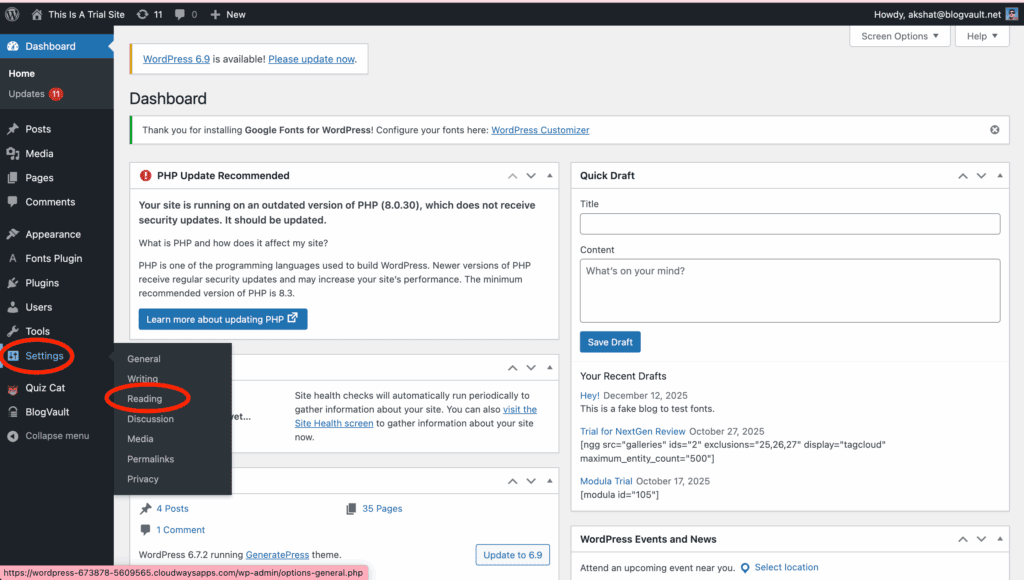
- Navigate to Settings > Reading in your dashboard menu.
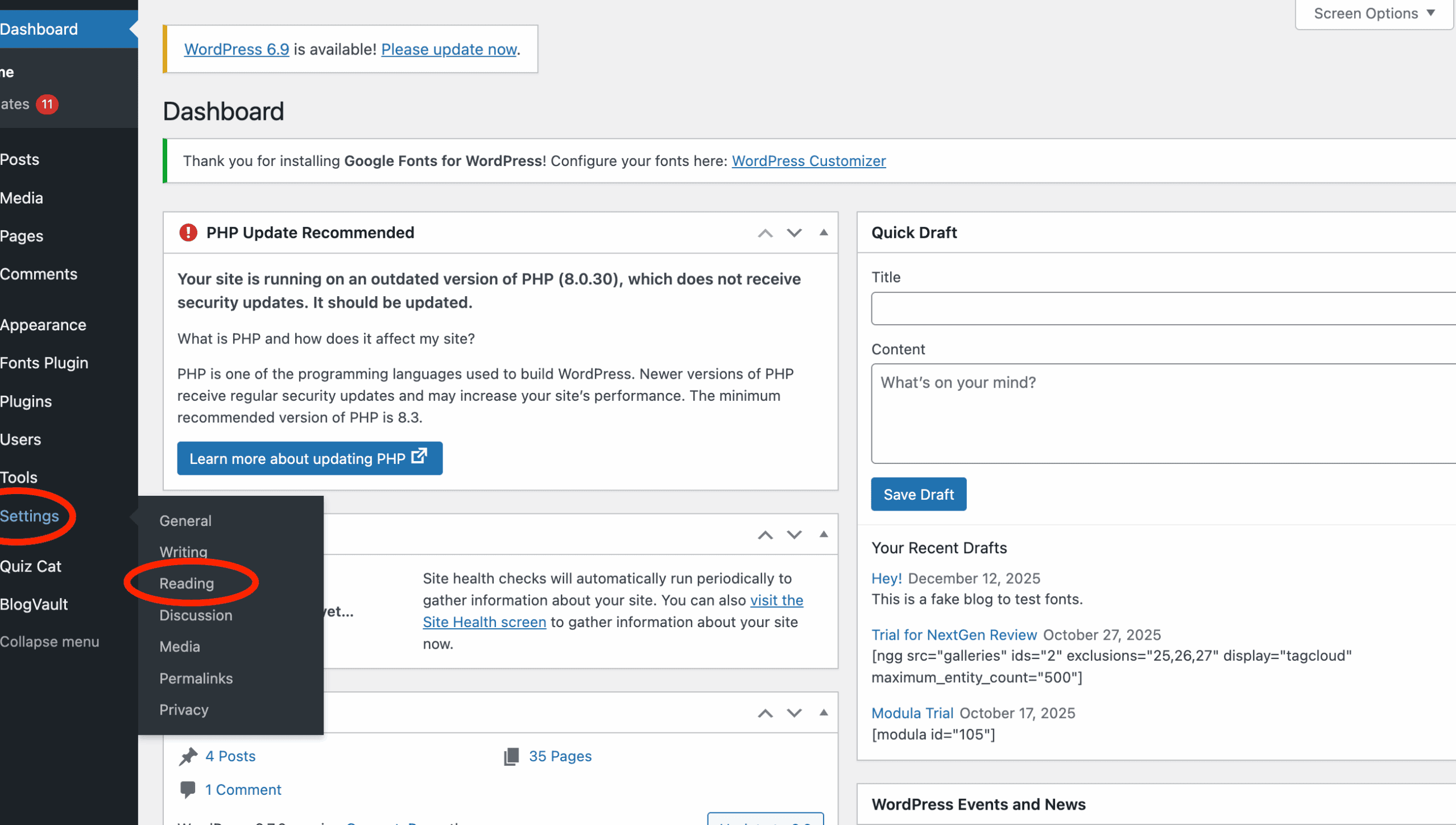
- Under the “Your homepage displays” section, select the Static Page option.
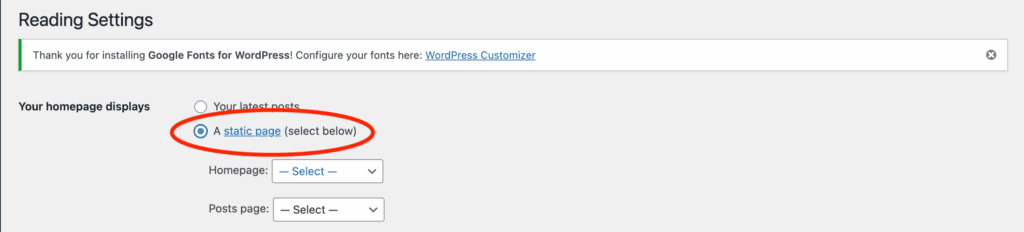
- In the Homepage dropdown, select your “Home” page.
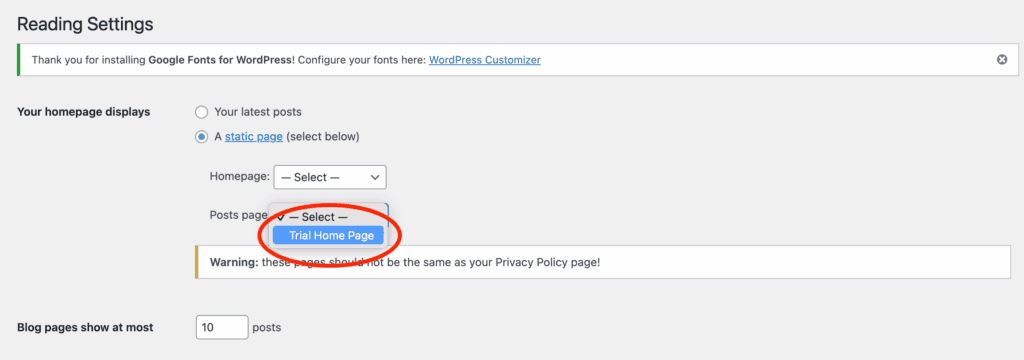
- Click the Save Changes button at the bottom.
Method 2: Change home page to latest blog
If you run a traditional blog, a news site, or a journal, you’ll likely want visitors to see your newest content first. This method to change home page turns your front page into a dynamic feed of your most recent articles, keeping your site fresh and engaging for repeat visitors.
- Navigate to Settings > Reading from your WordPress dashboard menu.
- At the top of the page, under “Your homepage displays,” select this option.

- You can adjust how many posts appear on the page using the “Blog pages show at most” setting.
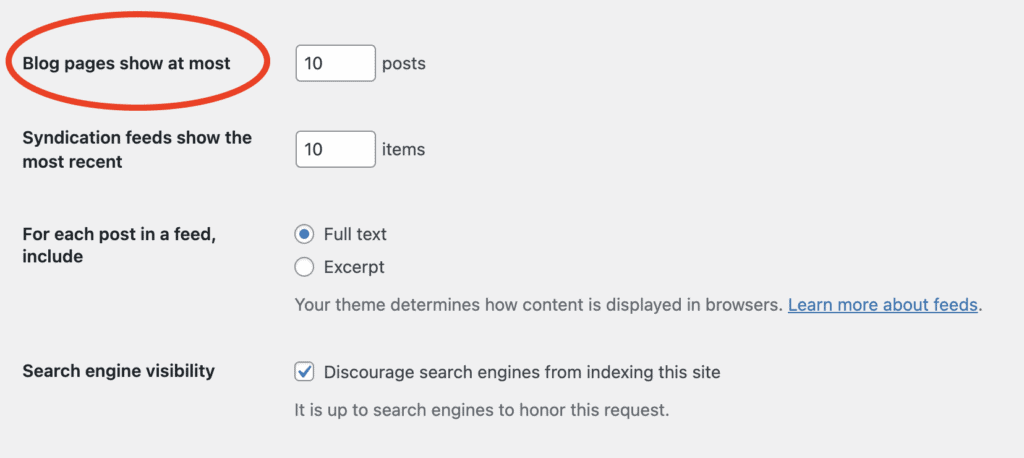
- Scroll to the bottom and click Save Changes.
After Changing Your Homepage
Setting your new homepage is a huge step, but you’re not quite done yet. There are two common follow-up tasks you might need to do to ensure everything looks and works correctly.
Update Your Navigation Menu
After you change your homepage, the “Home” link in your website’s main menu might not automatically update. It could still be pointing to the old page, or it might be broken. This is a quick fix.
- In your WordPress dashboard, go to Appearance > Menus.
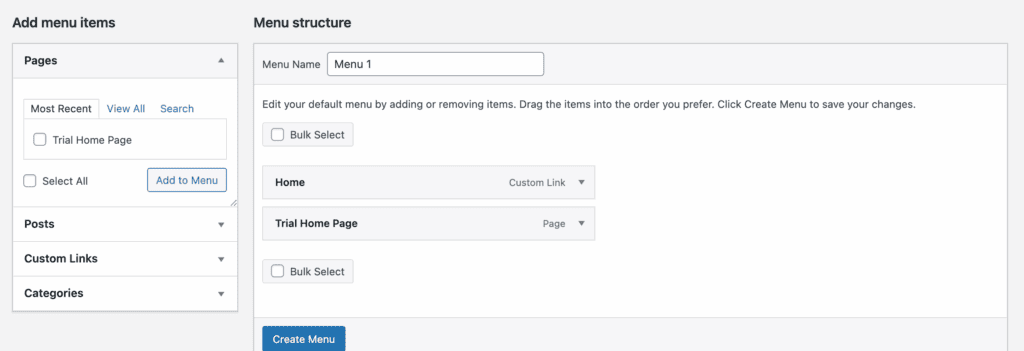
- Find the existing “Home” item in your menu structure. Click the small arrow on it and select Remove.
- On the left, under “Pages,” find the page you designated as your new homepage. Check the box next to it and click Add to Menu.
- Drag the new “Home” item to the top of the menu list and click Save Menu.
Clear Caching (If Changes Don’t Show)
If you’ve saved your settings but your website still shows the old homepage, don’t panic! The most likely culprit is caching.
It’s important to regularly clear cache. Caching is when your browser or website server stores a temporary copy of your site to help it load faster. You’re probably just looking at an old, saved version.
To fix this, you need to clear the cache.
- Browser Cache: First, try a “hard refresh” in your browser by pressing Ctrl + F5 (on Windows) or Cmd + Shift + R (on Mac).
- Plugin Cache: If you use a caching plugin, look for a “Purge Cache” or “Clear Cache” button in your WordPress admin bar at the top of the screen or within the plugin’s settings.
- Hosting Cache: Some hosting providers have their own built-in caching. Check your hosting dashboard for a similar “Clear Cache” option.
Clearing the cache will force the server and your browser to load the newest version of your site, revealing your new homepage.
Troubleshooting Common Homepage Problems
Even with a straightforward process, you can sometimes run into a snag. Here are the solutions to the most common issues people face when changing their WordPress homepage.
- The “Home” Option is Missing from the Pages Dropdown: This almost always means the page hasn’t been published yet. So, go back to the Pages menu and double-check.
- My Theme Has a “Custom Homepage” Setting – Which One Do I Use?: This is a common point of confusion. Depending on which theme you chose, especially older ones, they may have their own homepage options. A good rule of thumb is to always use the default method first. The theme’s setting in the Customizer is usually designed to add special features to the page you’ve already assigned, like unique widget areas or sliders, rather than assigning the page itself.
- I Edited the “Home” Template, But My Page Didn’t Change: This happens when you mix up editing a “Page” with editing a “Template.” A Page is the content—your text, images, and buttons. You edit this by going to Pages > All Pages and clicking Edit. A Template is the overall layout—the header, footer, and structure that your page content sits inside. This is edited in the Appearance > Editor for modern block themes. Most of the time, the changes you want to make (like updating text or adding a new picture) should be done by editing the Page, not the template.
Good Practices to Maintain Your Website
Once your homepage is set, it’s crucial to keep your website healthy, secure, and fast. Here are some essential maintenance practices to adopt.
- Install a reputable security plugin. A security plugin like MalCare acts as a firewall, scans for malware, and protects your site from hackers and bots, giving you essential peace of mind.
- Schedule automatic, off-site backups. Your website is vulnerable without a reliable backup. A plugin like BlogVault automatically backs up your entire site daily and stores it securely off-site, ensuring you can restore everything with a single click if something goes wrong.
- Use strong passwords and 2FA. Enforce strong, unique passwords for all user accounts and enable Two-Factor Authentication (2FA) to prevent unauthorized logins.
- Keep your WordPress site updated. Regularly update your WordPress site. We’re talking about core, as well as your plugins and themes. Updates often contain critical security patches and new features.
- Install a speed plugin. Website speed is crucial for user experience and SEO. Caching plugins like WP Rocket can dramatically improve your site’s loading times.
- Install an SEO plugin. SEO plugins like Yoast SEO or Rank Math help you optimize your content so search engines like Google can find and rank your site more easily.
- Track traffic with Google Analytics. Integrating Google Analytics allows you to understand who your visitors are, where they come from, and what content they like, helping you make smarter decisions.
- Regularly audit plugins and themes. Once every few months, review your installed plugins and themes. Deactivate and delete any that you no longer use to reduce security risks and improve performance.
Final Thoughts
Mastering how to change your homepage unlocks your site’s true potential. It transforms your site from a simple blog into a professional front door, guiding visitors exactly where you want them to go and establishing your brand’s first impression. However, experimenting on your most important page can be risky.
This is why using a staging plugin is a non-negotiable best practice. Tools like BlogVault create a private, duplicate version of your site where you can safely test new designs, layouts, and plugins without affecting your live visitors. Once you’re happy with the result, you can push the changes live with confidence.
FAQs
How do I change my default home page?
You can change your default homepage directly from your WordPress dashboard. Navigate to Settings > Reading, where you will find the “Your homepage displays” option. To show a traditional blog feed, select “Your latest posts.” For a business or portfolio site, choose “A static page” and then select the specific page you want to use as your homepage from the dropdown menu that appears. Remember to click “Save Changes” to make your selection live.
How do I edit the home page header in WordPress?
The method for editing your homepage header depends entirely on your WordPress theme. For most classic themes, you can make changes by going to Appearance > Customize, where you will find a “Header” or “Site Identity” section to upload a logo and adjust the menu. For modern block themes, you would go to Appearance > Editor. From there, you can click directly on the header area to edit its layout, colors, and content using the block editor.
How do I change the default login page in WordPress?
WordPress does not include a built-in feature to change the default login page URL (wp-login.php). This is typically done for security reasons to protect against brute-force attacks. The easiest way to change it is by installing a security plugin. A popular and straightforward plugin like “WPS Hide Login” will allow you to set a custom URL for your login page, making it much harder for bots and attackers to find.
How do I change my primary site on WordPress?
Changing your “primary site” can mean two different things. If you are using WordPress.com and have multiple sites, you can set your primary site within your account settings on the WordPress.com website. If you have a self-hosted site (from WordPress.org) and want to change your primary domain name, this is a more advanced process. It involves updating the URL in Settings > General and then updating all internal links in your database, which is best done using a migration plugin or with assistance from your web hosting provider.

Shreya has been a writer for as long as she can remember. Now, she writes articles that help WordPress users manage the sites that they're proud of, with little to no coding