

A WordPress error can be incredibly frustrating. You’ve carefully curated a beautiful gallery, only for it to vanish from your live site.
You’re likely seeing one of these signs:
- The gallery area is empty or blank
- Grey or blank thumbnails
- The gallery is replaced by its shortcode
- Images appear but don’t function
This guide will walk you through the most effective, step-by-step troubleshooting process to diagnose the cause and get your gallery working again.
The quickest fix for a FooGallery not displaying is to enable its “Custom Ready Event” setting and then clear all your website’s caches. However, before you make any changes, we strongly recommend that you troubleshoot on a test site. A test site helps you safely try fixes without any risk to your visitors.
Understanding Why Your FooGallery Is Not Working
When we tested FooGallery for a different article, we truly loved it. But, we noticed a lot of complaints of users not seeing their FooGalleries not working. it’s almost always due to a conflict within your WordPress environment. The gallery itself is rarely the problem; rather, something else is preventing it from loading correctly.
The most common causes are:
- JavaScript conflicts: This is the number one culprit. A script from another plugin or your theme breaks, which stops all other scripts—including FooGallery’s—from running.
- Caching issues: An old, cached version of your page can be served to visitors, which prevents the gallery from showing up.
- Lazy loading conflicts: If you have multiple plugins trying to lazy load images, they can interfere with each other, resulting in a foogallery blank page.
- Outdated software: Running an old version of WordPress, your theme, or other plugins can create compatibility issues.
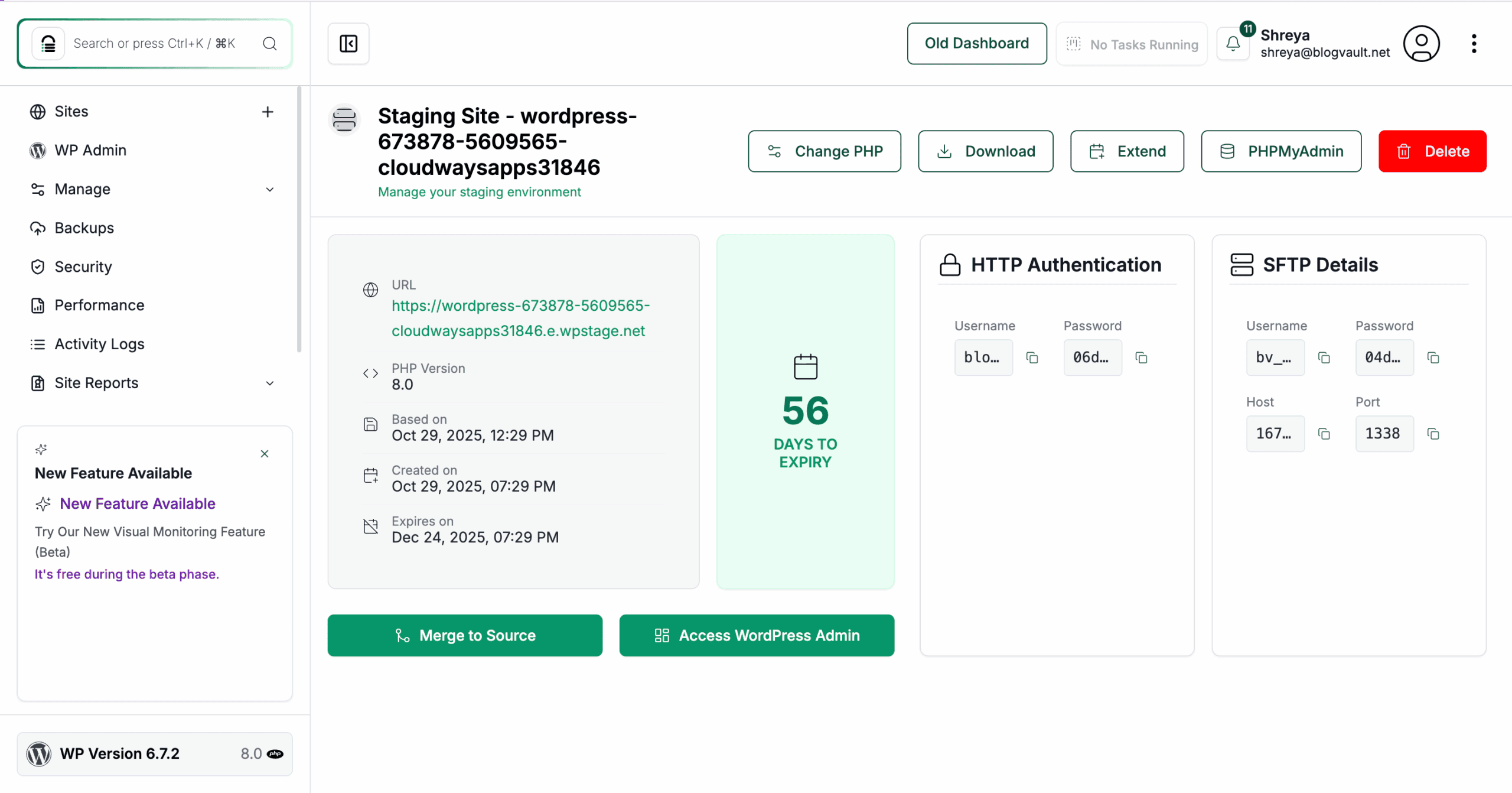
📢 Expert Advice: Install a staging plugin before you start. Create a staging site and conduct all the steps below on that staging site. Identify which solution helped you and implement that solution on your live site.
Now, let’s walk through the solutions step-by-step. Start with the first fix and work your way down the list, as these are ordered from most common to least common.
1. Check the gallery in the WordPress backend
First, let’s make sure you’ve installed a gallery plugin correctly. This simple check rules out any basic configuration errors before you dive into more technical troubleshooting.
- Log into your site: Access your WordPress dashboard with an administrator account.
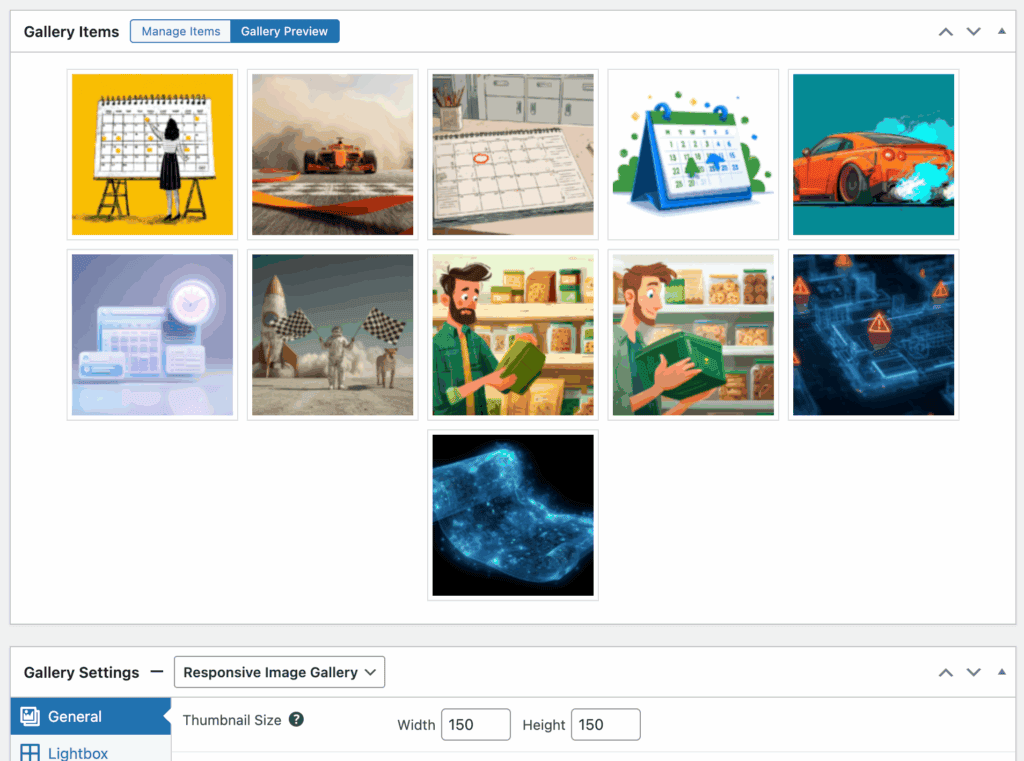
- Navigate to the gallery: Go to the page where the gallery is supposed to be. In the top admin bar, hover over “Galleries” and click the name of the gallery in question.
- Confirm images are present: Ensure that the gallery contains images and that the preview works correctly within the editor. If it’s empty or broken here, you’ve found the problem.
2. Clear your website’s cache
WordPress caching is a fantastic way to speed up your site, but it’s a common cause of a foogallery blank page because it can serve outdated files. Clearing all layers of cache ensures your browser loads the freshest version of your site.
- Clear your plugin cache: If you use a caching plugin like WP Rocket, LiteSpeed Cache, or W3 Total Cache, find the option in your admin bar or plugin settings to “Purge All Caches” or “Clear Cache.”
- Clear the FooGallery cache: Go to FooGallery > Settings. Here, you’ll find buttons to Clear Gallery HTML Cache and Clear CSS Optimization Cache. Click both.

- Clear your browser cache: You can clear browser cache in your browser’s settings or open the page in an incognito/private window to bypass the cache.

3. Check for JavaScript errors
A lot of WordPress issues can be caused by JavaScript conflicts. Thankfully, your browser has a built-in tool called the developer console that can spot these errors for you.
- Open the developer console: On the page with the broken gallery, right-click anywhere and select “Inspect”. A new panel will open.
- Click the “Console” tab: Look for any error messages written in red text. A red error message is a strong indicator that another plugin or your theme is causing a conflict.
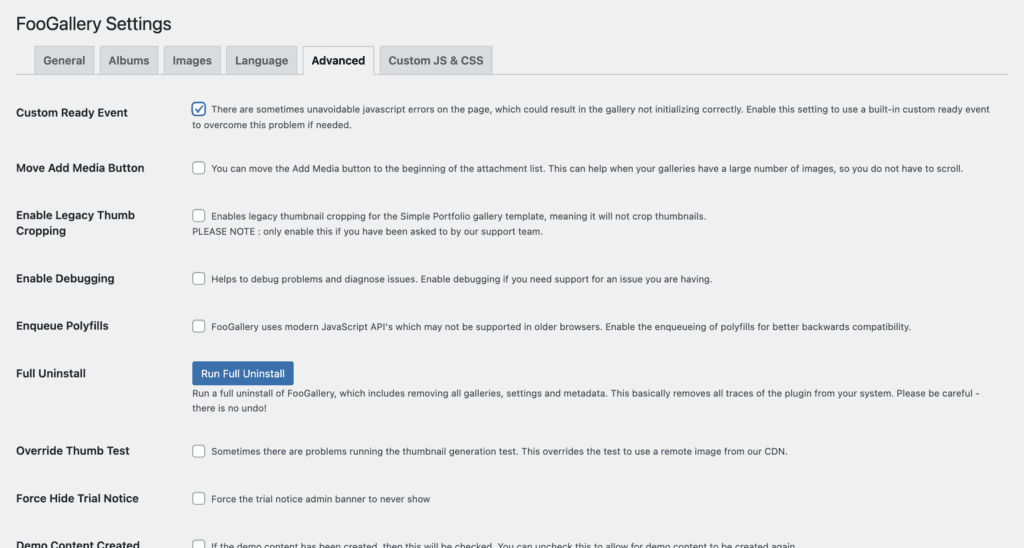
To fix this, go to FooGallery > Settings > Advanced in your WordPress dashboard. Check the box for “Custom Ready Event”. This changes how FooGallery’s scripts load, helping it bypass conflicts from other plugins. Save your changes and clear your caches again.
4. Resolve lazy loading conflicts
Are you seeing grey boxes where your images should be? When foogallery thumbnails do not appear, it often points to a lazy loading conflict. This happens when FooGallery’s lazy load feature clashes with a similar feature from your theme or another performance plugin.
- Navigate to FooGallery settings: In your WordPress dashboard, go to FooGallery > Settings > Advanced.
- Disable native lazy loading: Uncheck the box that says “Enable Native Browser Lazy Loading for FooGallery” and save your changes. This will prevent conflicts with other lazy-loading scripts.

5. Isolate theme and plugin conflicts
If your gallery is still broken, it’s time to determine if your theme or another plugin is the source of the conflict. This process involves temporarily deactivating them to isolate the culprit. Remember to do this on a staging site.
- Switch your theme: Temporarily activate a default WordPress theme like “Twenty Twenty-Four.” If the gallery appears, the problem lies within your original theme. Contact your theme’s developer for support.
- Deactivate other plugins: Deactivate all plugins except for FooGallery. If the gallery reappears, you know one of your plugins is causing the issue. Reactivate them one by one, checking the gallery after each activation, until you find the conflicting plugin.
6. Verify required theme hooks are present
For FooGallery (and many other plugins) to work correctly, your theme must include two standard WordPress functions: wp_head() and wp_footer(). These hooks are where plugins load their scripts and styles.
If you are using a custom-built theme, ask your developer to confirm that wp_head() is present in the header.php file and wp_footer() is present in the footer.php file. Almost all well-coded themes include these, but a missing hook can definitely break your gallery.
7. Update FooGallery
Finally, update the plugin and make sure you are running the latest version of the FooGallery plugin. Developers regularly release updates to fix bugs and address compatibility issues with the latest version of WordPress. An outdated plugin is also more likely to cause security issues that can lead to website hacks. So, an update is good all around.
How to Prevent Your WordPress Gallery From Not Showing
Fixing a problem is good, but preventing it from happening again is even better. Here are some best practices to keep your galleries and your entire site running smoothly, especially when a WordPress gallery not showing images is a recurring problem.
- Use a staging environment: Always test changes on a staging site first. This is the single most effective way to catch conflicts before they affect your live website.
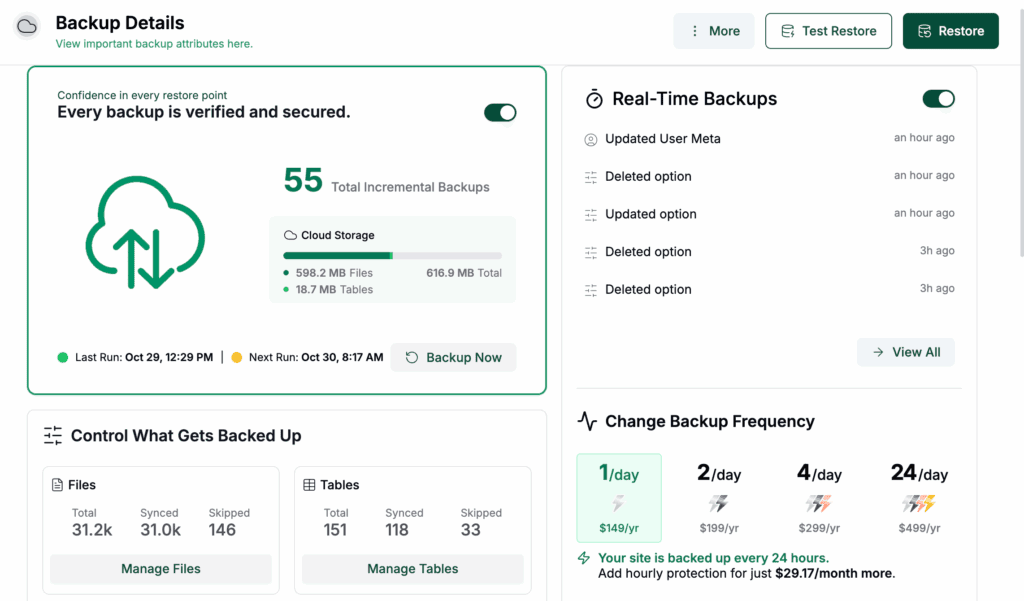
- Implement a reliable backup system: Before making any changes, install a backup plugin with a recent backup of your website. A tool like BlogVault can automate daily backups, giving you a one-click restore point if anything goes wrong.
- Update carefully: Don’t update everything at once. There are ways to safely update your website. Update plugins one at a time and check your site after each update to ensure everything still works.
- Choose reputable plugins and themes: Stick to well-maintained software from trusted developers. Check for recent updates and positive reviews before installing.
- Clean up unused plugins: Deactivate and delete any themes or plugins you are no longer using. This reduces potential security risks and sources of conflict. Remove any nulled plugins you have installed as well.
Final Thoughts
When your FooGallery is not displaying your images correctly, it’s usually a symptom of a conflict elsewhere on your site. By systematically working through the troubleshooting steps, you can pinpoint and resolve the issue quickly. However we’ve learnt that the best way to prevent such errors from happening is to install a plugin like BlogVault.
Services like BlogVault offer one-click staging and automated backups, giving you a completely safe environment to test changes. It even includes a visual regression tool that automatically detects visual changes after an update, so you would know immediately if a gallery or any other element on your site breaks. Taking these preventative measures is the key to a stable and reliable website.
FAQs
Why is my gallery not showing up on my phone?
This is often caused by a caching issue where your mobile browser is showing an old version of the page. It can also be a theme-related responsive issue. Try clearing all caches and checking for theme updates.
How to fix image not showing in WordPress?
If a single image isn’t showing, check that the file path is correct and that the image exists in your Media Library. For multiple images, the issue is often related to file permissions on your server or a hotlink protection setting.
How to show gallery photos?
To show gallery photos with FooGallery, you create a new gallery, add images from your Media Library, configure its settings (like layout and thumbnails), and then add the gallery to your page using its shortcode or a block in the editor.
Why isn’t my featured image showing on WordPress?
This is usually a theme-related issue. Your theme might not be coded to display featured images on certain post types or archives. Check your theme’s settings or documentation to see how it handles featured images.

Shreya has been a writer for as long as she can remember. Now, she writes articles that help WordPress users manage the sites that they're proud of, with little to no coding


