You built a WordPress site, and now you’re ready for a fresh look. But thinking about a new theme brings up a wave of concerns.
You worry about broken layouts, missing features, or a site that’s down at the wrong time. These worries are common, but they shouldn’t stop your progress.
This guide explains how to change WordPress theme safely, so you can get a new design without the stress.
The safest way to change your theme is on a staging site, which lets you test everything without risk. Before you start, always take a full backup of your site using a backup plugin.
What you must do before changing a theme
Prep work is essential before changing your theme. It prevents the common headaches caused by skipping these steps.
Create a complete website backup
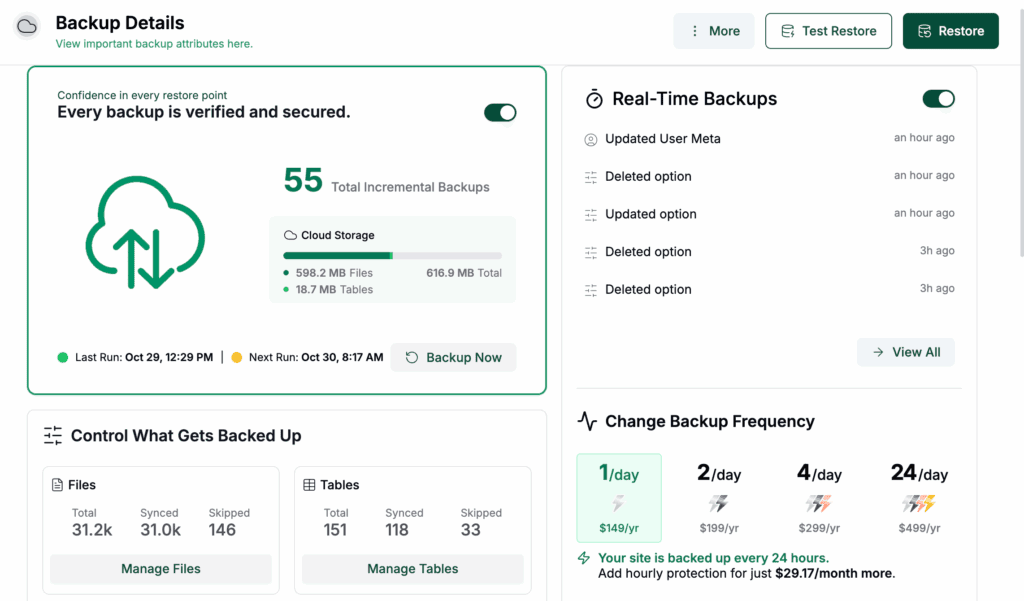
Before you touch anything, backup your entire site. This means both your files and your database. If anything goes wrong, you can restore your site to its previous state in minutes. A plugin like BlogVault is perfect for this. This is your non-negotiable safety net.
Set up a staging environment
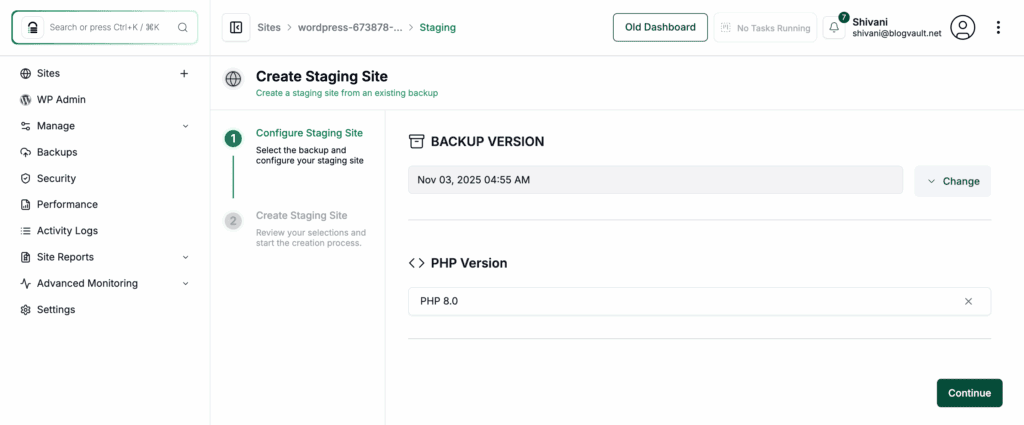
A staging site is a private clone of your live website. It is an isolated environment where you can test your new theme and fix any issues without your visitors ever knowing. Why does this matter? It lets you work without the pressure of a live audience.
Document existing customizations and settings
That bit of code you added to your header for Google Analytics? The shortcodes your old theme used? They’re going to disappear when you switch themes. Go through your current theme’s settings and make a list.
Jot down notes on:
- Tracking codes (Google Analytics, Facebook Pixel)
- Custom CSS you’ve added
- Widgets in your sidebar and footer
- Any special features or shortcodes built into the theme
Enable maintenance mode

Just before you make the final switch on your live site, you’ll want to flip on maintenance mode. This shows visitors a friendly message instead of a potentially broken page while you work.
How to change WordPress theme via a staging site
The safest way to handle the switch is on a staging site. We strongly advise against working on a live site, where any issue, from a broken layout to a critical error, is immediately visible to your visitors. A staging environment removes that risk, allowing you to perfect your site in private.
Staging plugins make this process surprisingly simple. You don’t have to mess around with confusing hosting panels.
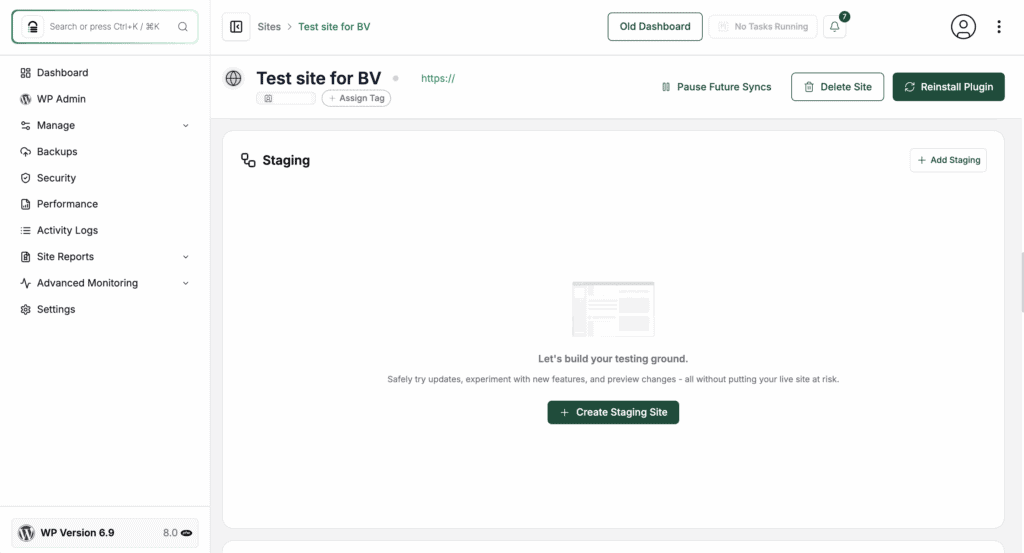
Access staging card: Inside your BlogVault dashboard, access your Staging card and select Create Staging Site.
Select your backup and PHP version: All you have to do is choose a backup version and a PHP version, click Continue, and then Create Staging. BlogVault will then copy your entire live site to a private testing area.
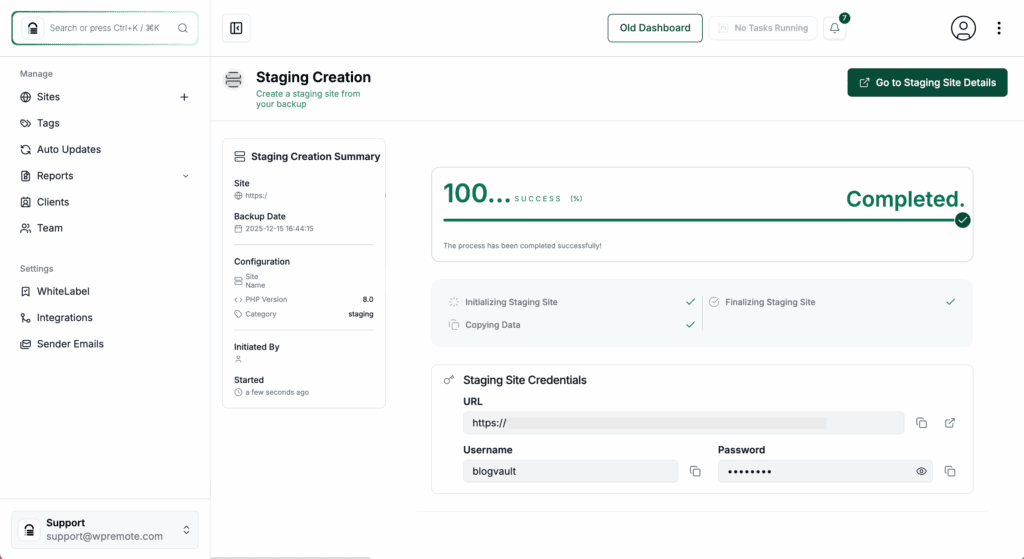
Access your staging site. BlogVault will give you a link to log into the WordPress admin of your new staging site.
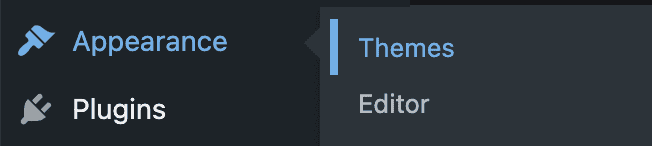
Install the new theme. On the staging site, head to Appearance > Themes. Install and activate your new theme just like you normally would.
Configure and test everything. Now’s the time to set up your menus, re-add your widgets, and put back any custom code you noted down earlier. Click through every page. Test every form. See how it looks on your phone. Make sure it’s perfect.
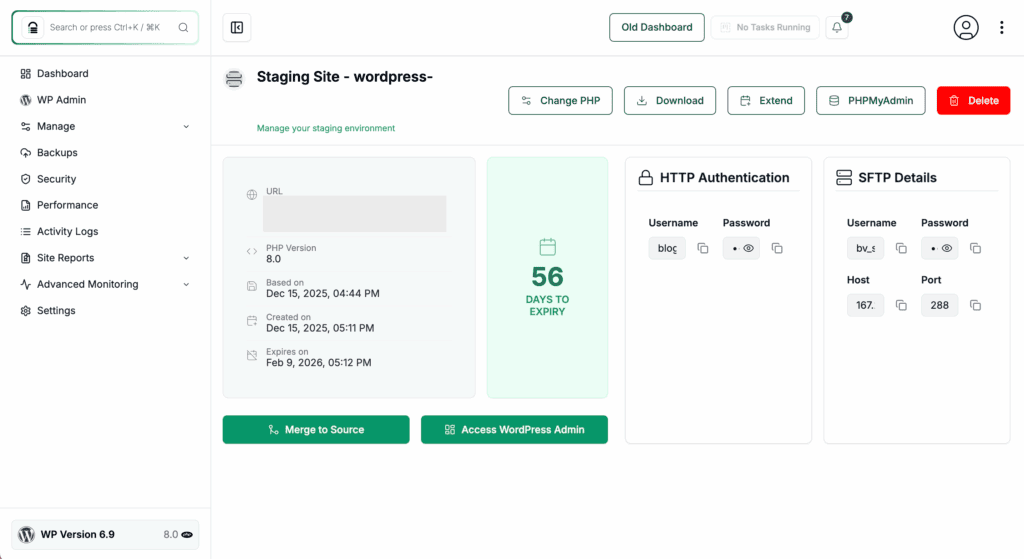
Merge the changes to your live site. Once you’re happy, head back to your BlogVault dashboard. Find and hit the Merge to Source button for your staging site. BlogVault will then carefully copy only the changes you made over to your live site.
This is the cleanest, most professional way to do it. The merge process is precise and drastically reduces the chance of anything going wrong.
Troubleshooting common issues
Even with perfect prep, you might hit a snag. This is particularly true if you decided to work directly on your live site instead of using a staging environment. Here are the most common problems and how to fix them fast.
The white screen of death: Your site is just a blank white screen. This usually means a theme or plugin conflict.
- The fix: Use FTP or your host’s File Manager to go into your wp-content/themes folder. Rename the folder of your new theme. This forces WordPress to fall back to a default theme, bringing your site back online. You can then check your PHP error logs to see what caused the crash.
The layout looks broken. Your content is there, but it’s all over the place. This is almost always a caching issue.
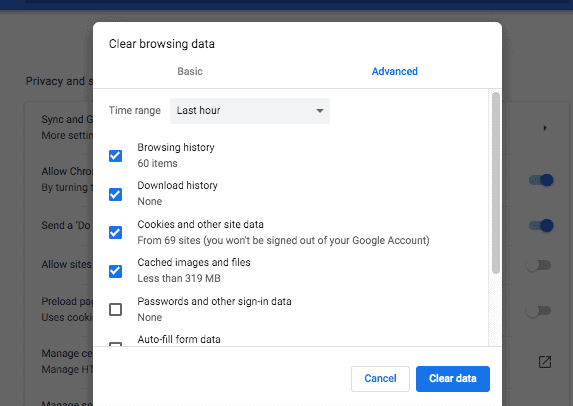
- The fix: Clear all of your caches. This includes your caching plugin, your server’s cache, your CDN (like Cloudflare), and your own browser cache.
My theme options or widgets disappeared: Yes, they did. Settings and widgets are theme-specific, so they don’t carry over.
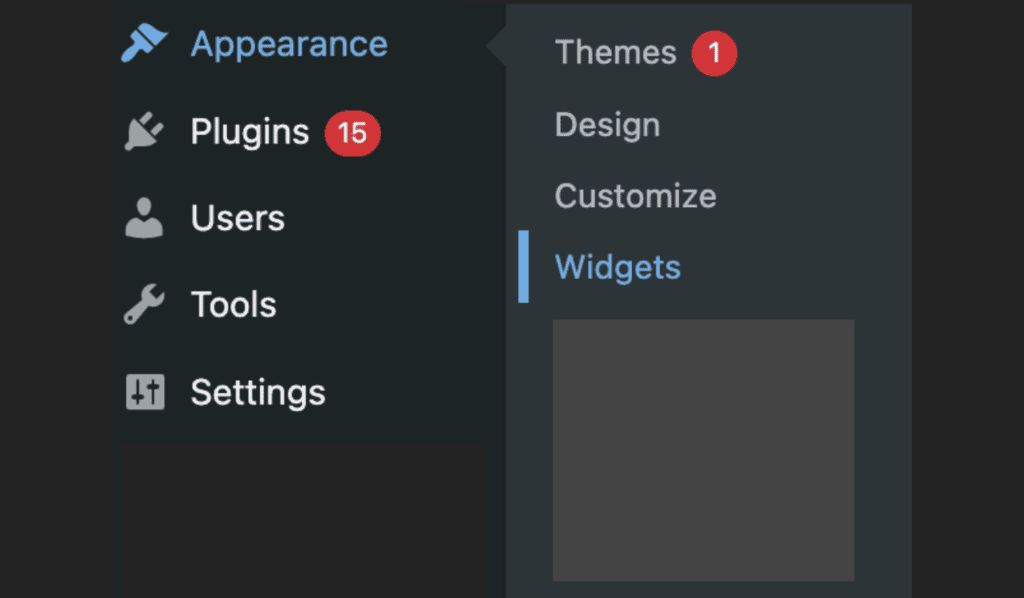
- The fix: For theme settings, you’ll have to re-enter them manually in the new theme’s options panel. For widgets, go to Appearance > Widgets. You should find your old ones sitting in the Inactive Widgets area. Just drag them back to the right sidebar or footer.
A plugin isn’t working right. Sometimes a plugin has a conflict with a new theme.

- The fix: Temporarily deactivate all your plugins. If the site works, reactivate them one by one until the problem comes back. Once you find the conflicting plugin, you can either replace it or contact its developer for support.
What to do post theme change
You’ve merged the changes, and the new site is live. You’re almost done. Run through this final checklist to make sure everything is perfect.
- Disable maintenance mode. Finally, open your new website to the world. If your site ever gets stuck in maintenance mode, simply log in via FTP or your host’s File Manager and delete the .maintenance file from your site’s main directory.
- Check menus and widgets. Click every link in your navigation. Make sure your widgets are in the right place and working as expected.
- Test critical functionality. Can people fill out your contact form? Can they buy a product? Does your image slider work? Spend a few minutes testing the most important parts of your site.
- Look at it on mobile. Pull up your site on your phone. Is it easy to read and navigate? A huge portion of your audience is on mobile, so this is crucial.
- Check your site speed. Run your URL through Google PageSpeed Insights. Your new theme might be faster or slower, and it’s good to know where you stand.
Parting thoughts
Changing your WordPress theme doesn’t have to be stressful. With a full backup and a staging site, the pressure is off.
Your content is safe; just be prepared to reconfigure theme-specific settings. That new design is within reach, without the initial worries.
FAQs
How to change WordPress theme without destroying your website?
To change your WordPress theme without destroying your website, you must use a staging site to test the new theme with your content first. This process allows you to fix any issues privately before applying the changes to your live site.
Can I change my WordPress theme later?
Yes, you can change your WordPress theme at any time after your site is live. Your core content like posts and pages will remain, but you will need to reconfigure theme-specific settings and widgets.
How do I install a new theme in WordPress?
You can install a new theme by going to your WordPress dashboard and navigating to Appearance > Themes > Add New. From there, you can search for a theme in the WordPress repository or upload a theme’s .zip file.
How do I edit a theme file?
The recommended way to edit a theme file is to use a child theme, which prevents your changes from being erased during theme updates. Avoid using the built-in Theme File Editor, as direct edits are easily lost and can break your site.
What is the difference between a theme and a template in WordPress?
A theme controls the overall design of your entire website, while a template defines the layout for a specific type of page within that theme. For instance, your theme contains separate template files for your blog posts and your homepage.

Shivani enjoys crafting guides that make every aspect of using WordPress simple and easy to follow. When she's not glued to her laptop, you can find her buried in a good book or occasionally, painting.