You built your WordPress site a lifetime ago. You look at your site now and know it needs a change, but you’re just… scared. We get it.
Perhaps you’ve tried to change themes and remember watching it all come crashing down. Or you’ve heard the horror stories from others and have no desire to be the next one.
That fear keeps you stuck. This time, let’s do it right. Here’s how to change WordPress theme without losing content or your sanity.
Changing your theme won’t delete your content, but you must test on a staging site to avoid breaking your layout. For complete peace of mind, always create a full restore point using a backup plugin for safety.
Prerequisites
Before you touch anything, you need a solid plan. Completing these steps first is the difference between a smooth transition and a stressful night spent fixing a broken website. Do not skip these.
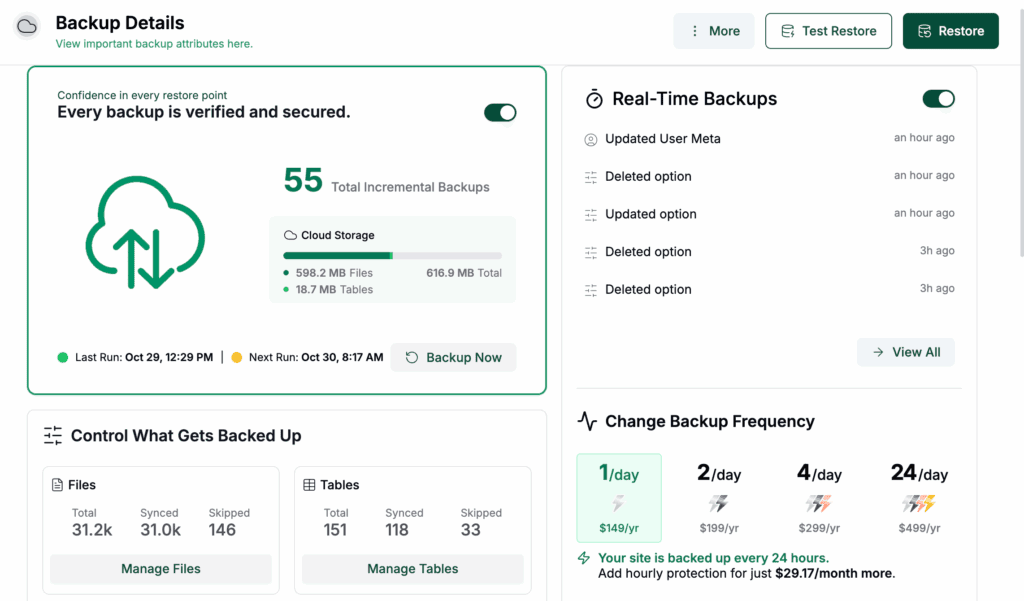
Create a complete backup of your site. This is your safety net. If anything goes wrong, a recent backup lets you restore your site to its previous state in minutes. Use a reliable plugin to make your job easier. A good backup is non-negotiable.
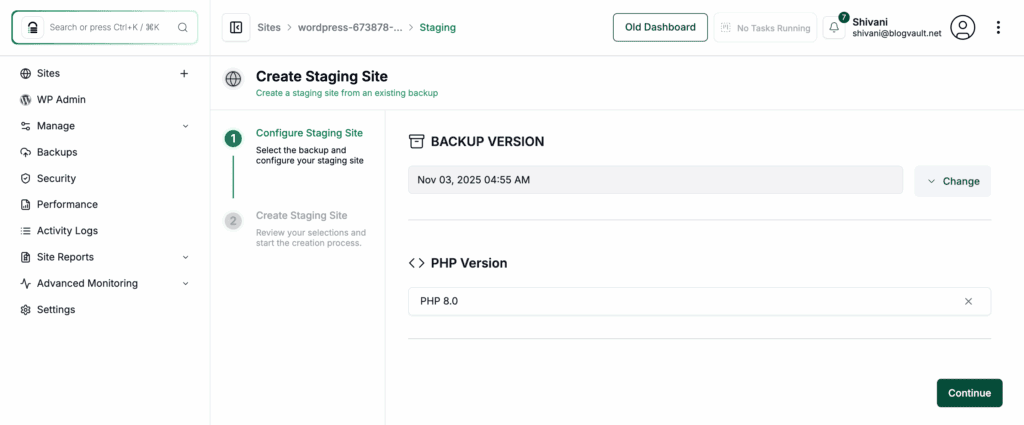
Set up a staging site for safest testing. A staging site is a private copy of your live website where you can test for plugin conflicts or layout issues before your visitors see anything. It’s the perfect place to install, activate, and configure your new theme privately, ensuring everything works perfectly first.
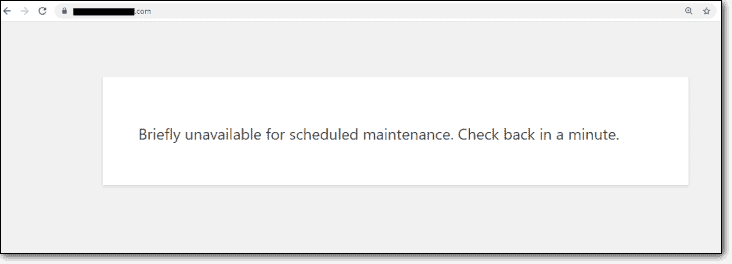
Enable maintenance mode to hide the transition. While a staging site is the recommended path, you might choose to work directly on your live site. If that’s the case, you must put it in maintenance mode. This step ensures your audience sees a professional temporary page, not a broken website in real-time.
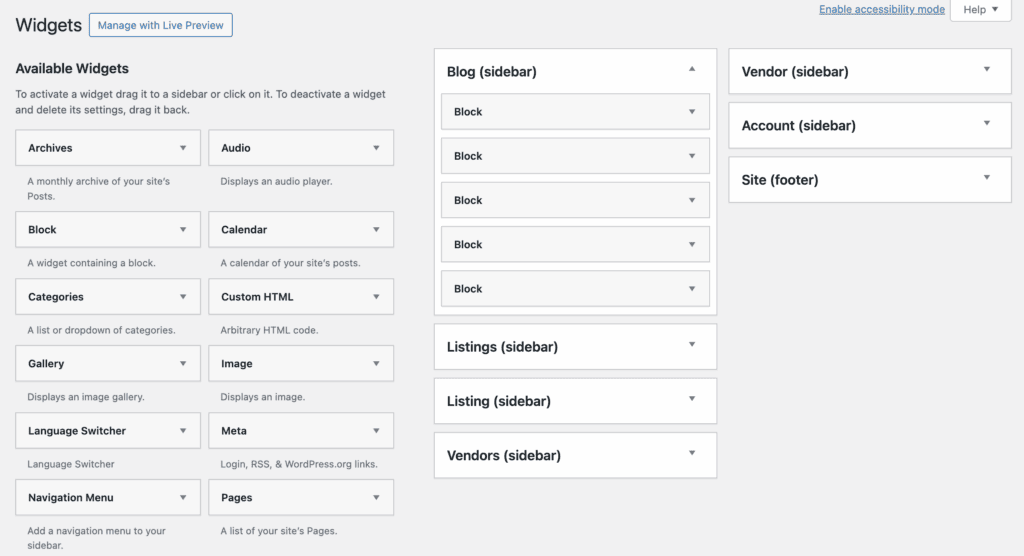
Document current menu locations and widget setups. Your new theme has different areas for menus and widgets. Take screenshots of your current setup under Appearance > Menus and Appearance > Widgets so you can quickly put everything back where it belongs.
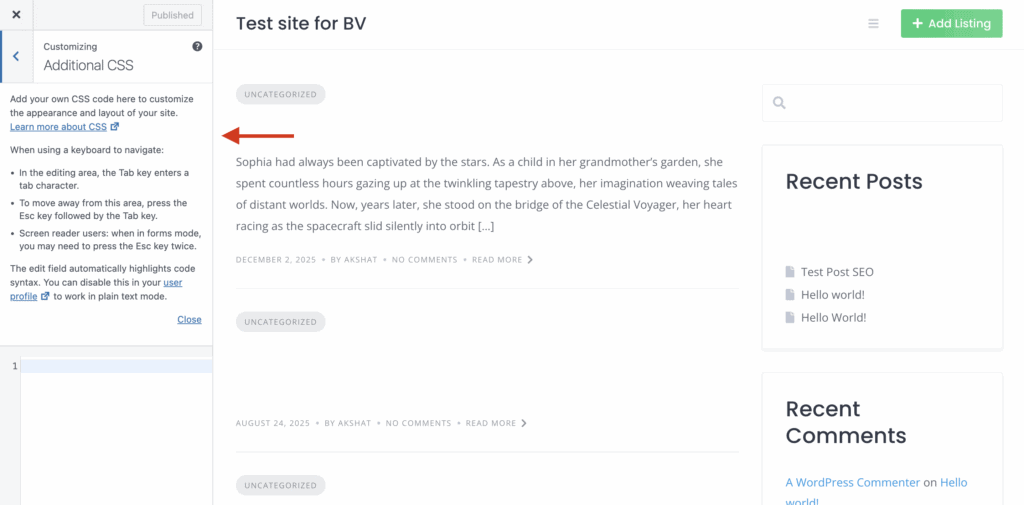
Note any custom CSS from the Customizer. Go to Appearance > Customize > Additional CSS. If you have code there, copy and paste it into a safe text file. You will likely need to add this back to your new theme.
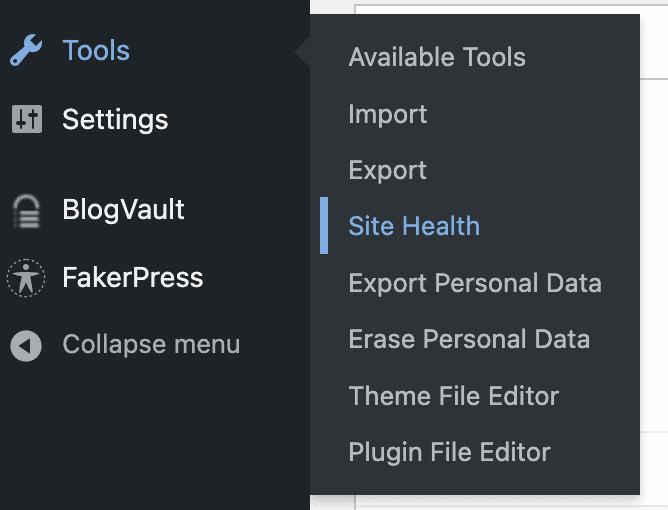
Check that the theme requirements match your PHP version. Some modern themes require a recent version of PHP to function correctly. You can find your site’s PHP version under Tools > Site Health in WordPress.
Verify your new theme supports essential plugins. Make sure the theme you chose is compatible with your page builder, e-commerce plugin, and any other critical tools you rely on. Check the theme’s sales page or documentation for this info.
How to change WordPress theme without losing content
With your prep work done, it’s time to make the switch. Here’s how to go about it:
Always test on a staging site first. This lets you install the new theme, configure it completely, and check for any compatibility issues privately. When you’ve confirmed everything works, push the changes to your live site.
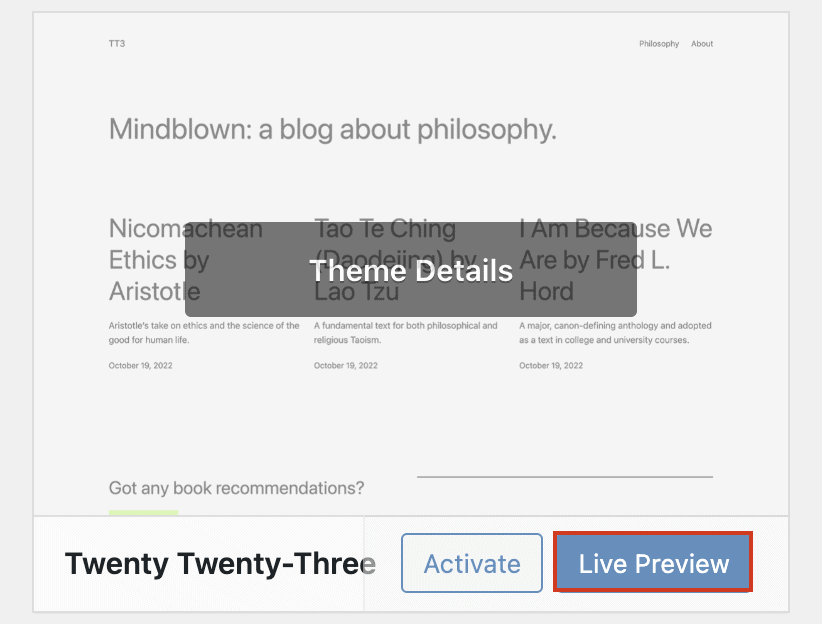
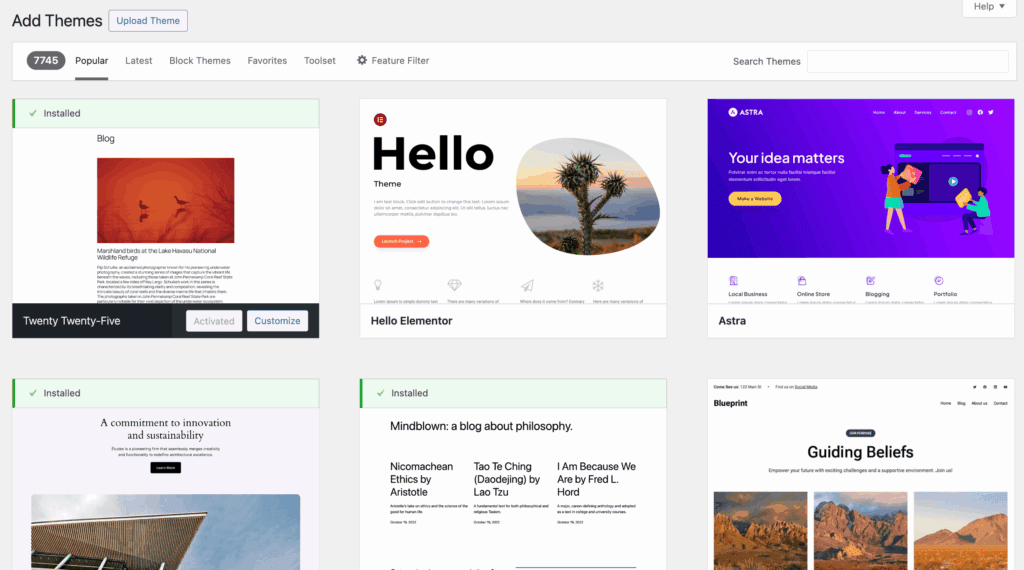
If not, use Live Preview to test the new theme. If you are working on your live site, go to Appearance > Themes. After choosing a secure theme, find it in your dashboard and click Live Preview. This gives you a glimpse of how your site will look without activating the theme for your visitors.
Install the new theme while keeping the old one. From the Themes screen, you can install your new theme. Don’t delete your old theme just yet. It serves as a quick fallback, a simple practice for good site security if the new theme causes problems.
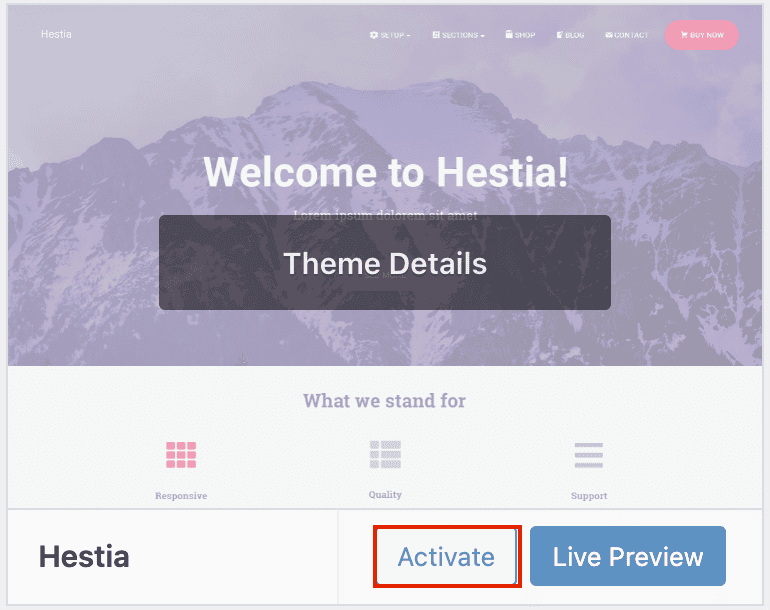
Activate the new theme from the Appearance menu. When you are ready, click the Activate button. Immediately verify all posts and pages are present. Click around your site. You’ll see that your posts, pages, and media library are all still there. Your core site data is not deleted by switching themes.
What to do after changing your WordPress theme?
Activating the theme is just the first step. Now you need to configure everything so it looks and works correctly.
- Purge all cache. Your site is likely showing you a stored, older version. Clear your plugin cache and any server-level cache from your hosting provider.
- Reconfigure menus and widgets. Head to the Appearance section to re-assign your navigation menus to their new locations and drag your widgets into the new theme’s sidebars.
- Review and adjust global styles in the Customizer. This is where you set your site’s new colors, fonts, logo, and favicon.
- Set your homepage and blog page layout. Double-check that your static homepage and posts page are correctly set under Settings > Reading.
- Test all contact forms and critical functionality. Don’t just assume they work. Fill out and submit every form and test any e-commerce checkout processes.
- Review the site on all devices. Your site must look and function perfectly on mobile, tablet, and desktop screens.
- Update permalinks. Go to Settings > Permalinks and click Save Changes without making any changes. This flushes rewrite rules and can prevent strange 404 errors.
Troubleshooting common issues
If something goes wrong, don’t panic. Most problems are common and fixable.
- White screen? This is often a plugin or theme conflict. The fastest fix is to use FTP to access your site files and rename your new theme’s folder in /wp-content/themes/. This forces WordPress to deactivate it. You can also enable debugging mode to see a specific error message.
- Missing styles? This is almost always a caching issue. Clear your website cache, your server cache, and your browser cache.
- Menus gone? The menu isn’t gone, it’s just unassigned. Go to Appearance > Menus > Manage Locations and reassign it.
- Stuck in maintenance mode? If the plugin fails, you can get locked out. Use FTP to navigate to the /wp-content/plugins/ folder and delete the maintenance mode plugin’s folder or the .maintenance file.
- Layout broken? Your old theme may have used theme-specific shortcodes. Your new theme doesn’t know what those mean. You’ll have to go back and edit the pages with the broken layouts.
- If something feels wrong, revert immediately—just reactivate your previous theme. If the problems continue after that, it’s time to use your ultimate safety net: restore your backup.
When do you have to change your WordPress theme?
It’s not just about looks. You should change your theme for functional and security reasons, too.
- Change if the theme is no longer updated. A theme that doesn’t receive security updates from its developer is a massive vulnerability.
- Change for critical performance issues. If your site’s loading speed remains slow despite other optimizations, your theme is likely the problem. A key part of learning how to speed up WordPress is understanding the impact of a bloated theme.
- Change when mobile responsiveness is inadequate. If the mobile user experience is poor, you are hurting your search rankings and frustrating visitors.
- Change if it lacks a required core feature or is incompatible with the latest PHP or WordPress versions.
- Change during a significant brand or redesign project. A new brand identity often requires a new design structure that your old theme can’t support.
Parting thoughts
Changing your WordPress theme doesn’t have to be a huge task. Your content is safe, so focus on the process: use a good backup and a staging environment for testing.
This gives you the power to keep your site secure and modern by choosing quality themes and updating them regularly.
FAQs
What happens if I change the WordPress theme?
When you change your WordPress theme, the visual design and layout of your website will be completely replaced. Your theme-specific settings, widgets, and menu locations will need to be reconfigured, but your content remains safe.
How to update WordPress without losing content?
Updating the WordPress core software, your plugins, or your theme will not cause you to lose your content. However, you should always create a backup before running updates as a precaution against potential compatibility conflicts.
Will changing the WordPress theme affect SEO?
Yes, changing your WordPress theme can significantly affect your SEO. A faster, more mobile-friendly theme can improve your rankings, while issues like changed URL structures or slow performance can harm them.
How do I update my WordPress theme?
You can update your theme from your dashboard under Appearance > Themes or Dashboard > Updates by clicking the update notification. Always back up your site first, especially if you have customized the theme’s code directly.

Shivani enjoys crafting guides that make every aspect of using WordPress simple and easy to follow. When she's not glued to her laptop, you can find her buried in a good book or occasionally, painting.