When it comes to plugins for tables, we know you need to make a decision fast.
That’s likely why you’re cycling between two plugin tabs right now, stuck on the wpDataTables vs Ninja Tables choice.
The fear of making a wrong turn is real, but we wrote this article to be your exit ramp. It’s a clear, honest guide to help you stop researching and finally start building.
Choose Ninja Tables for easy, beautiful tables from spreadsheets, and wpDataTables for powerful, live database connections. Before you install either one to test, make sure your site is protected by using a reliable backup plugin.
wpDataTables vs Ninja Tables: Overview

User experience and learning curve

When we installed Ninja Tables to test it, we were immediately impressed by its intuitive, visual drag-and-drop builder. It even has an onboarding guide that pops up to help you.
Honestly, building our first table felt less like a technical task and more like designing something creative. For basic tables, the learning curve is almost zero.
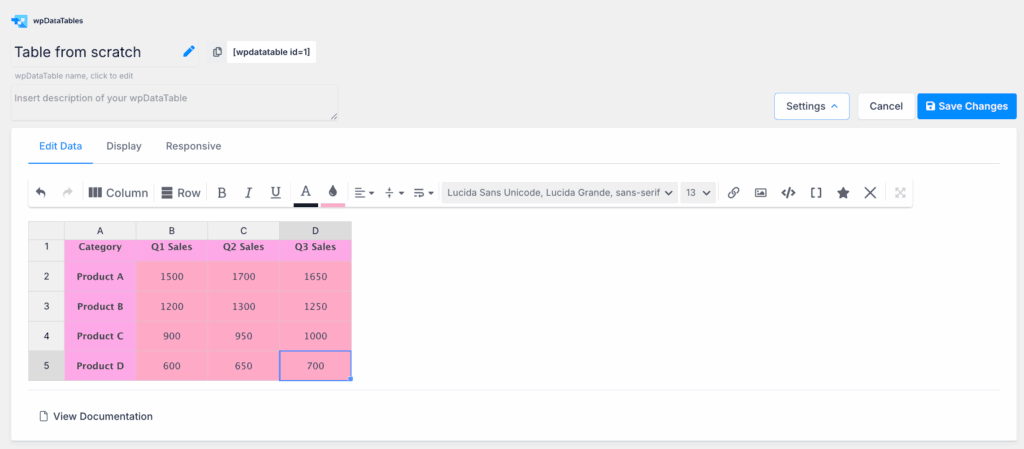
wpDataTables felt different. It’s powerful, but its editor is more like a complex spreadsheet application. We noticed its settings are spread across multiple tabs, which took some clicking around to get used to.
It relies heavily on its documentation, so you should be prepared to do a little reading. If you’re comfortable with terms like SQL, you’ll feel right at home.
Front-end presentation and customization
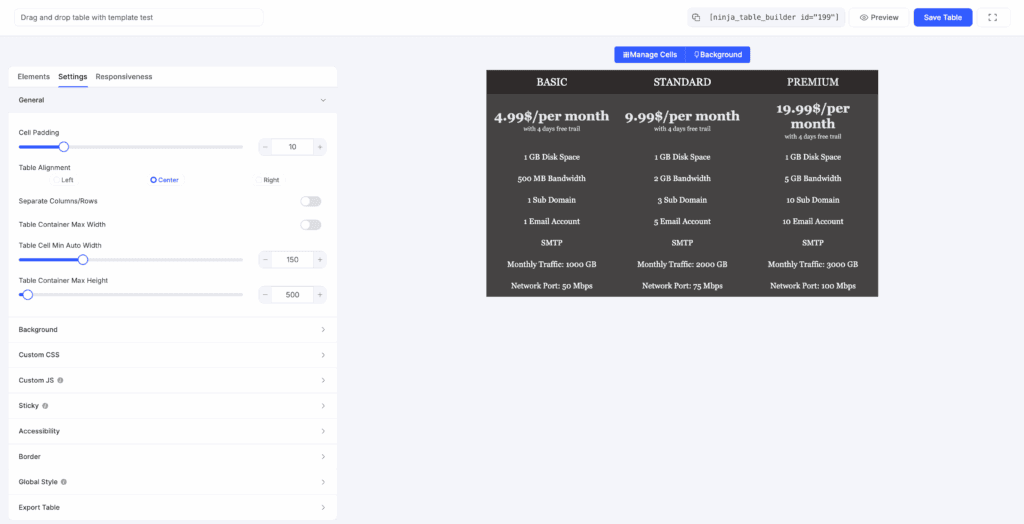
A table has to look good, right? With Ninja Tables, styling was a breeze. It offers plenty of pre-built, modern templates and has simple, visual controls for colors and fonts. We were able to match our test site’s design in just a few minutes without writing any code.
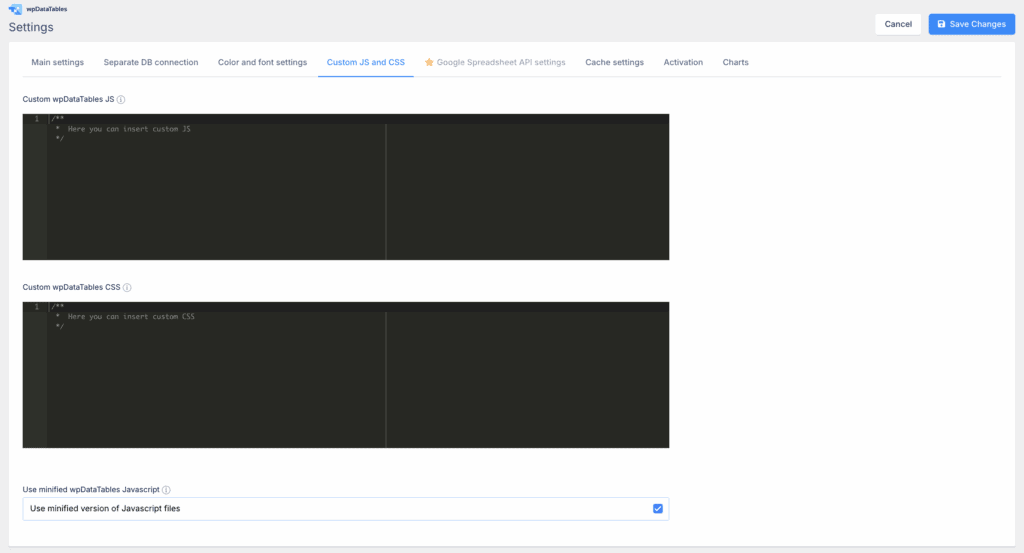
wpDataTables offers just as much control, but you have to work a bit harder for it. We found that getting the exact look we wanted often required adding our own CSS and JavaScript.
This is fantastic for developers who want that deep control, but it’s an extra step for everyone else. On a positive note, we discovered that wpDataTables lets you merge cells and insert media for free, which is a great feature.
Both plugins offer conditional formatting in their Pro versions. Here’s a tip: Ninja Tables’ advanced mobile responsive controls are also a Pro feature, so be sure to check how your free tables look on your phone.
Performance impact and responsive behavior
No one wants a plugin that slows down their site. In our tests, Ninja Tables proved to be very lightweight and well-optimized. It had almost no negative impact on page speed. The Pro version also adds AJAX lazy loading, which is a great feature for helping long tables load faster for your visitors.
wpDataTables is built for a different challenge: massive datasets. Its key feature here is server-side processing. This means your server does all the hard work before sending anything to the user’s browser. This is why it can handle tables with hundreds of thousands or even millions of rows without crashing or triggering a white screen of death. From our experience, this is a non-negotiable feature for big data.
Both plugins create fully responsive tables that look good on mobile devices. Both meet modern accessibility standards (WCAG compatibility), which is something we always check for.
Data handling
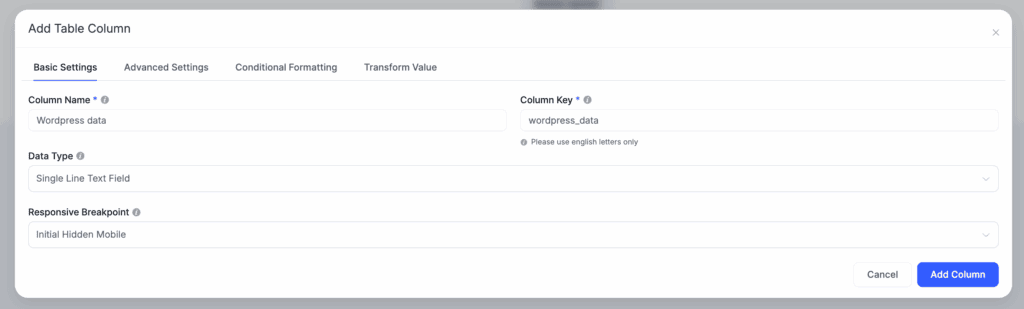
This is the most critical difference we found between them. Ninja Tables makes it incredibly easy to import data from a CSV, JSON file, or by manual entry. It’s perfect for taking a spreadsheet and getting it onto your website quickly.
wpDataTables, however, is a data powerhouse. Its standout feature is its ability to run live SQL database queries. We were able to connect it directly to an external MySQL database. This means if the data in your database changes, the table on your site updates automatically. We found that its column structure is very rigid. Once you create it, making changes can be difficult.
Google Sheets integration is a Pro feature for both. But we found that creating tables from your existing WordPress data, like a list of users, is a core strength of wpDataTables.
Ecosystem and third-party syncing
Plugins need to play nicely with your other tools. Ninja Tables has seamless integration with Fluent Forms because they’re made by the same team, WPManageNinja. If you’re already in that ecosystem, it’s a perfect fit.
wpDataTables integrates well with Gravity Forms and Forminator through its Pro version. It also offers a native way to create WooCommerce product tables, which is a Pro feature in Ninja Tables. For us, a huge win for wpDataTables is its ability to automatically sync with a linked Google Sheet. Set it and forget it.
Both plugins provide widgets for page builders like Elementor and work in any theme using shortcodes, so you won’t have compatibility issues there.
Pricing structures
We always recommend starting with the free versions, but always install them on a staging site first. You might find they have everything you need. In our opinion, the free version of Ninja Tables is more generous and lets you create very polished tables without spending a dime.
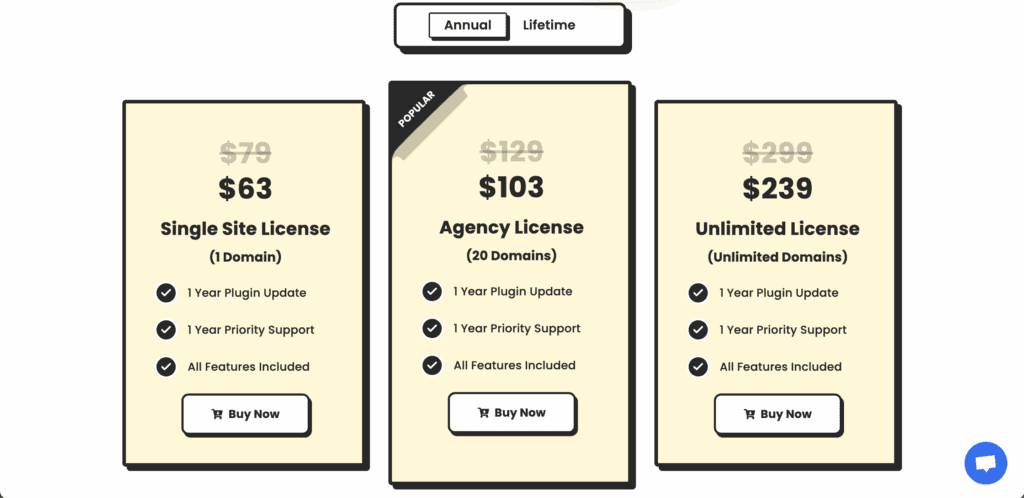
When you’re ready to upgrade, Ninja Tables Pro has an affordable yearly subscription model. It’s a great value.

wpDataTables is more of an investment, with both annual and lifetime licenses. Its price is fair for what it does, especially if you need its database features.
Where each plugin excels and falters
After testing both, here’s our straightforward summary.
- wpDataTables excels at connecting directly to databases, handling enormous datasets with server-side processing, and performing complex calculations. It is the clear choice for any serious, live data reporting, but you’ll need daily automated backups to protect that data.
- wpDataTables falters with its steeper learning curve and a more complex interface that can feel overwhelming at first.
- Ninja Tables excels with its user-friendly visual builder and its ability to create beautiful tables in minutes. It’s perfect for non-developers.
- Ninja Tables falters when faced with very large datasets and its somewhat rigid column management after a table is created.
How to choose the right tool for you
Let’s make this as simple as possible.
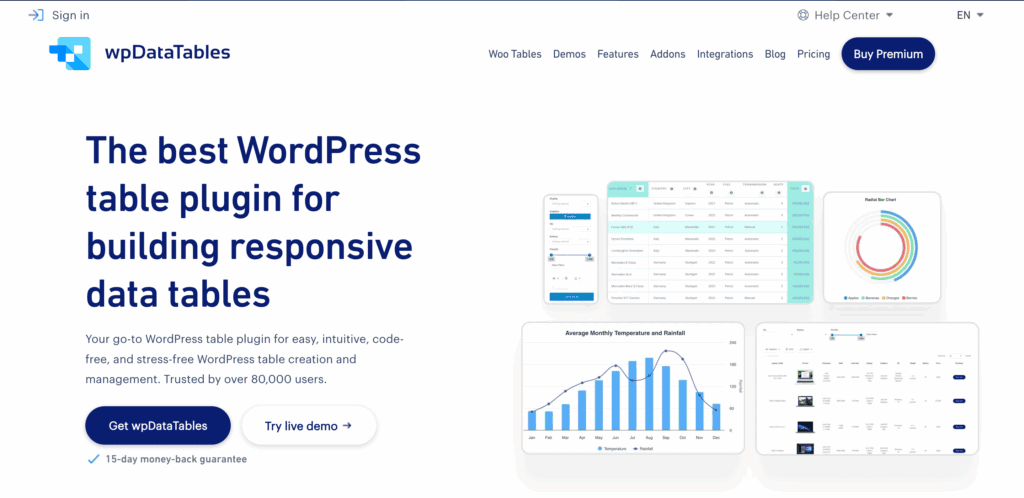
- Your data lives in an external database or you need to write your own SQL queries.
- You are managing thousands (or millions) of rows and need high performance.
- You need users to be able to edit or add data from the front end of your site.
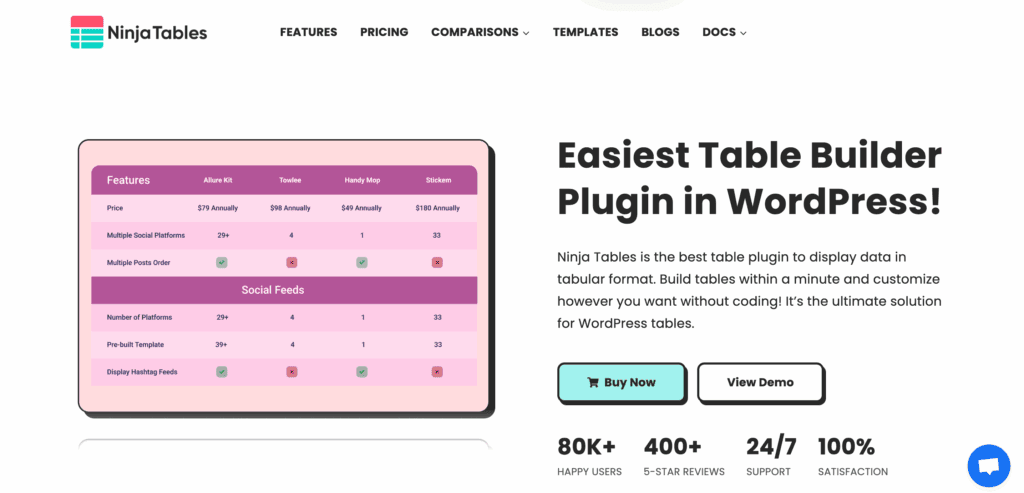
- Your top priorities are beautiful design and an easy-to-use visual builder.
- Your data is coming from a CSV file, a Google Sheet, or manual entry.
- You want a gentle learning curve and need to get a polished table published fast.
Other worthy contenders
While these two are our main focus, you should know about a few others:
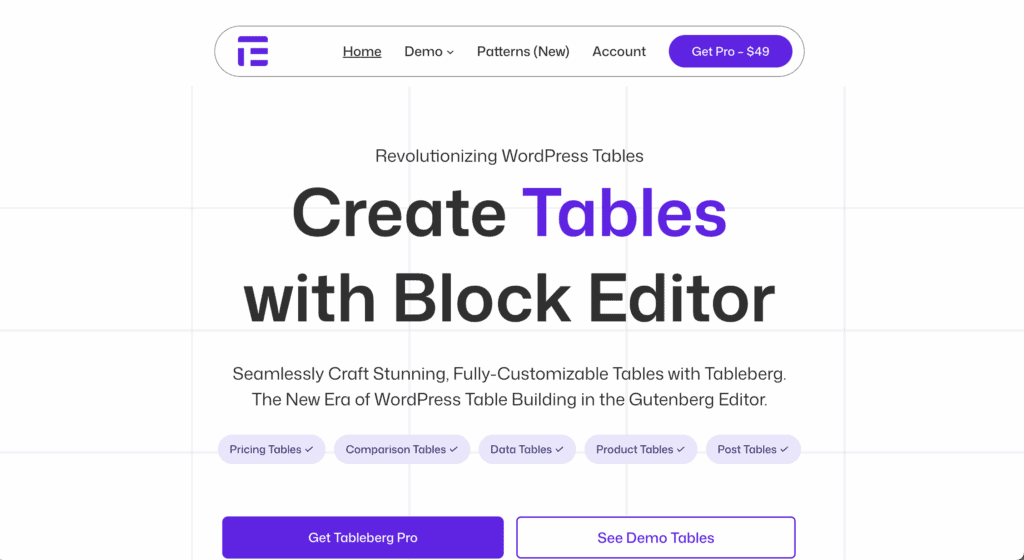
Tableberg: A great choice if you prefer to build everything directly inside the WordPress block editor.
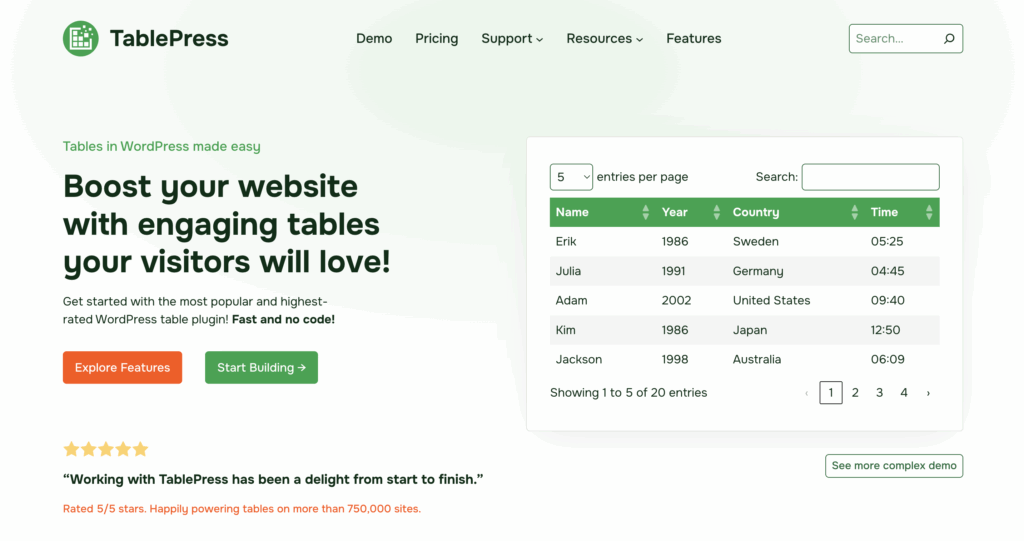
TablePress: The old-school, reliable choice for simple, static HTML tables. It’s free and it just works.
WP Table Builder: Another strong visual builder that is a direct competitor to Ninja Tables.

Parting thoughts
The choice is simple. Get Ninja Tables for its beautiful design and ease with simple spreadsheet data. You need wpDataTables for the professional power required for complex database work and heavy lifting.
Before you do anything, take a full backup, then spend 15 minutes testing both free versions.
FAQs
Does Ninja Tables support live syncing with Google Sheets data?
Yes, the Pro version of Ninja Tables supports syncing with Google Sheets data. The data is cached and can be set to refresh at specific intervals to stay updated.
Can wpDataTables handle massive datasets without slowing down the site?
Yes, this is one of its core strengths due to its server-side processing feature. It handles the heavy lifting on your server, ensuring the front-end remains fast even with extremely large datasets.
Does the free version of Ninja Tables include mobile responsiveness?
Yes, tables created with the free version of Ninja Tables are fundamentally responsive. However, the Pro version offers advanced controls, like hiding specific columns on different devices.
Are tables created with Ninja Tables SEO-friendly?
Yes, tables created with Ninja Tables are SEO-friendly as they are rendered in standard HTML. This allows search engines like Google to easily crawl and index the data within your tables.
Can I import Excel and CSV files directly into Ninja Tables?
Yes, you can import CSV files directly into Ninja Tables with ease. For Excel files, you would first need to save the file as a CSV before importing.

Shivani enjoys crafting guides that make every aspect of using WordPress simple and easy to follow. When she's not glued to her laptop, you can find her buried in a good book or occasionally, painting.