A performance plugin is necessary because a slow website can be damaging. Customers don’t want to visit your site. Search engines can penalise you for it. It’s terrible all around.
WP Rocket is a popular name that comes up when talking about speed improvements. It’s considered to be a great automatic way to improve performance. But, is there a catch? Will it do more harm than good to your website?
We tested the plugin and this article is our tell-all. We’ll break down what levers are important to adjust for performance. We’ll talk about how the plugin effected our site. We’ll help you make your decision.
We tried the plugin on a test site because the optimizations could crash our live site. Thankfully, WP Rocket delivered a solid immediate speed boost out of the box. However, we found that you will need technical understanding to improve the performance better. In contrast, Airlift automated deeper optimizations across images, assets, caching, and the database, proved easier to maintain, and is free.
First Impressions of WP Rocket Plugin Review
When we first looked into WP Rocket, we found that it had a reputation for being easy to use and powerful. It was an all-in-one solution: caching, asset optimization, image handling, DB cleanup and integrations all in one UI. Sound great right?

We tested top speed plugins , including WP Rocket on a test site. We created a test site that had a lot of bad plugins and images. We checked page soeed results and found that before installing WP Rocket, the site scored 79; immediately after activation it jumped to 86.
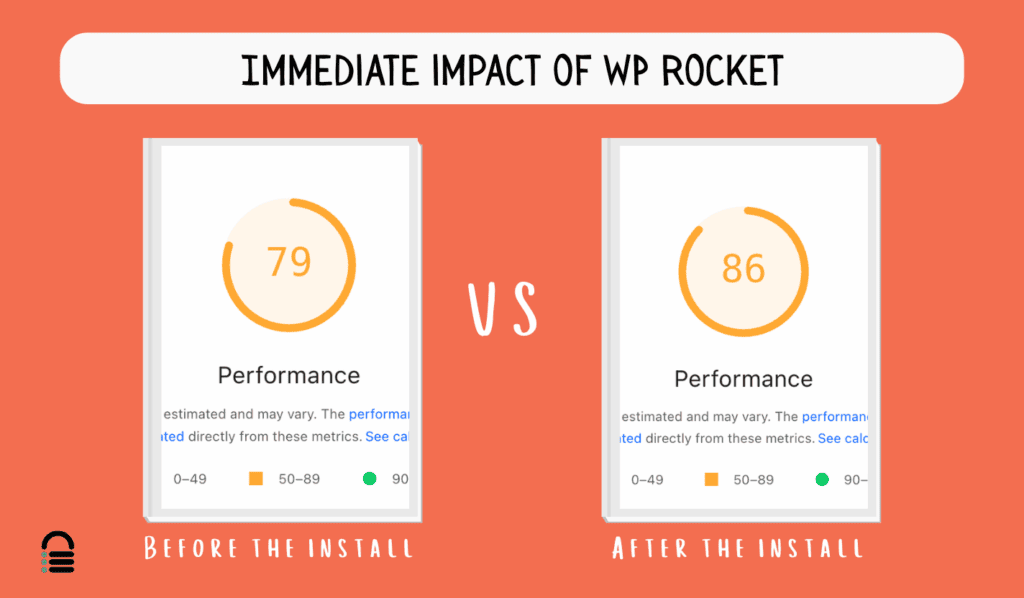
That was a pretty good jump. So, we dug into what WP Rocket actually did to produce that gain. Here’s what we found:
Page Caching
Implementing WordPress caching stores a rendered copy of a page so repeat visits load much faster. We installed WP Rocket to see whether its caching would make a real difference — and it did.
Since version 3.16 caching is auto-enabled: page + mobile cache, 10-hour lifespan, and basic preloading all start immediately. We didn’t have to lift a finger.
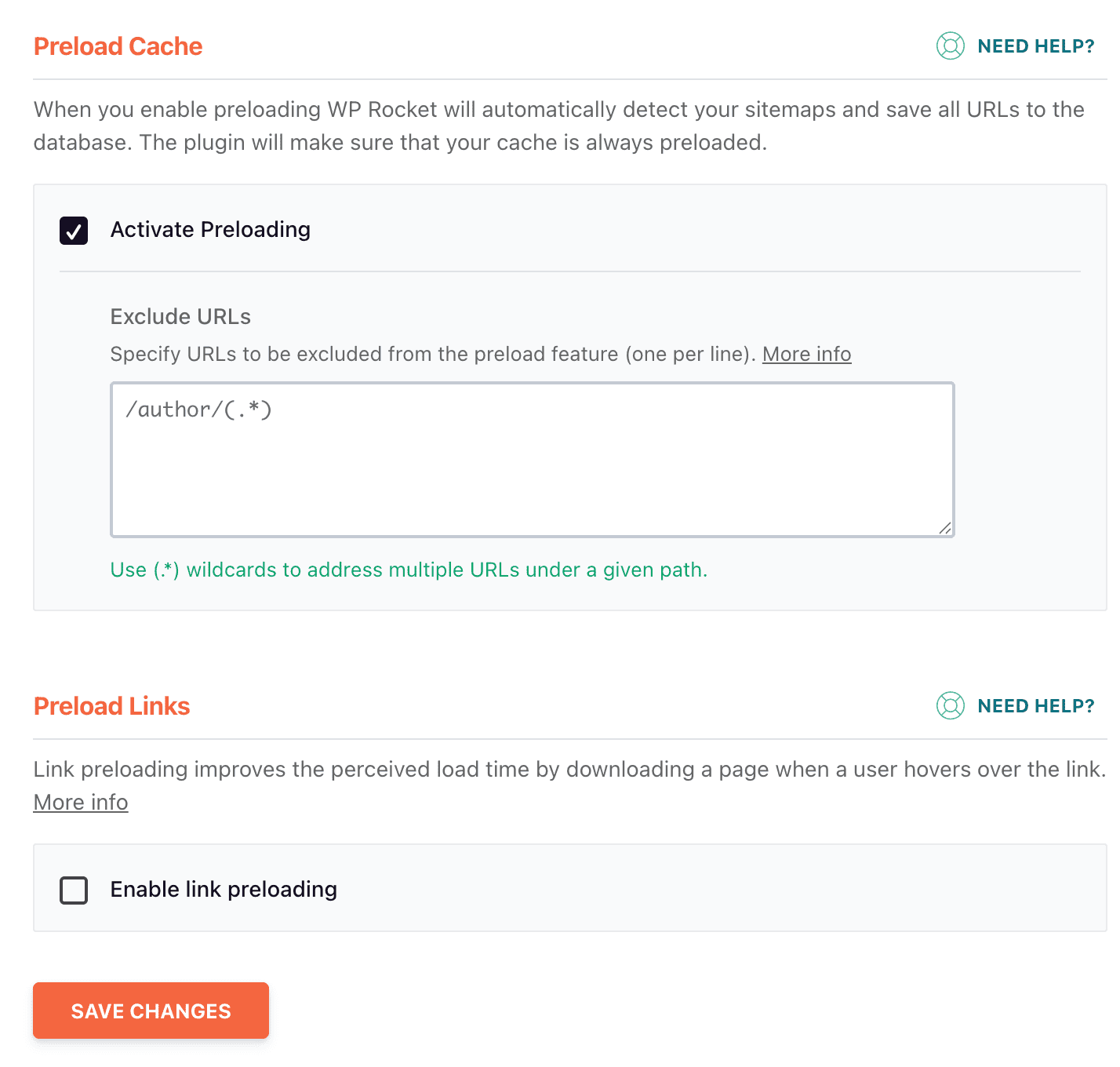
There is a Preload tab that has a few settings that are enabled by default. Preloading generates and primes cached pages and key assets (often by crawling your sitemap or internal links) so visitors receive a cached version immediately. You can exclude URLs like those of your Cart page. There is also a checkbox to disable link preloading. By default, it preloads a link when a person hovers over the URL. So, we don’t recommend you deactivate it.
File optimization
When a browser loads a page it reads the HTML, then requests CSS and JavaScript files. Some of those files block rendering or execution until they’re downloaded and processed. which delays the page. Think of it like building a house: workers can’t finish the walls or start the roof until key materials arrive.
WP Rocket enables CSS and JavaScript minification by default. Minify removes whitespace, comments and unnecessary characters from CSS and JS to shrink file size. It’s usually safe and beneficial to enable, but on complex themes or third‑party scripts minification can introduce errors. When we checked out the File Optimization dashboard, we found that it also gives easy exclusions so you can protect files that break when altered. Out of the box this reduced payloads and improved load metrics on our Elementor-heavy test site.
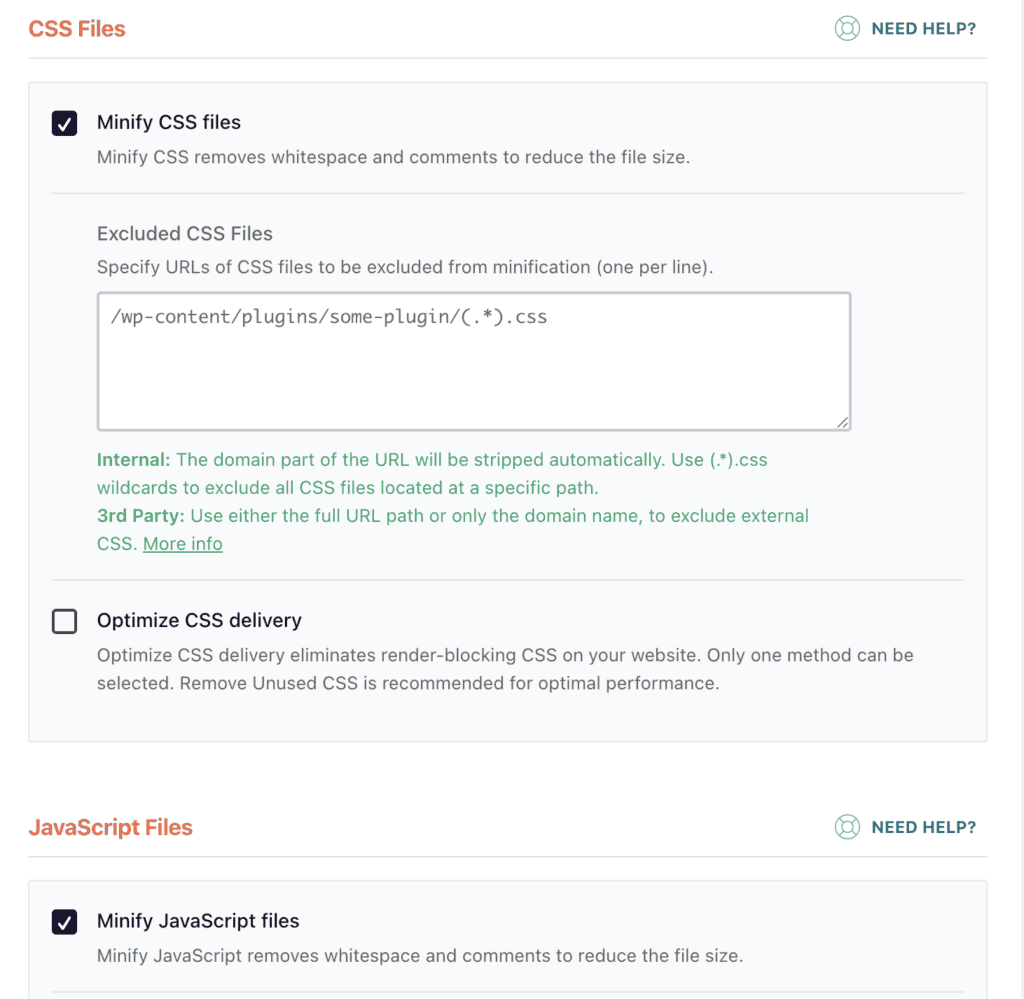
The Optimize CSS Delivery setting generates critical CSS for each page and defers non‑critical styles so they don’t block rendering. In the context of the house under construction analogy, this “builds” a tiny, page‑specific materials list (critical CSS) and hands those essentials to the crew first so the visible parts of the page can be rendered immediately.
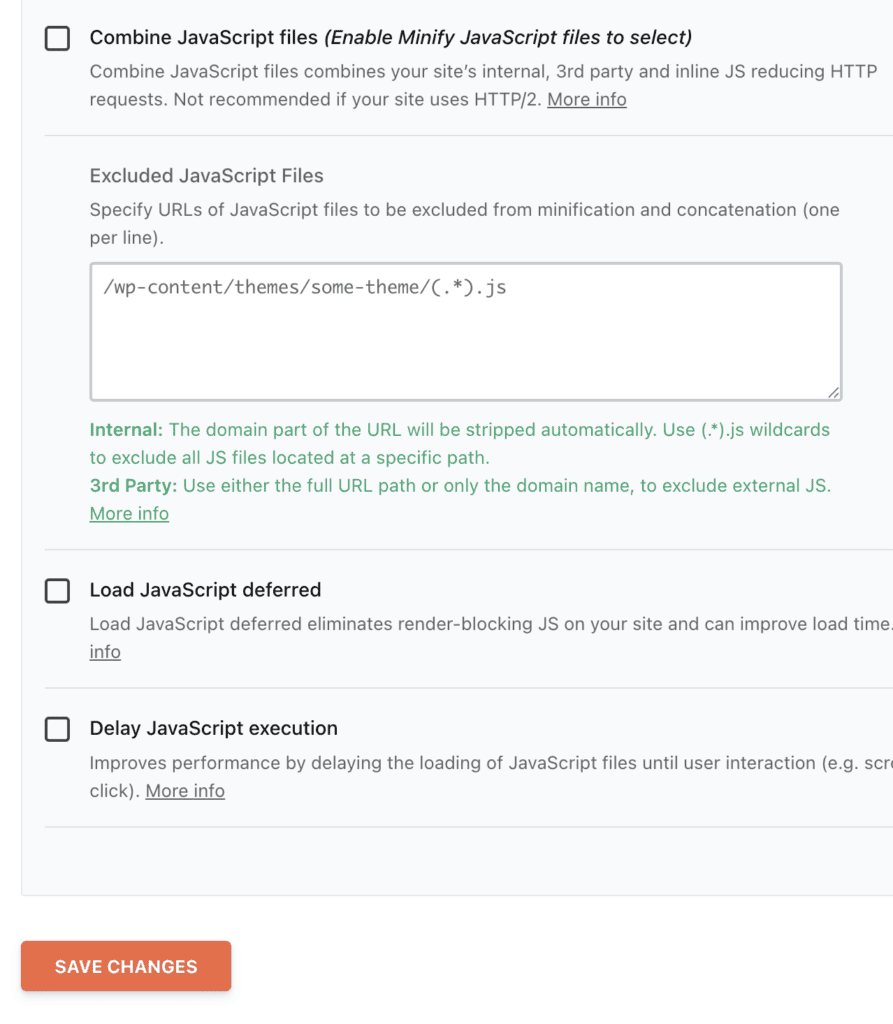
Some other settings you can enable is the Combining JavaScript checkbox. It reduces the number of HTTP requests by merging files. The “Load JavaScript deferred” adds a defer attribute so scripts don’t block HTML parsing. It’s a safe first step to avoid render‑blocking JS. Lastly, the “Delay JavaScript execution” goes further, holding off non‑essential scripts until user interaction (scroll, click, or keypress). This can dramatically improve interactivity metrics but may break analytics, chat widgets, or other third‑party tools that expect early execution. Use defer broadly, but apply delay selectively and add any required scripts to the plugin’s exclusion list.
Expert Advice: Install a backup plugin immediately. We acknowledge that this requires a lot of technical understanding to optimize. So, tread carefully.
Image Optimization
If you have a portfolio site or use WordPress gallery plugins, these settings can help speed up your site significantly. They were enabled by default and that was great.
The standout is the LazyLoad feature that is enabled by default. It defers off‑screen images so the browser only downloads visuals as the user approaches them. That cuts initial payload and improves perceived load, especially on media‑heavy pages.
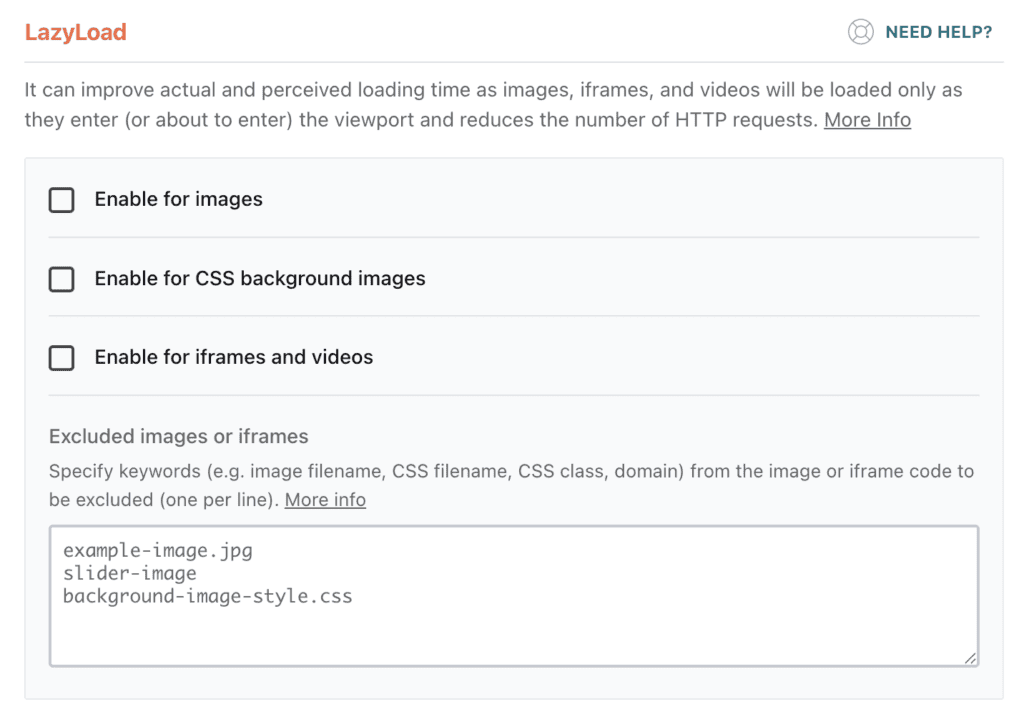
LazyLoad also extends to CSS background images (so large decorative backgrounds load later) and to iframes/videos (delaying embedded players until scroll). These options noticeably reduced our initial bytes and sped up first render, but we watched for issues in sliders, galleries, or JS‑driven elements — those sometimes need to be excluded from lazy loading to avoid broken displays.
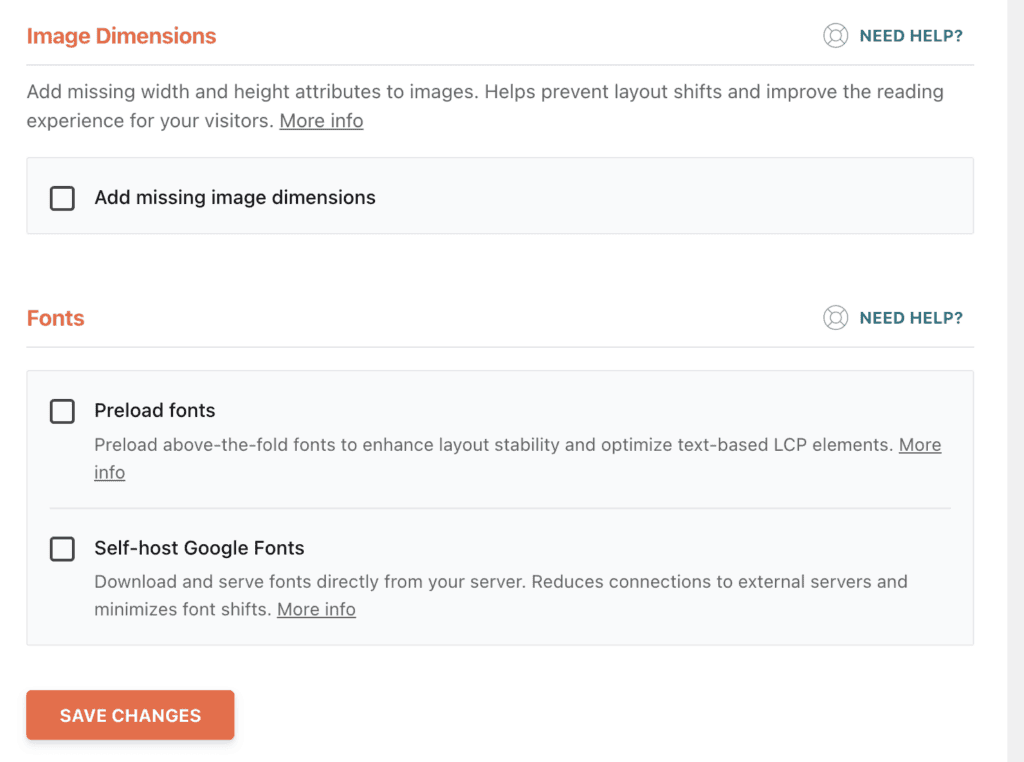
The Image Dimensions setting fills in missing width and height attributes for images, which prevents layout shifts as images load. Enabling this helped reduce CLS on pages where editors had omitted size attributes, and it’s a low‑risk, high‑reward tweak for Core Web Vitals improvements.
Database optimization
Database optimization in WP Rocket lives under Settings > WP Rocket > Database and, unlike caching or lazy loading, it doesn’t run automatically — you must trigger most cleanup tasks yourself. The tool groups common maintenance actions into clear operations so you can remove clutter without touching SQL manually, but it’s intentional that these are opt‑in rather than automatic by default.
Post cleanup removes things that commonly bloat WordPress sites. This includes old revisions (multiple saved versions of posts/pages), auto drafts (temporary drafts saved while editing), and trashed posts (items sitting in the trash). Removing these reclaims storage and can make backups and queries faster, but keep a reasonable number of revisions if you rely on them for content recovery.
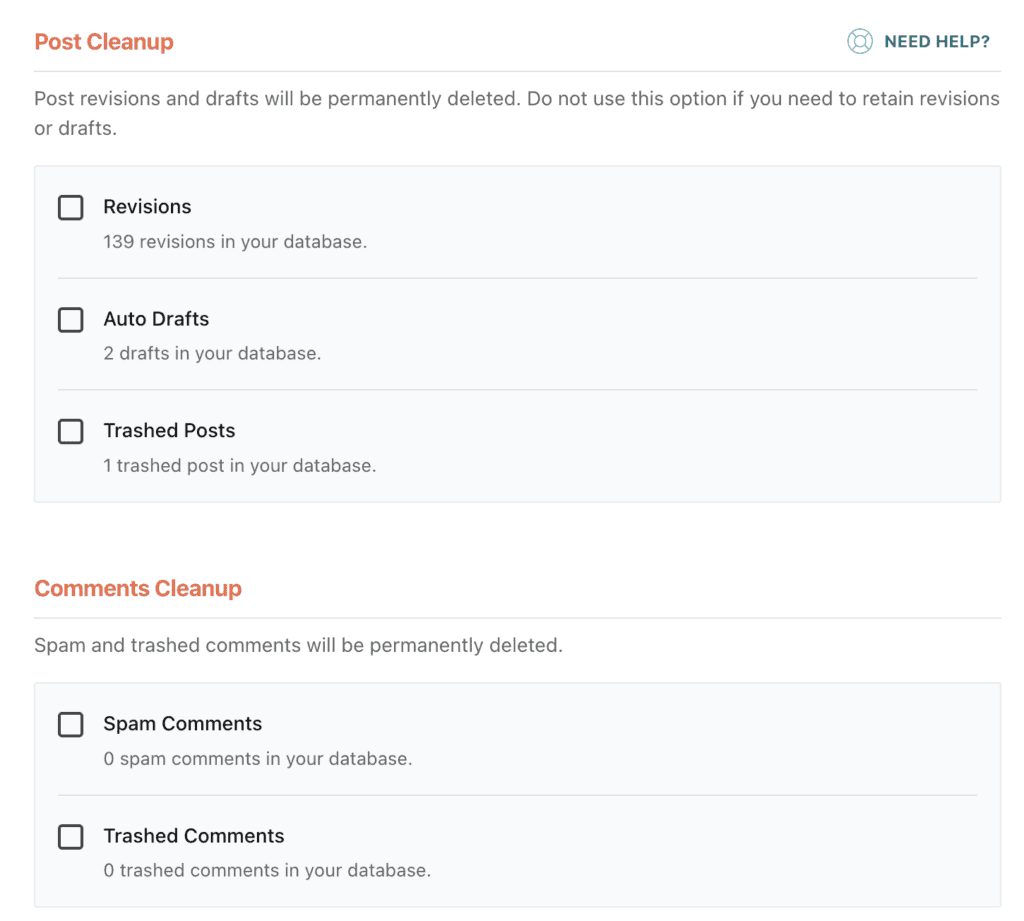
Comments and transient cleanups handle other transient or unwanted data: you can permanently delete spam and trashed comments, and clear all transients (temporary cached data created by plugins/themes) which will be safely regenerated as needed. The Database cleanup option “Optimize Tables” restructures and compacts table storage to reclaim space and improve efficiency — a standard maintenance step for MySQL databases.
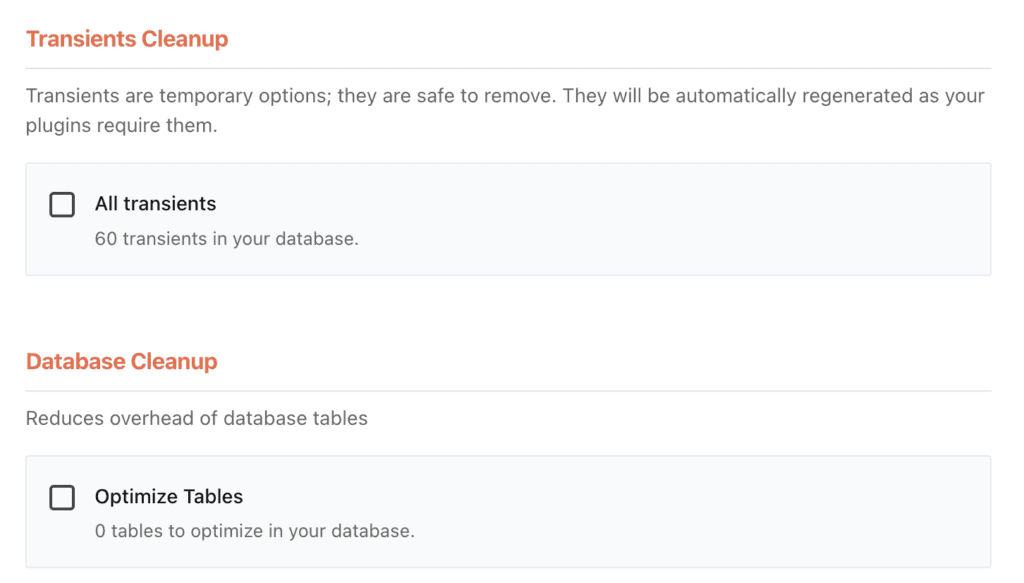
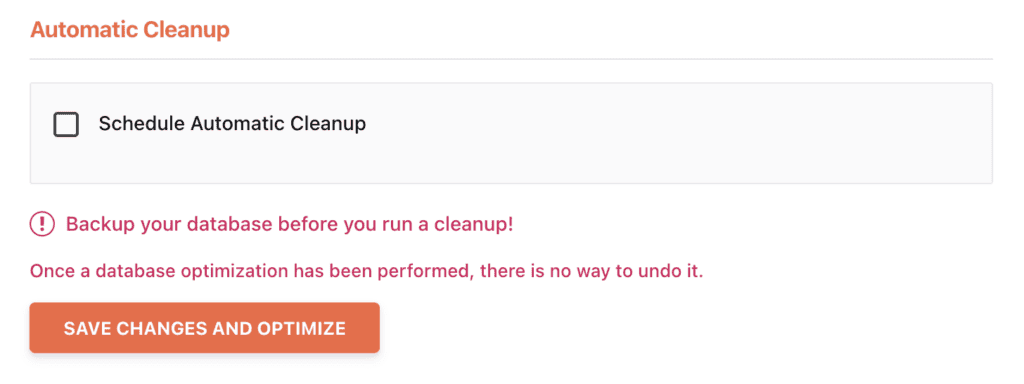
There’s a Schedule Automatic Cleanup checkbox if you want these tasks to run regularly (daily, weekly, monthly), but it’s off by default.
Pricing
WP Rocket’s pricing is in three tiers. The only difference between the tiers is the number of websites the license can be used on, and all tiers provide access to the full set of features, updates, and support.

Here is a breakdown of the current annual pricing tiers:
Single plan
- Price: $59 per year.
- Website usage: 1 website.
- Best for: Beginners, bloggers, and small businesses who only need to optimize a single website.
Plus plan
- Price: $119 per year.
- Website usage: Up to 3 websites.
- Best for: Professional bloggers and small businesses or developers who manage a few sites.
Infinite plan
- Price: $299 per year.
- Website usage: Unlimited websites.
- Best for: Web development agencies or freelancers who work on numerous client websites.
Other features for website performance
Beyond caching, file and image tweaks, WP Rocket includes integrations and lightweight system optimizations that remove common WordPress bloat and make it easier to tie performance into your broader stack.
- CDN integration: When you choose a webhost, CDNs can be an important factor to consider. But, if your webhost doesn’t offer one, connect WP Rocket to any CDN (or use RocketCDN). This is so static assets are delivered from servers closer to visitors, reducing latency and improving global load times.
- Cloudflare add‑on: If you use Cloudflare for CDN/DNS, the WP Rocket add‑on lets you purge Cloudflare’s cache from the WP admin and apply recommended settings automatically, simplifying cache management.
- Control Heartbeat API: Throttle or disable the WordPress Heartbeat API in specific areas (dashboard, frontend, post editor) to cut frequent AJAX calls that can spike CPU usage on busy sites.
- Disable emojis and embeds: Simple toggles remove the extra CSS/JS loaded for WordPress emojis and oEmbed features, eliminating small but unnecessary requests and trimming page weight.
These features are low‑risk, easy wins that complement WP Rocket’s core optimizations and help integrate performance improvements with other services and server settings.
Better Alternative: Airlift
We found Airlift to be a stronger, smarter performance plugin for our site because it treats performance holistically instead of applying one-size-fits-all fixes.

Rather than only caching rendered pages, Airlift analyzes how each page actually loads in a browser and builds a custom optimization strategy that tackles root causes — bloated images, messy code, and database clutter — not just symptoms.
What Airlift handles automatically:
- Advanced caching: sophisticated page and browser caching that adapts to real-world traffic patterns rather than a single static approach.
- Complete image optimization: automatic compression, WebP conversion, responsive resizing for every screen size, and lazy loading out of the box.
- Intelligent asset optimization: minifies CSS/JS, removes unused code, and reorders delivery to eliminate render‑blocking and speed up interactivity.
- Automated database optimization: scheduled cleanups that keep revisions, transients, and table bloat under control without manual intervention.
- Continuous optimization: daily analysis and automatic adjustments so your site stays fast over time without you having to tweak settings.
In short, Airlift felt like an automated performance engineer for the whole site — proactive, page‑aware, and low‑maintenance. As always, test any plugin on staging and compare results to your baseline, but for our needs Airlift proved the better alternative.
Final thoughts
Our experience with WP Rocket was positive. The initial installation showed a noticeable and immediate speed boost with no setup. However, to squeeze out top-tier performance you need technical knowledge to fine-tune minification, combine/defer rules, and exclusions, etc. Combine that with the fact that WP Rocket doesn’t have a free version and we think this plugin is better suited for experts. If you’re somebody that knows what makes a website fast, this is for you. Beginners may need an alternative.
By contrast, Airlift by BlogVault felt like a smarter, more automatic alternative for our needs: it handles deep optimizations across caching, images, assets and the database, and it’s free. If you want low-friction, continuous improvement without hiring a performance expert, Airlift is the option we’d choose.
FAQs
What is the WP Rocket plugin used for?
WP Rocket is used to make WordPress websites load faster. It’s an all-in-one performance plugin that handles caching (creating fast-loading copies of your pages), file optimization (making CSS and JavaScript smaller), image lazy loading, database cleanup, and various other speed optimizations. The plugin is designed to improve both user experience and search engine rankings by reducing page load times.
Is the WP Rocket plugin free?
No, WP Rocket is a premium-only plugin with no free version or trial period. Plans start at $59 per year for a single website, with higher-tier plans available for multiple sites. The company offers a 30-day money-back guarantee, which provides some protection if the plugin doesn’t work well for your specific site setup.
How do I add WP Rocket to WordPress?
Since WP Rocket isn’t available in the WordPress plugin directory, you need to install it manually. First, purchase a plan from the official WP Rocket website and download the .zip file. Then, in your WordPress dashboard, go to Plugins > Add New, click “Upload Plugin,” select the downloaded file, and activate. The plugin automatically applies optimized settings upon activation.
Which is better, WP Rocket or LiteSpeed Cache?
The answer depends on your hosting setup. LiteSpeed Cache is incredibly powerful and free, but it requires a LiteSpeed web server to access its best features. Many shared hosting providers don’t use LiteSpeed servers. WP Rocket works on any server type (Apache, NGINX, etc.) and is much easier to configure, making it the more universal solution. If your host uses LiteSpeed, try LiteSpeed Cache first. For everyone else, WP Rocket is typically the better choice among these two options.
August 20, 2025 10:02 PM

Shreya has been a writer for as long as she can remember. Now, she writes articles that help WordPress users manage the sites that they're proud of, with little to no coding