
Most WordPress table plugins promise the world but deliver a headache. You’re tired of tools that are hard to learn, features that don’t work right, or cause plugin conflicts.
You just want your data to be interactive. You want visitors to use it, not scroll past a wall of text.
We get it. It’s frustrating. This wpDataTables review aims to give you clear answers. We’ll find out together if this tool deserves a spot on your site.
wpDataTables is powerful for interactive tables from live data, making its PRO version essential for complex needs. The free version is great for simple tables, but always use a backup plugin to avoid potential conflicts before installing.
wpDataTables review at a glance
Here is a quick summary of our complete wpDataTables review.
| Feature | Details |
| Core Features | Free: Basic tables. PRO: Advanced, automated features. |
| User Experience | Setup assistance; limited tutorials for free users. |
| Design Flexibility | Free: Basic styling. PRO: Complete control with CSS/JS. |
| Speed and Performance | Optimized with AJAX; caching suggested for best results. |
| Integration Options | Works with major builders; more options in PRO. |
| Customer Support | Ticket system; regular updates and documentation. |
| Value | Free: Basic use. PRO: Essential for complex data tasks. |
| Competitors | Look into Ninja Tables, TablePress, and Tableberg. |
Key capabilities and core tools
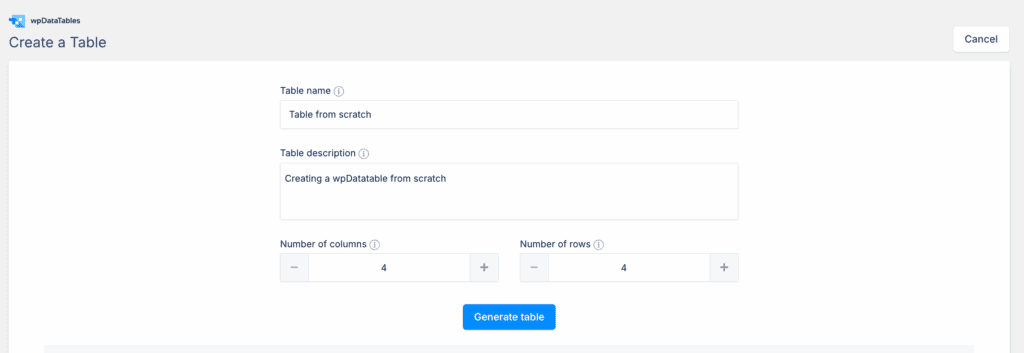
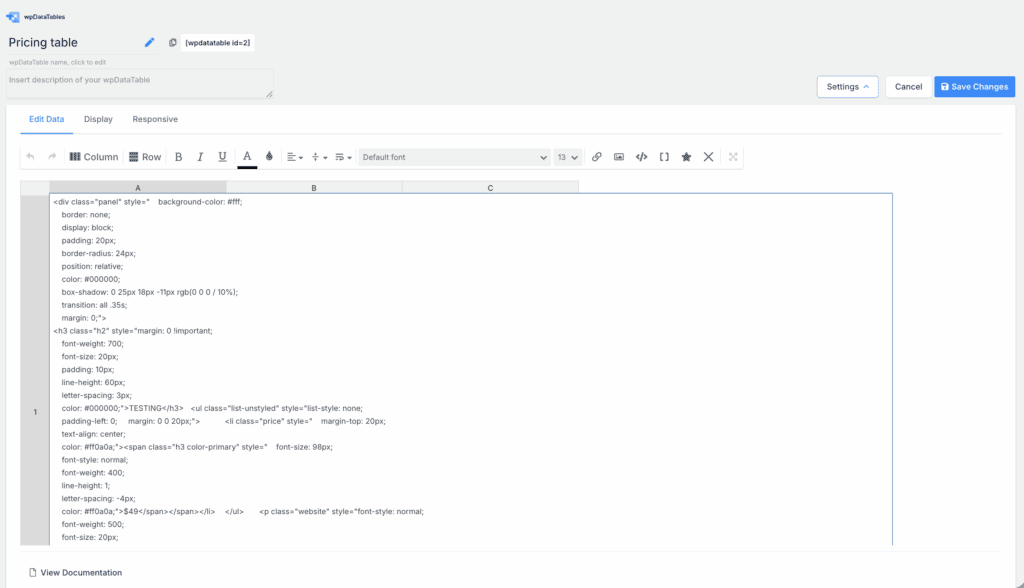
wpDataTable’s free version is designed for creating tables from scratch. It provides an excellent Excel-like editor that allows you to merge cells, add star ratings, insert media, and even place custom HTML directly into cells. However, it’s essential to recognize the limitations of this method of creating tables.
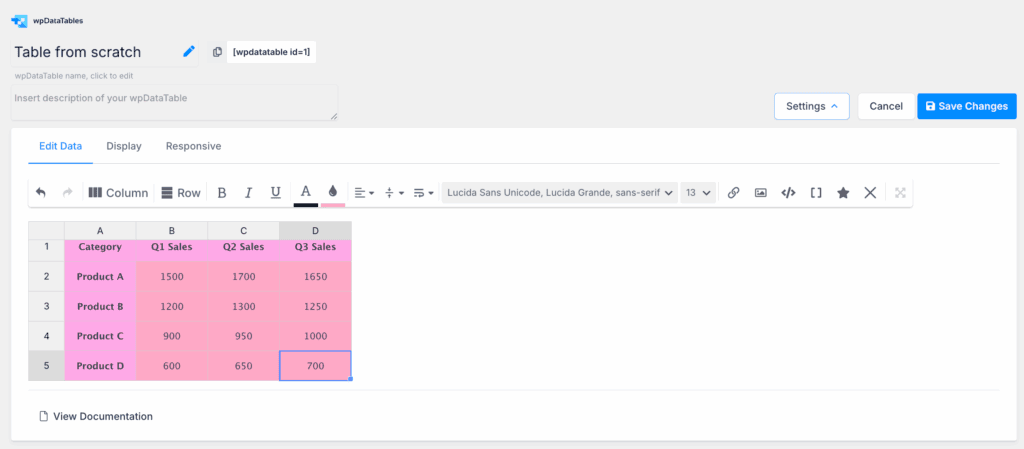
They lack interactive features like:
- Sorting
- Searching
- Pagination,
You also cannot create charts from them. To get these features, the premium version connects to data sources like Excel, CSV, JSON, or a live Google Sheet that updates automatically. Additionally, creating tables from your WooCommerce products is also a premium feature.
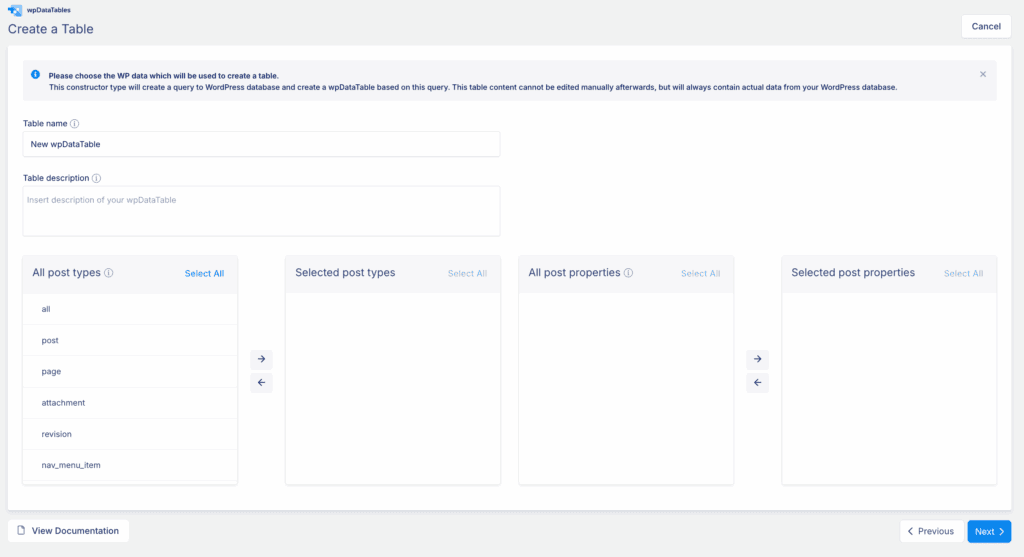
For advanced needs, you can connect directly to your WordPress database using a helpful graphical tool to build SQL queries. Because it uses server-side processing, the plugin handles millions of rows of data without crashing a visitor’s browser.
The PRO version also adds powerful tools for your visitors, including advanced filtering and a global search function. You can even allow users to edit data from the front-end, which is a huge benefit for membership or directory websites.
Is the interface intuitive or intimidating?
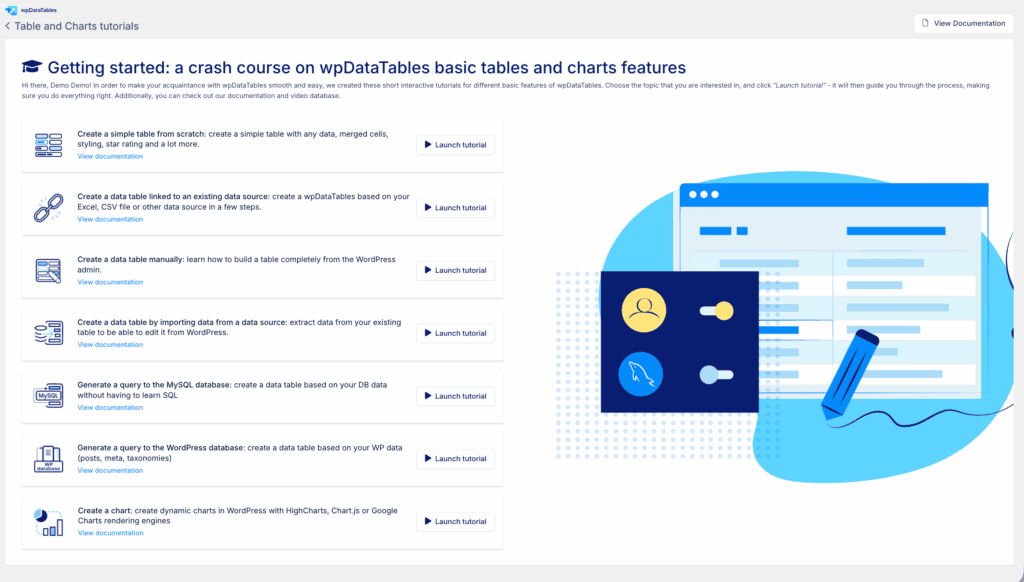
A setup wizard helps you create your first table, but we always recommend doing so in a safe staging environment. The team also provides many video tutorials. However, be aware that tutorials for premium features are locked for free users.
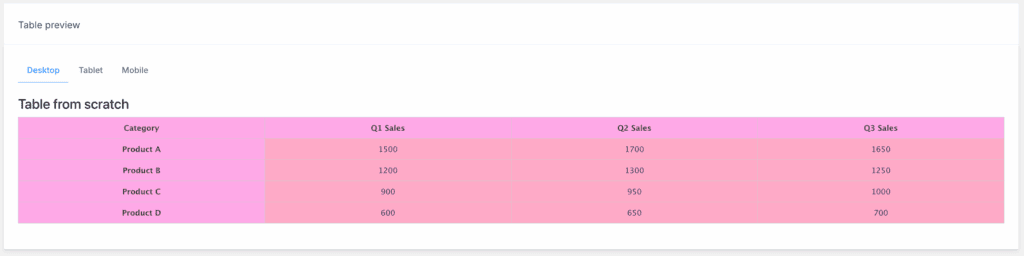
The plugin has a built-in preview for desktop, tablet, and mobile. What’s really convenient is that you don’t have to click any buttons or open a new tab; you just scroll down to see it.
Now, for the workflow. Tables are added to pages using a shortcode. This means you will not see a live preview of the table in your editor. You only see the shortcode text.
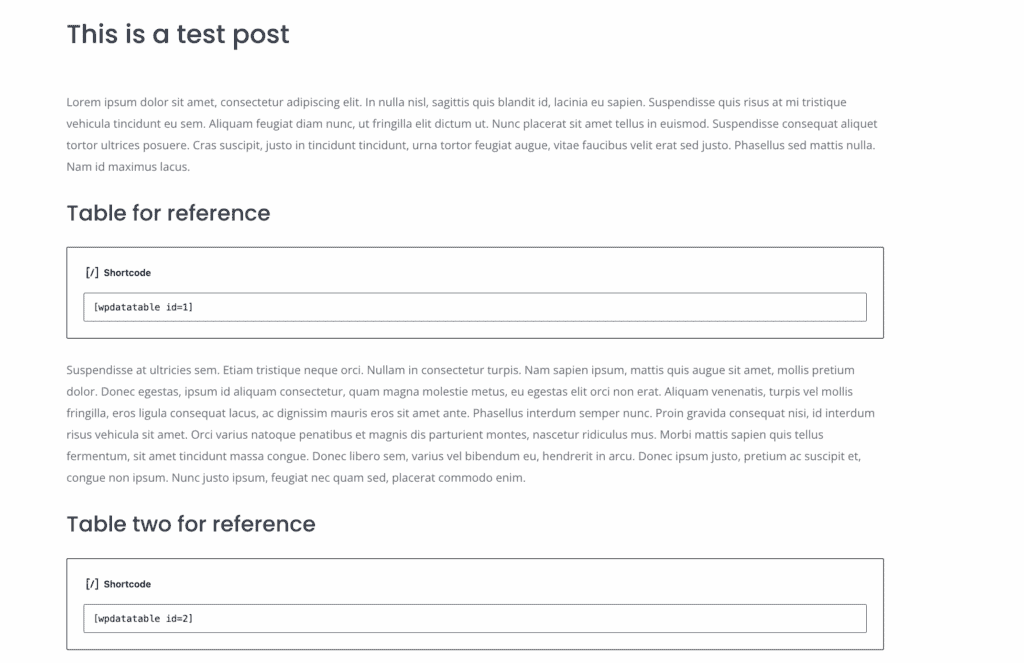
To see your changes, you must save and view the page. If you need a live-in-editor experience, you should look at a table plugin like Tableberg instead.
While the documentation is very helpful, you will need technical knowledge to write SQL database queries. We also found that the settings feel a bit fragmented across multiple tabs, which can take a moment to get used to.
How customizable are the tables?
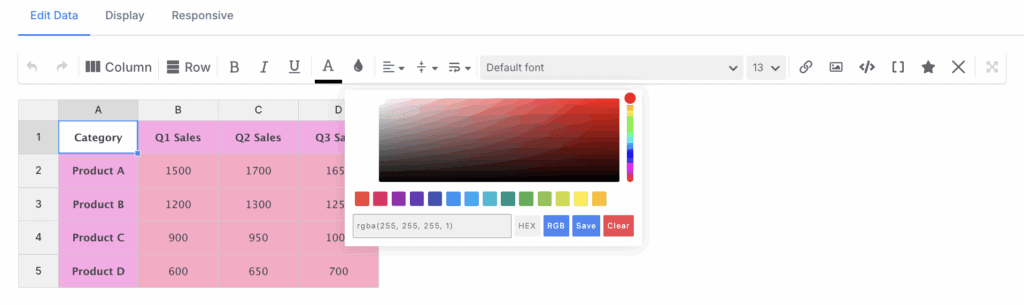
Even the free version offers strong customization. You can change colors and fonts to match your theme, a feature many competitors charge for. There are also several free pre-built templates available.
From there, you can manage how your data is displayed using conditional formatting, which automatically highlights cells based on rules you set—perfect for calling attention to important data.
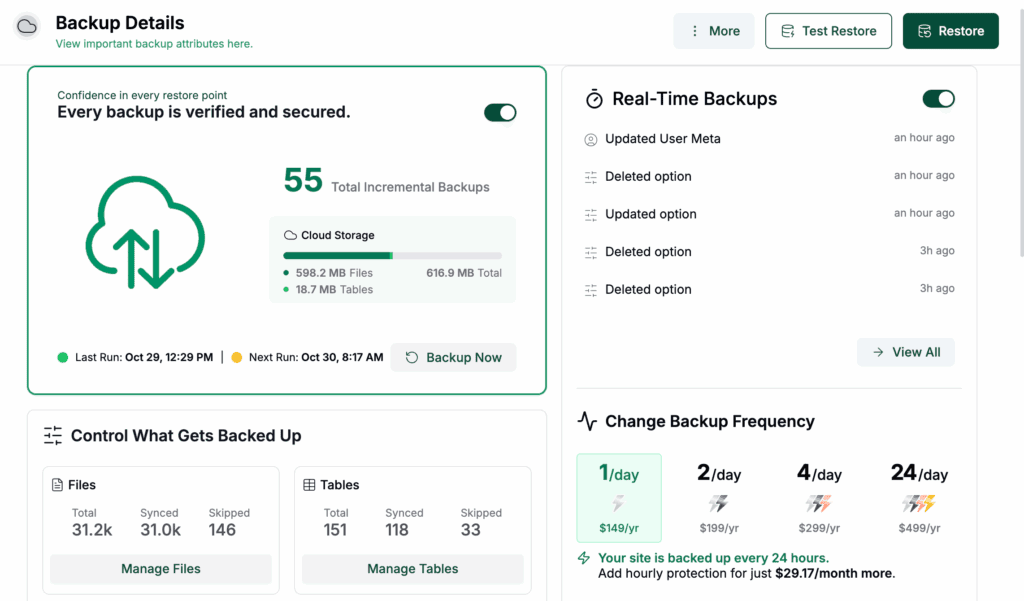
This is why a complete WordPress backup is your most important tool: it’s your safety net if any customization or new setting breaks something.
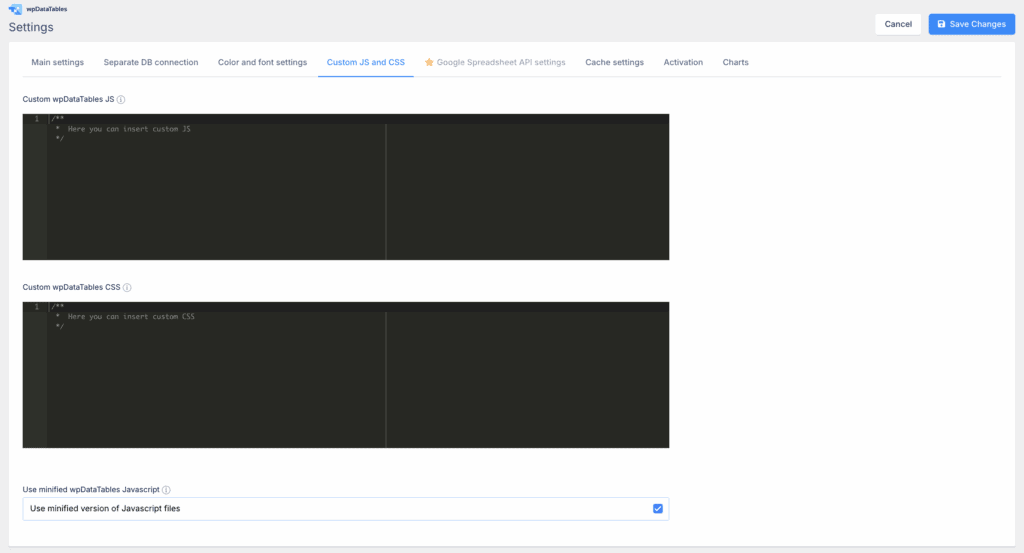
You also get full design control over the table’s appearance, including specific colors, fonts, and borders, plus responsive modes to ensure everything looks great on phones. For those who need complete control, you can add your own custom CSS and JS for unique styling.
Technical performance and impact
This plugin is built with speed in mind, using two key technologies. First, it uses AJAX to load table data, which keeps your initial page load times fast.
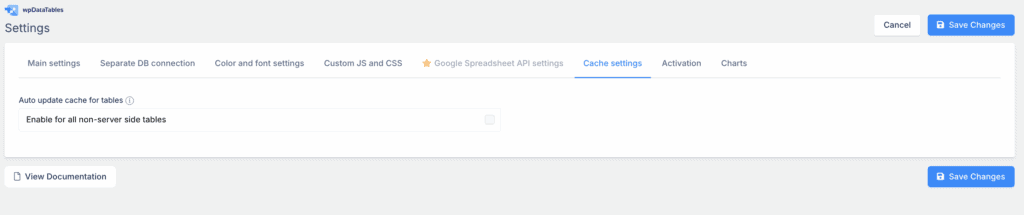
Now, it’s true that the plugin’s scripts can add a little weight to your page. To keep things fast, we recommend using its built-in caching features, which are available for free. For the best results, you should also use a dedicated caching plugin.
A final, huge benefit is accessibility. The plugin has full WCAG compatibility, which helps ensure your tables meet important standards and are usable by everyone.
Connectivity and ecosystem fit

wpDataTables works well with other tools. It includes native widgets for Elementor and WPBakery and has a standard Gutenberg block. The free version integrates with Forminator and IvyForms.


The PRO version adds integrations for Gravity Forms, Formidable Forms, and WooCommerce. These are essential if you need to build tables from form entries or product data.
The quality of support and development pace
Help is available through a ticketing system. The plugin receives regular updates, showing that the developers are actively maintaining it and keeping it secure. The public documentation and video tutorials are very thorough for most basic needs.
Realistically, support response times can sometimes be slow during busy periods. And as noted, tutorials for the most powerful PRO features are locked for free users. However, the existing documentation can solve most common problems.
Is the investment worth it?
The free version is excellent for basic, manual tables. But its simple tables lack sorting and search. You also cannot build charts from them.
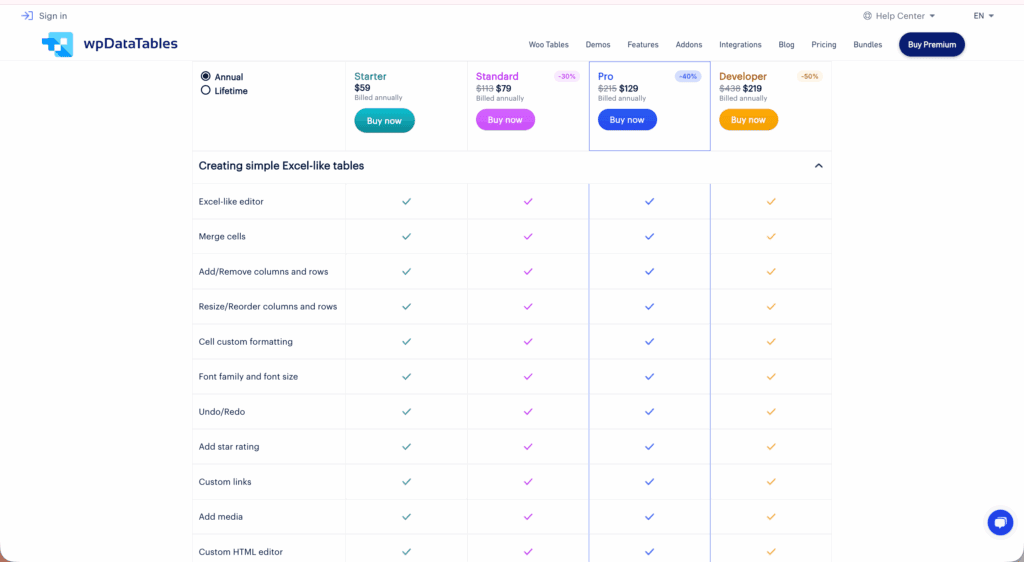
The PRO features are necessary for anyone who needs to work with dynamic data. If you need to pull information from a database, Excel file, or Google Sheet, you need to upgrade.
Other notable plugins to compare
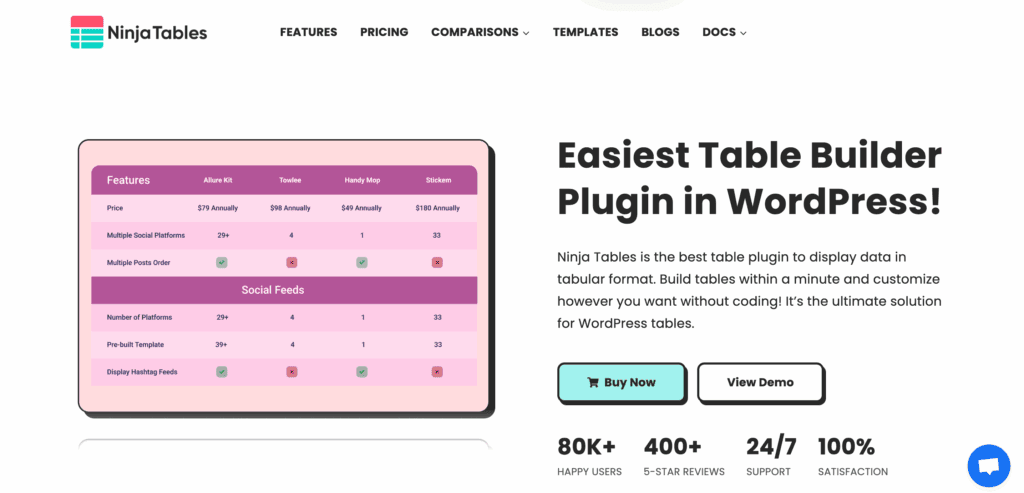
Ninja Tables: A strong competitor that bundles form features in its premium plugin, which may save you money.
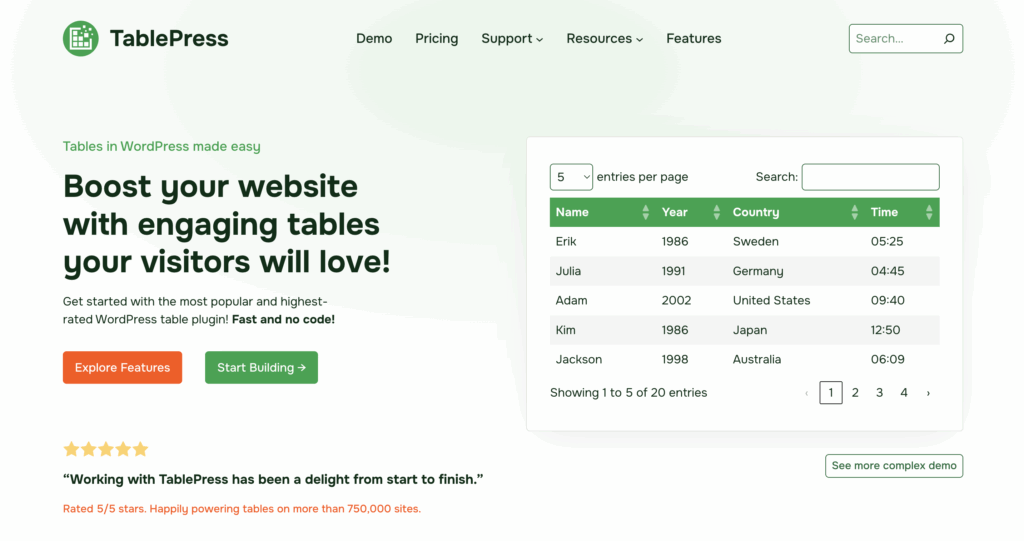
TablePress: Offers a live preview directly inside the WordPress editor, which some users find more straightforward.
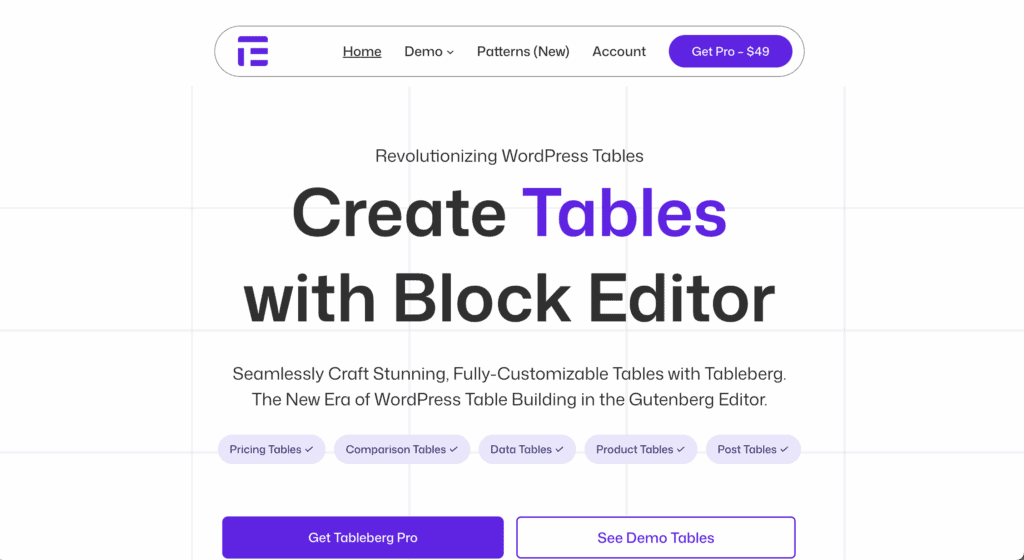
Tableberg: This plugin is the best choice if your main priority is building tables visually within the block editor.
Parting thoughts
The free version is surprisingly capable for manual work. However, the core value of this plugin is in its automation and live data connections.
Our advice is simple: start with the free version to understand its limits, but always backup WordPress before you install anything new.
FAQs
What is the best table plugin for WordPress?
TablePress is often considered the best for its powerful data handling, while Ninja Tables is a strong competitor for its features. The “best” plugin truly depends on your specific needs for either simple or complex data display.
Is wpDataTables free?
Yes, wpDataTables has a free version with excellent features for creating manual tables directly in WordPress. Advanced capabilities like connecting to external data sources or automated syncing require the premium version.
How to create a table in WordPress without plugins?
You can create a basic table without plugins by using the default “Table” block in the WordPress block editor. This method is suitable for simple data but lacks advanced features like sorting, filtering, or responsive design.
How do I insert an Excel table into WordPress?
The most reliable way to insert an Excel table is with a plugin like wpDataTables, which directly imports your file. You can also copy and paste the data into the WordPress Table block, but you may lose your original formatting.
How to create a custom table?
You can create a custom table by using a plugin’s settings to change colors, add conditional formatting, and control responsiveness. For complete manual control, you can write your own HTML and CSS, but this requires coding knowledge.

Shivani enjoys crafting guides that make every aspect of using WordPress simple and easy to follow. When she's not glued to her laptop, you can find her buried in a good book or occasionally, painting.