Worried your website might be excluding people with disabilities? A WordPress accessibility plugin is the fastest way to start making your site compliant and user-friendly for everyone. Getting this right isn’t just about avoiding legal trouble; it’s about ensuring all visitors can access your content. This guide breaks down the best plugins to help you choose the right one for your specific needs.
WordPress plugins add all kinds of features, but accessibility tools are uniquely important for your site’s legal and ethical standing. They go beyond simple functionality to ensure your website is fundamentally usable by people with visual, auditory, or motor impairments. We’ll review the top options so you can confidently improve your site’s inclusivity.
WP Accessibility helps by fixing your theme’s underlying code. It adds essential features like skip links and visible focus outlines, making your site vastly easier for screen readers and keyboard-only users to navigate successfully.
Before installing it on your live website, always test the plugin on a staging site. This safe environment lets you check for any potential conflicts with your theme or other plugins without risking your main site.
Your website needs to be usable by everyone, including people with disabilities. Making these changes manually can seem daunting, but a plugin can simplify the process immensely.
To help you find the perfect fit for your website, we’ve looked into the top options based on their features, ease of use, and primary purpose.
1. WP Accessibility
If you want to fix the root cause of accessibility issues without adding a flashy button to your site, WP Accessibility is your best bet. Developed by accessibility expert Joe Dolson, this free plugin works like a mechanic for your website, getting “under the hood” to repair common structural problems that themes often create. It is what’s known as an “enhancer” plugin, meaning it focuses entirely on improving your site’s code to make it naturally more compatible with assistive technologies.
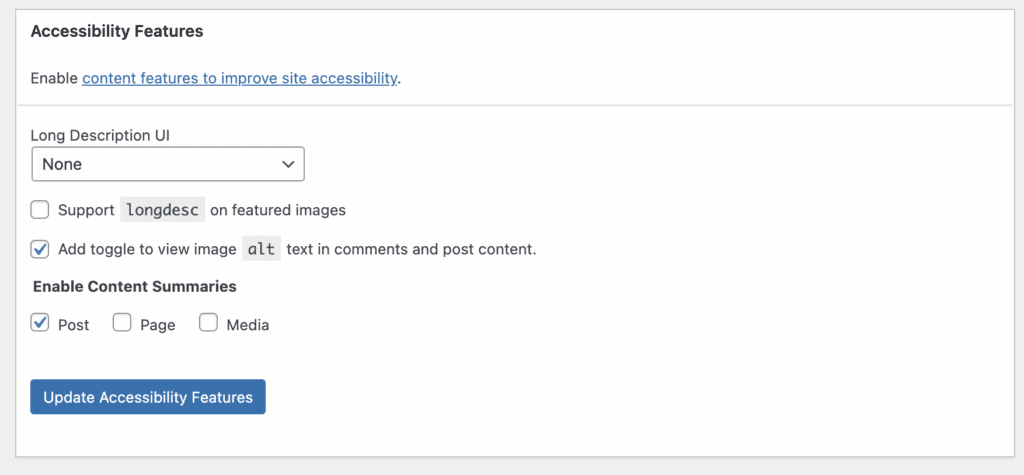
This behind-the-scenes approach is its greatest strength. Instead of offering a temporary visual overlay that users have to turn on, WP Accessibility makes permanent improvements to your site’s foundation. This ensures that screen readers and keyboard-only navigation work correctly from the moment the page loads. It’s a clean, lightweight solution for those who believe that true accessibility should be built directly into the website, not added on as an afterthought.
Key Features:
- Improves Keyboard Navigation: Adds “skip links” that let users bypass repetitive menus and jump straight to the main content. It also puts a clear, visible box around any link or button you select with the keyboard so you never lose your place.
- Helps Screen Readers Understand Your Site: Automatically adds language attributes to your site’s HTML, telling screen readers how to pronounce your content correctly. It also adds context to generic links, changing a vague “read more” link into “read more about [Post Title].”
- Strengthens Image Accessibility: Helps you find any images in your Media Library that are missing crucial alternative (alt) text.
- Fixes Basic WordPress Forms: Ensures that standard forms, like your search bar or comment section, have the proper labels for assistive technology.
- Includes Diagnostic Tools: Comes with a built-in tool to test for color contrast issues, helping you ensure your text is readable against its background.
Pricing:
- Completely free.
2. Accessibility by UserWay
UserWay is one of the most recognized accessibility widgets in the world, trusted by major corporations to provide a comprehensive, AI-powered solution. This plugin is all about leveraging advanced automation to achieve and maintain compliance on a large scale. It’s designed for businesses that need a robust, all-in-one system that can handle complex websites with minimal manual intervention, offering powerful features backed by artificial intelligence.
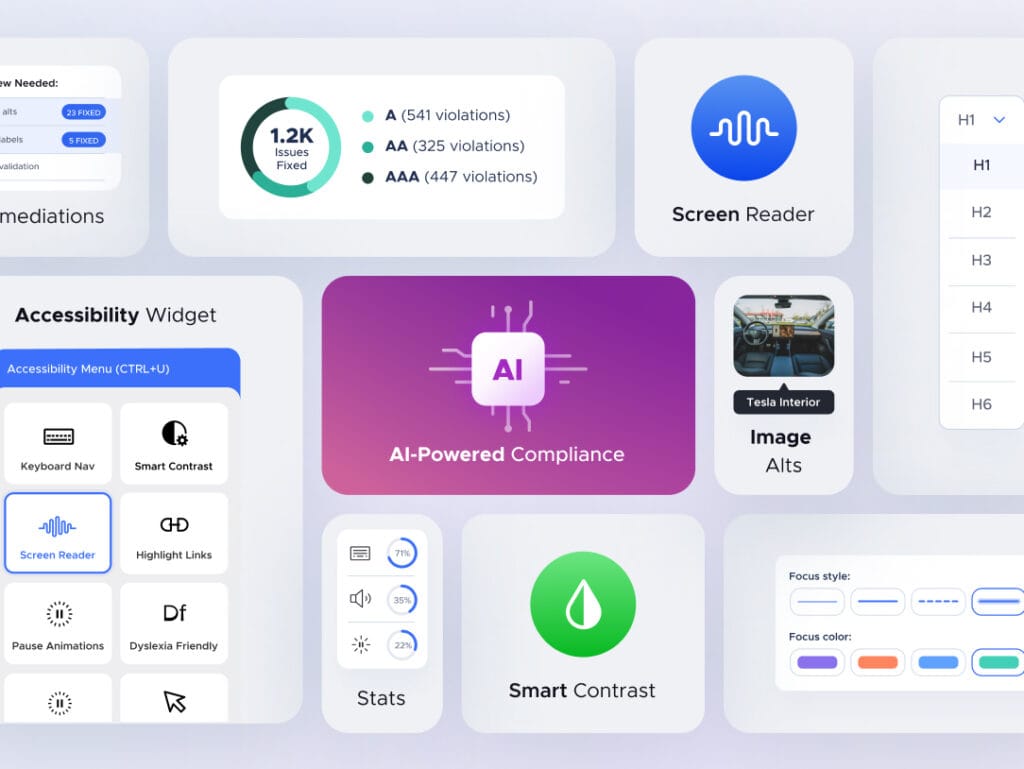
The plugin works in two ways. First, it adds a floating icon to your site that opens a control panel, allowing visitors to instantly customize the page to their specific needs, from changing contrast to enabling a built-in screen reader. Second, its AI engine works in the background to scan your site and automatically remediate non-compliant code elements on the fly. This dual approach provides immediate user-facing tools while actively working to fix underlying issues.
Key Features:
- AI-Powered User Widget: A highly visible interface that lets visitors adjust contrast, increase font size, change spacing, and even enable a built-in screen reader.
- Automated Fixes: The AI can automatically generate descriptive alt text for images that are missing it and remediate other code violations without you having to do anything manually.
- Advanced Navigation Tools: Includes options for larger cursors, a reading guide, and the ability to stop moving animations that can be distracting or cause seizures.
- Legal & Compliance Focus: Generates a professional accessibility statement for your site and offers a Litigation Support Program to help protect your business.
- Detailed Analytics: See how visitors are using the accessibility tools by integrating the widget with Google Analytics 4.
Pricing:
- A free version with limited features is available.
- Premium plans start at $49 per month.
3. WP Accessibility Helper (WAH)
WP Accessibility Helper (WAH) strikes a perfect balance for those who can’t decide between fixing things in the background or giving visitors control on the front end. Developed by Alex Volkov, it’s a versatile hybrid tool that does both. It recognizes that a complete accessibility strategy involves both empowering users with choices and empowering site owners with the tools they need to make permanent improvements.
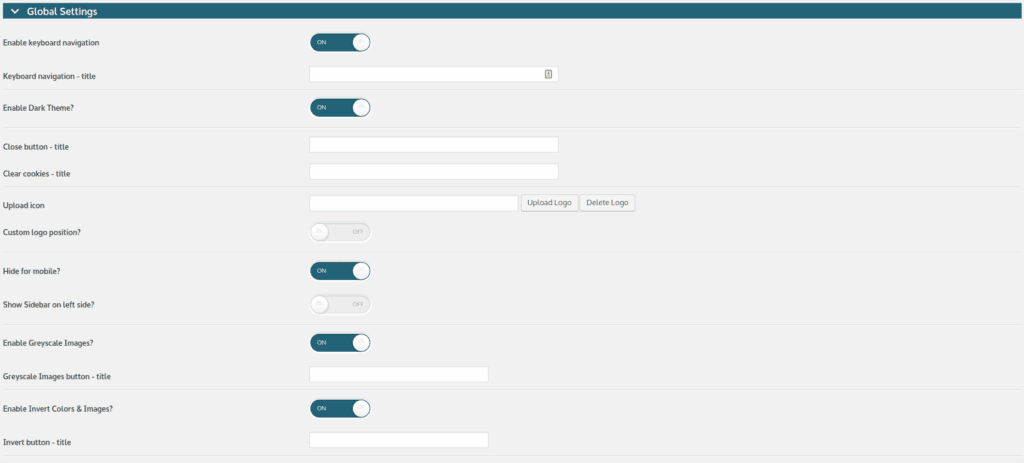
This dual-focus approach makes it incredibly practical. On one hand, it provides a clean, interactive sidebar where visitors can easily adjust visual settings like contrast and font size. On the other hand, it gives the site administrator a powerful “DOM Scanner” to audit the website’s code for errors directly from the WordPress dashboard. This combination ensures you’re providing immediate help to your users while also working to clean up your content over the long term.
Key Features:
- Customizable User Sidebar: Visitors can easily switch between high-contrast, grayscale, and black-and-yellow modes, as well as resize fonts to their liking.
- Site-Wide Error Scanner (DOM Scanner): Scans your posts and pages for accessibility violations and provides reports on what needs to be fixed.
- Centralized Image Management: Gives you a single dashboard where you can see all your media files and easily add or edit missing alt text.
- Control Over Animations: A simple one-click setting allows you to remove potentially distracting CSS animations and movements from your site.
- Specialized Visual Modes: Includes unique monochrome and sepia filters for users who have sensitivities to certain colors.
Pricing:
- A free version is available with core features.
- Pro plans start at $199 per year.
4. WP ADA Compliance Check
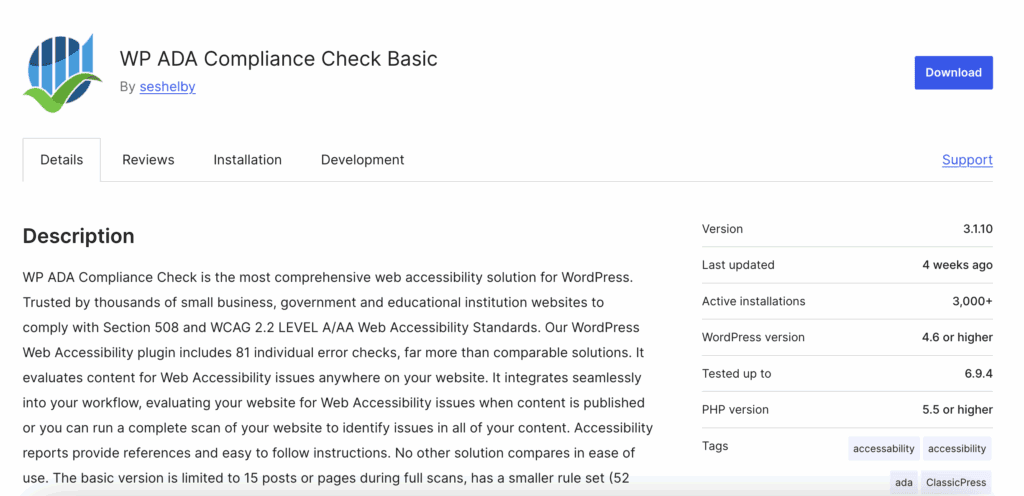
When you need an ironclad, legally-focused audit of your website, WP ADA Compliance Check is the tool for the job. This plugin is less of a user-facing widget and more of a high-rigor scanning engine built to find every potential compliance issue. It was designed specifically for organizations in the US and EU that operate under strict legal requirements and need detailed, actionable reports to guide their remediation efforts.
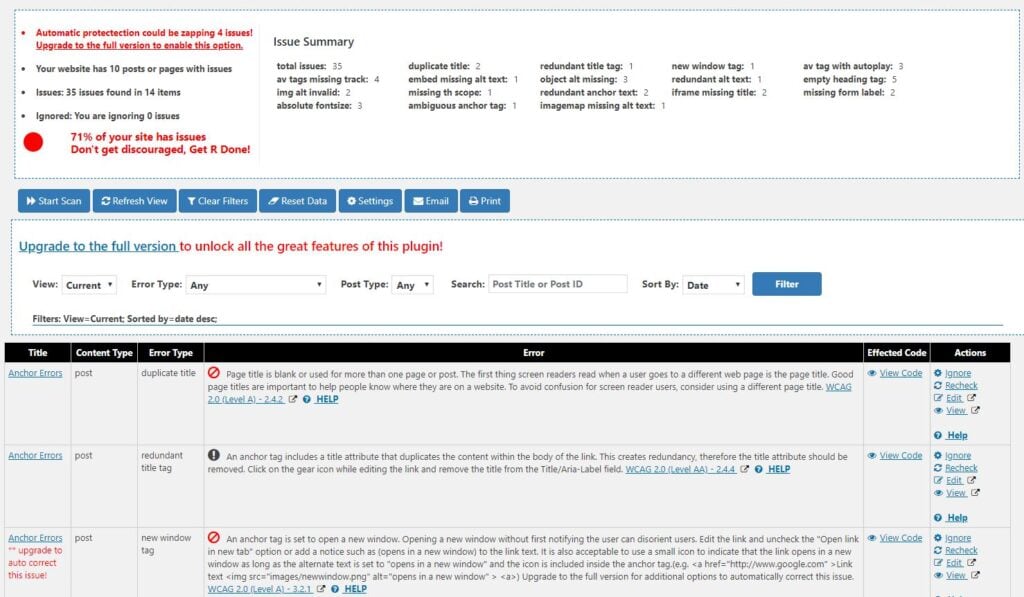
What sets this tool apart is the sheer depth of its analysis. It performs over 83 different error checks across your entire digital footprint—not just posts and pages, but also widgets, theme files, and even linked PDF documents that are often overlooked. The goal of this plugin isn’t just to add a helpful feature; it’s to function as a professional auditing tool that gives you 100% certainty in your site-wide compliance status and provides the documentation to prove it.
Key Features:
- Deep Site-Wide Scanning: It doesn’t just check posts and pages; it audits widgets, custom fields, and can even scan linked PDF files for accessibility problems.
- Powerful Reporting: Generates detailed reports that can be exported or printed, providing the documentation often needed for legal or institutional compliance.
- Automated Corrections: Can automatically fix 28 common types of accessibility errors it finds, saving you significant time.
- Continuous Monitoring: Integrates into your workflow by automatically scanning any post or page every time you save or publish it, catching errors before they become a problem.
- WAVE Tool Integration: Connects directly with the popular WAVE web accessibility evaluation tool, allowing you to run tests from your WordPress dashboard.
Pricing:
- Free version can scan up to 15 pages.
- The full Pro version starts at $179.99.
5. Equalize Digital Accessibility Checker
Equalize Digital Accessibility Checker takes a unique and proactive approach by empowering content creators to prevent accessibility errors from ever being published. Instead of acting as a bandage for an already-live site, this plugin is designed as a quality assurance tool that integrates directly into your content creation workflow. Its primary goal is to stop accessibility issues at the source, saving you time and effort on future audits.
This is achieved by adding an “Accessibility Audit” sidebar directly into the WordPress block editor. As you write a post or design a page, the plugin provides real-time feedback, flagging issues like low-contrast text, missing image descriptions, or confusing link text on the spot. By providing immediate, easy-to-understand guidance, it actively teaches you and your team how to create accessible content from the very beginning.
Key Features:
- Real-Time Editor Feedback: Scans your content as you create it within the WordPress editor, showing you errors and warnings with clear explanations.
- Centralized Issue Dashboard: Displays all accessibility issues found across your entire site in one place, allowing you to prioritize and manage fixes efficiently.
- Plain-English Explanations: Every error it finds comes with a simple explanation of what the problem is and why it matters, helping you learn as you go.
- Ignore with Justification: If the scanner flags a false positive, you can mark it as “ignored” and leave a note, creating a documented trail for compliance purposes.
- Accessibility Statement Generator: Includes a helpful tool to walk you through creating a legally valid accessibility statement for your website.
Pricing:
- The free version offers unlimited scans for posts and pages.
- Pro plans of EDAC with site-wide bulk scanning start at $144 per year.
Key Features to Look for in an Accessibility Plugin
When choosing an accessibility plugin, it can be overwhelming to compare all the different features. To find the right one for your site, focus on these key capabilities:
- Text Customization: Gives visitors options to increase font size, adjust spacing between lines, and switch to dyslexia-friendly fonts.
- Visual Adjustments: Provides tools like high-contrast or grayscale modes to make content easier to read for people with visual impairments.
- Navigation Enhancements: Improves the experience for keyboard-only users with features like visible outlines on selected links (“focus indicators”) and “skip to content” links.
- Screen Reader Support: Helps assistive technologies understand your content by adding proper labels and generating missing alt text for images.
- Automated Scanning: Audits your site for errors, with some plugins flagging issues in real-time as you write content in the WordPress editor.
- Compliance Reporting: Offers a dashboard with detailed reports to track your site’s accessibility score and meet legal standards like ADA or WCAG.
- Assistive Toolbars: Adds a floating widget or button to your site, allowing visitors to instantly turn on various accessibility features for their session.
- Content Simplification: Includes tools to stop distracting animations, highlight all links on a page, or provide a reading mask to help users focus.
- Performance and Branding: Ensures the plugin is lightweight and won’t slow down your site, while also letting you customize its appearance to match your brand.
- Legal Protection: Provides essential tools like an accessibility statement generator and, in some premium cases, offers litigation support programs.
Expert Advice: Irrespective of which plugin you choose, set up a backup plugin first. Take a full backup before you start. You can easily restore your site quickly, if you regret any choice you’ve made.
Best Practices for Maintaining a Healthy WordPress Site
An accessibility plugin is a crucial part of a well-maintained website, but it’s only one piece of the puzzle. To ensure your site is secure, fast, and reliable, follow these essential best practices.
- Implement a Layered Security Strategy: Don’t rely on just one security measure. Use a comprehensive security plugin that offers a Web Application Firewall (WAF), malware scanning, and brute-force attack protection. Most importantly, enable Two-Factor Authentication (2FA) for all administrator accounts to prevent unauthorized logins.
- Automate Off-Site Backups: Things can go wrong, and a recent backup is your best safety net. Install a backup plugin that automatically saves a copy of your site daily or weekly. Crucially, make sure these backups are stored in a separate cloud location (like Google Drive or Amazon S3), not just on your hosting server.
- Keep All Software Updated: This is the single most important security practice. Regularly update the WordPress core, all of your plugins, and your theme. Outdated software is the most common vulnerability hackers exploit to gain access to a site.
- Optimize Images for Speed: Large image files are the primary cause of slow-loading websites. Use a speed plugin to automatically compress images without losing quality and serve them in modern, fast formats like WebP.
- Enable Page Caching: A caching plugin dramatically speeds up your site by storing static copies of your pages. When a visitor returns, their browser can load the saved version instantly instead of asking your server to rebuild the page from scratch.
- Enforce Strong Password Policies: Weak passwords are an open invitation for trouble. Use a password management tool yourself and require all other users on your site (like editors or authors) to use unique and complex passwords.
- Audit Accessibility Regularly: While a plugin is a great start, it can’t catch everything. Periodically review your site manually. Check for high color contrast, ensure your headings follow a logical order (H1, then H2, then H3), and confirm every image has descriptive alt text.
- Limit Plugin Usage: It’s tempting to add a plugin for every new feature, but each one adds code that can slow your site down and create potential security risks. Before installing a new plugin, ask yourself if it’s absolutely essential.
- Use a Content Delivery Network (CDN): A CDN stores copies of your site’s assets (like images) on servers across the globe. When someone visits your site, the content is delivered from the server closest to them, resulting in much faster loading times for a global audience.
Final Thoughts
Ultimately, installing a WordPress accessibility plugin is one of the most impactful steps you can take to create a more inclusive and legally compliant website. It transforms the complex task of accessibility from a daunting technical challenge into a manageable process. For a powerful, no-cost starting point, a tool like WP Accessibility is invaluable. It works behind the scenes to fix the foundational code issues that many themes have, immediately improving navigation for users with disabilities.
Before you start exploring these plugins, remember this golden rule: always test on a staging site first. A staging site is a private clone of your live website where you can safely install, activate, and configure plugins without any risk to your public-facing site. This allows you to check for any conflicts or issues before making changes that your visitors will see.
FAQs
Does WordPress have accessibility features?
Yes, the core WordPress software is designed to be accessible and follows coding standards to support assistive technologies. However, a site’s final accessibility depends heavily on the theme and plugins you choose to install. A poorly coded theme can easily make a site inaccessible, which is why accessibility plugins are so important.
How to use WP Accessibility?
Using WP Accessibility is straightforward. After installing and activating it from the WordPress plugin directory, it immediately starts working to fix common issues in the background. You can navigate to Settings > WP Accessibility in your dashboard to customize features, such as the appearance of “skip links” or the behavior of focus outlines.
Is Elementor ADA compliant?
Elementor itself is a tool, and like any tool, it is only as compliant as the person using it. While Elementor provides the features needed to build an ADA-compliant website (such as proper heading structures and alt text fields), it does not automatically make your site compliant. You must use its features with accessibility best practices in mind. To help with this, Elementor offers its own accessibility plugin, Ally by Elementor, to scan and improve sites built with their page builder.

Shreya has been a writer for as long as she can remember. Now, she writes articles that help WordPress users manage the sites that they're proud of, with little to no coding