WordPress Multisite Domain mapping often begins with one reasonable request: a subsite already exists, but the domain looks wrong.
Maybe the site lives at example.com/client-a or client-a.example.com. The client, region, campaign, or department wants visitors to see client-a.com instead. That is possible, and on modern WordPress Multisite you usually do not need a domain mapping plugin for normal one-domain-to-one-subsite mapping.
WordPress handles the subsite URL change in Network Admin, but DNS and hosting must first send the custom domain to the same multisite install. Backup the network, add SSL for every mapped domain, and test login after mapping because HTTPS and cookie issues are the common failure points.
The safe order is simple: back up the network, point DNS, route the domain in hosting, update the subsite URL in WordPress, add SSL, then test as both a visitor and an admin.
Do not start by changing the WordPress URL and hoping the other layers catch up. That is how a small domain task turns into broken redirects, browser warnings, and an admin login that suddenly refuses to behave.
What domain mapping actually changes
Domain mapping lets one site inside a multisite network use its own custom domain. Before mapping, a subsite might load at example.com/client-a or client-a.example.com. After mapping, the same subsite can load at client-a.com.
Visitors see the custom domain. You still manage the site inside the same multisite for WordPress network. Themes, plugins, users, updates, and network settings still belong to the shared WordPress installation. That last part matters. Mapping a domain does not create a separate WordPress site. It changes which domain serves a specific subsite.
Use domain mapping when each custom domain belongs to its own subsite. If you want several domains to show the exact same site, you are probably looking for redirects, aliases, or a single-site domain tool instead.
The four layers you need to line up
Most domain mapping guides get confusing because they jump between DNS, hosting, WordPress, and SSL as if those are the same job. They are not.
Think of the setup as four doors the request has to pass through:
- DNS tells the domain which server to visit.
- Hosting or server routing tells that server which WordPress folder should answer.
- WordPress matches the domain to the right subsite.
- SSL lets the browser trust the domain over HTTPS.
If one layer is wrong, the symptom can look misleading. A host default page may mean DNS is correct but hosting is pointing to an empty folder. A cookie error may mean the mapped domain loads, but login cookies are scoped incorrectly. A browser warning may mean the mapping worked, but the certificate is missing. Server and WordPress log files can help narrow down which layer is failing.
The practical rule is this: WordPress can only map a domain after the request reaches the correct multisite install.
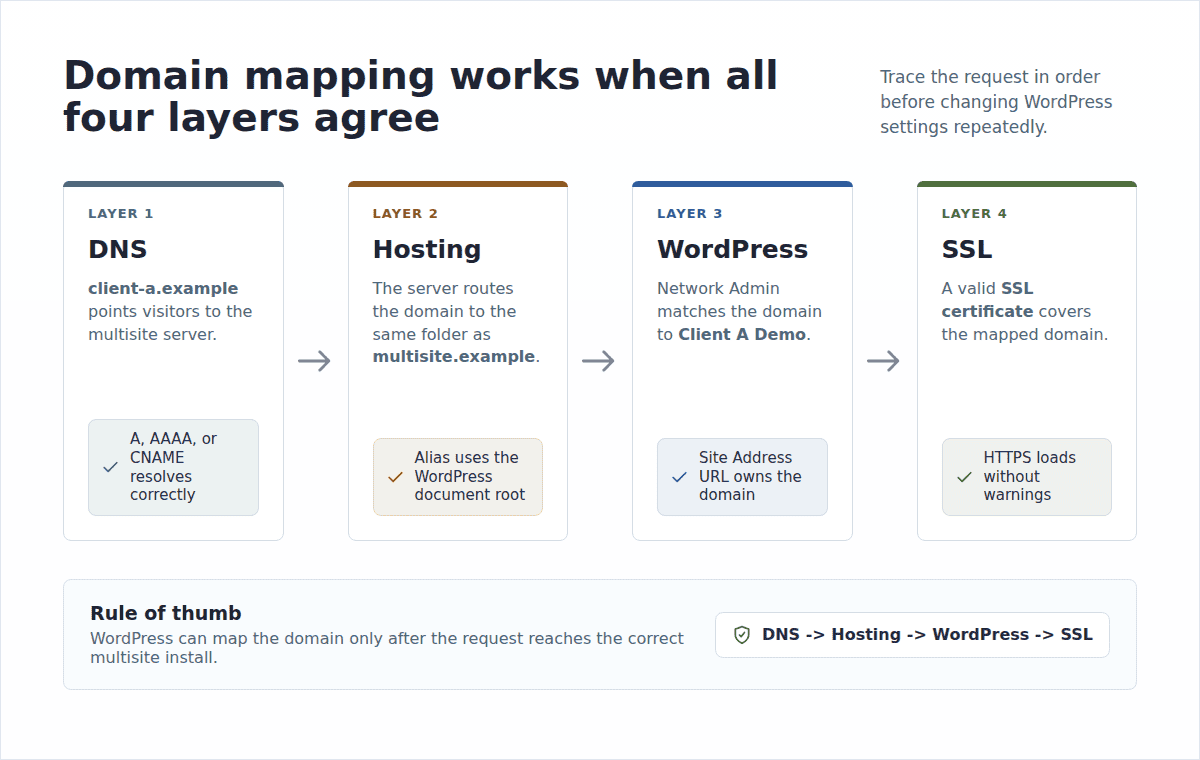
Here is the setup view without the jargon wall:
| Layer | What you configure | Where it happens | What goes wrong |
|---|---|---|---|
| DNS | Domain records | Registrar or DNS provider | Domain points nowhere or to the wrong server |
| Hosting/server | Domain routing to the WordPress folder | Hosting panel, Apache, or Nginx | Domain reaches the server but not the multisite |
| WordPress | Subsite Site Address URL | Network Admin > Sites | Wrong subsite, old URL, signup page, or login issue |
| SSL | Certificate for the mapped domain | Host, CDN, Certbot, or server | Browser warning, HTTPS loop, or failed admin login |
The table is only a map. The important part is the order: get the domain to the server, get the server to load the multisite, then tell WordPress which subsite owns the domain.
When domain mapping is the right choice
Multisite works best when the sites are related enough to share one WordPress installation. Good fits include:
- agency client microsites
- university department sites
- regional sites such as brand.ca and brand.co.uk
- product, campaign, or event sites
- location sites for one business
- related publication or brand sites under one team
Be careful if the sites are unrelated businesses, need separate security boundaries, use very different hosting setups, or may be sold later. A shared network also means shared operational risk, which is one of the practical pros and cons of WordPress Multisite to weigh before you map domains. A bad network setting, broken plugin update, or server rule can affect more than one site.
What to prepare before editing anything
The WordPress setting is small. The recovery plan is not. Before you touch DNS or Network Admin, confirm you have:
- Network Admin access
- the subsite you want to map
- access to the domain’s DNS records
- access to hosting domain settings or server config
- a way to issue SSL for the mapped domain
- a recent offsite backup of the full multisite network
- a WordPress staging environment for production or revenue-critical networks
This is where BlogVault fits the job. Use BlogVault to backup your WordPress multisite before changing domain routing, and use BlogVault staging when you need to test multisite changes in staging away from production.
Before mapping a domain, confirm you are working in a real multisite context and have a rollback path.
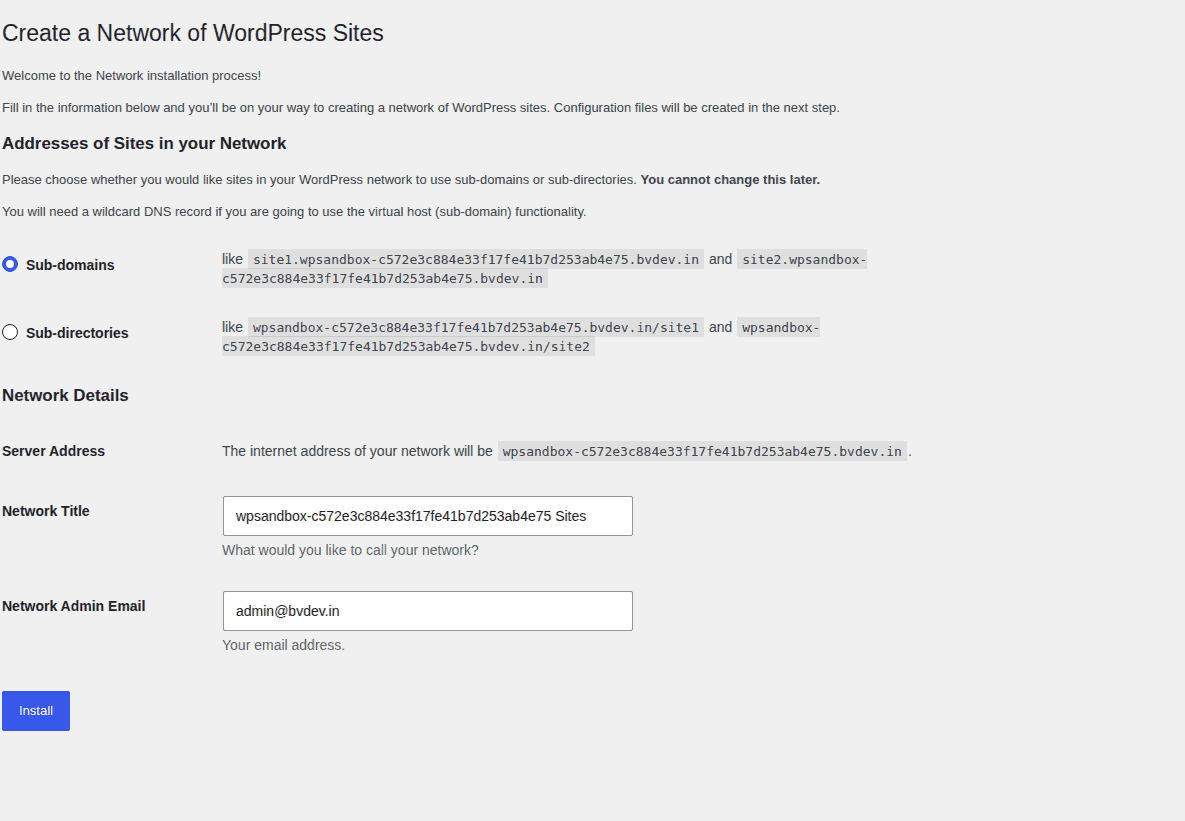
BlogVault does not perform DNS, hosting, or SSL setup for you. It gives you a safe way back if a configuration change breaks the live network. Do not skip the backup because the visible WordPress change is only one field.
Point the custom domain to the multisite server
Start with DNS because the domain has to reach the right server first.
For a root domain like client-a.com, you usually add an A record that points to the server’s IPv4 address. If your host uses IPv6, you may also add an AAAA record. For www.client-a.com, you may use a CNAME that points to client-a.com or to a host-provided target.
In plain English: the root domain usually points to an IP address, and the www version usually points to another hostname.
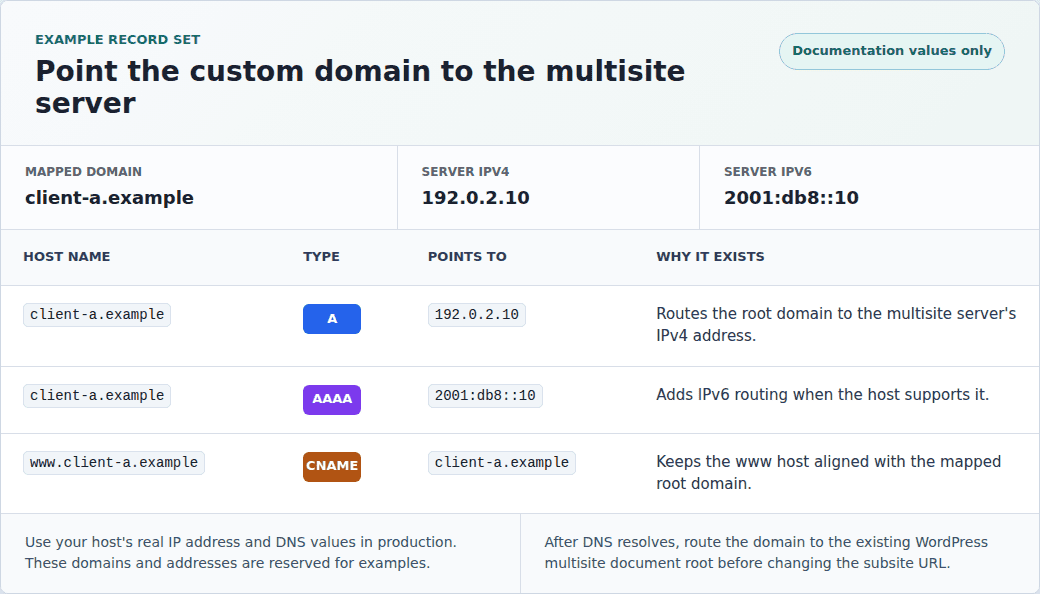
| Domain | Record type | Points to |
|---|---|---|
| client-a.com | A | Server IPv4 address |
| client-a.com | AAAA | Server IPv6 address, if used |
| www.client-a.com | CNAME | client-a.com or a host target |
Some hosts ask you to change nameservers instead. That is fine, but it means future DNS edits move to that host or DNS provider.
DNS may update quickly, or it may take up to 48 hours because of cache times, registrar behavior, and old records being remembered by resolvers. During that window, avoid repeated WordPress changes. First confirm the domain resolves to the expected server.
Route the domain to the existing WordPress install
DNS gets the domain to the server. Hosting decides which folder serves it.
The custom domain must point to the same document root as the multisite install. The document root is simply the server folder where WordPress files live, such as public_html, htdocs, or a path like /var/www/example.com.
Depending on your host, the setting may be called Alias, Parked Domain, Addon Domain, Additional Domain, Domain Management, or Site Domain. Do not get stuck on the label. The result matters: the mapped domain must serve the existing multisite install, not a new WordPress site built beside the old one.
Watch for automatic redirects too. Some hosting panels add a redirect from the new domain to the primary network domain. Disable that unless you truly want a redirect. Mapping keeps client-a.com visible. A redirect sends visitors somewhere else. On unmanaged servers, use an Apache virtual host or Nginx server block that points the custom domain to the multisite document root. Keep the WordPress rewrite rules available so pages and posts keep loading normally.
Confirm the subsite before mapping it
Map only a subsite that already works. If the subsite does not exist yet, create it using the network’s normal pattern. In a subdirectory network, that might be example.com/client-a. In a subdomain network, it might be client-a.example.com.
That temporary URL is useful. It proves the site works before you add domain mapping.
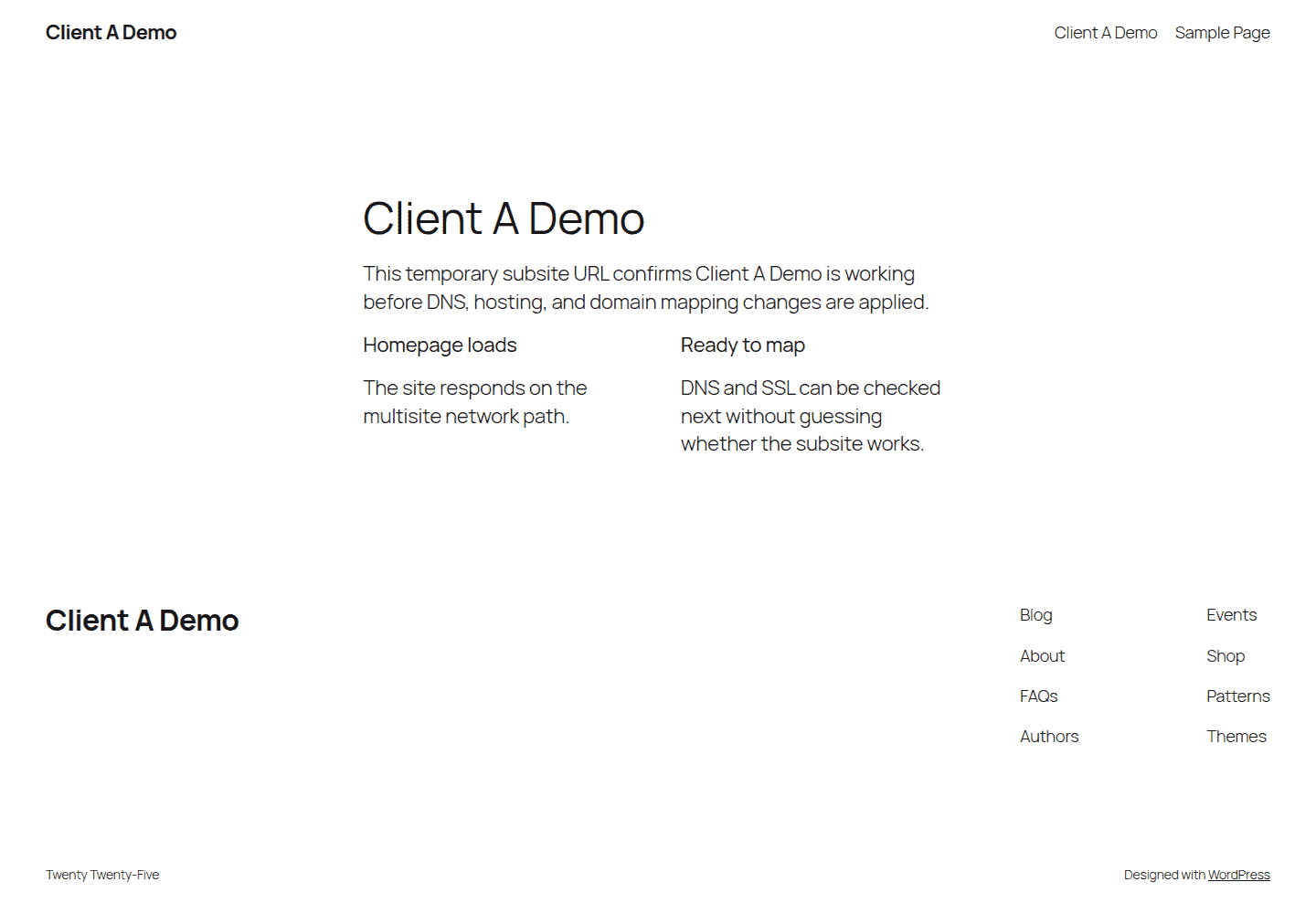
Before mapping, check:
- the homepage loads
- one internal page loads
- the subsite dashboard opens for the right WordPress multisite roles
- the content is the site you intend to map
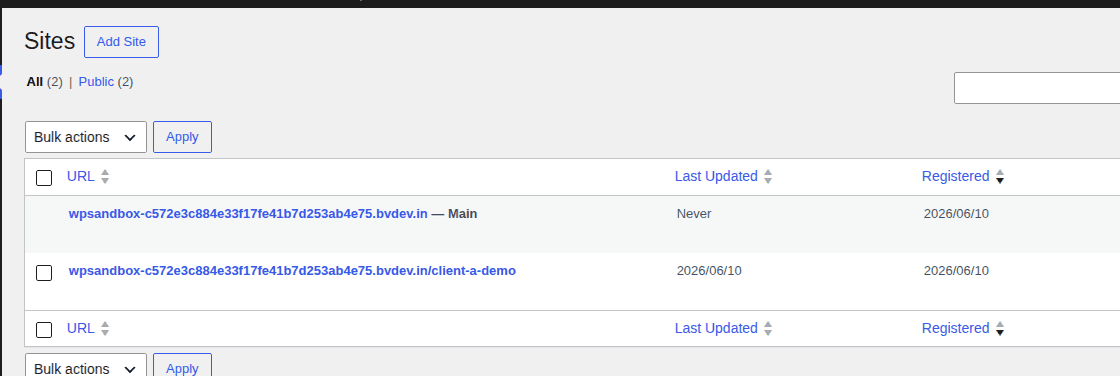
Change the subsite Site Address URL
Change the WordPress setting only after DNS and hosting are ready.
- Go to My Sites > Network Admin > Sites.
- Find the subsite you want to map and select Edit.
- In Site Address (URL), replace the network URL with the custom domain.
- Use the full URL with https:// when SSL is ready or will be issued right away. Save the change.
- Test this domain before mapping the next one.
If SSL is not ready yet, HTTPS may show a browser warning until the certificate is issued. That does not always mean the WordPress mapping is wrong, but it does mean the setup is not ready for visitors.

Add SSL for the mapped domain
Every mapped domain needs valid SSL coverage. Include the www version if visitors or admins will use it.
Modern servers support SNI, which means many HTTPS domains can share one IP address. You do not need to understand the server feature deeply. The practical meaning is that your host can usually issue certificates for several mapped domains on the same multisite server.
Managed hosts often issue certificates automatically after DNS points correctly. On a VPS or self-managed server, you may use Let’s Encrypt, Certbot, your control panel, or a CDN-managed certificate. Check that the certificate covers:
- client-a.com
- www.client-a.com, if used
- any other hostname that should load the subsite
For many unrelated domains added over time, separate certificates are often easier to manage than one large certificate containing every domain in the network.
Also check redirect rules. Do not force every mapped domain back to the primary network domain. That defeats the purpose of mapping and can break admin flows; if a redirect keeps winning, troubleshoot it like a WordPress redirect not working problem.
Test the mapped domain like you will use it
A working homepage is not enough. Test the parts that usually fail, ideally in WordPress multisite staging before repeating the same change on production. Check the mapped domain this way:
- open the homepage
- open at least one internal page
- test both www and non-www versions if both are configured
- confirm HTTPS loads without a browser warning
- log into the subsite dashboard from the mapped domain
- create or edit a draft post or page
- confirm the primary network site still works
- confirm other subsites still work
- confirm the mapped domain does not redirect to the primary domain
- confirm canonical URLs use the mapped domain
Success should look boring: the mapped domain loads, HTTPS is valid, the dashboard works, and the rest of the network behaves as before.
Fix common mapping problems
Troubleshoot by layer. Random changes make domain mapping harder to recover.
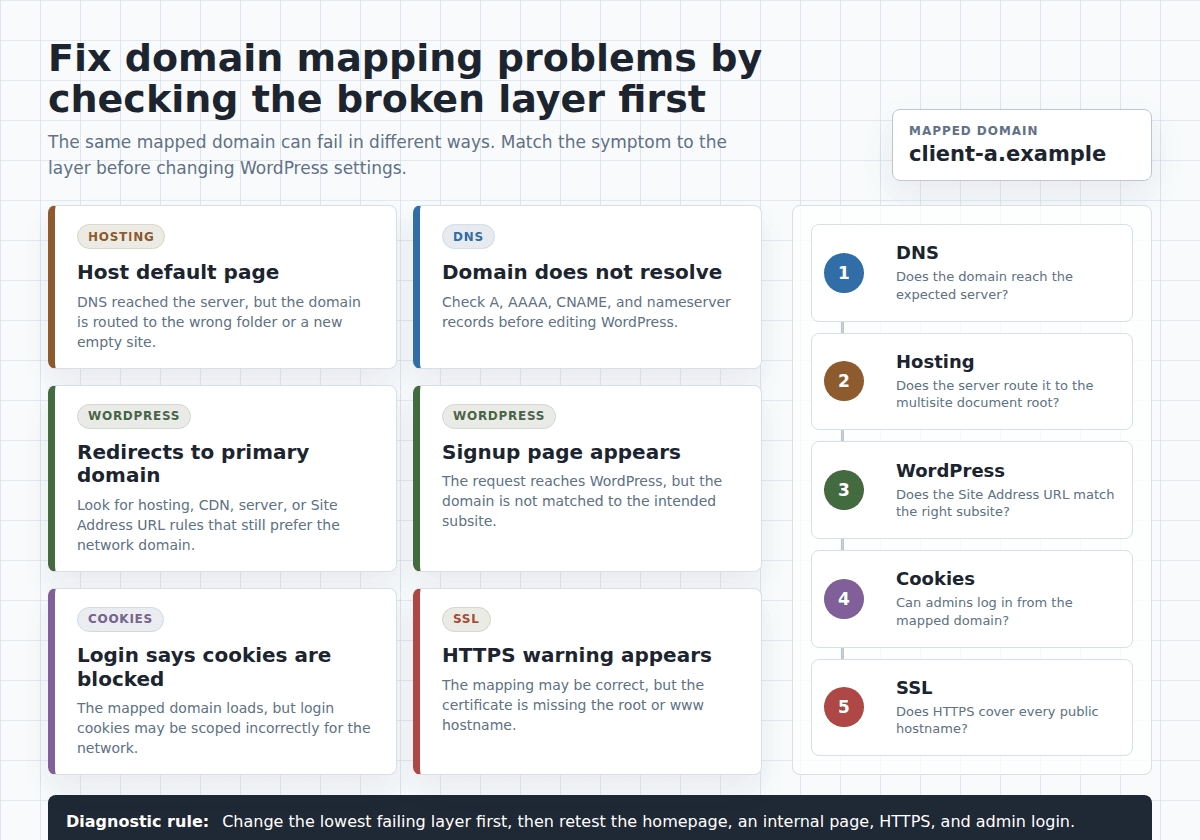
| Symptom | Likely cause | Check first |
|---|---|---|
| Domain shows a host default page | Host routing points to the wrong folder | Domain alias, addon domain, or server document root |
| Domain does not resolve | DNS is wrong or still updating | A, AAAA, CNAME, or nameserver records |
| Domain redirects to the primary network domain | Redirect rule or WordPress URL mismatch | Hosting redirects, CDN rules, server rules, and Site Address URL |
| WordPress shows a signup or registration page | WordPress does not recognize the domain as a mapped subsite | Subsite Site Address URL |
| Login says cookies are blocked | Login cookies are scoped badly for the mapped domain | Cookie domain setting in WordPress config |
| HTTPS warning appears | Certificate is missing or incomplete | SSL coverage for root and www |
| Dashboard still uses the old URL | Stored URL or cached redirect is stale | Network Admin settings, cache, and database values |
The pattern matters more than the table. If the domain shows a host default page, DNS may already be correct. The host is probably sending the domain to a new empty folder instead of the multisite document root. If the domain redirects to the primary network domain, check redirects outside WordPress first. Hosting panels, CDN rules, Apache rules, Nginx config, and old migration rules often cause this.
If login fails with a cookie error, the official WordPress fix is to set an empty cookie domain in wp-config.php:
define( 'COOKIE_DOMAIN', '' );Backup first, add the line carefully, then clear browser cookies for the affected domains. If you are not comfortable editing WordPress config files, ask your host or developer to do it.
If Network Admin looks correct but routing still fails, a developer may need to inspect multisite database values such as wp_blogs, wp_site, and the subsite options rows. Do not start there unless you have a backup and know what you are changing. If production is already broken, follow a website recovery workflow or restore from a recent BlogVault backup instead of experimenting on the live network.
Know when a plugin is actually needed
For normal WordPress Multisite Domain mapping, you usually do not need a domain mapping plugin. WordPress 4.5 and newer support native mapping for subsites. A plugin may make sense for nearby but different jobs:
- mapping domains to individual pages, posts, or products
- running microsites from one single WordPress site
- showing domain-specific content rules
- managing unusual aliases that are not one-domain-per-subsite mapping
Do not use a plugin to avoid DNS, hosting, or SSL work. A plugin cannot point a domain to the right server, choose the document root, or issue a missing certificate. If the real job is moving a subsite into its own standalone install, choose a WordPress migration tool instead of treating domain mapping as a migration shortcut.
Final checklist before you call it done
Before handing the site back to a client or announcing the new domain, confirm:
- DNS resolves to the correct server
- hosting routes the custom domain to the multisite document root
- the subsite Site Address URL uses the mapped domain
- SSL is valid for the mapped domain
- www and non-www behave as intended
- login works from the mapped domain
- subpages load without redirect loops
- canonical URLs use the mapped domain
- the primary network site still works
- other subsites still work
- backup restores have been tested before the change window
- a fresh backup exists after the successful change
Keep the same safety workflow for future domains. Back up the network, test where possible, change one mapped domain at a time, and verify login before moving on.
Conclusion
WordPress Multisite Domain mapping is safest when you treat it as a four-layer job: DNS, hosting, WordPress, and SSL.
Get those layers in order, keep a database-level rollback path ready, and the mapped domain should feel uneventful for both visitors and admins. That is the goal. Domain mapping should not feel clever when it is finished; it should feel boring.
FAQs
Do I need a plugin for WordPress Multisite domain mapping?
No. In modern WordPress Multisite, you usually do not need a plugin for standard one-domain-to-one-subsite mapping. You can change the subsite’s Site Address (URL) in Network Admin, as long as DNS, hosting, and SSL are configured correctly.
What should I set up first before changing the subsite URL?
Set up DNS and hosting/server routing first. The custom domain must already point to the same multisite installation before you update the subsite URL in WordPress. If you change the WordPress URL too early, you can cause redirects, SSL warnings, or login problem.
Why is my mapped domain showing the host default page instead of the subsite?
This usually means DNS is reaching the server, but the domain is routed to the wrong folder. Check your hosting settings and make sure the custom domain points to the same document root as the multisite installation, not to a new empty directory.
Why can’t I log in to the mapped subsite after domain mapping?
The most common causes are SSL issues and cookie scope problems. First confirm the SSL certificate is valid for the mapped domain. If login still fails with a cookie-related error, you may need to set this in wp-config.php: define( ‘COOKIE_DOMAIN’, ” );
How do I know if domain mapping is the right choice?
Domain mapping is the right choice when each custom domain should load its own subsite inside the same multisite network. If the sites need separate ownership, billing, security, or future migration flexibility, separate WordPress installs are usually the better option.

Shivani enjoys crafting guides that make every aspect of using WordPress simple and easy to follow. When she's not glued to her laptop, you can find her buried in a good book or occasionally, painting.