Finding the right table plugins for WordPress shouldn’t be a headache, but we know it usually is.
After you move on from the default editor, your search almost always ends with two top contenders.
So, if your debate today is Ninja Tables vs TablePress, we’re going to give you the clear breakdown you need to choose with confidence.
Choose Ninja Tables for visual design and TablePress for powerful data management. Before installing either, make sure you use a backup plugin to keep your site safe.
Ninja tables vs TablePress: Key features overview
Here’s how they stack up for us, based on hands-on experience with both plugins.
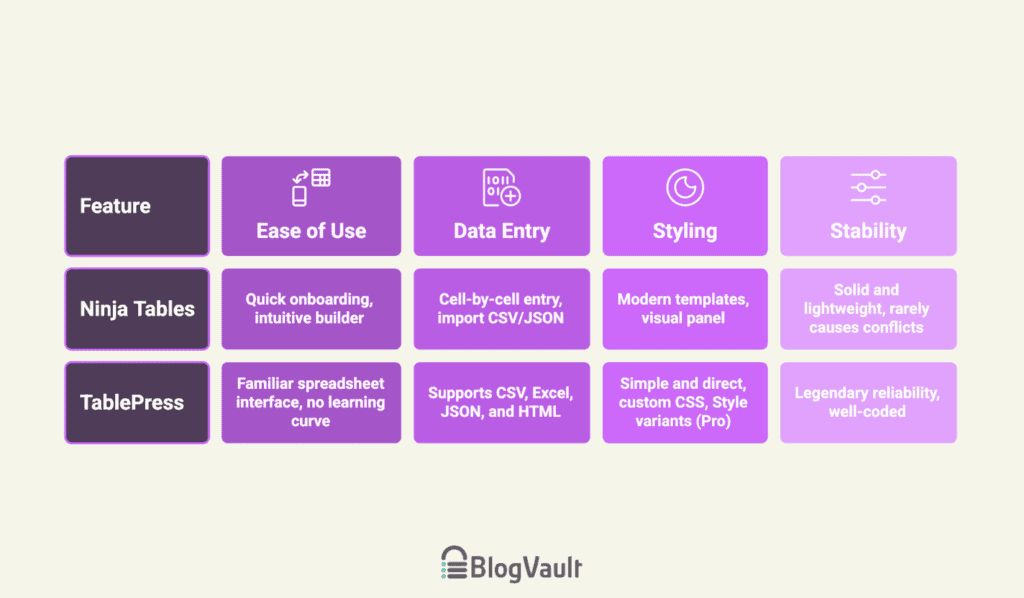
Which is easier to work with?
When we use Ninja Tables, the onboarding guide and templates get us started quickly. The visual, drag-and-drop builder feels modern and intuitive.
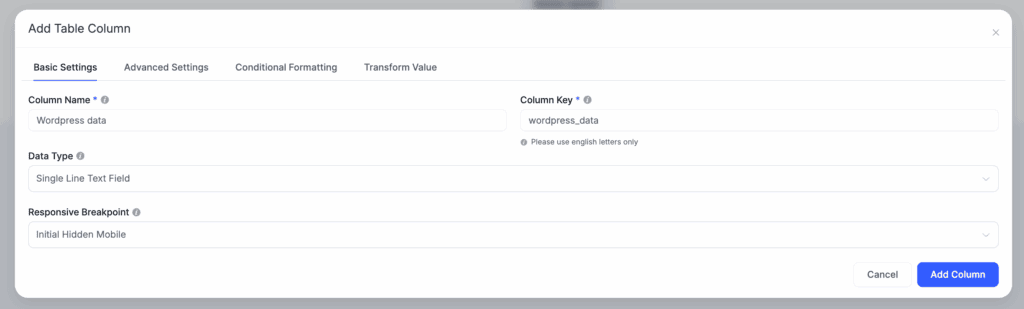
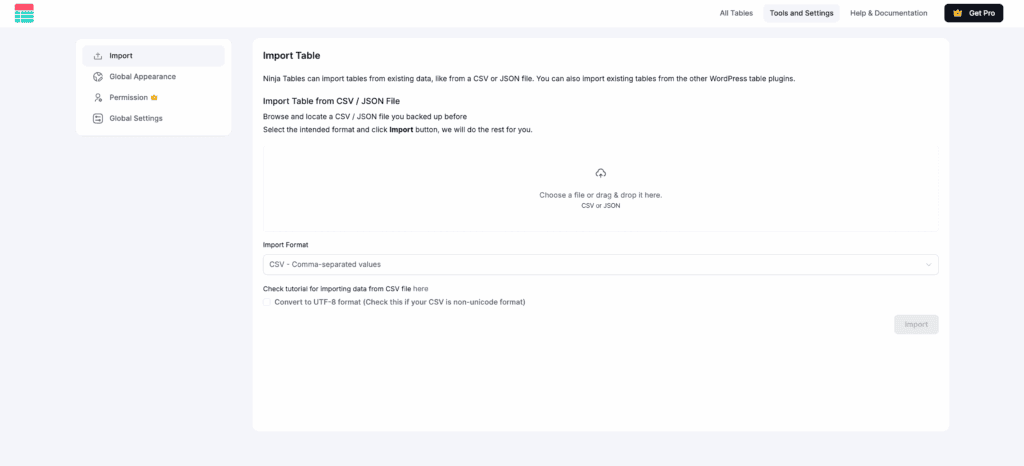
The minor frustration we have with it is data entry. You have to fill in one cell at a time. You can’t just copy and paste a table from a spreadsheet, which can be a huge time sink. To get around this, you have to import your data using a CSV or JSON file instead.
With TablePress, we feel right at home. It looks and feels like a simple spreadsheet, so there is no learning curve. We find adding and editing text is incredibly fast. We use its bulk actions and row dragging all the time to manage data.
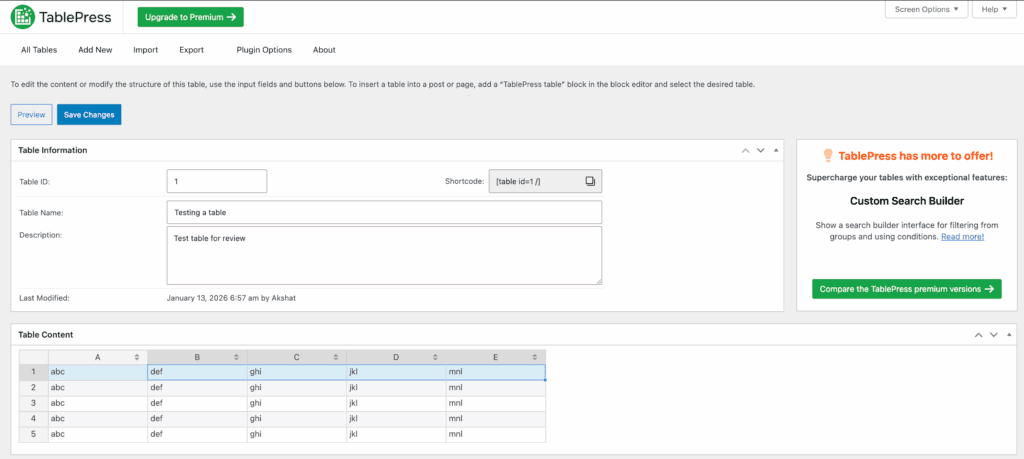
The catch is that you are working blind. There is no visual builder, so we are constantly flipping to the preview tab to see how it looks. Both plugins have dedicated blocks that work well in the block editor.
Styling and appearance control
Ninja Tables is our go-to for styling. It offers modern templates and a visual panel to change colors and fonts without code, which reduces the risk of causing the dreaded white screen of death.
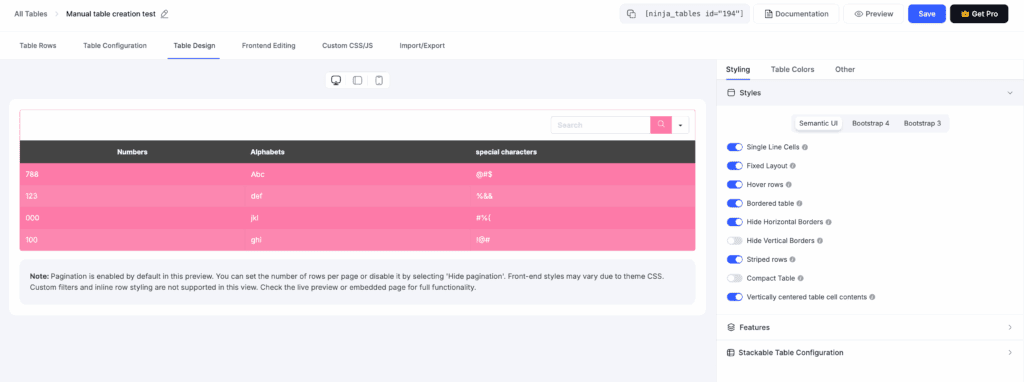
The workflow uses a shortcode, so you’ll keep hitting Preview to see your changes. While the visual options are great, deep customization still requires custom CSS. Always make a full site backup before you start coding.
TablePress keeps styling simple and direct. The free version offers a clean, minimal design, which means we typically use custom CSS for brand-specific customizations. While its Pro version adds a visual styler, the free plugin is built for users who prefer to handle styling with code.
Stability and reliability
In our experience, Ninja Tables is a solid and lightweight plugin. It’s optimized for speed and rarely causes plugin conflicts, with its Pro version using AJAX lazy loading to manage large tables effectively.
However, TablePress is legendary for its reliability. It’s extremely well-coded, always up to date, and has never caused us any problems.
It’s also remarkably efficient, handling thousands of rows of data with minimal impact on your site’s performance.
Cost breakdown and value
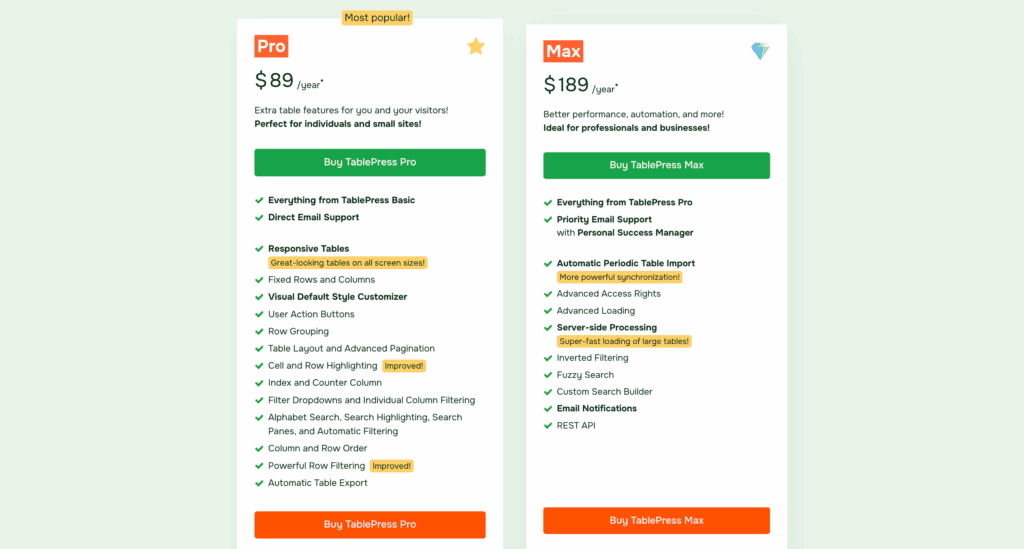
We have found that the free version of TablePress is incredibly useful. We can manage large datasets and import CSV files without paying for a license. We typically only upgrade to Pro for advanced styling or the lifetime purchase option, which we think is a fantastic value. This is a reliable tool to use when you build a website from scratch.
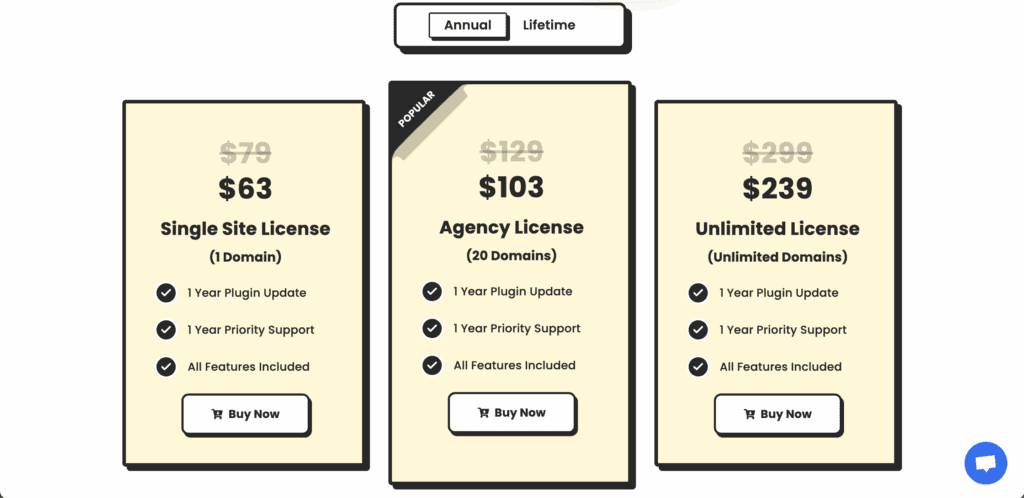
The free version of Ninja Tables feels much more like a trial. Key features users want, like sorting and filtering, are locked behind the Pro subscription. We see its value in the dynamic, interactive tables we can build with a paid plan.
It’s crucial, however, to check for compatibility with your caching plugin, as dynamic content can sometimes be tricky. When a project needs that visual flair, we build the subscription cost into the budget from the start.
Advantages and drawbacks
Let’s boil it all down to a simple list of pros and cons.
Ninja Tables advantages:
- Superior visual design and interactive features.
- Direct Google Sheets and WooCommerce integration (Pro).
- An easier styling workflow if you don’t write code.
Ninja Tables drawbacks:
- Core interactive features require a Pro upgrade.
- Manual data entry is a pain for large tables.
TablePress advantages:
- Unmatched data management, especially with CSVs, for free.
- Extremely stable, reliable, and efficient. We trust it completely.
- A very simple learning curve for basic tables.
TablePress drawbacks:
- Requires CSS or a Pro license for any serious styling.
- The interface looks and feels dated.
Which one should you pick?
To cut through the noise, here’s how to decide which one to use.
Pick Ninja Tables if…
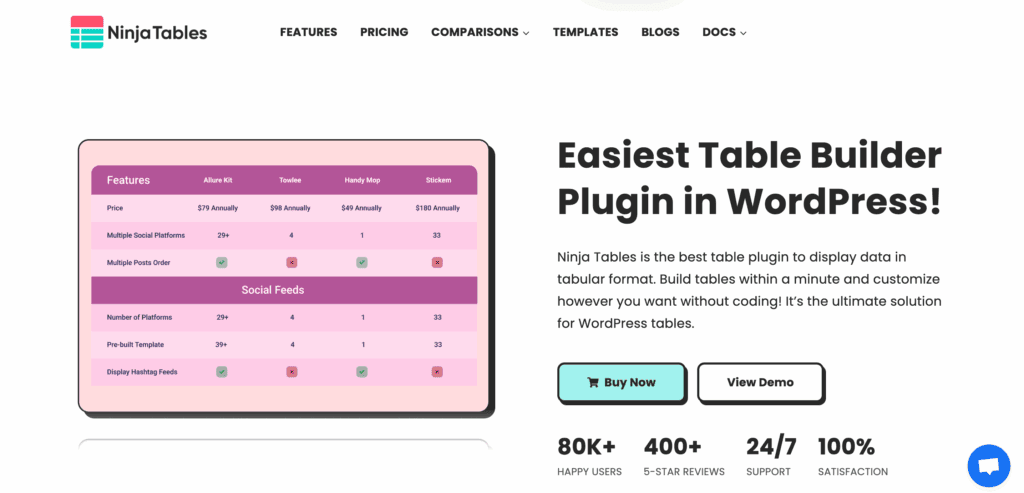
- Your main goal is a visually impressive, interactive table for things like pricing pages, feature comparisons, or product catalogs.
- You need users to be able to sort, filter, or search the table on your website and have the budget for the Pro version.
- You prefer a visual, no-code workflow for styling and are not comfortable writing CSS.
Pick TablePress if…
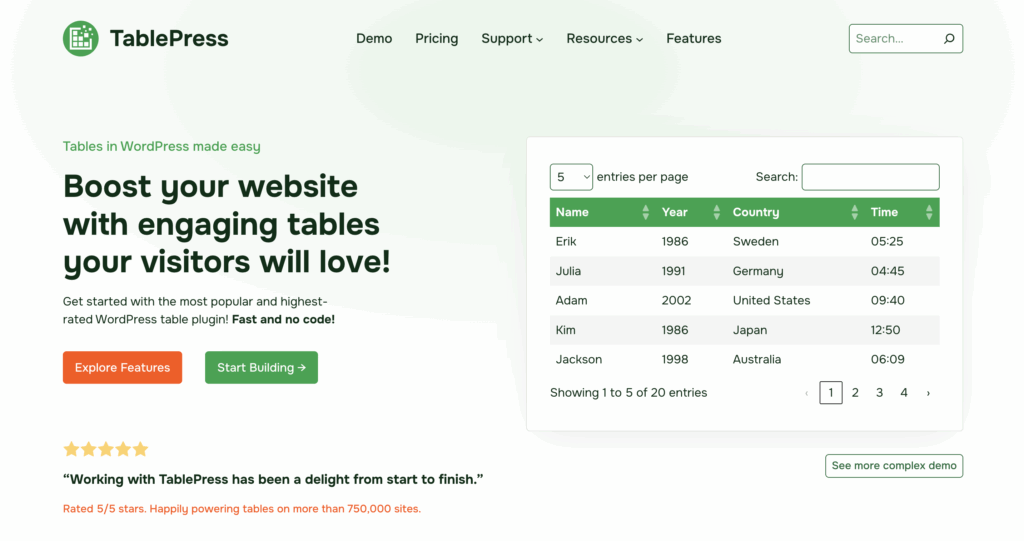
- Your priority is managing and displaying large sets of data for directories, technical specs, or schedules.
- You need the most efficient way to import and manage data from a spreadsheet (like a CSV file) in WordPress.
- Long-term stability, a powerful free version, and the option for a lifetime payment are your most important factors.
If you are still on the fence, do what we did. Install both free versions on a staging site. Spend half an hour with your real data in each one. You will know which workflow feels right for you almost immediately.
Other alternatives to consider
While we use one of these two for 90% of our projects, there are a few other tools we use in special situations.
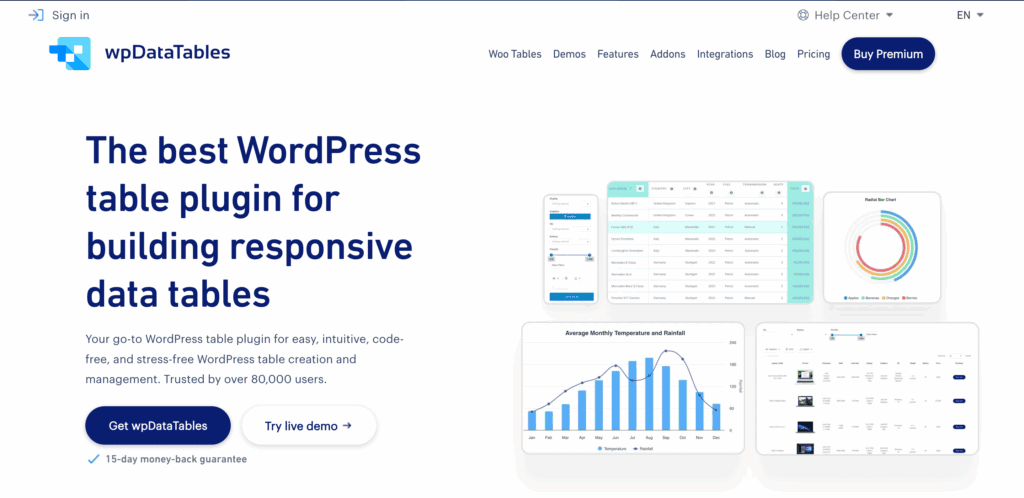
wpDataTables: We bring this out for massive, database-driven tables that need to be live-updated. It’s powerful but often more than we need.
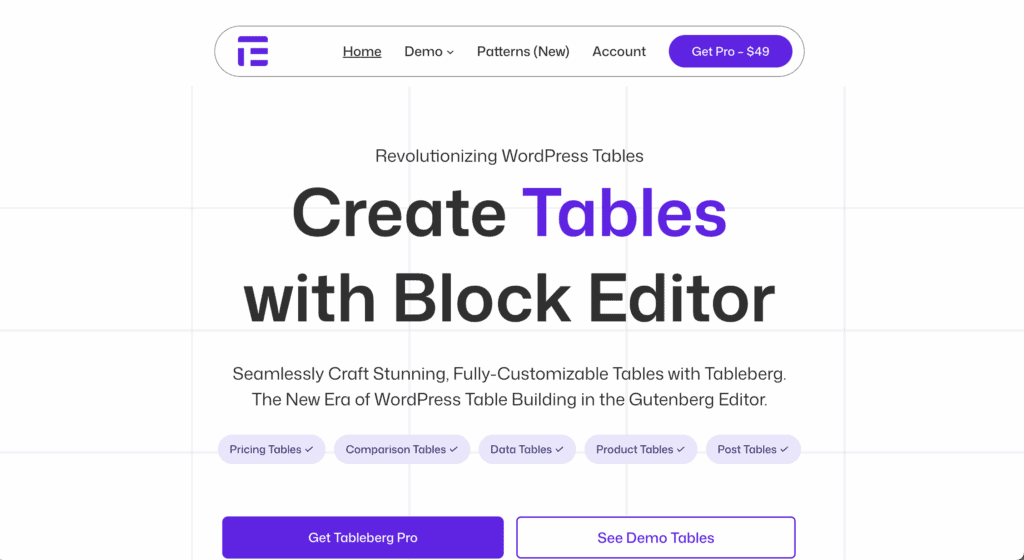
Tableberg: This is a great little plugin for those who love the Gutenberg editor. We use it for simple tables that need to be edited directly on the page.
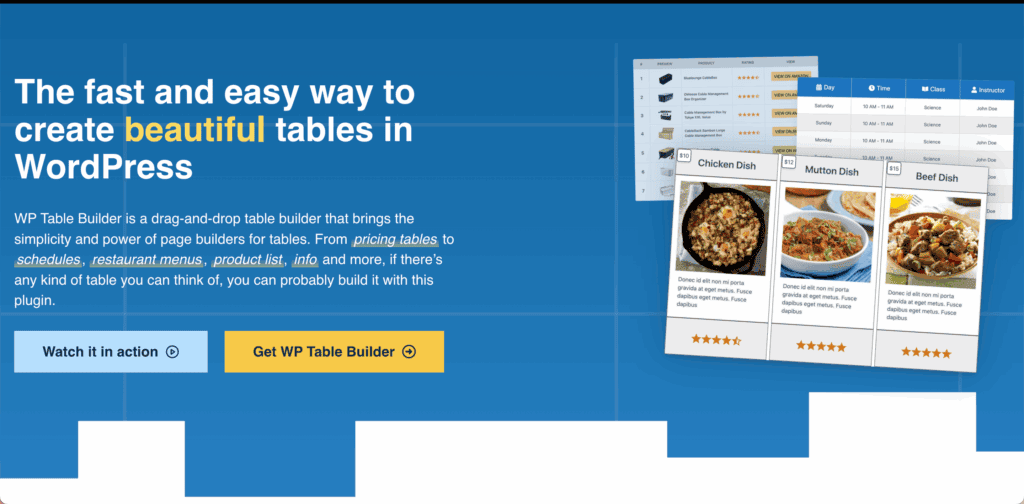
WP Table Builder: We recommend this to users who are new to WordPress. Its drag-and-drop builder is possibly the most beginner-friendly option available.
Parting thoughts
Our experience has taught us that the “better” plugin is the one that causes you the least amount of trouble. Your primary need is the deciding factor: choose Ninja Tables for visual design and TablePress for data management.
Before you install either one to test, be sure to take a full site backup. The best tool is always the one that fits your personal workflow.
FAQs
What is the difference between Ninja tables and TablePress?
The main difference is that Ninja Tables is a visual builder focused on design, while TablePress is a data manager focused on backend spreadsheet control. Choose Ninja Tables for aesthetics and interactivity; choose TablePress for handling large datasets efficiently.
What is the best table plugin for WordPress?
The best table plugin depends on your needs; Ninja Tables is best for visually impressive tables, while TablePress is best for reliable data management. There is no single “best” plugin, so the right choice depends entirely on your project’s priorities.
Is TablePress free?
Yes, TablePress has a very powerful free version that covers almost all essential data management and import features. A Pro version is available for advanced styling and priority support.
Is Ninja table free?
Yes, Ninja Tables has a free version, but it is functionally limited and best seen as a trial for the interface. Core features like frontend sorting, filtering, and advanced integrations require a Pro upgrade.
How to use Ninja tables in WordPress?
You use Ninja Tables by installing the plugin, creating a table with its visual editor, and adding it to a page with its block or shortcode. The process involves designing columns, entering data, and customizing the appearance before publishing.

Shivani enjoys crafting guides that make every aspect of using WordPress simple and easy to follow. When she's not glued to her laptop, you can find her buried in a good book or occasionally, painting.