You probably came here because you need to change something now: a sentence on your homepage, a button link, a menu item, an image, or the header logo. Then WordPress shows you Pages, Posts, Appearance, Editor, Customize, widgets, templates, and maybe Edit with Elementor. Suddenly the simple edit has too many doors.
That is why learning how to edit wordpress site content is less about finding one button and more about choosing the right place to make the change. Once you know what controls the part you want to edit, WordPress gets much easier.
Edit normal page and post content from Pages or Posts. Edit site-wide design in Appearance > Editor for block themes, or Customize/theme settings for classic themes. Before important edits, use a backup plugin like BlogVault, test risky changes on staging, preview carefully, update, and check the live page after clearing cache if needed.
For a typo, image swap, or small text change, editing the live page is usually fine. For homepage redesigns, header or footer changes, template edits, plugins, checkout pages, forms, or code, create a backup first and use a staging site for design or code changes.
The quiet danger in WordPress is that two edits can look identical on screen but behave very differently underneath. Changing a button label in one page is not the same as changing a button style that every landing page inherits. The button is the visible part. The editing layer behind it is what decides the risk.
Pick the right place to edit
Most WordPress editing trouble starts when the change is made in the wrong layer. A paragraph belongs to a page. A header, footer, menu, template, or global color setting may affect many pages at once. Use this quick map before you change anything:
| What you want to change | Where to go | Risk | Use staging? |
|---|---|---|---|
| Page text, images, links, buttons | Pages > Edit | Low | Usually no |
| Blog post content | Posts > Edit | Low | Usually no |
| Homepage content | Pages, Appearance > Editor, or your builder | Medium | Yes for redesigns |
| Header, footer, menus | Appearance > Editor, Customize, Menus, or builder templates | Medium | Yes |
| Fonts and colors across the site | Styles, Customize, or theme settings | Medium | Yes for major changes |
| Elementor, Divi, or builder layouts | The same builder used to create the page | Medium | Yes for layout changes |
| CSS, PHP, JavaScript, theme files | Child theme, snippets plugin, or developer workflow | High | Always |
Here is the rule I use: if the change appears on more than one page, treat it as a design or template edit, not a simple content edit.
A template is a reusable layout. For example, your blog post template may control the title, featured image, author name, and content area for every post. If you change that template, you are not changing one post. You are changing the layout used by many posts.
This is where beginners often get fooled. WordPress lets you edit content, design, templates, navigation, and code from the same dashboard, so every screen can feel like “the editor.” It is better to pause for ten seconds and ask, “Am I changing this one page, or the system that produces many pages?”
Prepare before you click Update
Small edits should stay simple. Still, take a minute to avoid the common mistakes that make a quick edit turn into cleanup work.
- Confirm your access: Log in at yourdomain.com/wp-admin. Editors can usually change content. Administrators can change themes, plugins, settings, and code. If access fails, fix the WordPress login issue before editing.
- Open the live page: Keep the current page open in another tab so you can compare before and after.
- Create a rollback point: backup your WordPress site before making changes that affect important pages, forms, sales pages, or layout.
- Use staging for risky work: Test homepage redesigns, templates, plugins, checkout pages, forms, and code in a WordPress staging environment away from the live site. For broader experiments, a separate WordPress testing environment keeps trial edits away from production.
- Know what cache you use: Cache stores an older version of a page so it loads faster. If your edit does not show, you may need to clear plugin cache, host cache, CDN cache, builder cache, or browser cache.
BlogVault is useful here because it gives you the safety layer before you edit: a backup, staging for bigger changes, and a restore path if something breaks. You do not need that for every comma change. You do need it when the page matters to traffic, sales, leads, or trust.
Edit a page or post
This is the path for the most common edits: changing words, replacing an image, fixing a link, updating a heading, editing a button, or adding a small section.
- Open the right content list: Go to Pages > All Pages for pages, or Posts > All Posts for blog posts.
- Find the item and open the full editor: Click Edit under the page or post title. Use Quick Edit only for small details like title, slugs or permalinks, status, date, author, category, or template.

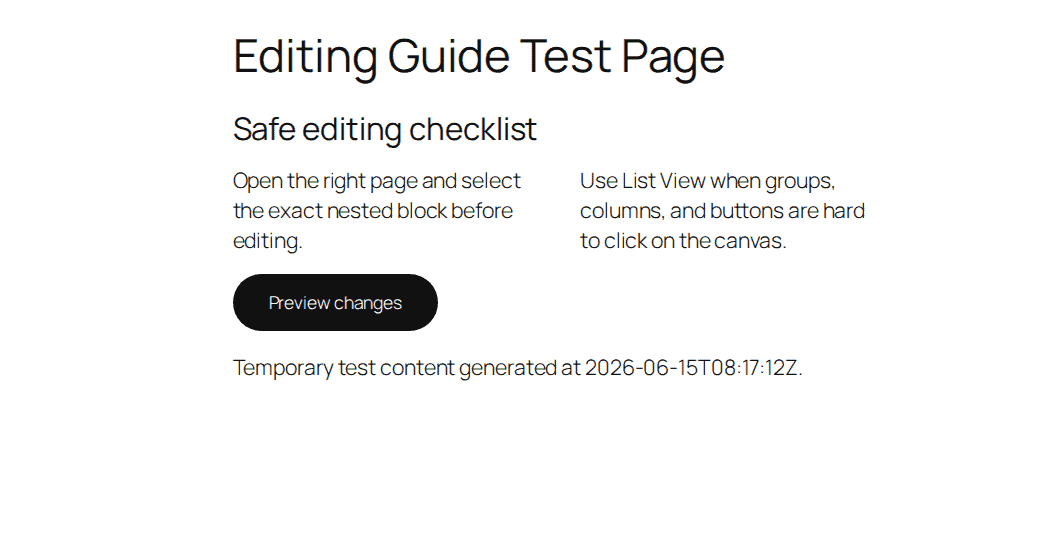
- Change the exact block: Click the text, image, button, heading, or section you want to edit. In the block editor, each paragraph, image, button, column, and group is a separate block.
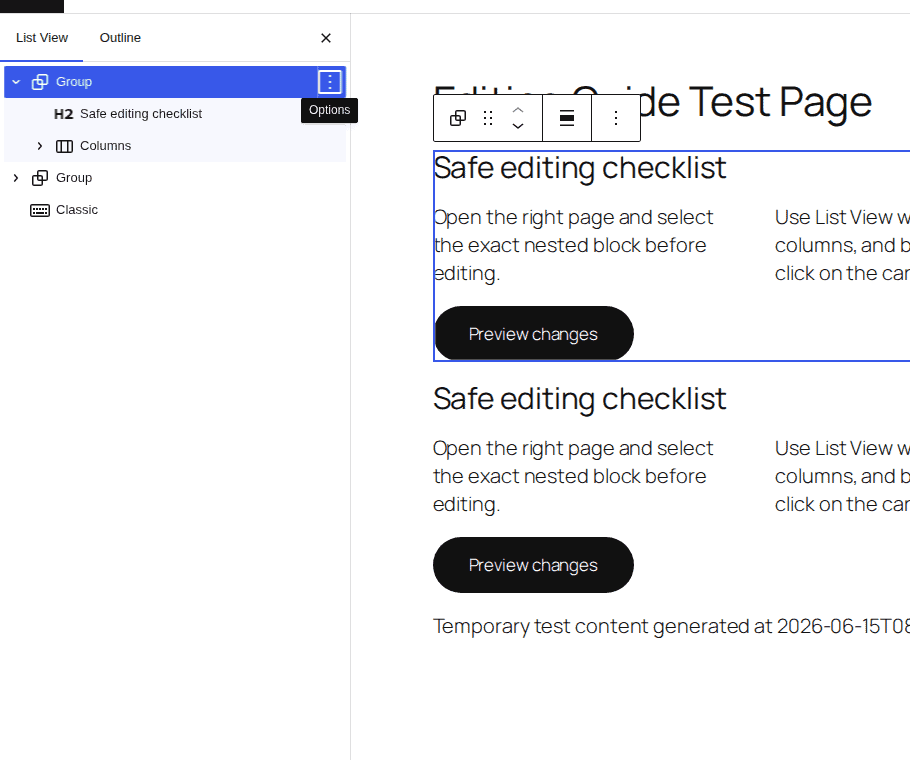
- Use List View when selection gets confusing: List View shows the blocks on the page in order. It helps when you keep selecting a group instead of the text or button inside it.
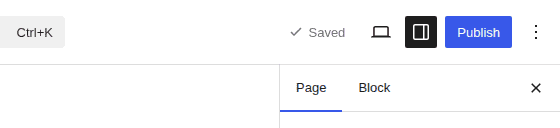
- Preview before publishing: Click Preview to check the page. Then click Update when the change is ready.
- Check the live page: Open the public page after updating. Test important buttons, links, forms, and mobile layout.
If you are building a similar layout, duplicate the page first and edit the copy.
You can also open the public page while logged in and use the top admin bar. If you see Edit Page or Edit Post, it takes you to the editor for that item.
If the page shows Edit with Elementor, Edit with Divi, or another builder button, use that builder for the page. Mixing the normal WordPress editor with a builder can create layout surprises on older or heavily customized pages.
Edit the homepage
The homepage deserves care because WordPress can control it in more than one place. First check what kind of homepage you have.
- Check the homepage setting: Go to Settings > Reading. If a static page is selected as the homepage, edit that page under Pages.
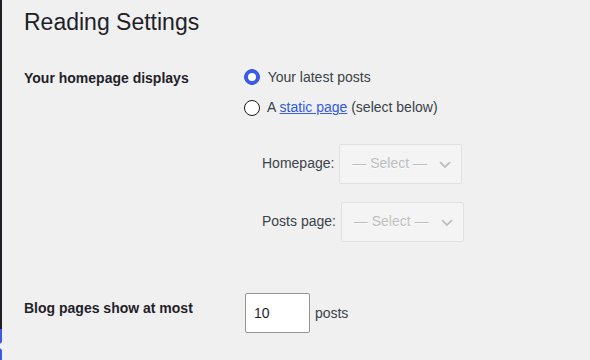
- Edit page content only when that is all you need: Text, images, buttons, and sections often live in the homepage page editor.
- Use the Site Editor for template-controlled homepages: In a block theme, go to Appearance > Editor if the homepage layout comes from a template.
- Use the builder if the homepage was built with one: Elementor, Divi, Beaver Builder, Bricks, and similar tools have their own editing screens.
- Test large homepage changes on staging: The homepage is usually your most visible page. Do not attempt a WordPress website redesign on the live site unless you are comfortable fixing it in public.
If you change a homepage template, you may affect more than the homepage. Check the save screen carefully. WordPress may be saving template, style, and navigation changes at the same time.
This is also why homepage edits deserve a little more caution than an About page typo. The homepage often carries your main message, navigation path, tracking scripts, forms, and campaign traffic. A broken hero section is not only unappealing. It can quietly stop leads while everyone is looking at the editor and thinking the change is almost done.
Edit the header, footer, menus, fonts, and colors
These are global edits. Global means the change can show across the site, not just on the page you are viewing.
For block themes, use Appearance > Editor. In our WordPress 6.9.4 test site using the Twenty Twenty-Five block theme, this is where WordPress exposed site-wide editing.
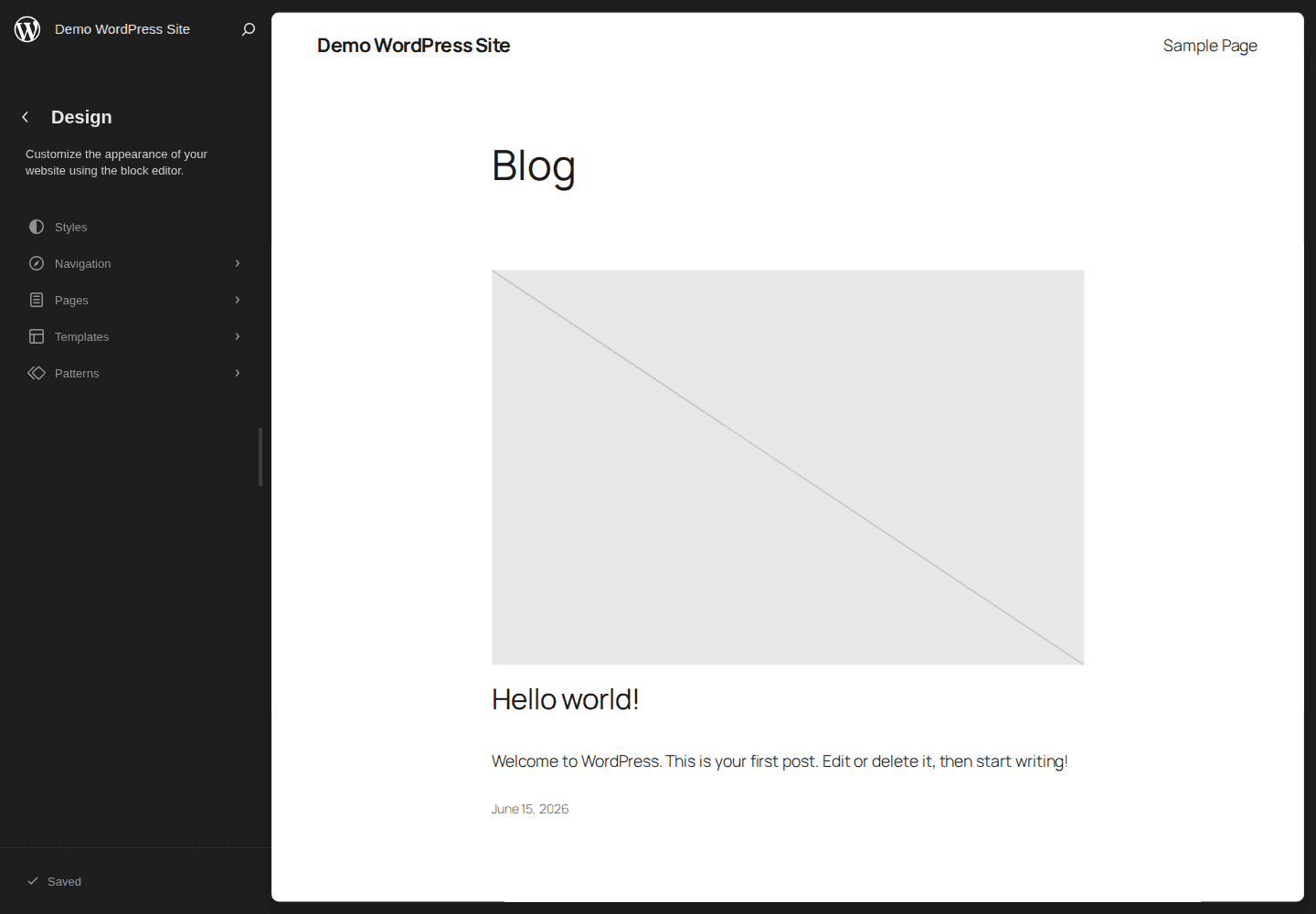
- Edit navigation from the Site Editor: Use this for menus and links that appear in the header.
- Edit headers and footers as template parts: A template part is a reusable section, such as a header or footer.
- Edit fonts and colors in Styles: Styles control broad design choices across the theme.
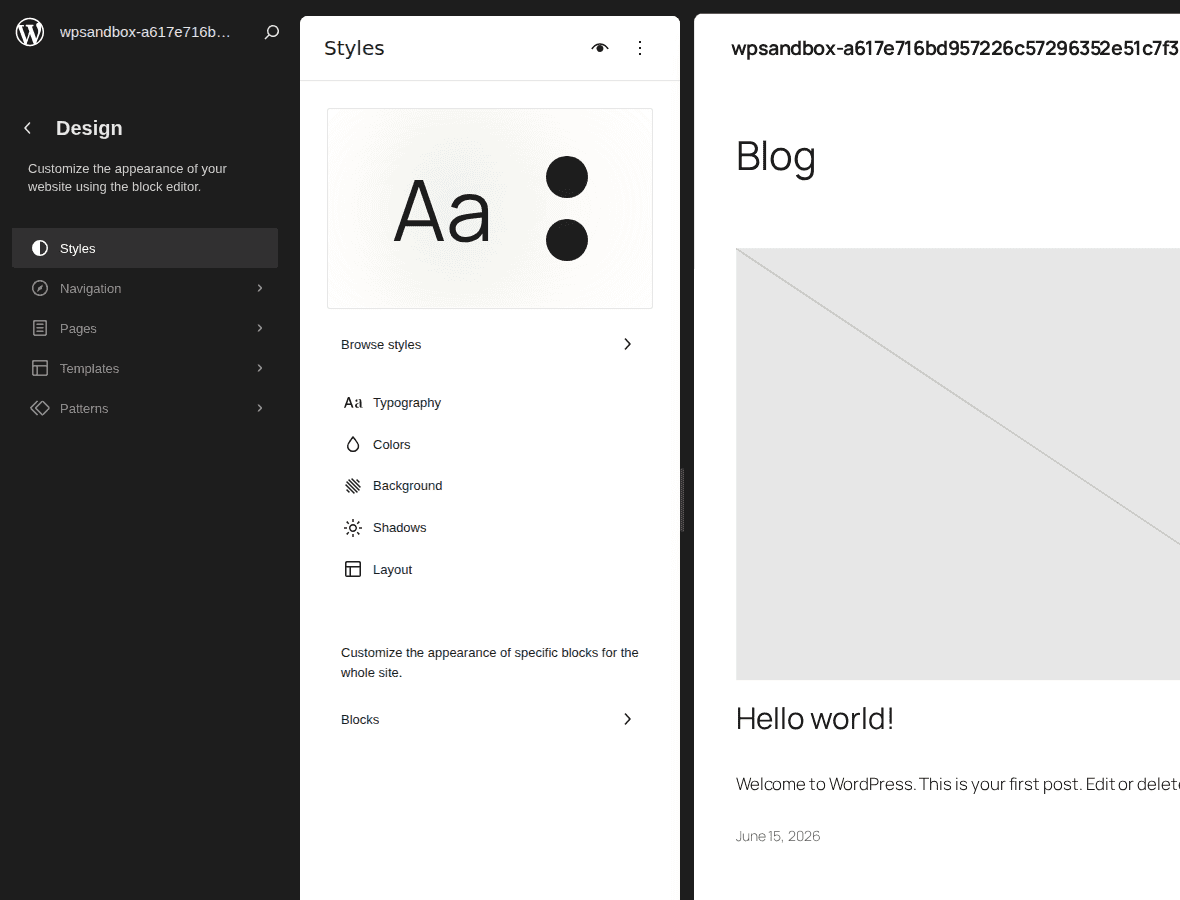
- Review the save panel: WordPress may list several changes. Save only what you mean to save.
For classic themes, Appearance > Editor may not exist. Look for Appearance > Customize, Menus, Widgets, or a theme settings panel. Some classic themes put the logo in the Customizer, footer columns in widgets, and colors in theme options. If this is part of a larger theme change, review how to switch WordPress themes before changing global design settings.
Global design edits have a multiplier effect. One wrong color choice may only look bad. One wrong navigation change can make pricing, contact, login, or support pages harder to reach across the whole site.
Edit an Elementor or page-builder site
A page builder is a separate layout tool inside WordPress. Elementor, Divi, Beaver Builder, Bricks, and Oxygen can control page sections, columns, widgets, headers, footers, and post templates.
Use the builder when the page was built with that builder.
- Open the builder from the page list: Go to Pages, find the page, and click the builder edit option.
- Edit builder elements inside the builder: A builder button may not be a normal WordPress button block. A builder header may not be your theme header.
- Avoid adding a builder for one small setting: If you only need a color, spacing, or font change, check the theme settings first. A builder adds another system to maintain.
- Clear cache when changes do not show: Elementor sites may also need regenerated CSS or data. CSS is the styling code that controls visual details like spacing, colors, and layout.
Use staging for builder redesigns, responsive layout changes, and builder-controlled templates. A small copy edit is routine. A rebuilt landing page should be tested before visitors see it.
Builders are not bad. They are just another layer. They are the right tool when the page already depends on them, but a poor quick fix when the real problem is one theme setting or a small CSS rule. Adding a builder to solve one spacing problem can leave the next person maintaining an entire layout system they did not need.
Edit WordPress code safely
WordPress is not one folder of simple HTML files. Content is stored in the database. Layout comes from themes, templates, blocks, and builders. Behavior can come from plugins, theme functions, custom code, or the server.
That is why “edit the source code” can mean several different things.
| What you need to edit | Safer starting point | Avoid |
|---|---|---|
| Add a small HTML embed | Custom HTML block | Editing theme files for page content |
| Change simple CSS | Additional CSS, global styles, or child theme CSS | Scattered inline styles |
| Add a tracking script | A header/footer script tool or tag manager | Pasting scripts into random page blocks |
| Add a PHP snippet | Snippets plugin or small custom plugin | Editing parent theme functions directly |
| Change a theme template | Child theme or block theme template on staging | Editing parent theme files on the live site |
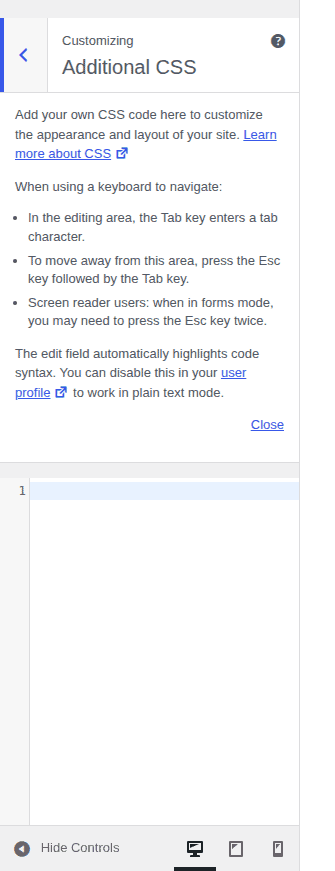
PHP is the server-side code WordPress uses to run themes, plugins, and site behavior. If you are touching PHP, checkout, membership logic, login pages, forms, WooCommerce templates, or anything that takes payments or leads, involve a developer.
Do not edit parent theme or plugin files for quick fixes. WordPress updates can overwrite those changes, which is why theme edits need extra care when you update a WordPress theme without losing customization. If code is involved, your first job is not writing the code. Your first job is knowing how you will recover if the code is wrong.
The expensive mistake is not usually the bad line of code. It is making that change on production with no clean backup, no staging test, and no memory of which file was edited. A five-minute tweak can become a two-hour recovery job if there is no rollback plan.
Fix edits that are missing or blocked
If WordPress will not let you edit something, stop guessing and identify what controls it.
- Check your login and role: If you do not see the dashboard or admin bar, log in. If you cannot access theme or plugin settings, you may not be an Administrator.
- Check whether you opened the wrong editor: A homepage may be a page, a template, or a builder layout.
- Check whether the content is global: Headers, footers, menus, templates, and synced patterns may not be editable from the page body.
- Check your theme type: If Appearance > Editor is missing, your site may use a classic theme. Try Customize, Menus, Widgets, or theme options.
- Check WordPress.com limits: Some WordPress.com plans restrict plugins, themes, and code access.
- Check cache: Open a private browser window, clear cache, and test again.
- Check builder output: Builder changes can fail to show until builder CSS or cache is refreshed.
- Check conflicts on staging: If you need to disable plugins or switch themes to test, do it on staging first.
When an edit is missing, the problem is often not that WordPress ignored you. It is usually that the visible part belongs to a different editor than the one you opened.
Work backward from the visible page. Is the text inside the page body? Is it in the header? Is it reused on many pages? Does the page show a builder edit button? Does the same issue appear when you are logged out in a private window? If the whole page goes blank, use a WordPress blank page checklist instead of guessing through every menu in the dashboard.
Verify the site after editing
The edit is not done when WordPress says Updated. It is done when the live site works.
- Check desktop and mobile: Layout problems often show up only on one screen size.
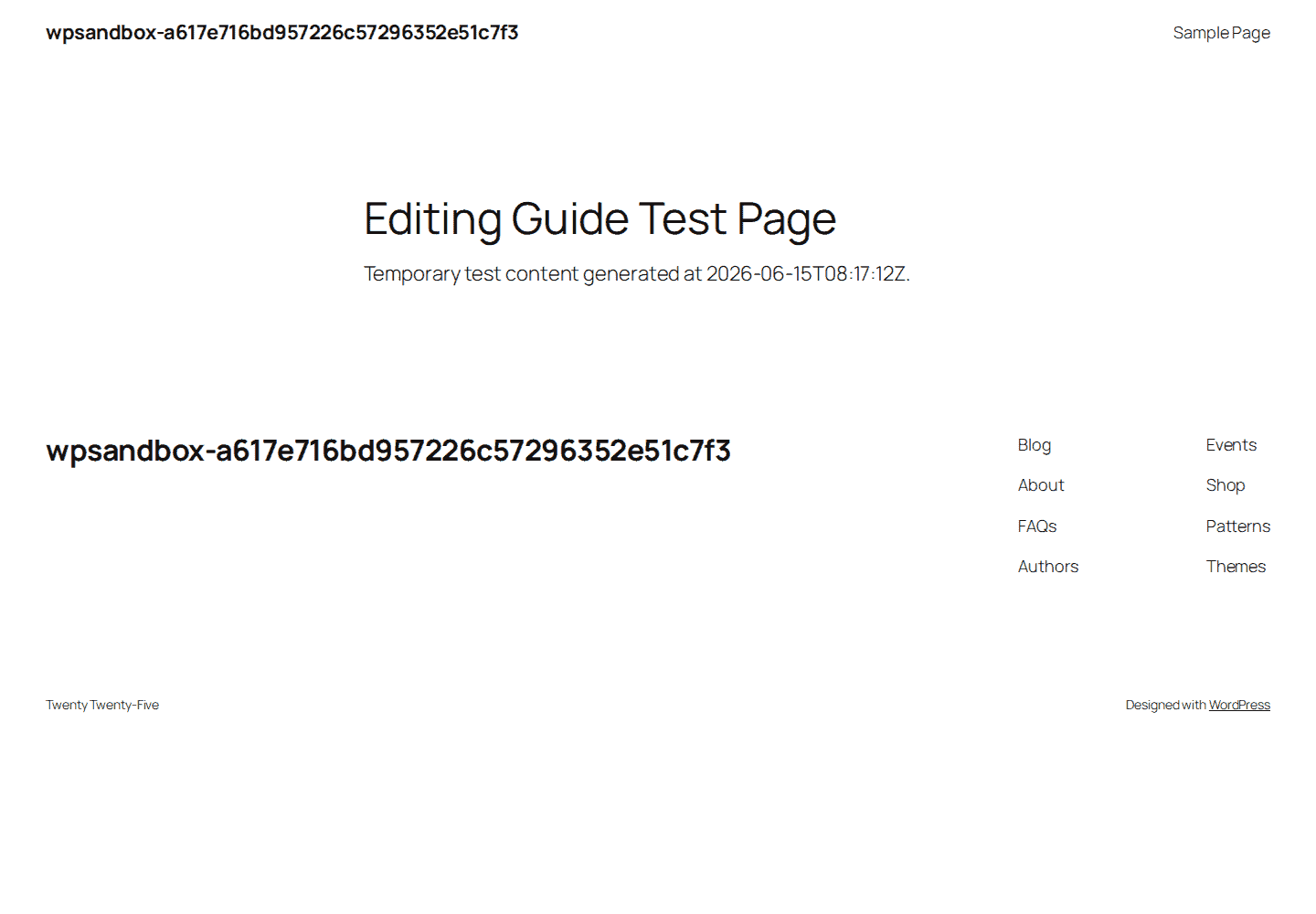
- Click important links and buttons: Do not assume a button still goes to the right place.
- Test forms and checkout if touched: Submit a test form or run the safest available checkout test.
- Review menus, header, and footer: Global areas can change more pages than expected.
- Check SEO-sensitive fields: Be careful with page titles, headings, slugs, and important links. A slug is the page URL ending, such as about-us.
- Clear cache and view logged out: Visitors may see a different version than logged-in admins.
- Keep the backup for a while: If something breaks later, a clean restore point saves time.
If an edit breaks the site and visitors are affected, restore your site if an edit breaks something first. Then diagnose the cause on staging. BlogVault’s restore workflow helps here because recovery should be fast, not a long search through yesterday’s clicks.
Do not debug a broken public checkout, contact form, or homepage while visitors are still hitting it. Put the working version back first. Then take your time finding the cause somewhere private.
Common mistakes to avoid
These mistakes cause most editing pain:
- Editing a template when you meant to edit one page
- Changing a builder page in the normal editor
- Skipping a backup before a business-critical edit
- Testing plugin, theme, or code changes on the live site
- Forgetting that cache can hide a correct update
- Changing a URL slug without checking links that point to it
- Removing a block, pattern, widget, or template part without knowing where else it appears
The main skill is not memorizing every WordPress screen. It is knowing whether you are editing content, design, a builder layout, or code.
Conclusion
To edit a WordPress site safely, start with the type of change. Use Pages and Posts for normal content, Appearance > Editor or Customize for site-wide design, the original builder for builder pages, and staging for code or high-risk layout work. That order keeps simple edits simple and keeps bigger changes from spilling onto the live site.
Before important edits, make a backup, preview carefully, update only what you mean to update, and check the public page after clearing cache. If the change affects money, leads, search traffic, or many pages, slow down and test it first. That is how you edit WordPress with confidence instead of hoping nothing breaks.
FAQs
How do I edit my WordPress site?
Log in at yourdomain.com/wp-admin, decide what kind of change you need, then open the matching editor. Use Pages or Posts for content, Appearance > Editor for block-theme design, Customize or theme settings for classic themes, and the original page builder for builder pages.
How do I edit my WordPress homepage?
Go to Settings > Reading to see which page is set as the homepage. If it is a normal page, edit it under Pages. If the layout comes from a template or builder, use Appearance > Editor or the builder.
How do I edit the header and footer in WordPress?
For block themes, go to Appearance > Editor and edit the header or footer template part. For classic themes, check Customize, Menus, Widgets, or theme options. For builder-controlled sites, use the builder’s theme template area.
Why are my WordPress edits not showing?
The common causes are cache, editing the wrong page or template, forgetting to click Update, builder CSS not refreshing, or viewing a different logged-out version. Confirm the edit, clear cache, open a private window, and then check the template or builder layer.
Can I edit WordPress source code?
Yes, but do it carefully. Use Additional CSS for simple styling, a child theme or snippets plugin for code changes, and staging before editing PHP, templates, checkout, forms, or plugin behavior. Avoid editing parent theme or plugin files because updates can overwrite your work, and scan unfamiliar themes or snippets for malicious code before trusting them.

Shivani enjoys crafting guides that make every aspect of using WordPress simple and easy to follow. When she's not glued to her laptop, you can find her buried in a good book or occasionally, painting.